Building a WhatsApp AI Order Assistant with Voice Message Support Using n8n: A Hands-On Tutorial

Build a WhatsApp AI Agent in n8n that handles both text and voice messages using Switch routing and Groq Whisper transcription.
This tutorial walks through building a WhatsApp AI Agent in n8n from scratch — one that handles both text and voice messages. It covers obtaining Meta developer credentials, connecting an AI Agent powered by Groq with Simple Memory, and using a Switch node to route voice messages through a Download Media → HTTP Request (Groq Whisper STT) pipeline before passing the transcript to the Agent. Real-world errors around Bearer token formatting, token mix-ups, and Meta Access Token expiration are documented in full.
Why Your WhatsApp Bot Needs to Understand Voice Messages
When building WhatsApp automation for customer service, one question comes up repeatedly: what happens when a customer places an order by voice message instead of text? Most beginner chatbots can only read text — the moment a voice order comes in, the whole system breaks down. This tutorial comes from a content creator focused on n8n automation, and its core goal is to fill that gap: building an AI Agent on n8n that can both reply to text messages and understand and parse voice messages received through the Meta (WhatsApp) channel.
The author repeatedly emphasizes a simple business logic throughout: the more convenient you make things for your customers, the higher your chances of closing a sale. Sending voice messages is completely natural behavior — your bot needs to adapt to your customers, not the other way around. This is also the dividing line between a "simple chatbot" and a true "advanced Agent."
Starting from Scratch: Getting the Text Chatbot Working First
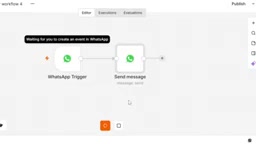
The entire workflow is built from a brand-new blank canvas. The first step is connecting WhatsApp. In n8n, create a new node, search for WhatsApp, and select the On Message trigger. This node listens for all incoming messages from Meta.
The trigger requires a Client ID and Client Secret, and these credentials can only be obtained from one place — the Facebook Meta Developer Platform (facebook.com/developers). The author walks through the full app creation process: log in, go to My Apps, click Create App, fill in the app name and associated Business Portfolio, and click Next through to submission. Once the app is created, go to App Settings → Basic to copy the App ID (your Client ID) and App Secret.
There's one easily overlooked gotcha here: Meta requires a Privacy Policy URL. The author recommends using an online Privacy Policy Generator to quickly produce a policy link — just fill in placeholder information, generate it, and paste the URL back into the Meta settings page before saving. Skip this step and the rest of the flow won't work.
Once credentials are configured, create a WhatsApp Business Cloud → Send Message node, fill in the test number and recipient number, and run a simple "Hi" test to verify that the trigger and send nodes are correctly connected.
Connecting the AI Agent: Model, Memory, and Conversational Ability
To make the bot truly "chat like a human," you need to insert an AI Agent node between the trigger and the send node. The author does this by clicking the plus sign, selecting AI → AI Agent, then dragging and mapping the message text field (the text field in the Body) from the trigger output into the Agent's input.
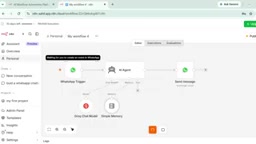
The Agent needs three things attached to it:
- Chat Model: The author uses the free Groq model, specifically GPT-OSS 120B, described as the "most reliable" option. The API Key is generated from the Groq developer console (console.groq.com).
- Memory: Uses Simple Memory with a configured context window length. With memory enabled, the bot can recall previous conversation turns — during testing, when the author greeted it multiple times, the bot recognized that it had already been greeted earlier that morning.
- Tools: Reserved for future extensions, such as connecting to Google Sheets for reading and writing orders.
After configuring everything, testing with "Hello" returns a human-like greeting, and the text chatbot is up and running. The author makes a point to note: during testing you'll need to repeatedly Execute nodes, but for the bot to respond reliably on a real WhatsApp number, you must Publish the application — otherwise it won't reply.
Groq is a chip and cloud services company focused on AI inference acceleration. Its proprietary LPU (Language Processing Unit) architecture delivers significantly faster inference speeds than traditional GPU-based solutions. For developers, Groq provides an API that's compatible with the OpenAI interface format, allowing direct access to open-source models like Meta's LLaMA and Mixtral, with a generous free tier. The GPT-OSS 120B mentioned in the tutorial refers to an open-source model hosted on the Groq platform (the exact name may vary with version updates) — it is not part of OpenAI's GPT series. After registering at console.groq.com, you can generate an API key in one click from the API Keys page, with no credit card required. This is the main reason the author recommends it as the first choice for beginners.
The Core Upgrade: Using a Switch Node to Route Voice and Text
This is the most valuable part of the tutorial. When the author sent a voice message asking "Tell me who Imran Khan is," the trigger fired — but the bot returned nothing. That's because the Agent can only process text; voice messages aren't parsed at all.
The solution is to insert a Switch node after the trigger to route text messages and voice messages to separate processing paths:
- Create two output rules, named
textandvoice. - The
textrule: checks whether thetextfield exists in the message body — if yes, route to the AI Agent for a direct reply. - The
voicerule: checks whether anaudiofield exists (capturing its ID) — if yes, route to the voice processing branch.
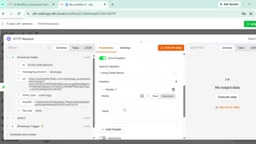
The voice branch has a longer processing chain:
- WhatsApp Business Cloud → Download Media: Downloads the audio file using the voice message's audio ID.
- HTTP Request node: This is the key to speech-to-text (STT). Rather than using paid OpenAI services, the author continues to use Groq's API for transcription. Key configuration: Method set to POST, Groq's transcription endpoint URL, Authentication set to Header Auth, Header field name set to
authorization, value set toBearerfollowed by your Groq API Key (note the space after Bearer). - Body: Content type set to
form-data, with amodelparameter (filled with the model name) and a binary file field whose input data field name corresponds to the downloaded file from the previous step.
Speech-to-Text (STT) is the technology that automatically converts audio content into text that programs can process. Groq's transcription API is based on OpenAI's open-source Whisper model, which excels at multilingual recognition and accent adaptability — and Groq's LPU architecture makes transcription extremely fast, typically completing in a few hundred milliseconds. The calling convention is fully compatible with the standard Whisper API: send a multipart/form-data POST request to https://api.groq.com/openai/v1/audio/transcriptions with the audio file and model name (e.g., whisper-large-v3) to receive a JSON-formatted transcription. This also explains why the HTTP Request node's Body must be set to form-data rather than plain JSON — audio is a binary file that must be uploaded via multipart, not serialized as a JSON string.
Troubleshooting Recap: Credentials and Tokens Are the Biggest Hurdles
The author repeatedly ran into please check your credential errors during hands-on testing, and this trial-and-error process is precisely where the tutorial's value lies. A few key lessons:
- Bearer format: The Authorization header must be written as
Bearer+ token, with a space in between. Missing the space causes immediate failure. - Don't mix up your tokens: The HTTP Request node for voice transcription needs the Groq console API Key — not the Facebook Meta token. The author accidentally pasted the Meta token in and kept getting errors; correcting this fixed the issue.
- Facebook credentials expire: Meta Access Tokens can expire. You'll need to regenerate a token in the Meta backend and replace the old one. The author also hit a WhatsApp API quota limit later in the process — copying a fresh Business ID and Access Token resolved it.
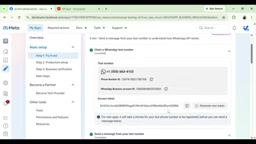
There's also a hidden detail worth noting: the author mentions that the AI Agent node requires pasting a specific JSON structure (Body Entry Changes Value Context) into the Memory field — without this, the entire workflow will stall. Also make sure the Agent's input is receiving data in plain text JSON format.
Meta's WhatsApp Business API uses a short-lived Access Token mechanism. In the test environment, the default generated token expires in approximately 24 hours — a very different experience from the long-lived API keys used by platforms like Groq. In production environments, developers typically need to apply for a permanent Page Access Token or generate a non-expiring token via a System User, which is a more involved process. Additionally, Meta developer apps in "development mode" (before formal review and launch) only allow the app admin account and explicitly added test users to send and receive messages. This is the context behind the author's emphasis on the Publish step — without publishing, messages from regular users won't trigger the webhook, making the automation appear broken.
Final Results and Directions for Extension
With everything configured, the author sent a voice message saying "Who is Imran Khan" — and the bot successfully parsed the voice input and returned a complete answer, identifying Imran Khan as a prominent Pakistani public figure, former cricket player, and politician. This confirmed that the voice message was correctly downloaded, transcribed, and passed to the Agent.
At this point, a WhatsApp AI Agent capable of handling both text and voice is fully operational. The author's suggested next step is connecting Google Sheets in the Tools section to build a customized order intake and data recording flow for any business scenario — whether that's a friendly chat companion, customer service, job applications, and more.
The overall tone of the tutorial is refreshingly practical. The author openly admits that the many errors and debugging moments were left in intentionally — so that viewers can see these pitfalls in advance and know exactly what to do when they encounter them. That makes it far more useful than a polished, everything-works-perfectly walkthrough.
Related articles

Free Unlimited Claude Code Solution: Agnes AI + CC Switch Setup Guide
No paid subscription needed — pair the free AI platform Agnes AI with the open-source tool CC Switch to provide a backend for Claude Code, enabling unlimited free calls to text, image, and video models. This guide covers the full setup, test results, and usage boundaries.

A Complete Zero-Cost Guide to Getting Started with Claude Code for Beginners in China
A beginner's guide to Claude Code for users in China: two installation methods (command line and IDE plugin), full configuration steps for replacing the official API with the free domestic LongCat model, and a hands-on demo of building a small tool with natural language, plus tips.

When the NSA Gets Involved: The AI Supply Chain Crisis Behind Open-Source CVEs and API Key Hijacking
Multiple open-source projects disclosed severe CVEs in one day, PHP flaws alarmed the FBI, and Railway and OpenCode were breached with API keys stolen. This article breaks down the vulnerability window, AI-accelerated exploitation, and the AI supply chain crisis behind the API key black market, with a developer defense checklist.