Claude Cowork Hands-On Tutorial: Let AI Take Over Your Daily Computer Tasks

Claude Cowork moves AI from chat to real action — controlling your desktop, browser, and third-party apps.
Claude Cowork is Anthropic's AI assistant product that can actually operate your computer, requiring a Pro/Max subscription and the desktop client. Its core capabilities span four areas: local file system operations, automated web tasks via a Chrome extension, secure third-party app integration (Gmail, Canva, Slack) through fine-grained Connectors, and reusable instruction templates called Skills. Scheduled Tasks enable periodic automation, while Dispatch lets users remotely direct their desktop computer from a phone in real time. The entire system uses an approval mechanism as a safety baseline, though it remains in an early, fast-iterating stage.
Tired of endless clicking, dragging, and copy-pasting? Anthropic's Claude Cowork moves AI out of a simple chat box and onto your actual desktop and browser. It works like a personal assistant that can create folders, organize emails, analyze web pages, and even remotely control your computer from your phone. This article is based on a complete YouTube hands-on course, breaking down Cowork's core mechanics, key features, and practical workflows.
Claude's Three Product Lines and Where Cowork Fits
To understand Cowork, you first need to see Anthropic's current product matrix clearly. As of the tutorial's recording, Claude is divided into three main areas: first, the Claude AI chatbot — similar to ChatGPT, accessible directly in the browser; second, Claude Code, targeting no-code or low-code scenarios to help you build apps and websites; and third, the star of this article — Claude Cowork — a personal assistant that can actually operate your computer.
The key real-world barrier: neither Cowork nor Claude Code is available on the free tier. The tutorial author repeatedly emphasizes that these two features represent newer capabilities locked behind Pro or Max subscriptions. Free accounts can only access the chat interface — there's no Cowork or Code entry point anywhere. Cowork also has one hard requirement: you must install the desktop client (available for both Windows and Mac). While Claude Code can still run via the web, Cowork only runs inside the local application.
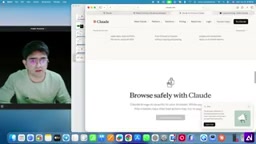
First Demo: Having Claude Create Folders for You
Once inside the Cowork interface, New Project at the top helps you organize tasks, while the central input box is where you communicate with the AI. Two settings worth noting: first, approval mode — you can require Claude to ask for your confirmation before executing any action, or choose Skip All Approvals for fully automated execution; second, model selection — the tutorial positions Haiku as the cheapest, Sonnet as mid-range, and Opus as the most powerful but most token-intensive. Sonnet is recommended for everyday tasks.
The author's first demo is simple and direct: type "create a folder named Google Courses on the desktop, with three subfolders inside: lesson, resource, and script." With approval mode enabled, Claude requests confirmation before each make directory operation — once approved, the folders appear on the desktop for real. Though small, this example clearly illustrates Cowork's fundamental difference from a regular chatbot: it directly operates the local file system.
The tutorial specifically warns: unless you're completely certain, always keep approval mode on. In rare cases, the AI might accidentally delete important files, and step-by-step approval lets you review each action before it proceeds.
Browser Extension: Web Automation with Claude for Chrome
Claude Cowork's browser capabilities are equally powerful, though only Chrome was supported at the time of recording. To install, search for "Claude extension" or "Claude for Chrome," then click Add to Chrome and complete authorization. Once installed, any tab being controlled by Claude will display an orange border, indicating the extension is operating that page.
The author demonstrates a web analysis task: have Claude visit a specified website, screenshot the homepage, read the page content, extract H1 headings and body text, and offer improvement suggestions. Claude first generates a planning layer, listing steps like "navigate to site → screenshot → read content → extract data → analyze structure → provide recommendations" — once you approve, it executes them automatically one by one, outputting structured results at the end.
A more practical example is email handling: the instruction "open my Gmail, read the latest email, and draft a reply" has Claude automatically open Gmail, locate the newest email, generate a draft, and save it — all without a single manual click. The author also honestly flags a security concern: if your Google account were compromised, an attacker could theoretically use the AI to read all your information. Browser automation is powerful, but caution is warranted.
Connectors: Letting Claude Take Over Third-Party Apps
Connectors are Cowork's true bridge to external applications. Under Customize → Connectors, you'll find a wide range of built-in connectors including Google Drive, Canva, Slack, Gmail, Google Calendar, GitHub, and more. Taking Gmail as an example: click the plus icon, authorize via login, and Claude Cowork can directly execute actions within Gmail.
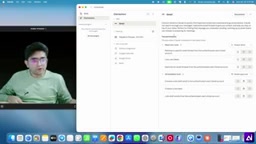
Connectors are more secure than browser extensions because each connector offers granular permission controls on the right side: Read-only, Needs Approval (requires confirmation before writes/deletes), Allow (proceed directly), and Block (completely forbidden). The author strongly recommends keeping Needs Approval for write and delete operations to prevent the AI from autonomously sending or deleting emails.
Once connected, a single instruction like "use the Gmail connector to fetch the latest email in my inbox" lets Claude automatically retrieve and return the results — no need to manually open Gmail. For services not on the built-in list, you can manually add them via Add Custom Connectors — using an OAuth Client ID, Secret Key, or a direct MCP Server URL (like Firecrawl MCP) provided by a third party. You can even edit the configuration file in developer settings to integrate additional services.
A note on MCP and OAuth: MCP (Model Context Protocol) is an open protocol launched by Anthropic in late 2024, designed to provide a standardized interface for communication between AI models and external tools or data sources. Think of it as the "USB port" of the AI world — as long as an application exposes an interface per the MCP spec, any MCP-compatible AI client can interact with it, with no need to build separate adapters for each model. Cowork's custom connectors support direct entry of MCP Server URLs, meaning community-built MCP tools (like web scraper Firecrawl, database connectors, etc.) are plug-and-play, greatly expanding Cowork's capabilities. OAuth (Open Authorization) is the other key concept: it lets users authorize third-party apps to access their resources with limited permissions — without ever exposing their username or password. Cowork's Connectors use this OAuth flow to obtain tokens for operating Gmail, Google Drive, and similar services, which is also the technical foundation that makes fine-grained permission control possible.
Skills: Turn Frequently Used Instructions into Reusable Templates
Skills are the core efficiency concept in Cowork — essentially reusable instruction templates made up of a prompt paired with actions (connectors). They solve a real pain point: if you have a prompt you use all the time, manually copying and pasting it every time is tedious. Once packaged as a Skill, it can be invoked repeatedly.
Each Skill's instructions are stored in a skill.md file. There are three ways to get Skills: use the built-in Skill Creator, browse and install from the built-in store (like the Canva Design skill), or download Skills created by others from third-party marketplaces like Skill Hub or Skill MP (download the skill.md file and upload it — but be extra careful with Skills from unknown sources).
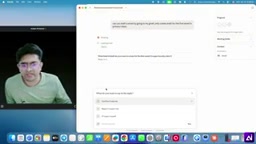
The author used the Canva Design skill to generate a visual diagram of the "Claude AI Ecosystem" as a PNG, fully mapping out modules like the chatbot, API, Claude Code, Agent, MCP, Cowork, Claude in Chrome, and Claude in Excel. He then demonstrated custom Skill creation: using "Create with Claude" to have Claude ask reverse questions (who to send the draft to, how many titles to generate, what style), automatically write a skill.md, and bundle it for testing. The finished product is a "generate YouTube titles and save them as a Gmail draft" skill — after that, just type a slash "/" in the input box to pull up the skill, give it a topic, and it's done in one click.
Note that the tutorial shows a minor bug where the skills list doesn't refresh in real time — the author resolved it by restarting the client and re-saving, a sign that this feature is still relatively new.
Scheduled Tasks and Dispatch: Remotely Control Your Computer from Your Phone
Scheduled Tasks allow Cowork to execute automatically on a recurring basis. The author created a task to "search the web daily at 11am and summarize Claude-related news," with options for frequency (manual / daily / weekly), model selection, and approval method. There's also a toggle for "only run when computer is awake" — turning it on prevents the computer from sleeping, while turning it off lets the task run automatically once you power up.
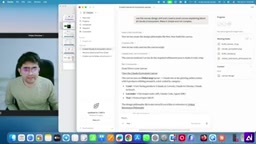
The most imaginative feature is Dispatch: remotely controlling your desktop computer from your phone. To pair them, log in with the same email on both your phone and the desktop app, then scan a QR code in the Dispatch section of the mobile app. Once paired, instructions you type on your phone execute in real time on your computer. The author demonstrated sending "go to my downloads folder, analyze the dummy sales PDF, and give me an overview" from his phone — the computer immediately got to work and returned results. He also demonstrated "create a folder named Wow in downloads," which was executed remotely just the same. The prerequisite, as always, is that your computer must be on, connected to the internet, and awake.
How Dispatch differs from traditional remote desktop: The remote control model behind Dispatch is fundamentally different from tools like TeamViewer or RDP. Traditional remote desktop streams pixel data from the screen, with higher latency and bandwidth requirements. Dispatch instead transmits "natural language instructions" that the local Claude desktop client interprets and executes on the machine itself — your phone only sends the intent. This means even if your phone and computer aren't on the same local network, as long as both can reach Anthropic's servers, the instruction gets relayed through. The architecture is lightweight and works across networks, but it also means execution depends on the local client running continuously, and all instructions pass through Anthropic's servers — a privacy consideration worth understanding before use. For users who want to trigger long-running tasks on their computer while commuting (like batch file processing or recurring report generation), this feature offers real practical value.
Overall Assessment
From file operations and browser automation to third-party app integration, reusable Skills, and remote mobile control, Claude Cowork advances AI Agents from "can talk" to "can do." Its core value lies in genuinely taking over repetitive desktop and web tasks, while the approval mechanism and fine-grained permission design strike a balance between capability and safety. For users wanting to try it out, the subscription requirement and mandatory desktop client installation are two real prerequisites — and minor issues like the Skills list not refreshing are a reminder that this is still a rapidly evolving feature set, with the official interface and capabilities likely to keep changing.
Related articles

Uber Deploys ChatGPT Work Company-Wide: AI in the Workplace Enters the Scaled Implementation Phase
Uber deploys ChatGPT Work to 30,000+ employees, extending it from engineering to all roles. We analyze its expert-engineer pairing, end-to-end automation, and questions of AI control and power concentration—insights for scaling AI in the workplace.

Shift at Midnight Hands-On: When "ID Verification" Becomes Alien Hunting
Shift at Midnight blends ID verification with horror survival in a four-player co-op game. We break down its inspection mechanics and chaotic humor.

Zelensky Recounts the Outbreak of War: I Need Ammunition, Not a Ride
Zelensky recalls the first day of war in a YouTube interview: farewell to family, rejecting Biden's evacuation offer with "I need ammunition, not a ride," and how Bucha shaped his stance on compromise and peace talks.