Codex APP Complete Beginner's Guide: From Installation & Setup to Hands-On Mastery

A step-by-step guide to installing and configuring Codex APP, from environment setup to sandbox initialization.
Codex APP stands out among Codex's four product forms for its high quotas, full features, and low barrier to entry — even free ChatGPT accounts can use it. Setup requires Git, Node.js, and VS Code. After downloading and installing, users log in, choose their work type and use case, and Codex pre-installs relevant plugins accordingly. The final step — sandbox initialization — establishes a secure isolated runtime environment, completing the foundational setup.
Why Codex APP Is the Strongest of the Four Product Forms
Among the four product forms of Codex, Codex APP is quickly earning the best reputation among users. Compared to the often-cited Cloud Code, Codex APP has clear advantages in terms of usage quota, feature completeness, and ease of getting started — higher quotas, more complete features, faster onboarding, and even free accounts can use it directly, without the headaches of rate limiting, account bans, or quality degradation. Users who've tried it consistently say it's surprisingly good.
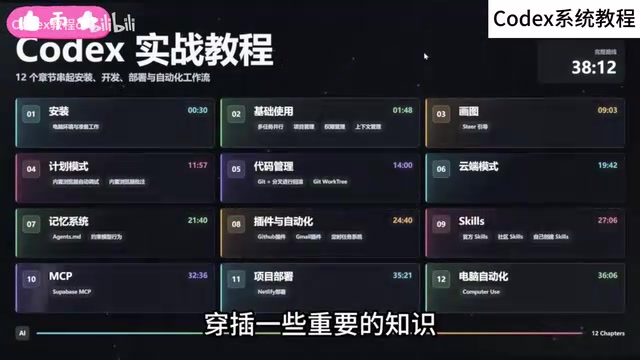
This guide is based on a comprehensive tutorial from a Bilibili content creator, covering the core stages of installation, login, and sandbox configuration to help you quickly set up a working Codex APP environment. The full tutorial spans 12 chapters, each covering important concepts and explaining all features in detail. This article focuses on the prerequisites and initial setup — the critical first step.
Three Things to Prepare Before Installing
Before installing and using Codex APP, you'll need to set up three foundational tools. These are prerequisites for Codex to run properly:
- Git: A version control tool that Codex relies on when working with code repositories
- Node.js: A runtime environment that many plugins and features depend on
- VS Code: A mainstream code editor that works in tandem with Codex
These three form an unavoidable foundation. Whether you're using Codex primarily for programming or everyday tasks, it's best to install them all ahead of time to avoid getting stuck later due to a missing environment.
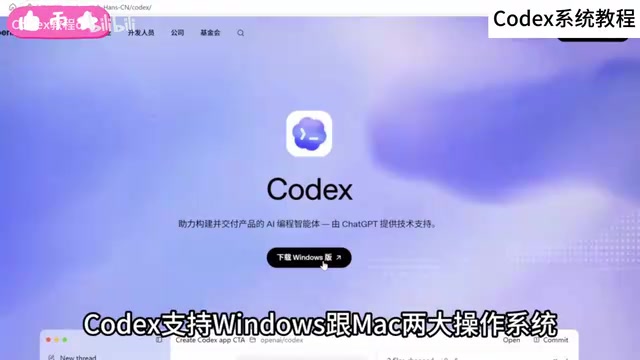
Once you've completed the prep work, visit the official Codex website to download the installer. Codex supports both Windows and Mac, and the website will automatically detect your operating system and provide the corresponding installer — no need to manually distinguish between them.
Feature Differences Between Windows and Mac
In terms of functionality, the Windows and Mac versions are essentially the same, with no noticeable difference in day-to-day experience. The only distinction is Computer Use — the ability to automatically operate your computer — which is currently only supported on Mac.
If your workflow heavily depends on automated computer control, Mac is the more complete choice. For the vast majority of programming and everyday task scenarios, the Windows version is more than sufficient. The installation process itself is straightforward — just keep clicking "Next" to finish.
Git is currently the most widely used distributed version control system. It tracks the history of code file changes, supports multi-person collaboration, and manages branches. When Codex works with code repositories, it needs to call Git to clone projects, commit changes, or switch branches — so even if you don't actively use Git commands yourself, it's a necessary background dependency for Codex. Node.js is a JavaScript runtime environment built on Chrome's V8 engine. Many modern development tools and AI plugins are distributed as Node packages, and without it, some extensions will fail to install or run. VS Code (Visual Studio Code) is a free, open-source code editor developed by Microsoft, known for its rich plugin ecosystem. Many of Codex APP's features are integrated as VS Code extensions, and the two working together provide a more complete workflow including code completion and task automation. These three tools together form the "runtime foundation" that Codex depends on. Setting them all up before installing Codex prevents interruptions caused by missing environment components.
First Launch and Account Login
After installation, launch Codex APP and log in using your ChatGPT account. One notable change worth highlighting: free ChatGPT accounts can now use Codex directly, which significantly lowers the barrier to entry. That said, free accounts have relatively limited quotas — if you're a heavy user, a paid plan is still recommended.
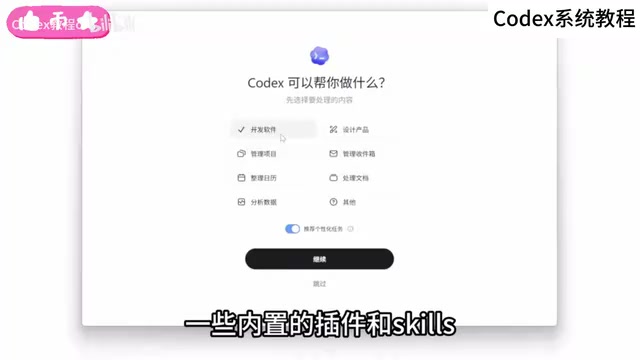
When you first enter the app, Codex will ask you to select the type of work you want it to handle. This isn't just a formality — Codex uses your selection to pre-install a set of built-in plugins and Skills, so the tool is tailored to your needs right from the start.
Of course, these pre-installed items aren't set in stone. Once you're inside the app, you can install or adjust plugins as needed — there's plenty of flexibility.
Choosing and Changing Your Use Case
Next, the app will ask whether your primary use case is programming or everyday work. This choice also influences Codex's default configuration and feature orientation — but it's not permanent. All of these settings can be changed at any time in "Settings," so there's no need to worry about making the wrong choice initially.
This design philosophy of "get started quickly, then fine-tune gradually" is one of the key reasons Codex APP has such a low learning curve. New users don't need to understand every configuration option upfront — just follow the guided setup to get a usable initial environment.
Sandbox Initialization: The Foundation for Safe Operation
After completing account and use case configuration, click the "Set Up Sandbox" button to begin sandbox initialization. The sandbox is the isolated runtime environment in which Codex executes tasks. It defines the security boundaries for Codex's operations on your computer — which is exactly why you can confidently hand off programming and automation tasks to it.
The specific mechanics and configuration details of the sandbox are a relatively self-contained and important topic, which the original tutorial covers as its own dedicated chapter. For users just getting started, the key takeaway is: sandbox initialization is a required step in the initial setup. Once completed, Codex APP's foundational environment is ready to go, and you can move on to actual use.
In software security, a sandbox is a technique that restricts a program's execution to an isolated space. The core idea is the "principle of least privilege" — the program can only access explicitly authorized resources and cannot freely read or write system files or access content beyond its permitted scope. The reason Codex uses a sandbox is that when it automatically executes code, installs dependencies, or manipulates files, all of those actions occur within a controlled isolation layer. Even if a task runs into an error or produces unexpected side effects, it won't directly impact other files and data on the host system. This mechanism is especially important for scenarios where you're handing programming tasks off to an AI to complete automatically — users don't need to worry about Codex accidentally deleting files outside the project or modifying system configurations. Sandbox initialization essentially establishes this isolated runtime layer locally. The first-time setup is quick, but it's a step that cannot be skipped.
Summary
Codex APP has established its position in the Codex product lineup through a combination of high quotas, full-featured functionality, and a low barrier to entry. From preparing the Git, Node.js, and VS Code trio before installation, to downloading from the official site, logging in, selecting your use case, and completing sandbox initialization — the entire onboarding flow is clear and user-friendly, with even free accounts able to experience the full setup. For users who want to systematically master Codex, getting this foundational stage right will make it much smoother to dive deeper into hands-on feature use later on.
Related articles

Random Pruning of the DPO Computation Graph: 1.4x Training Speedup and Lower Peak Memory
DPO training too slow and memory-hungry? This paper proposes a random pruning framework for the DPO computation graph, sampling independently across position, sequence, and branch dimensions; branch pruning achieves a 1.426x step-time speedup and cuts training time by about 30%, with in-depth attribution of memory and time gains.

Why Does JEPA Underperform MLM in Longitudinal EHR Representation Learning?
New study compares JEPA and MLM for longitudinal EHR representation learning on MIMIC-IV: three JEPA variants train stably without collapse but underperform MLM; target size, not heterogeneity, drives prediction error.

Transfer Learning + Visible Light Communication: A New Approach to Energy-Efficient Indoor Positioning
A study proposes a transfer learning-based visible light communication indoor positioning method, achieving 47% accuracy improvement on the BOSCH factory dataset, 67.5% model efficiency under high noise, and introducing the ME composite metric for energy-efficient positioning in energy-constrained industrial IoT scenarios.