Codex App Complete Beginner's Guide: Full Installation and Configuration Walkthrough

A step-by-step Codex App setup guide — free accounts supported, get running fast.
This beginner-friendly guide covers the complete Codex App setup process, from environment prep to login and initial configuration. Codex App is the most full-featured format in OpenAI's Codex lineup, supports free ChatGPT accounts, and requires Git, Node.js, and VS Code as prerequisites. The installer auto-detects Windows or Mac, with both platforms offering nearly identical features — except Computer Use, which is currently Mac-only. On first launch, you can pre-install plugins by use case, and a sandbox environment must be initialized to provide a safe, isolated space for AI task execution.
Why Codex App Is the Strongest Choice Among the Four Product Formats
Within OpenAI's Codex product lineup, Codex App is becoming increasingly comprehensive — and arguably the most worthwhile option among the four available formats. Compared to command-line tools like Claude Code, Codex App has three key advantages: higher usage quotas, more complete features, and a faster learning curve.
More importantly, even a free ChatGPT account can use Codex App — without running into rate limits, account bans, or degraded performance. For users who want to explore AI-powered coding but are wary of committing to a paid plan, this "free and stable" experience sets an incredibly low barrier to entry. It's no wonder many users who've tried it can't stop raving about it.

This guide is based on a comprehensive Codex App tutorial, covering everything from environment setup to login and configuration — helping beginners get up and running from day one.
Three Prerequisites to Complete Before Installation
Before installing Codex App, three dependencies need to be set up first. Skipping them may result in missing features or runtime errors. These are:
- Git: A version control tool that Codex relies on for file management and change tracking when working with code projects.
- Node.js: A JavaScript runtime environment that underpins many plugins and scripting capabilities.
- VS Code: A mainstream code editor that pairs seamlessly with Codex App for a smoother experience.
All three are standard tools in any developer's toolkit, and the installation process for each is straightforward. It's best to have them all installed before opening Codex App to avoid interruptions later. If you're coming from a non-programming background, this step might feel unfamiliar — but these tools form the foundation that allows Codex to operate at full capacity.
Git is the world's most widely used distributed version control system, originally developed by Linux kernel creator Linus Torvalds in 2005. It records the full history of every code change and supports multi-person collaboration and branch management. When Codex analyzes and modifies code projects, it relies on Git to understand file structure, track changes, and roll back operations when needed — so even if you're not working in a team, Git is a core dependency for Codex to function properly.
Node.js is a JavaScript runtime built on Chrome's V8 engine, enabling JavaScript code to run outside of a browser. Since Codex App is built on the Electron framework (which internally depends on Node.js), many plugins and local script execution features are built on the Node ecosystem. Without it, certain features may fail to load. It's recommended to download the LTS (Long-Term Support) version from the Node.js official website for maximum stability.
Download and Install: Support for Both Windows and Mac
Once you've completed the prerequisites, visit the Codex official website to download the installer. The site will automatically detect your operating system and offer the correct version — no need to manually select a platform.
Codex App supports both Windows and Mac, and the feature sets are largely identical. The one notable difference is Computer Use (the ability to automatically control your computer): this feature is currently unavailable on Windows and is only supported on Mac.
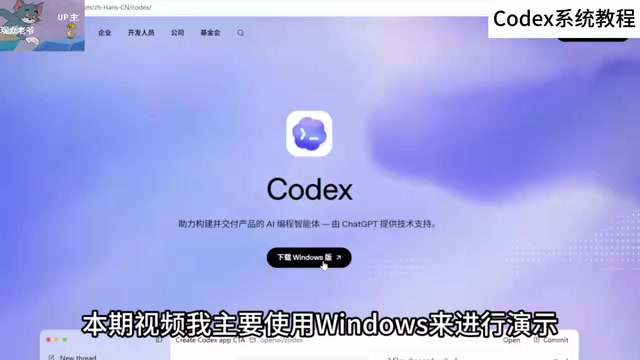
In other words, if your primary use case is everyday coding and text processing, Windows works perfectly fine. But if you need AI to automatically control your computer to complete more complex task chains, Mac is the more complete option. Once downloaded, installation is standard — just click "Next" through the prompts and you're done.
Computer Use refers to an AI's ability to directly control a computer's interface — simulating mouse clicks, keyboard input, screenshot recognition, and more — allowing AI to interact with desktop applications just like a human user, rather than being limited to generating text or code. This approach was first publicly demonstrated by Anthropic's Claude, and OpenAI has since introduced it into its own products. Its core value lies in breaking the limitation of AI being text-only: for software without an API (such as traditional GUI applications or complex browser interactions), AI can "see the screen and move the mouse" to get things done. This feature has launched first on the Mac version of Codex App, with the Windows version not yet available — likely due to differences in platform permission models and security review timelines.
Launch and Login: Works with a Free Account
After installation, launch Codex App and sign in using your ChatGPT account. It's worth emphasizing again: free ChatGPT accounts now support Codex, though with relatively lower usage quotas.
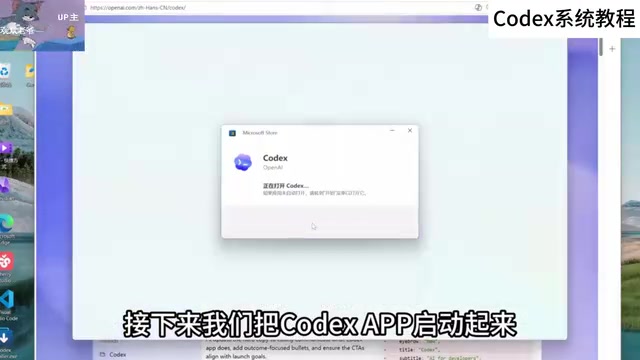
This means regular users can experience Codex's core capabilities without a subscription — making the "try first, upgrade later" path very accessible. For anyone evaluating whether the tool fits their workflow, this significantly lowers the cost of experimentation.
Initial Configuration: Pre-installing Plugins and Skills by Use Case
When you first launch the app, Codex will ask you to select the type of work you want it to help with. This isn't just a formality — Codex will pre-install the relevant built-in plugins and Skills based on your selection, so the tool is already tailored to your needs from the very first session.

You'll also be asked to identify your primary use case: is it mainly coding, or more oriented toward everyday work tasks? Worth noting: none of these settings are permanent. You can adjust them at any time through the settings menu. Once inside the app, you can also manually install additional plugins as needed — giving you plenty of flexibility.
Initializing the Sandbox Environment
After completing the basic configuration, click the "Set Up Sandbox" button to initialize the sandbox. The sandbox is the isolated execution environment Codex uses when performing tasks — it directly affects security and permission control, making it a critically important concept. Since sandbox mechanics are a deeper topic, we'll just complete the initialization here; a more detailed explanation of how the sandbox works and how to configure it belongs to a later, more advanced section.
Sandbox is a software isolation mechanism whose core idea is to create a restricted, independent runtime space for a program — preventing it from freely accessing the host system's files, network, or other resources. In AI coding tools, sandboxing is especially critical: when AI automatically executes code, installs dependencies, or modifies files, the sandbox prevents accidental actions from spreading to the rest of the system, reducing the risk of data corruption or security vulnerabilities. Codex's sandbox environment is essentially an isolated container or virtual space where all of the AI's "hands-on" operations take place. Users can review the results before deciding whether to apply changes to their real project. This "test in the sandbox first, then deploy" workflow is an important safeguard for using AI coding capabilities responsibly.
Wrapping Up: Get the Basics Running First, Then Go Deeper
Overall, the barrier to getting started with Codex App has been deliberately kept low: automatic platform detection, free account support, scene-based plugin pre-installation, and a standardized installation process all ensure that even beginners can go from download to logged in with minimal friction.
What truly separates casual use from power use comes later — through sandbox configuration, plugin extensions, and the Mac-exclusive Computer Use capability. For users just getting started with AI coding tools, the recommended approach is to work through the four steps in this guide — environment setup, installation, login, and initial configuration — before gradually exploring more advanced features. Get the foundation right, and everything that follows will fall into place naturally.
Related articles

The Only Video on Bilibili That Explains Harness Engineering? A Practical Analysis of Enterprise Multi-Agent Collaboration
Analyzing Harness Engineering's core components for enterprise multi-agent collaboration: orchestration, state management, security isolation, and observability. Based on Bilibili tutorial material, discussing why interviewers are starting to probe engineering constraints and how to rationally view "the only one that explains it" tech content.

AI Agent Full-Stack Practical Course: Master Dual-Framework Development from 0 to 1
An analysis of the Bilibili AI Agent full-stack practical course: four stages covering basic concepts, LangChain deep dive, single-Agent practice, and CrewAI multi-agent advancement, with zero-config tools and open-source code, suitable for developers with programming foundations.

Hand-Writing Agents.md Significantly Improves AI Coding Stability
A Bilibili creator compares two real projects—a video editor and a card game—showing that hand-written Agents.md and design docs significantly boost AI coding stability, explains how Agents.md differs from skill injection, and offers practical document-driven development methods.