Codex for Absolute Beginners: From Installation and Setup to Running Your First Piece of Code

A complete beginner's tutorial on installing Codex and configuring third-party APIs, with key settings advice.
This article turns Bilibili creator Naiyue's Codex beginner video into a written how-to guide. It covers installation prerequisites (Windows build 17763+, download from the official page with installation completed via Microsoft Store), the core challenge of using Codex in China (relaying third-party APIs through CC Switch by entering provider name, API Key, and request URL, with model names available from the platform's model marketplace), and the interface structure plus the context isolation logic between projects and threads. The author also lists four settings worth adjusting (language, context window display, permissions, tone) and explains the trade-offs of reasoning effort and the three plus-menu features—local files, setting goals, and plan mode—concluding with advice for beginners to aim for "installs and chats" as a milestone goal.
As OpenAI's coding assistant, Codex has lowered the barrier to AI-assisted coding to the point where even people with almost no technical background can get started. But for users in China, the first question is often not "how do I use it" but "how do I install it and connect it." In this tutorial from Bilibili creator Naiyue, the whole beginner workflow is walked through—from Windows installation to third-party API configuration to using the interface. This article turns the core steps from the video into a written, follow-along guide, with some extra details worth noting.
Two Prerequisites Before Installation
Check Your System Version
Windows users need to confirm their system build number is at least 17763. Press Win+R, type winver, and hit Enter to check. The machine in the demo is Win10 19045, which meets the minimum requirement. Win11 users can skip this step entirely.
Download from the Official Source
Go to OpenAI's official page and click to download the Windows version. The installer will pull up the Microsoft Store to complete the installation. Mac users do the same—open the official page in a browser, choose the macOS version, and download/install. The rest of the configuration process is identical to Windows.
Microsoft Store is the built-in app distribution platform on Windows 10/11, similar to an app store on a phone. Some Windows app installers are tiny—essentially just a launcher. Double-clicking them pulls up the Microsoft Store, which then downloads the full files and handles installation, updates, and uninstallation. The upside of this distribution model is that updates are pushed uniformly by the Store and signature verification is stricter, but the trade-off is that the Microsoft Store service must remain available. Some stripped-down or enterprise editions of Windows may have the Store component removed by default, in which case you'll need to repair or reinstall the Store first. Codex uses this distribution method, which means the installation process has some network requirements. If the Store page spins for a long time, it's usually a network connectivity issue rather than a corrupted installer.
The Core Challenge: Getting Codex Connected to a Model
Codex is part of the ChatGPT ecosystem and isn't officially available in China by default. The creator offers two paths: one is to solve the network issue yourself and subscribe to ChatGPT; the other is to use a third-party API platform to pay for model access. Given the target audience of ordinary users, the video takes the second path and explicitly states that it does not recommend any specific third-party platform.
The way third-party platforms work can be simply understood as a "model supermarket": you top up, get billed by token consumption, and it stops when your balance runs out—no subscription management or middlemen involved.
Using CC Switch for API Integration
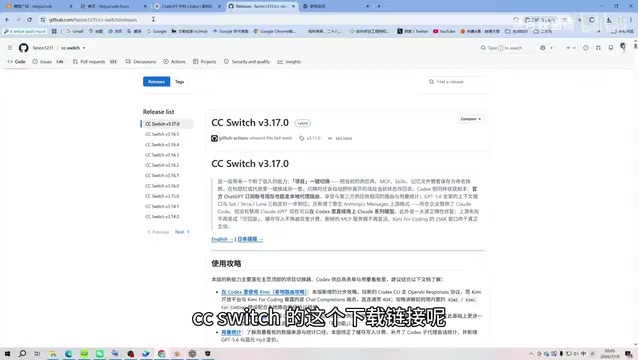
Third-party platform APIs can't be plugged directly into Codex—you need a tool called CC Switch to act as an intermediary. Download the version for your system (Windows/macOS/Linux all available), install it, open it, and add a custom configuration.
There are only three core pieces of information to fill in:
- Provider name: Fill in whatever you want; it's just a label
- API Key: Created on the third-party platform, it serves as your credential—the platform uses it to identify who to bill
- API request URL: Tells Codex where to send model requests; third-party platforms usually provide this directly in their documentation
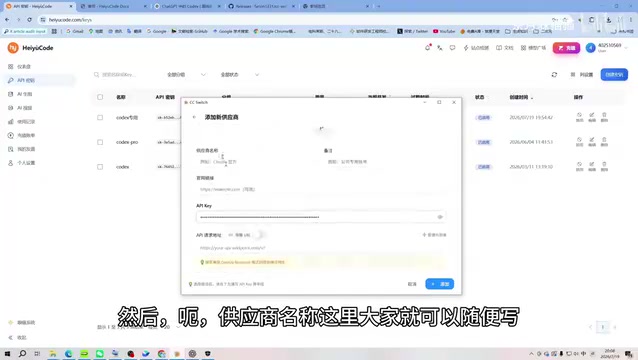
You don't need to memorize model names either. In the third-party platform's model marketplace, open any model and the model field listed on the page is the value you need to enter. In the demo, the creator picked one of OpenAI's stronger model versions at the time to try out.
After configuring, click enable and restart the client for it to take effect. The model name shown in the bottom-left corner will change accordingly. Send a test message—if you get a reply, the connection is working.
API (Application Programming Interface) here refers to the set of call entry points a model provider exposes externally. The client doesn't run the model directly; instead, it packages user input into a request, sends it over the network to a certain address, and the other party's server performs inference before returning the result. That address is the "API request URL," and the API Key is a string used for identity verification—the provider uses it to determine which account the request comes from and how much to charge. Since different platforms have different request formats and authentication methods, clients like Codex often only recognize specific formats, which is why intermediary tools like CC Switch are needed to "translate" and forward requests. When using third-party APIs, note the following: if your key leaks, others can impersonate your account and drain your balance, so don't screenshot it or commit it to public repositories. Also, token-based billing means long conversations and long documents can significantly drive up costs.
Interface Structure and Project Logic
Codex's interface is divided into three columns: left, center, and right. The left side handles creating tasks, pulling requests, using plugins, and managing projects; the center is the conversation window; the right side displays output results, such as generated code files and change reviews.

The Relationship Between Projects and Threads
A single project can contain multiple threads, each with its own independent context. This means different questions and different steps within the same project should be handled in different threads to avoid context interference. The creator suggests manually compressing context after completing a phase of work—this saves tokens and keeps the conversation history cleaner.
Context refers to all the information the model can "see" when generating the current reply, including system prompts, conversation history, and uploaded file contents. It has an upper limit, usually measured in tokens—a token is the smallest unit of text the model processes. An English word roughly corresponds to just over 1 token, and a Chinese character is usually around 1 token as well. The longer the conversation and the larger the files, the more context is consumed. Once you approach the limit, earlier content gets dropped or needs to be compressed. This also explains why different questions should belong to different threads: mixing them together not only accelerates context consumption but may also cause the model to treat irrelevant information as premises, leading to off-track answers. Manually compressing context essentially asks the model to summarize the existing conversation into a shorter summary, freeing up space for subsequent exchanges.
Four Settings Worth Adjusting
After entering the settings panel, the creator considers the following worth attention:
- Language: Auto-detection sometimes fails to recognize Chinese; you can switch manually
- Show context window usage: Once enabled, you can see the context consumption ratio at a glance and judge whether compression is needed
- Permissions: The creator habitually disables full access so that dangerous operations trigger approval prompts; if your daily work is low-risk, enabling full access lets you enjoy a fully automated workflow
- Personalized tone: Adjust to your preference; the creator prefers "pragmatic"

High-Frequency Daily Operations
Choosing Reasoning Effort
In advanced options, you can switch models and adjust reasoning effort. Higher reasoning effort means the model thinks more deeply and takes longer, but higher isn't always better. For procedural automation tasks, medium or high is enough; for solution design and deep planning, consider higher levels—at the cost of faster quota consumption.
Reasoning effort corresponds to how deeply the model thinks internally before giving an answer. Take OpenAI's reasoning models as an example: the thinking process itself consumes tokens, so higher levels mean slower responses and higher costs, but accuracy is usually better on tasks requiring multi-step reasoning and trade-off evaluation. Conversely, for tasks with clear steps—format conversion, batch renaming, generating code from a fixed template—excessively high reasoning effort doesn't provide meaningful improvement and just adds waiting time and cost. The practical criterion is: does the task have multiple reasonable paths, does it require the model to discover constraints on its own? If yes, it's worth raising the level; if the workflow is already fixed, medium-to-low is sufficient.
Three Features in the Plus Menu
Clicking the plus sign expands common capabilities: Add local file lets AI directly read or modify specified files; Set goal keeps Codex working until completion—great for delegating work entirely, but only if your verification process is clearly defined; Plan mode is suited for solution planning—Codex will confirm key decision points with you before generating a complete plan.
As for plugins like the document reader and browser opening, Codex usually invokes them automatically, so manual operation isn't common.
A Reasonable Goal for Beginners
The creator offers a pragmatic judgment at the end: for this episode, as long as you can install Codex normally and chat successfully, you've met the goal. Everything else will be covered gradually in future content. For people just getting into AI coding tools, getting "it runs" done first is more valuable than mastering all the features at once.
Related articles

Free Unlimited Claude Code Solution: Agnes AI + CC Switch Setup Guide
No paid subscription needed — pair the free AI platform Agnes AI with the open-source tool CC Switch to provide a backend for Claude Code, enabling unlimited free calls to text, image, and video models. This guide covers the full setup, test results, and usage boundaries.

A Complete Zero-Cost Guide to Getting Started with Claude Code for Beginners in China
A beginner's guide to Claude Code for users in China: two installation methods (command line and IDE plugin), full configuration steps for replacing the official API with the free domestic LongCat model, and a hands-on demo of building a small tool with natural language, plus tips.

When the NSA Gets Involved: The AI Supply Chain Crisis Behind Open-Source CVEs and API Key Hijacking
Multiple open-source projects disclosed severe CVEs in one day, PHP flaws alarmed the FBI, and Railway and OpenCode were breached with API keys stolen. This article breaks down the vulnerability window, AI-accelerated exploitation, and the AI supply chain crisis behind the API key black market, with a developer defense checklist.