ComfyUI All-in-One Image Generation Workflow: 400+ Styles and Four-View Local Deployment
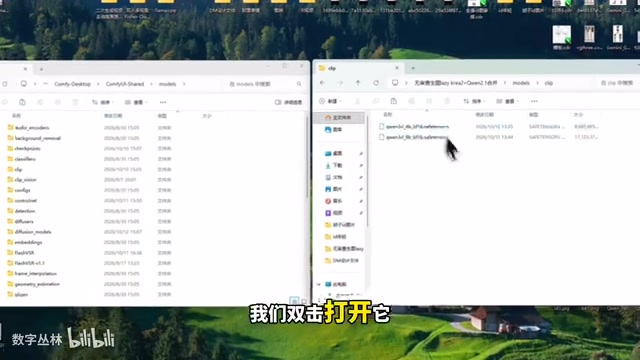
A Bilibili creator shares an integrated ComfyUI workflow covering multi-scenario generation and a 400+ style library deployment guide.
This article breaks down the ComfyUI integrated workflow shared by Bilibili creator Leidong, which combines text-to-image, image-to-image, image editing, four-view, outpainting, mask-based generation, and multi-image storyboarding in one interface with 400+ style presets. It covers placing plugins in custom_nodes and models in clip, checkpoints, loras, and vae directories, matching K2 and Chenwen 2.1 models with LoRAs, batch generation via space-separated prompts, and 1K/2K size options. The four-view feature is size-sensitive and should use landscape to avoid overlap. The article also notes that integrated workflows have many nodes, depend on specific model versions, and that uncensored models carry compliance risks.
Title
ComfyUI All-in-One Image Generation Workflow: 400+ Styles and Four-View Local Deployment
Meta Description
Based on a ComfyUI integrated workflow shared by a Bilibili creator, this article explains how to deploy locally and enable text-to-image, four-view, outpainting, mask-based generation, and more, including a 400+ style library and model file placement guide.
Article Content
With AI painting tools emerging endlessly, Bilibili creator Leidong shared an integrated workflow based on ComfyUI that claims to handle text-to-image, image-to-image, image editing, four-view generation, smart outpainting, mask-based generation, and multi-image storyboarding all within a single interface, with a built-in library of over 400 styles. This article, based on the video content, breaks down the deployment essentials and core features of this workflow.
Core Capabilities: One Set of Nodes Covers Multiple Scenarios
According to the creator, the biggest feature of this workflow is "integration." In traditional ComfyUI usage, different tasks often require switching between different workflow files, but this solution concentrates text-to-image, image editing, image-to-image, four-view, outpainting, mask-based generation, character reference, canvas expansion, and local modification into the same interface. Users only need to drag in one workflow file and can switch modes via node toggles or model selection, reducing the hassle of repeatedly loading workflows.
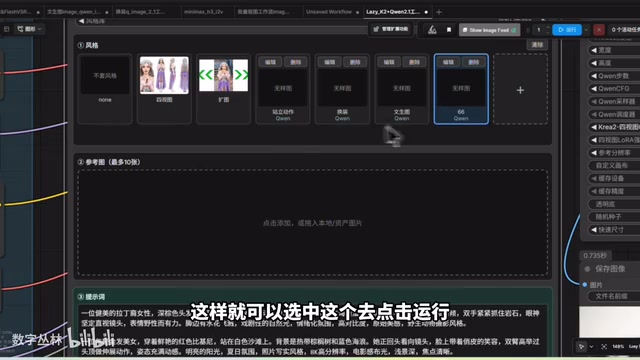
The style library is another major selling point. With over 400 built-in style presets covering realistic, anime, retro, cyberpunk, and other directions, each style comes with a reference thumbnail that users can directly click to apply. For users who aren't good at writing prompts, the style library provides a "what you see is what you get" shortcut. Additionally, the workflow supports custom quick generation, saving commonly used parameter combinations as one-click entries, suitable for high-frequency repetitive creation scenarios.
ComfyUI and Node-Based Workflows
ComfyUI is a node-based visual frontend for Stable Diffusion. Unlike WebUI's "fill-in-the-form" approach, it breaks down every step—text-to-image, image-to-image, model loading, sampling, VAE decoding—into connectable nodes, and users define the complete generation pipeline by dragging and connecting nodes. A saved node graph and its connections constitute a "workflow file" (usually .json or embedded in .png). The advantage of this design is that the process is fully transparent, reusable, and finely controllable; the cost is that first-time users need to understand the data flow between nodes (e.g., model → CLIP → latent → sampler → VAE → save image). A so-called "integrated workflow" connects multiple task branches in parallel within a single node graph via toggles or groups, avoiding frequent switching between workflow files.
Local Deployment: Plugin and Model File Placement Logic
The deployment section takes up the most space in the video. The overall approach is to place the plugin folder and model files into the corresponding subdirectories under the ComfyUI installation directory.
For the plugin part, you need to drag the plugin folder into the custom_nodes folder under the ComfyUI root directory. The model part is divided into four categories: text encoder, main model, LoRA, and VAE. The creator demonstrated the corresponding location for each folder one by one in the video—text encoder goes into models/clip, main model into models/checkpoints, LoRA into models/loras, and VAE into models/vae. The video mentions that the main model includes two K2 models, LoRA includes four-view and K2-related files, and VAE includes two models: A2 and Chenwen.
For users unfamiliar with the ComfyUI directory structure, the value of this demonstration lies in clarifying "which file goes where." It should be noted that the paths in the video are for the Windows user directory structure; macOS or Linux users need to adjust accordingly. Also, model files are large, so make sure you have sufficient disk space before deployment.
Division of Labor Among Text Encoder, Main Model, LoRA, and VAE
These four types of files are different components in the Stable Diffusion generation pipeline, and understanding their roles helps determine "which one being missing will cause an error." The main model (checkpoint, placed in models/checkpoints) is a complete weight package containing UNet, CLIP, and VAE, determining the base art style and capabilities; the text encoder (placed in models/clip) converts prompts into condition vectors that the model can understand, and is usually placed separately to replace or upgrade the CLIP text tower; LoRA (placed in models/loras) is a small incremental weight for low-rank adaptation, used to layer styles, characters, or view control—small in size and composable; VAE (placed in models/vae) handles encoding and decoding between latent space and pixel space, affecting color and detail restoration. ComfyUI's models directory is divided into subfolders by these types, and if placed in the wrong directory, nodes will show the model as missing.
Basic Usage: Model Selection and Batch Prompt Generation
After dragging in the workflow, multiple model loading nodes appear in the interface. The creator notes that if a node shows a missing model, you need to manually select the corresponding model file: select K2 for the main model, Chenwen 2.1 for the 2.1 model below, and for LoRA nodes, select four-view or other style LoRAs as needed. Reference nodes can be disabled without affecting the main process.
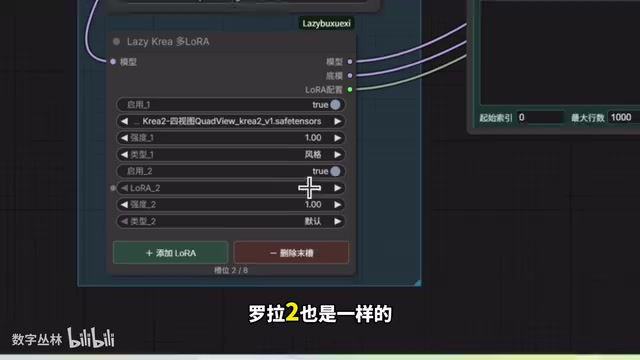
When generating images, users can enter text in the prompt box and click run to produce images. The video demonstrates single and multiple image generation: to generate two images, simply separate two prompts with a space, and the workflow will generate corresponding images separately. Size settings offer quick options including 1K, 2K, and ratios such as 16:9, 4:3, 3:4, 9:16, or you can manually enter custom dimensions. One detail worth noting: if a reference image is added but the "custom size" toggle is not enabled, the generated result will follow the reference image's size; once enabled, it outputs at the set size.
Regarding model switching, the workflow integrates both K2 and Chenwen 2.1 models, and users can choose which one to use in the nodes, combined with different LoRAs for style or character control. The creator also demonstrated how to save custom model presets for easy one-click recall later.
Four-View and Outpainting: Practical but Mind the Parameters
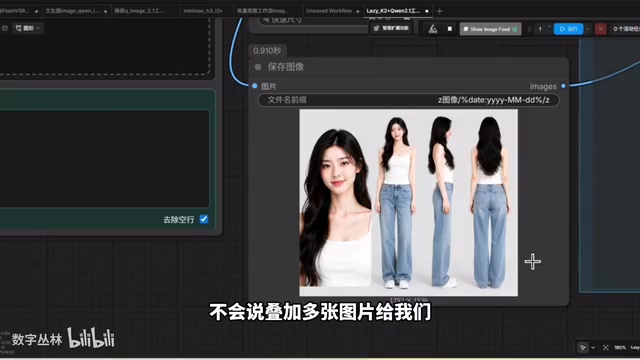
The four-view feature generates multi-angle views from a single reference image, suitable for character design and storyboard previews. In the demonstration, the creator specifically emphasized that when using four-view, the output size should be set to landscape; if set to portrait, the generated result may have multiple images overlapping. In the video, the first attempt caused repeated overlapping due to excessive width settings, and after adjusting the width, the four-view output was complete. This detail shows that the feature is sensitive to size parameters, and users need to configure them reasonably based on the reference image's proportions.
Outpainting extends the canvas boundaries. During operation, set the target size, optionally fill in a prompt, and after running, the workflow generates new content around the original image. In the video demonstration, a handbag was naturally added on the right side after outpainting, with fairly natural edge blending. The style gallery also supports use with reference images—after selecting anime style, preset effects can be applied without additional prompts, and it supports up to 10 reference image inputs, leaving room for outfit changes, local modifications, and other creative uses.
Difference Between Outpainting and Inpainting (Mask-Based Generation)
Outpainting generates new content beyond the original image boundaries. A common approach is to place the original image in a larger canvas, mask or fill the blank areas, and let the model continue the image, so target size, original image position, and edge blending are key parameters. Inpainting (mask-based generation), on the other hand, redraws specified areas within the image—users circle the parts to modify with a mask while the rest of the pixels remain unchanged, suitable for local object replacement, face retouching, and clothing changes. Both rely on the "mask + redraw" mechanism, but one acts outside the canvas and the other inside. The multi-reference image input mentioned in the article (up to 10) is often used with IP-Adapter or reference image nodes to inject conditions such as characters, clothing, and style into the generation process, which is also the foundation of outfit-change and local-modification creative uses.
Usage Tips and Caveats
This workflow is positioned to "lower the barrier to ComfyUI," packing scattered features into a single file, which is beginner-friendly. But integration also brings trade-offs: many nodes make the interface relatively complex, and first-time users need to spend time understanding the relationships between modules; model files depend on specific versions, and if upstream models update, the workflow may throw node errors. Additionally, the "uncensored models" mentioned in the video title and content involve content compliance issues, and users should comply with local laws, regulations, and platform guidelines in actual use.
From a creative efficiency perspective, the style library and quick generation can indeed reduce repetitive work, while four-view and outpainting expand the reuse potential of single assets. If you're already using ComfyUI, this workflow can serve as a reference for feature integration; if you're new to ComfyUI, it's recommended to first familiarize yourself with basic node logic before attempting to deploy large integrated workflows like this.
One-line Summary
A Bilibili creator shares an integrated ComfyUI workflow covering multi-scenario generation and a 400+ style library deployment guide.
Paragraph Summary
This article breaks down the ComfyUI integrated workflow shared by Bilibili creator Leidong. The workflow concentrates text-to-image, image-to-image, image editing, four-view, outpainting, mask-based generation, and multi-image storyboarding in one interface, with over 400 built-in style presets and custom quick generation support. During deployment, plugins go into custom_nodes, and models go into clip, checkpoints, loras, and vae directories by text encoder, main model, LoRA, and VAE respectively. When using, you need to manually match K2 and Chenwen 2.1 models and LoRAs; space-separated multiple prompts enable batch generation, and you can set 1K/2K and various ratios. The four-view feature is size-sensitive, and landscape settings avoid image overlap. The article also reminds that integrated workflows have many nodes, depend on specific model versions, and "uncensored models" involve compliance risks.
Related articles
ICLR 2027 Is Still Sending Rejection Letters: Academia's Long Struggle with AI-Generated Slop
ICLR 2027 continues to issue desk rejects for low-quality submissions, with Reddit voicing support. This article analyzes the initial screening pressure on academic conferences amid the flood of AI-generated papers, the incentive distortions in evaluation systems, and how researchers should respond.
Anthropic India Predates Claude? A Curious Case Sparked by a Name
Reddit users discovered an Indian company named Anthropic that predates the AI company Anthropic, sparking discussions on brand naming and trademark protection. This article explores the story and its implications.
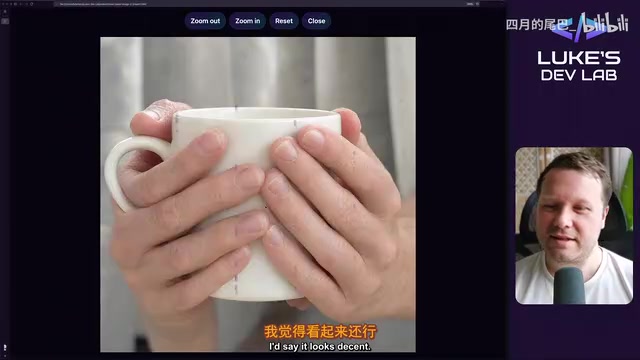
Qwen Image 2.1 Local 32-Test Review: Counting Fails, Anime Style Surprisingly Strong
Bilibili UP host Luke's DevLab ran 32 local tests of Qwen Image 2.1 on an RTX 5090: spelling and spatial layout are reliable, apple counting fails, anime style beats realistic human anatomy, and geometry like bicycle wheel spokes is a clear weak spot. A purple mark suspected to be training data residue appears repeatedly in generated images.