Connect Any LLM to Obsidian: A Complete Guide to Codex + Claude + CC Switch

Use the Cloudian plugin to connect AI Agents like Claude Code into Obsidian for direct note-to-LLM conversations.
The article explains how to embed AI Agent CLIs like Claude Code and Codex into Obsidian via the Cloudian plugin, letting AI work directly on notes and eliminating copy-paste and version confusion. It clarifies the four-layer structure of Obsidian, Cloudian plugin, CLI, and model API; demonstrates Claude Code CLI setup; recommends CC Switch as a model config hub for mapping domestic models like Kimi; and covers plugin configuration, a translation test, the skill system with symlink-shared libraries, and optional Codex notes.
Obsidian is one of the most popular local note-taking tools today, but the disconnect between your notes and AI has always been a pain point—you copy content into an AI tool, process it, then paste it back, and once you have a lot of notes, versions get messy. Is there a way to make AI live directly "inside" Obsidian?
There's a step-by-step Obsidian plugin tutorial on Bilibili that walks through, in detail, how to use the Cloudian plugin to connect AI Agent CLIs like Claude Code and Codex into Obsidian, enabling direct conversations between your notes and large models. The whole process requires no coding—even complete beginners can follow along.
Why not just have an AI Agent read your notes directly?
Many AI Agents on the market can read Obsidian note content and access your knowledge base, but they lack a native relationship with Obsidian. You have to copy content over, wait for it to finish processing, then paste it back; and any notes it generates have to go back into Obsidian before you can edit them. With a lot of notes, versions easily get out of sync.
The Cloudian plugin solves exactly this problem. It's embedded directly inside the Obsidian app and calls the AI models you've already paid for yourself. As the video puts it: "Wherever your notes are, it's there too."
Understand the four-layer structure before you install
Before installing, you need to clarify the hierarchical relationship between four parts—otherwise you'll get confused during configuration later:
Obsidian is the desktop interface—the main note-taking app you see. The Cloudian plugin acts as a bridge and graft, connecting Obsidian to AI capabilities. The component actually calling local large models is each AI Agent's CLI (command-line interface). The model's API provides the real power source—you can configure APIs for different models within the system.
Cloudian itself is not a standalone model; it simply connects the note-taking app's capabilities to CLI Agents, and the Agent carries out the specific actions.
What is a CLI? Why does AI prefer it?
CLI stands for Command Line Interface. Compared to desktop pages operated with a mouse and menu buttons, a CLI looks like "that dark blob"—very unfriendly to beginners.
But AI actually prefers the CLI. The reason: for AI, finding buttons and identifying their positions isn't easy, whereas telling an Agent directly what to do via commands makes the underlying logic simpler and execution more efficient.
A symbolic link is a special file in a file system that doesn't store actual data but, like a shortcut, points to the real location of another file or folder. On macOS and Linux, it's created with the ln -s source_path target_path command. The symbolic links mentioned multiple times in the article leverage exactly this feature: linking skill folders from the unified skill library ~/.agents/skills into each Agent's skill directory (such as .claude/skills). That way, when you add or modify a skill in the unified library, all Agents take effect immediately—no need to copy files multiple times, and no risk of multiple copies falling out of sync.
An API Key is the identity credential for calling a large model service—essentially a key that belongs only to your account. It's usually generated from a model provider's console (such as Kimi, Zhipu, DeepSeekAd, etc.) and looks like a long string. When calling a model, the client puts it in the request header, and the server uses it to verify identity, bill, and control permissions. Because an API Key can directly incur charges, keep it safe—don't screenshot it or write it into public repositories; if it leaks, revoke it in the provider's console and regenerate it immediately.
Installing the Claude Code CLI: the recommended first choice for beginners
The author recommends installing the Claude Code CLI first rather than the Codex CLI. The reason is practical: Claude Code has better compatibility with most models, whereas Codex requires installing extra components like routing when configuring a custom large model, which tends to throw errors for beginners. If you're using a Claude model or a domestic large model you've purchased, the Claude Code CLI is the safer choice.
Installation is simple. Open the official Claude Code installation page, switch to the Terminal page, copy the corresponding install command and paste it to run. If you're a macOS user accustomed to Homebrew, just use the Homebrew install command. After installation, verify success by entering a command in the terminal, then run claude --version to check the version number and confirm.
CC Switch: the management hub for model configuration
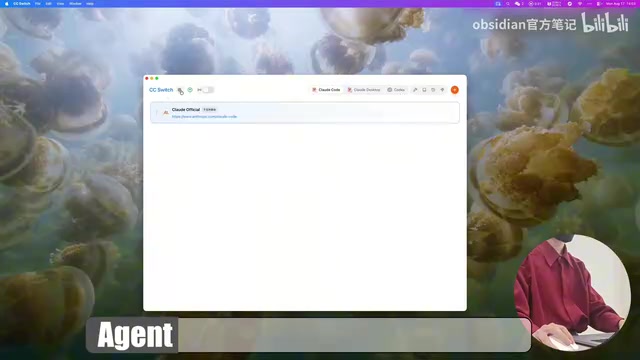
After installing the Claude CLI, don't rush into Claude just yet. The author strongly recommends installing CC Switch first (official site ccswitch.io, free download) to manage model configurations—far more intuitive than manually editing backend config files.
There are several key points to CC Switch configuration:
Set language and theme according to personal preference. For homepage display, choose which AI Agents and CLIs you want shown in the top-right corner of the interface. The Skills storage location defaults to the first position, but the author recommends changing it to a unified folder (~/.agents/skills), so that no matter which Agent you configure skills for, they all live in one place. For skill sync method, check "symbolic link," which is like creating a shortcut so that Agents across different projects can all call skills from the shared skill library.
Configuring domestic large models
Take Kimi as an example: in CC Switch, click the plus sign to select a provider, enter the API Key (you'll need to create one in the Kimi console), then perform model mapping.
The core logic of model mapping is: when you switch to Claude's Sonnet, which model is actually being called? For instance, Claude's models are divided into Haiku (lightest and fastest), Sonnet, and Opus (middle of the road), so you could map Haiku to Kimi 2.7 Code and map Sonnet and Opus to Kimi 3. If the latest model supports 1 million tokens, remember to check the corresponding option.
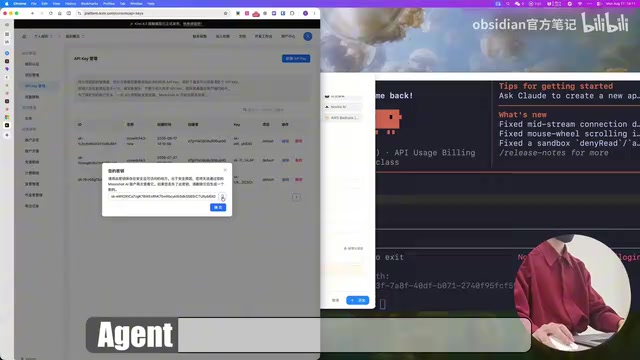
After configuration, click to test connectivity, and once confirmed, click enable. Note the order: you must apply the new model in CC Switch first, then log into Claude, otherwise leftover historical configurations will cause the switch to fail.
Re-enter the terminal and type the Claude command, and you'll find the model has switched to Kimi. Ask it "What model are you using now?" and it will tell you it's currently K3 wrapped in a Claude Code shell.
A Token is the basic unit of text processed by a large model, roughly understood as a "word fragment." In English, one token is about 0.75 words; in Chinese, one character typically consumes 1 to 2 tokens. The context window refers to the total number of tokens a model can simultaneously "remember" in a single conversation, including your input and the model's output. When a model supports 1 million tokens, it means it can read and process extremely large documents at once—such as a whole technical manual or an ultra-long video transcript. That's exactly why the article reminds you: "If the latest model supports 1 million tokens, remember to check the corresponding option"—once enabled, the plugin will lose far less context to truncation when handling long notes.
Model mapping is the core feature of intermediary tools like CC Switch. Because CLIs such as Claude Code hard-code internal call names for the three models Haiku, Sonnet, and Opus, when you use third-party models you need to use mapping to "redirect" those names to the model you actually purchased. The layered mapping design (fast→Haiku, main→Sonnet, strong→Opus) ensures the CLI automatically selects the corresponding model you specify in different scenarios, without modifying the CLI source code.
Installing the Cloudian plugin: let AI move into Obsidian
Back in Obsidian, press Command + , to enter settings, find Third-party Plugins, open the Community Plugin Marketplace, and search for Cloudian. There are currently multiple versions; Cloud Plus adds support for Kimi K3, so choose as needed.
After installing, enable the plugin and enter the configuration page. Key configuration items: turn on the "Enable Cloud" switch, enter the Claude CLI path (get it by typing which claude in the terminal), and modify the default model name. It's recommended to enable safe mode and "load user Claude settings" to keep configuration consistent with CC Switch.

Real-world usage experience
The author tested using an English YouTube video transcript downloaded via Obsidian Web Clipper: select the paragraphs to translate, enter the request in the dialog (translate to Chinese, format key content as Notes), press Enter, and it's done in about a minute. Each English paragraph is followed by its Chinese translation, and mentioned related models are inserted as Notes with explanations.
Cloudian also supports using @ to fuzzy-search and link other content in your notes, letting the AI give comprehensive conclusions based on multiple documents.
Obsidian community plugins are Obsidian's extension mechanism, distributed through the official plugin marketplace, and once installed can be independently enabled or disabled in settings. For security reasons, Obsidian disables third-party community plugins by default; the first time you use one, you need to turn off Restricted Mode before the plugin can read and write to your vault. This is also why the article emphasizes the "safe mode" switch: once enabled, the plugin can only operate on the current vault and won't reach beyond to access other folders, reducing potential risk.
Cloudian implements AI capabilities by invoking local CLI processes, so you need to provide the CLI's executable path. On macOS/Linux you can get it with which claude or which codex; on Windows PowerShell, the equivalent is where claude. This path is the "interface address" between the plugin and the CLI—if it's entered incorrectly or the CLI isn't installed, the plugin won't be able to start a conversation.
Installing the Codex CLI (optional)
If you really are a Codex user, the installation path is the same as for Claude Code. After installation, you need to log in and authenticate via ChatGPT on CC Switch's authentication page. Once authenticated, switch to enabling Codex in the Cloudian configuration, and again use which codex to get the install path and fill it in.
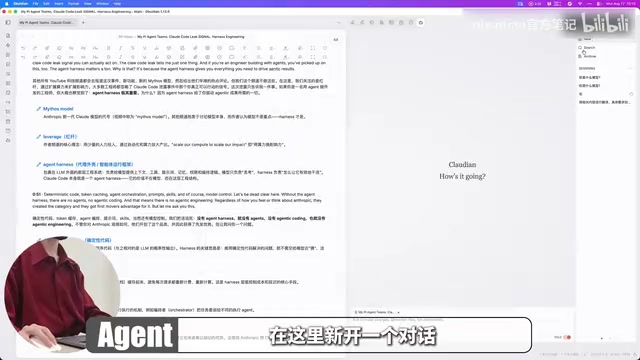
The author does not recommend adding other third-party models to Codex, because it requires enabling routing and configuring it, and if you also use cross-region networking software, conflicts may arise.
Using the skill system
Cloudian calls skills differently from regular AI Agents. It uses the add method to add files and slash commands to invoke skills. Skills called by Claude are stored in the .claude/skills folder, and those called by Codex are in .agents/skills.
Using symbolic links (the ln -s command), you can link skills from the shared skill library into the Agent's skills folder, then load them in a conversation with a slash command. The author demonstrates a skill for organizing term explanations based on a knowledge base—the AI first reads the skill requirements, then reads the specification files, and finally outputs results based on the knowledge base content, with document jump links attached.
From a unified management standpoint, the author recommends completing all configuration through CC Switch, keeping the Claude Code CLI, Claude Desktop, and Cloudian configurations consistent, and avoiding multiple sets of configurations pulling in different directions.
One-line Summary
Use the Cloudian plugin to connect AI Agents like Claude Code into Obsidian, enabling direct conversations between notes and large models.
Paragraph Summary
The article explains how to embed AI Agent CLIs like Claude Code and Codex into Obsidian via the Cloudian plugin, letting AI work directly on note content and eliminating copy-pasting and version confusion. The author first clarifies the four-layer structure of Obsidian, the Cloudian plugin, the CLI, and the model API, then demonstrates installing and verifying the Claude Code CLI. It recommends CC Switch as the model configuration hub, walks through mapping and switching domestic models like Kimi, and emphasizes the order of "apply the new model first, then log into Claude." It then covers Cloudian plugin configuration, a translation test, the skill system and sharing skill libraries via symbolic links, plus optional Codex installation caveats, ending with advice on unified management.
Related articles

Bilibili's Hit Dify Tutorial: A Practical Guide to Building 20+ AI Apps from Scratch
A distilled guide to Bilibili's top-rated Dify tutorial: Windows + Docker deployment, MySQL connection, five app types, model integration strategy, and publishing.

Agent Skills Beginner's Guide: From Concepts to Multi-Agent Collaboration in Practice
A comprehensive guide to Agent Skills: core concepts, components, the importance of Description, standardization, beginner learning paths, and multi-agent collaboration.

One Neuron Detects Both Cats and Cars? We Reproduced It and Found a New Explanation
The cat-car neuron reinterpreted: researcher Cammarata argues it distinguishes pointy from round, not cats from cars. We reproduced the experiment and found the new explanation holds on most inputs—but cars are the exception. The interpretability debate continues on language models.