Connect n8n to Google Sheets in 45 Seconds: A Practical Guide to Auto-Writing Data

Fix the silent data-loss bug in n8n → Google Sheets by mastering field mapping and node configuration.
This article tackles the common issue of n8n workflows executing successfully while Google Sheets receives no data. It walks through the complete process: setting up column headers, configuring the Google Sheets node, authorizing a Google account, selecting the Append Row operation, and enabling automatic field mapping. The core insight is that write failures almost always trace back to mapping mismatches — field names from upstream nodes must match spreadsheet headers exactly, including case and spacing, or data will silently disappear without any error.
When building automated workflows, many people run into a frustrating situation: the workflow executes successfully, yet the Google Sheet remains completely empty. This is rarely a problem with the workflow itself — it almost always comes down to misconfigured Google Sheets node settings or a field mapping mismatch. Let's walk through the actual steps in n8n Cloud to get your workflow data writing into a spreadsheet in just a matter of seconds.
Why Your Workflow Runs Fine But the Sheet Stays Empty
This is one of the most common pitfalls for n8n beginners. The workflow executes, every node shows green, but not a single new row appears in your target spreadsheet. The root cause typically falls into one of two areas: either the wrong operation type is selected in the Google Sheets node, or the field names from upstream nodes don't precisely match the column headers in your sheet.
This distinction matters: n8n does not "guess" which column your data belongs in. It relies on a strict one-to-one match between field names and column headers. Any mismatch causes data to silently disappear — no obvious error, no warning.

Preparation: Set Up Headers and Test Data First
The first step isn't touching n8n at all — it's going back to your Google Sheet. Set up column headers in the top row of your spreadsheet. These headers become the "anchors" for field mapping later on. Also make sure your upstream node is already outputting a sample set of test data, so you can see real field names when configuring the mapping and verify the full pipeline.
Full Steps to Configure the Google Sheets Node
Once you're ready, add a Google Sheets node to your workflow and set the operation type to Append Row. This operation writes your data as a new row at the bottom of the sheet — the most common write scenario.
Next, create credentials to complete authorization. Click "Sign In with Google" and approve n8n's access on the Google authorization page that appears. Once authorized, the credentials are saved and can be reused across future workflows — no need to sign in again.

Select Your Target Spreadsheet and Sheet Tab
With credentials configured, select the target spreadsheet and the specific tab within it. n8n reads the list of spreadsheets in your authorized Google account, so you can simply pick from the dropdown — no need to manually paste a link or spreadsheet ID.
Field Mapping: The Make-or-Break Step
The most failure-prone part of the node configuration — and the one most worth getting right — is field mapping. The recommended approach is Map Automatically, which lets n8n match upstream data to spreadsheet columns based on field names.
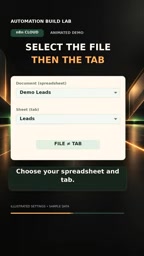
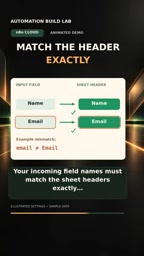
For automatic mapping to work, the incoming field names must exactly match the spreadsheet column headers — and "exactly" means literally: case sensitivity and spacing included. For example, if your header is "Full Name" but the upstream field is "full name" or "FullName", the mapping will fail and that column will receive no data.
Troubleshooting Common Mapping Failures
If data isn't being written, start by checking these: Are there any leading or trailing spaces in your column headers? Does the field name casing match the header exactly? Has the output structure of the upstream node changed since you last ran it? Most "empty sheet" problems can be traced back to field name discrepancies.
Beyond automatic mapping, n8n's Google Sheets node also offers Map Manually mode. In manual mode, you explicitly define the relationship between each spreadsheet column and its corresponding upstream field — useful when field names can't be made consistent, or when the upstream data structure is complex. For beginners, automatic mapping is more intuitive. But when you're working with data sources whose field names you can't control (like fixed field names from a third-party API), switching to manual mapping is often the faster solution, avoiding the need to rewrite field names elsewhere in the workflow.
Another commonly overlooked issue is the frozen rows or filter view state of your spreadsheet. If the first row isn't truly the header row (for example, if a filter is applied with a row offset), n8n may read the column definitions differently than expected, causing data to land in the wrong columns or be skipped entirely. Additionally, if merged cells exist in the header row, the corresponding column header may appear as an empty string, which automatic mapping cannot recognize. When troubleshooting, open the spreadsheet directly in your browser and confirm that every cell in the first row contains independent, non-merged text.
Execute and Verify
Once configuration is complete, execute just the Google Sheets node on its own, then switch to the spreadsheet and check whether a new row has appeared. This single-node execution approach lets you verify your configuration quickly without running the entire workflow every time.
As soon as you see a new row successfully written, it means your credentials, spreadsheet selection, and field mapping are all working correctly — and this automation pipeline is ready to go live.
There's an important distinction between "executing a single node" and "executing the full workflow" in n8n: when you run a node in isolation, its input data comes from the cached output of the previous execution, not from a freshly triggered event. This means if the upstream node's output structure has changed since the last run, a single-node test might pass while the real trigger fails. Before going live, run at least one full end-to-end test using a real trigger event, and confirm that the data written to your spreadsheet matches what you expect.
Summary
Connecting Google Sheets to n8n is not inherently difficult — the real challenge is understanding the field mapping rules. Set up your headers first, prepare test data, authorize your credentials, select the Append Row operation, and align your fields with automatic mapping. Once you have this sequence down, configuration takes only seconds. To go deeper on Triggers, Mapping, and Executions as a system, check out the AI automation beginner resources the original author provides on their channel.
Related articles

Free Unlimited Claude Code Solution: Agnes AI + CC Switch Setup Guide
No paid subscription needed — pair the free AI platform Agnes AI with the open-source tool CC Switch to provide a backend for Claude Code, enabling unlimited free calls to text, image, and video models. This guide covers the full setup, test results, and usage boundaries.

A Complete Zero-Cost Guide to Getting Started with Claude Code for Beginners in China
A beginner's guide to Claude Code for users in China: two installation methods (command line and IDE plugin), full configuration steps for replacing the official API with the free domestic LongCat model, and a hands-on demo of building a small tool with natural language, plus tips.

When the NSA Gets Involved: The AI Supply Chain Crisis Behind Open-Source CVEs and API Key Hijacking
Multiple open-source projects disclosed severe CVEs in one day, PHP flaws alarmed the FBI, and Railway and OpenCode were breached with API keys stolen. This article breaks down the vulnerability window, AI-accelerated exploitation, and the AI supply chain crisis behind the API key black market, with a developer defense checklist.