Connecting Docsie to Devin via MCP: Full Configuration and Hands-On Walkthrough

Full configuration flow and three hands-on scenarios for connecting Docsie's hosted MCP server to Devin, plus deployment boundaries.
This article explains how to connect Docsie's hosted MCP server to autonomous coding agents like Devin. Configuration is done entirely in Devin's settings: add a custom server in the MCP Marketplace, enter app.docsie.io/mcp, and complete OAuth authorization with your own Docsie account. On the Consent screen, Workspace Create and Edit is disabled by default; check it manually if you need write permissions. Three task types are demonstrated: generating a ~1,200-word document with 11 images from a video (taking about 11 minutes, requiring periodic status polling), scanning a video per PII policy with results pinpointed to specific time codes and severity levels, and obtaining a workspace overview via natural language. Deployment recommendations include least privilege, pacing asynchronous tasks, estimating AI credits costs, and consulting official documentation for capabilities not covered in the demos.
Why Connect a Documentation Platform to an AI Coding Agent
Autonomous coding agents like Devin excel at breaking down tasks and executing multi-step operations, but out of the box they know nothing about your team's internal documentation assets. Docsie offers a hosted MCP server that fills this gap: once configured, Devin can invoke Docsie's documentation capabilities and workspace data.
The core value of MCP (Model Context Protocol) is exposing external tools to agents in a unified way, so agents don't need custom integrations for each service. Docsie has officially demonstrated the complete setup process from scratch, and the configuration barrier is lower than you might expect—all you need is a Docsie account and access to Devin's settings.
According to the official documentation, Docsie's MCP server is free across all Docsie plans; the paid aspect is background tasks that consume organizational AI credits.
The Relationship Between MCP and Custom Servers
MCP uses a client-server architecture: AI agents (like Devin) act as clients, making tool calls and resource read requests to MCP servers through a unified protocol. MCP servers can be provided in two ways: local processes (stdio transport) or remote hosted services (typically HTTP/SSE-based). Docsie provides the latter, so integration only requires filling in a URL—nothing needs to be installed locally.
"Custom MCP servers" refer to entries manually registered by users rather than vetted through an official marketplace. Devin's MCP configuration file is essentially a server manifest, with each record containing a name, URL, and optional authentication parameters. Adding a custom entry is the minimal operation to bring an external service into the agent's available toolset. This also explains why the entire integration process requires no code: the protocol layer has already standardized the handshake, authentication, and tool description formats, and the agent automatically pulls the server's declared tool list upon connection.
Configuration Steps: From Settings to Authorization
Adding a Custom MCP Server
The entire integration path is completed within Devin's settings: open Settings, scroll down to Configuration, click Open MCP Marketplace next to MCP Servers, then select Add Custom MCP. Devin will directly open its MCP configuration file; you need to add an entry named Docsie, fill in the URL of Docsie's hosted MCP server (app.docsie.io/mcp), and save.
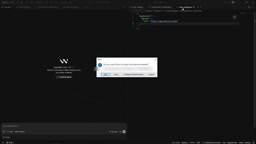
After saving, Devin will request to open Docsie in the browser—click Open to enter the login flow. This uses your own Docsie account, not Devin's identity.
The Most Easily Overlooked Item on the Consent Screen
After logging in, a Consent screen appears showing three categories of information: the organization, permission packs, and the default workspace. Among these, Workspace Create and Edit is disabled by default—if you want Devin to not only read but also create or edit documents, you need to manually check this option.
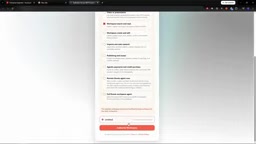
After checking, click Authorize Workspace, and the browser hands control back to Devin. At this point, Docsie appears as connected in Devin's MCP server list. It's worth emphasizing: disabling write permissions by default is a sensible security design—running in read-only mode first to confirm behavior matches expectations before enabling write permissions is the safer path.
OAuth Authorization and Permission Packs
Behind the Consent screen is a standard OAuth authorization flow. After the browser redirects to the Docsie login page, Docsie shows you the permission scopes requested by the third-party application (here, Devin); once you agree, it issues an access token, and Devin uses that token to call the MCP server. The reason authorization is completed with your own account is that all operations are ultimately executed under your identity and your organization's quota, and audit logs are recorded under your name.
"Permission packs" are Docsie's abstraction for aggregating permissions: rather than checking dozens of fine-grained scopes one by one, you bundle them by purpose—for example, a read-only pack or a workspace create-and-edit pack. Workspace Create and Edit is disabled by default, following the OAuth convention of "least privilege"—the authorizing party grants only the minimal set necessary to complete the task by default, and expanding permissions must be an explicit user action. Revoking authorization is also done in Docsie's authorized applications list, decoupled from Devin's configuration.
Hands-On 1: Generating Documentation from a Video
After integration, the official demo shows a typical long-running task: asking Devin to call the Docsie agent to generate documentation from a video, with instructions to check the agent status every 45 seconds.
Devin first provides a brief plan, locates the corresponding shelf, starts the Docsie agent, and then enters a wait-and-poll loop. Docsie handles analyzing the video content and writing the documentation. According to the demo data, this task took about 11 minutes.
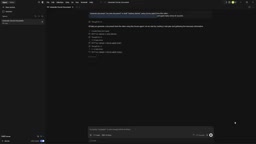
Upon completion, Devin summarizes the new document: approximately 1,200 words, with 11 images extracted from the video. Opening the link reveals a finished guide containing a purpose statement, overview, step-by-step instructions, and screenshots from the video. This case shows that with MCP integration, the agent doesn't just call a single API—it can orchestrate an asynchronous task with a clear completion signal.
Note that such tasks consume the organization's AI credits and fall under usage-based billing, not the MCP connection itself.
Agent Polling and Asynchronous Task Completion Signals
Tasks like video analysis cannot return results within a single tool call; MCP servers typically use a "submit-query" pattern: the agent first calls a submit-type tool to get a task ID, then repeatedly uses a query-type tool to check status until success or failure is returned. The "check every 45 seconds" in the article is an explicit constraint on this polling cadence.
Polling intervals require trade-offs: too frequent wastes call counts and context, while too sparse risks the agent concluding before the task is truly complete. A more robust approach is to have the server return progress percentage or estimated time remaining in status responses, letting the agent adjust its cadence accordingly. Additionally, agents have limited context windows, and intermediate states from prolonged polling consume space—so mature implementations often offload task state to the server, with the agent retaining only the task ID and final result.
Hands-On 2: Compliance Scanning and Workspace Overview
Scanning a Video with PII Policies
The second demo is a compliance scenario: asking Devin to scan a video according to Docsie's PII policy. Devin submits the scanning task and reports status when queried. The result found one violation—between 19 and 25 seconds, an email address was visible in the code editor, rated at medium severity.
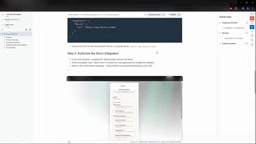
Such scanning has practical significance for content teams: manually checking videos frame by frame for sensitive information is nearly impossible, but delegating detection to an agent with defined policies yields specific conclusions pinpointed to time codes.
PII and Policy-Based Content Compliance
PII (Personally Identifiable Information) refers to data that can identify a specific individual, alone or in combination with other information—common types include email addresses, phone numbers, ID numbers, home addresses, and faces. PII scanning for video is harder than for text: it requires frame sampling or speech transcription first, then entity recognition on both OCR results from frames and audio text, and finally mapping hits back to time codes.
The role of "policies" here is to make detection rules explicit: which entity types count as violations, how to rate hits (e.g., medium), and whether they are allowed to appear in specific regions. With policy definitions, the agent's output shifts from a vague "might be a problem" to reviewable structured conclusions—time ranges, entity types, severity levels. This also means the policy configuration itself determines scanning quality: rules that are too broad cause missed detections, while those too narrow generate many false positives, requiring iterative tuning based on business scenarios.
Having Devin Report Workspace Status
The third scenario is lighter: requesting a workspace overview. Devin lists workspaces, their organizations, content counts, settings, and recent activity. For teams needing a quick understanding of their documentation assets, this is essentially replacing backend page-flipping with natural language.
Deployment Recommendations and Boundaries
From the demos, the Docsie and Devin combination covers three types of tasks: content production, compliance checking, and asset inventory. A few points to note for actual deployment.
Least privilege. Write permissions being disabled by default is intentional—run scanning and overview tasks in read-only mode first, then decide whether to enable creation and editing.
Pacing asynchronous tasks. Tasks like video analysis take on the order of ten minutes; having the agent periodically poll status is necessary, otherwise the agent may end prematurely or misjudge completion.
Cost awareness. The MCP server itself is free across all plans, but background agent tasks consume organizational AI credits—estimate usage before large-scale batch processing.
Scope of applicability. The official demos focus on document generation and policy scanning; for what other capabilities the Docsie MCP server exposes, consult the official documentation—don't assume the demos cover all interfaces.
Related articles
 Tech Frontiers
Google Omni 1.2 Flash: 15-Second AI Video at Just $0.07 per Second
Google DeepMind releases Gemini Omni 1.2 Flash: 15-second video, 720p at $0.07/sec (30% cheaper), multi-turn editing without regeneration, draft upscaling to 4K.
 Tech Frontiers
No AI Ghostwriting: Writer's Quarter Reinvents Novel Writing with a Visual Workbench
The Writer's Quarter is an AI-free novel writing and planning tool that unifies character building, story planning, and manuscript writing in one visual workbench. This article analyzes its positioning, target users, and differentiated value amid the rise of AI writing tools.
 Tech Frontiers
Fleeep: A Unified Inspiration Collection Notes App for Creatives
Fleeep is a notes app for creatives that unifies screenshots, bookmarks, saved posts, and inspiration into one calm, cross-device, offline-capable space. This article analyzes its positioning, differentiation, and target users.