Cursor 3.0 Complete Beginner's Guide: Getting Started with AI-Powered IDE Development
A complete beginner's guide to Cursor 3.0 — from first project to parallel agents, cloud dev, and automation.
This comprehensive beginner's guide to Cursor 3.0 covers the core advantage of this "AI-powered VS Code" over CLI tools like Claude Code and Codex: visual control. It walks through three versions of feature evolution including the Agent First UI, parallel sub-agents, WorkTree isolation, cloud development, and automation integrations. On the practical side, it provides a complete workflow from creating a project, selecting models, and using Plan Mode, to multi-model code review, Git version control, and the rules/skills system — with a progressive learning approach for new users.
Cursor has evolved from a simple AI code completion tool into a full development environment built around intelligent agents. As a fork of Visual Studio Code, Cursor 3.0 retains all the capabilities of a traditional IDE while integrating heavyweight features like parallel agents, cloud development, and a skills system. This beginner's guide is based on a comprehensive course by a long-time user, covering the complete workflow from installation to advanced features — no prior experience required.
How Cursor Differs from Claude Code and Codex
Cursor is essentially an integrated development environment (IDE) with extensive AI capabilities built in — think of it as "AI-powered VS Code." Its biggest difference from CLI-based tools like Claude Code and Codex comes down to control.
When using CLI tools, you rarely look at the actual files or read the code — you're largely trusting the AI model blindly. In Cursor, you get the full AI-assisted coding experience while still being able to view code, edit it, and track every single change. As the original course author points out: it's precisely this greater degree of control that makes serious software engineers gravitate toward tools like Cursor over purely CLI-based solutions.
It's worth noting that Cursor is completely free to use. The free tier is more than enough for beginners; you'd only need to upgrade to Pro, Pro Plus, or Ultra plans with heavier usage. The pricing logic mirrors other AI tools: Cursor's native models (Grok, Composer) have generous quotas, while Frontier models (like GPT 5.6) burn through them faster.
Claude Code is Anthropic's command-line AI coding tool that runs directly in the terminal, using natural language instructions to manipulate the file system and execute code. Codex is OpenAI's code generation model and its derivative CLI tools. What these tools share is an "interface-free" approach — you type instructions in the terminal, the AI autonomously handles file reads/writes and command execution, with minimal user intervention required. This is extremely efficient for senior engineers comfortable with the command line, but it also means you can't see changes line-by-line in real time, making errors harder to trace and roll back. Cursor, as a graphical IDE, embeds AI capabilities within a visual editor environment where you always have access to the file tree, diff comparisons, and syntax highlighting — every AI action is transparent and auditable.
The Three Major Waves of Change in Cursor 3.0
From 1.0 to 2.0 to 3.0, Cursor has gone through three distinct waves of feature evolution:
The first wave introduced Skills, the Cursor Marketplace, modes like Debug Mode and Design Mode, and the very practical Side Chats feature.
The second wave represented a fundamental shift at the interface level — switching to an Agent First UI. The default view is no longer a traditional IDE but a set of agents that can run in parallel, built around the idea of running multiple agents simultaneously using cloud compute. The traditional IDE view remains accessible at any time.
The third wave packed in Composer 2.5, Automations, cloud sub-agents, an iOS app, and more. The latest Grok 4.5 model was trained in collaboration with SpaceX using its compute infrastructure — it's powerful and significantly cheaper per token than comparable models like GPT 5.6.
Agent View vs. IDE View: Two Ways to Work
Cursor 3.0 offers two main views you can switch between freely.
The Agent View is the default. It looks similar to ChatGPT — just a prompt window. It's primarily aimed at non-technical users: type a prompt and get output, while being able to see multiple agents running in parallel for multitasking. Changes, browser previews, and more can be expanded on the right side.
The IDE View is the traditional editor interface, with a file tree on the left, code as the focal point of the screen, and the Agent panel moved to a secondary position on the right. Click the IDE button in the top-right corner to toggle between views — both can be used simultaneously.
For beginners, the author recommends starting in Agent View to scaffold your project, then switching to IDE View for more granular code editing, since reviewing and undoing changes is easier there.
Creating Your First Project from Scratch
The complete project creation workflow can be distilled into a few steps:
- Create a new folder: Click "New Folder" at the bottom. It's recommended to create a dedicated directory on your desktop (e.g., Cursor Demo) and select it.
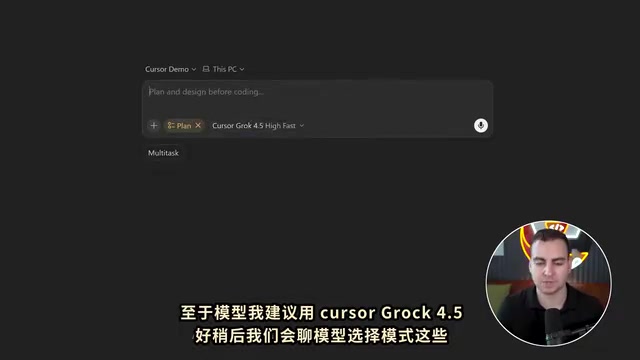
- Choose a model: Beginners should start with Cursor's native Grok 4.5 or Composer 2.5.
- Switch to Plan Mode: Have the AI generate a plan before executing — this is more controlled than diving straight in.
- Write a detailed initial prompt: The author strongly recommends using a speech-to-text tool like Whisper Flow, since speaking is faster than typing and provides richer context. A good prompt answers three questions: what you want to build, why you're building it, and who it's for.
- Answer the AI's clarifying questions: Cursor will proactively ask about design style, feature scope, interaction patterns, etc.
- Review the generated plan: Plans are presented as Markdown files and can render visual diagrams.
Once you're satisfied, you can proceed to the build phase. You can choose between local builds or parallel builds — the latter automatically spins up multiple agents to handle tasks in parallel, theoretically completing work faster.
Practical Model Selection Strategy
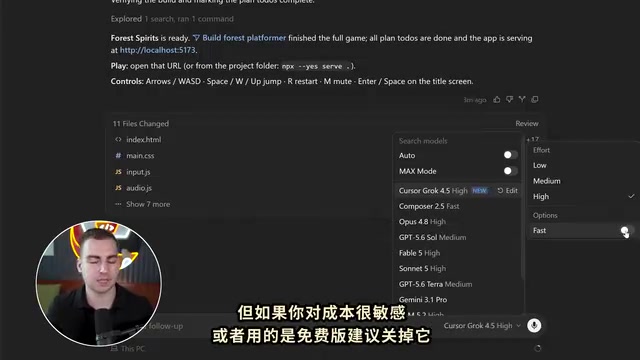
The model selector has a lot of options, but the author provides clear tiered recommendations:
- Simple, web-based tasks: Use Composer 2.5 — it consumes fewer credits.
- Moderately challenging tasks: Use Grok 4.5 — slightly more expensive than Composer but still far cheaper than Frontier models.
- When the above can't solve it: Switch to advanced models like GPT 5.6 or Fable for a "fresh perspective" on the problem.
There are also a few key toggles to know: Max Mode expands the context window and consumes more credits — only necessary for large codebases. Auto Mode prioritizes Cursor's native models when you're unsure what to use. Fast Mode significantly speeds up code output but burns through credits faster; it's advisable to turn this off if you're cost-conscious or on the free plan.
Browser, Design Mode, and Git Version Control
Cursor has a built-in browser that lets you load and test your app directly within the editor — no need to switch windows. It can also autonomously control the browser: clicking buttons, checking the console, taking screenshots, reloading pages, and more.
Design Mode lets you select elements directly on the page in the browser, draw circles or arrows around them, and tell Cursor what to change. For example, you can circle an element and say "make these spheres purple," and the AI will screenshot the state and apply the changes. When developing web UIs, this is far more efficient than describing element positions in text.
On version control, the author repeatedly emphasizes the importance of Git. Enabling a Git repository allows the changes and file diff views on the right to work properly. The best practice is: have the AI make small changes at a time, and once tests pass, have it run Commit to create a checkpoint — so you can roll back at any time if something breaks. If you're unfamiliar with Git, just ask the Agent to initialize it for you.
Parallel Sub-Agents and Multi-Model Code Review
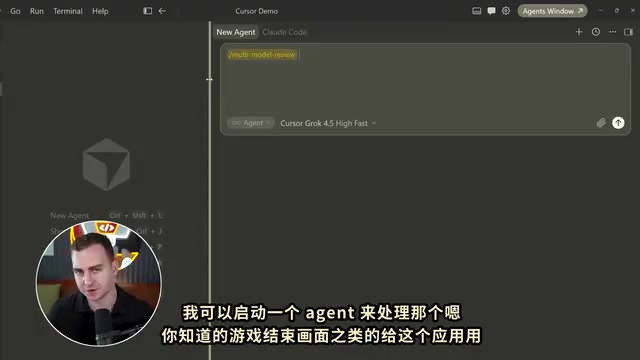
In IDE View, you can invoke more advanced features using slash commands (/). Multimodel Review is particularly powerful — it uses multiple different models and agents simultaneously to review your code, identifying bugs, refactoring opportunities, and areas that need changes.
These agents work within WorkTrees. A WorkTree is essentially a cloned copy of your project — agents make changes there without affecting the original code. Only when an agent is satisfied with the results does it merge the changes back into the main codebase. This ensures safety when multiple agents are working in parallel.
The author also explains the difference between sub-agents and independent agents: sub-agents branch off from the main agent and share context, while a new independent conversation resets history and starts with its own fresh "worldview." When context usage reaches 70–90%, it's best to compress the context or start a new conversation, since model performance degrades near the end of a context window.
WorkTree is a native Git feature that allows a single repository to have multiple independent working copies in different directories simultaneously, each on a different branch without interfering with one another. Cursor integrates this mechanism into the agent workflow: when multiple sub-agents execute tasks in parallel, each agent operates on its own WorkTree copy. Even if an agent produces incorrect code or destructive changes, the main branch remains uncontaminated. Changes are only merged back once the agent completes its task and the results are validated. This mirrors the concept of "feature branches" in software engineering — essentially isolating the cost of AI trial-and-error in a sandbox. For users unfamiliar with Git branching, just think of it as an automatic "safety net."
Cloud Development: Running Tasks Independent of Your Local Machine
By default, all tasks run locally — close your laptop, crash the app, or lose power, and the task is interrupted. Cursor Cloud solves this by pushing tasks to cloud compute, with cross-device viewing and management available through the iOS app.
Enabling cloud development requires connecting your project to a Git service (like GitHub): create a new repository on GitHub, have the Agent help you connect and push your code, then go to the cursor.com dashboard to authorize the repository connection and create a cloud environment. After that, running /cloud triggers cloud-based tasks.
Rules, Skills, and Automations: Building a Professional Dev Environment
For serious projects, Cursor offers three categories of advanced capabilities:
Project Rules: Persistent constraints injected into the Agent, such as "use JavaScript only, not TypeScript," "no file should exceed 300 lines," or "keep all code modular." Just ask the Agent to create these for you — rules are saved in the .cursor directory and automatically injected during code generation.
Skills: Reusable workflows. Cursor includes built-in skills like Automate, Browser Automation, and Create Rule, and you can create custom skills invocable via slash commands.
Automations: Connect tools like Slack, GitHub, and Linear to have agents run automatically on a schedule (daily/hourly) or triggered by specific events (Slack messages, GitHub events, Sentry errors). This is especially useful for real codebases that require frequent recurring tasks.
There's also the relatively new Side Chats feature: select a piece of content in the current conversation to add to a side chat, allowing you to ask focused questions or seek clarification on that content without interrupting the main Agent.
Rules are technically stored as Markdown or text files under the .cursor/rules directory. Each time Cursor sends a request to the Agent, the rule content is automatically appended to the system prompt. This means rules don't modify the model itself — they constrain AI output style and behavior boundaries through context injection. A similar mechanism in prompt engineering is called a "persistent system prompt" and is the standard approach most AI coding tools use to maintain code style consistency. The more specific and verifiable the rules (e.g., "all function names must use camelCase," "never use the any type"), the more effective they are at constraining AI behavior. Vague rules like "write good code" have limited practical effect.
Summary
Cursor 3.0's overall philosophy is clear: lower the barrier to AI-assisted development while preserving all the control that professional developers need. Beginners can start with Agent View + Plan Mode + voice prompts, then gradually introduce Git, parallel sub-agents, cloud development, and automation. Understanding "which view, which model, and which mode to use when" is the key to using Cursor effectively.
Related articles
Boox Palma 3 Launches with Stylus Support and Redesigned Look
Boox Palma 3 launches with stylus support and a sleek new design. The pocket-sized e-ink reader gains new capabilities but comes at a higher price than its predecessor.
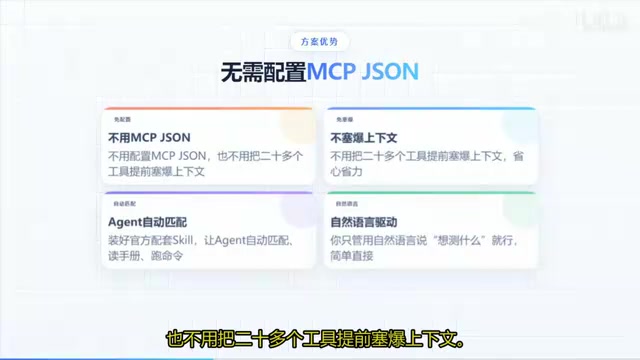
Codex + Playwright as a Skill: UI Automation Without Manual Commands
Wrap Playwright as a Codex Skill so AI agents run UI automation tests via natural language. Covers install, Sauce Demo walkthrough, PO pattern, and MCP vs CLI+Skill tradeoffs.

Replicate the $400/Year 'Dedao Brain' With Obsidian + AI Agents — For Free
How to replicate Dedao Brain Expert Edition (¥2,999/year) using free Obsidian + AI agents. A breakdown of Germinate, Polish, Challenge, Style Coach, and more as reusable prompt skills.