Cursor AI Code Editor Complete Beginner's Guide: Download, Modes, and Model Selection

Cursor is a VS Code-based AI code editor with Agent, Ask, and Manual modes — best paired with Claude for production development.
This article covers the core usage of Cursor, an AI code editor built on VS Code with deep LLM integration. It supports natural-language-driven code generation, debugging, and three working modes: Agent (fully automated, ideal for greenfield projects), Ask (Q&A for specific problems), and Manual (developer-led with AI suggestions). For production projects, the Claude model series is recommended for its superior code generation capabilities.
Cursor has emerged as one of the fastest-growing AI code editors in recent years, fundamentally changing how developers work. It's not just an editor with autocomplete — it's an intelligent tool that actively participates in the development workflow, automatically generating code and handling debugging. This article is based on a hands-on tutorial and walks you through everything from downloading and installing Cursor to its core configuration.
What Is Cursor and Why Should You Care
At its core, Cursor is an AI-powered code editor built on top of VS Code, with deep integration of large language model (LLM) capabilities. Its purpose is clear: to bring AI into every stage of the coding process, not just as a simple autocomplete feature.
Cursor is widely regarded as a top-tier product in the AI coding tools space. For developers and beginners looking to experience "AI writing code," it's an essential tool to try. Its core value proposition is simple: describe what you need in plain language, and the AI generates files, writes code, and handles debugging for you.
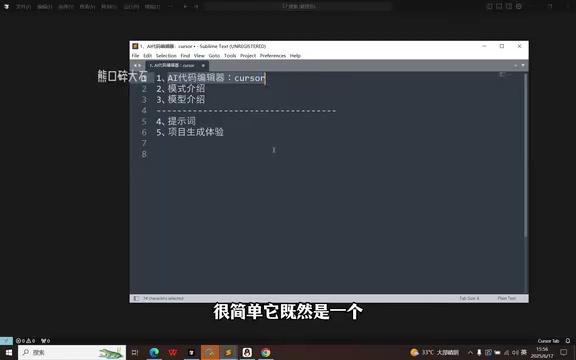
Cursor is built on VS Code (Visual Studio Code), which means developers can seamlessly bring over their existing plugins, themes, and keyboard shortcuts with virtually no extra learning curve. VS Code itself is a lightweight, open-source code editor from Microsoft that has become the world's most popular development tool thanks to its powerful plugin ecosystem. Cursor takes this foundation further by embedding LLM capabilities directly into the editor's core — unlike GitHub Copilot, which attaches as a plugin — allowing the AI to understand the full context of your project, including file structure, dependencies, and code logic, rather than just the few lines around your cursor.
How to Download and Install Cursor
Downloading Cursor is straightforward. Since it's a popular tool, simply searching "Cursor" in any search engine will lead you to the official download page. Once on the site, it will automatically detect your operating system (Windows or macOS) and offer the appropriate download button.
One important note: after installation, you must register an account and log in before the AI features will work. This step cannot be skipped — without it, you won't be able to call any model capabilities. The entire installation process is beginner-friendly; just follow the on-screen prompts.
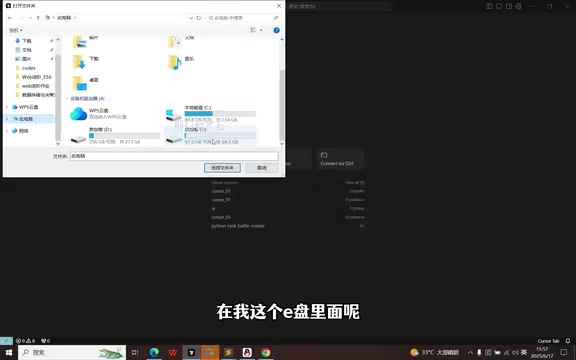
Interface Layout and Basic Operations
When you first open Cursor, you can create a new project or open an existing folder. In the tutorial demo, a folder named CursorTest is created on disk and opened — Cursor will automatically load that directory.
The interface is divided into three areas:
- Left panel: File and code display area, where AI-generated content primarily appears
- Center panel: The detailed file viewing and editing area
- Right panel: The interaction area where you submit requests to the AI
For most users, the AI interaction panel on the right is the main focus. Within it, there are two key settings to understand — Mode and Model. These two configurations directly determine how AI participates in your development process.
The Three Working Modes Explained
Cursor offers three working modes, each suited to different scenarios. Understanding the differences is essential to getting the most out of this tool.
Agent Mode: Fully Automated Development
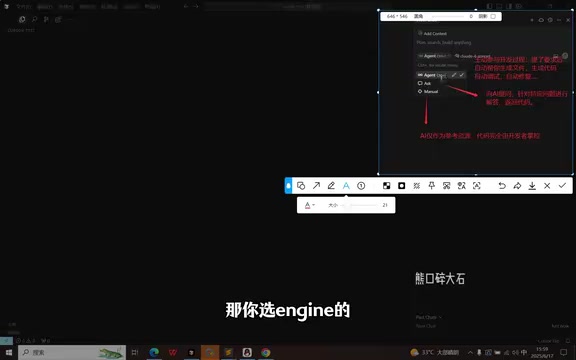
Agent mode is the most powerful and intelligent of the three. It actively participates in the entire development process — automatically generating files, writing code, and performing debugging and fixes. In short, it's an end-to-end, fully automated mode.
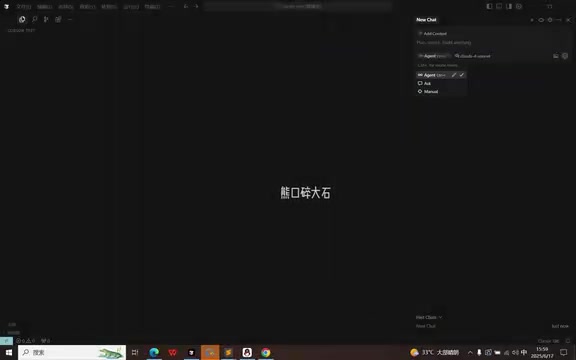
If you're starting a project from scratch — building a complete application from nothing — Agent mode is the best choice. The hands-on tutorial demo also uses this mode.
The concept of an "Agent" comes from the AI field, referring to an AI system that can autonomously perceive its environment, form a plan, and execute multiple sequential steps to accomplish a goal — as opposed to a standard model that simply responds to a single prompt. Cursor's Agent mode is an engineering implementation of this idea: rather than waiting for you to confirm each step, it independently decides "which file to create first, what logic to write next, and how to fix any errors that appear," forming a closed execution loop. Its power lies in handling chained task dependencies, but this also demands more from the underlying model and consumes more tokens (the billing unit). It's best suited for well-defined goals that require bulk generation, and is not recommended for making small tweaks to existing code.
Ask Mode: Question-and-Answer Interaction
Ask mode is a conversational, question-and-answer style of interaction. You pose a specific question to the AI, and it responds with an explanation and the corresponding code. It's better suited for solving specific, localized problems within an existing project, rather than generating an entire codebase from scratch.
Manual Mode: Developer-Led Control
In Manual mode, the AI serves only as a reference — the developer retains full control over the code. This mode is ideal for experienced developers who need strong control over their codebase and only want AI-assisted suggestions.
How to Choose an AI Model
Beyond mode selection, choosing the right model is equally important. Cursor supports multiple large language models, including the GPT series, the Claude series, and others.
The model options include an "Auto" setting by default. When enabled, Cursor automatically selects an available model based on your account's current permissions. If you disable Auto, you can manually select from other models — some are paid, and some free models can be added as well.
The key recommendation here is: if you're building a project intended for a production environment or direct deployment, choose the Claude series of models. In terms of pure coding ability, Claude is considered one of the strongest models currently available. Once you've configured your mode and model, simply type your requirements into the interaction panel to start generating code with AI.
The GPT series is developed by OpenAI, while the Claude series is developed by Anthropic. The two have different strengths: GPT-4 offers well-rounded performance in general conversation and reasoning, while the Claude series — especially Claude 3.5 Sonnet and later versions — excels at code generation accuracy, handling long contexts, and following complex instructions. This is why Claude is recommended for production projects. It's worth noting that pricing varies significantly between models. Free accounts typically have limited access to premium models, and exceeding those limits requires a Pro subscription or pay-as-you-go billing. When selecting a model, consider both your project's complexity and your budget. For everyday learning and small projects, the Auto setting or free-tier models will meet most needs.
Summary
Cursor's strength lies in elevating AI from a "helper tool" to an active "development participant." Master the right use case for each of the three modes — Agent for building from scratch, Ask for targeted Q&A, and Manual for precise control — then pair them with the right model to unlock this tool's full productivity potential. For beginners, starting with Agent mode and the Claude model is the fastest path to completing a full project from end to end.
Related articles

AI Compute Is the New Oil, But the Market Mechanism Has Yet to Take Shape
Hacker News compares AI compute to the new oil, noting the lack of price discovery, concentrated supply, and no hedging tools. The article analyzes structural issues in compute trading and explores a possible three-tier market of spot, contracts, and derivatives, plus the real impact on AI practitioners' cost management.

Running Full iOS 16.5 Firmware on Android Devices: Technical Demo or Marketing Gimmick?
A Hacker News post claims full iOS 16.5 firmware can run on Android, with 315 upvotes. This analysis argues it is more likely a web UI simulation than a true firmware port, and explores the value and risks of such projects.

Etsy Cracks Down on AI Slop: Addressing Buyer and Seller Anxieties
Etsy introduces stricter rules limiting AI-generated content in listings, addressing buyer confusion over AI products and seller fears of original work being diluted by AI slop.