DeepSeek Harness Step-by-Step Installation Guide: Core Principles and Building Automated AI Applications

Based on a Bilibili tutorial, this covers Node.js setup and pitfalls for DeepSeek Harness.
Based on Bilibili creator Pan Ge's tutorial, this article outlines the Windows environment setup for DeepSeek Harness. Key steps: verify Node.js with node -v and npm -v, always open a new command line after changing environment variables; avoid C drive and Chinese paths, check Add to Path; configure npm prefix and cache to move global packages and cache off the system drive, set NODE_PATH and reference it in Path. It also explains Harness as middleware connecting DeepSeek models and Agent frameworks.
DeepSeek Harness is a tool that has recently gained significant attention in the AI developer community. It combines DeepSeek models with Agent workflows to help users build automated AI applications. Bilibili creator "Pan Ge" released a tutorial video he describes as a "step-by-step" guide, demonstrating the complete process from Node.js environment preparation to DeepSeek Harness installation and configuration. This article is based on that video's content, organizing the key steps and the technical logic behind them to help readers avoid common pitfalls.
Why You Need to Set Up the Node.js Environment First
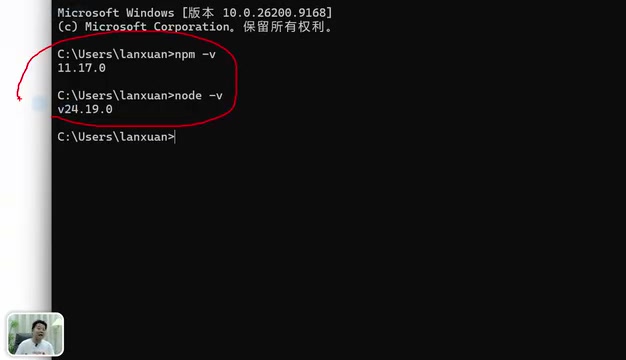
The installation and operation of DeepSeekAd Harness both depend on the Node.js environment, which was emphasized at the very beginning of the video. The creator demonstrated opening the command line via Win + R and typing CMD, then running node -v and npm -v respectively to check version numbers. If either command errors out or shows "not recognized as an internal or external command," it means Node.js is not installed or there is a problem with the installation.
This preliminary check seems basic, yet it is often overlooked. Many users, when encountering Harness startup failures, immediately assume the tool itself has a bug—but the root cause is actually an incomplete Node.js environment. The video specifically reminds viewers: after installing Node.js, you must open a new command line window before running the verification commands again. Otherwise, the old window's environment variables won't refresh, and errors will persist.
Node.js Installation: Path Selection and Pitfalls to Avoid
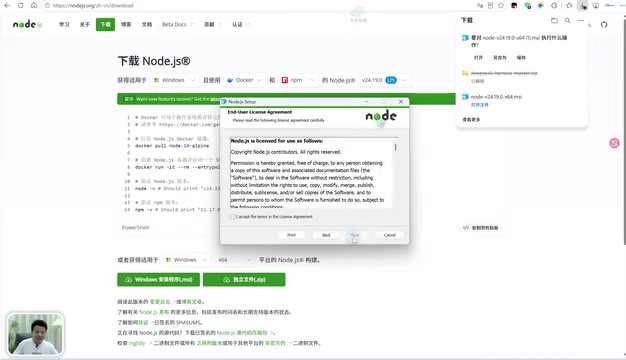
The creator's installation process starts with downloading the Windows version from the Node.js official website (Mac users can switch to the corresponding version on the download page). Two details during installation are worth noting:
First, do not use the default C drive path for the installation directory. The video recommends installing Node.js to a custom directory on another drive, and the directory name should not contain Chinese characters. The reason is straightforward—excessive C drive usage affects system performance, and since npm will download an increasing number of packages and plugins over time, planning the path in advance avoids the hassle of migration later.
Second, check the "Add to Path" option in the installation wizard. This step ensures that Node.js-related commands are recognized by the system. After completing the installation, click Finish, then open a new command line window and verify node -v and npm -v. If both version numbers output correctly, the installation is successful.
Configuring npm Global Directory and Cache Directory
After Node.js is installed, without additional configuration, npm's downloaded global packages and cache files will accumulate by default in the C drive user directory. As DeepSeek Harness usage increases, plugins and dependency packages will continue to accumulate, putting pressure on the C drive. The creator's solution is to manually specify the global directory and cache directory.
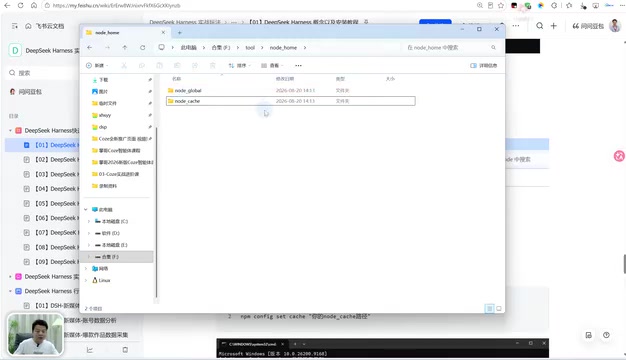
Specifically, create a working directory on a non-system drive (e.g., Tool), create a NodeHome folder inside it, then create two subdirectories under that: NodeGlobal for storing global packages and NodeCache as the cache directory. Then set npm's prefix and cache paths via the command line, pointing to these two directories respectively.
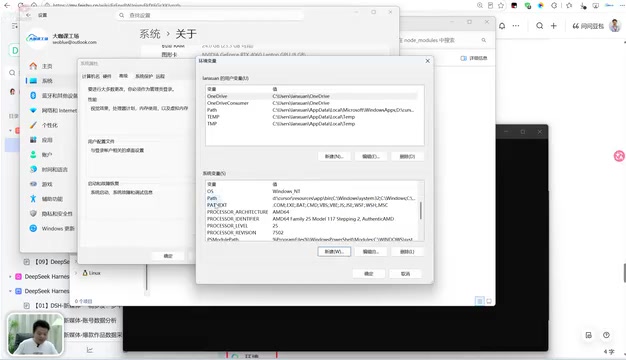
After completing this step, you also need to create a NODE_PATH variable in the system environment variables, with the value being the node_modules directory under NodeGlobal, and append the NodeGlobal path and %NODE_PATH% reference to the Path variable. This allows the system to correctly locate globally installed npm modules. The video verified that the configuration took effect by downloading a test package—the package was correctly installed to the custom NodeGlobal/node_modules directory rather than the C drive.
How npm prefix and cache work
npm config set prefix specifies the storage location for global packages (modules installed via npm install -g), and npm will automatically link executable scripts under that path to locations the system can recognize; npm config set cache determines where npm stores downloaded tarballs (.tgz package files) and metadata cache. Both default to the user directory (on Windows, typically C:\Users\<username>\AppData\Roaming\npm and %LocalAppData%\npm-cache). After long-term use, the cache directory can swell to several GB, while the global package directory grows linearly with the number of plugins. Moving these two directories to a non-system drive is essentially a "capacity planning for dependency storage," which is especially meaningful for scenarios involving frequent installation/upgrading of Agent plugins.
The division of labor between NODE_PATH and Path
These two environment variables are often confused. Path determines "whether a given executable command can be typed directly in the command line"—for example, a globally installed harness CLI requires its directory to appear in Path. NODE_PATH, on the other hand, determines which additional directories Node.js will search for modules during require() or import, beyond the current project's node_modules. After customizing the prefix, global modules are no longer in Node.js's default search path, so you must explicitly set NODE_PATH to point to NodeGlobal\node_modules; otherwise, referencing global modules in code will throw Cannot find module. Both are essential.
The Core Logic of Agent Workflows
Although the video mainly focuses on environment configuration, the "core principles of pairing with Agents" mentioned in the title deserves elaboration. DeepSeek Harness positions itself as a middleware layer connecting DeepSeek model capabilities with Agent execution frameworks. The core of an Agent is enabling the model to not only generate text but also call tools, execute multi-step tasks, and adjust strategies based on intermediate results. Harness provides standardized interfaces and a runtime environment that makes such multi-step calls configurable and reusable.
From a practical standpoint, environment configuration is important precisely because Agent operation frequently calls external tools and dependency packages. Only with well-planned global and cache directories can Harness and its plugins run stably during subsequent installation, without interruption due to permission issues or disk space problems.
The relationship between Harness and Agent frameworks
The term "Harness" originally means "wire harness/fixture" in engineering contexts, extended to mean a supporting structure that organizes scattered components and constrains their behavior. In AI, it typically refers to a runtime wrapper built around a model: interfacing upward with the model API, and downward managing tool registration, context assembly, loop control, error retry, and logging. The key difference between an Agent and ordinary conversational calls is the "loop"—the model output may trigger tool calls, tool results are fed back to the model, and so on until the task is complete. The value of Harness lies in standardizing this loop, so developers don't have to implement tool scheduling and state management from scratch for every application—they only need to register tools and configure workflows according to conventions. Therefore, its operation is highly dependent on package management and module resolution mechanisms in the Node.js ecosystem, which is the fundamental reason why preliminary environment configuration cannot be taken lightly.
Practical Tips and Next Steps
Based on the video content, several practical tips can be summarized: verify the Node.js environment before installation; avoid C drive and Chinese paths for both the installation directory and npm directories; after each environment variable change, open a new command line window before testing; use a test package to verify that the npm global directory is working.
The creator stated at the end of the video that after environment preparation is complete, the next step will be the actual usage of DeepSeek Harness. For developers who want to build automated AI applications, this environment configuration process is the foundation for all subsequent operations. Spending time to get it solid is more important than rushing to run the first Agent.
It should be noted that the installation steps cited in this article all come from the demonstration content of that Bilibili video. The interface may differ slightly across operating system versions and Node.js versions; refer to the actual interface during operation.
One-line Summary
Based on a Bilibili tutorial, this article outlines the Node.js environment configuration process and pitfalls to avoid for DeepSeek Harness.
Paragraph Summary
Based on Bilibili creator "Pan Ge"'s tutorial video, this article systematically outlines the environment preparation process for DeepSeek Harness on Windows. Core steps include: first verify Node.js readiness with node -v and npm -v, and always open a new command line window after changing environment variables; avoid C drive and Chinese paths when installing Node.js, and check Add to Path; then use npm's prefix and cache configuration to move global packages and cache to a non-system drive, set NODE_PATH and reference it in Path so global modules load correctly. The article also briefly explains Harness's positioning as a middleware layer connecting DeepSeek models with Agent execution frameworks, noting that environment stability directly affects the operation of subsequent Agent tasks.
Related articles

Build an AI Super Employee System at Zero Cost: A Full Breakdown of Automated Agent Workflows
A deep breakdown of the AI super employee system demoed on Bilibili: agent orchestration, digital human voiceovers, map and enterprise lead generation, 24/7 customer service, and legal modules. We analyze the business logic and compliance risks behind zero-cost signup to help entrepreneurs judge the real ROI of this AI digital employee system.

The Essential Difference Between Chatbots and AI Agents: Crossing from Conversation to Execution
What's the difference between a chatbot and an AI agent? Based on the MCP series on the Learn Tech channel, this article uses examples like booking flights and summarizing notes to explain: a chatbot only gives answers, while an agent actually completes tasks through a think-act-observe loop. It breaks down the four core components—model, tools, memory, and goal—as well as MCP's role as a bridge, and discusses agents' applicable boundaries and permission risks.

Free GitHub Repo: 342 Hours of AI Courses, from Math to MCP Servers
A free GitHub repo offers 342 hours of AI courses: 523 lessons across 20 phases, from math fundamentals to agent building and MCP servers. Nearly 100,000 learners have started.