Deploy a Free AI Agent Locally: Build an All-in-One Assistant with Qwen 3.5 + Hormis

Build a free local AI agent with Qwen 3.5-9B and Hormis for desktop automation and web scraping.
This guide walks through deploying a fully free, privacy-preserving AI agent locally using Ollama, Qwen 3.5-9B, and the Hormis framework. The setup enables web scraping via FireCrawl, desktop application control, and file management — all through natural language commands. It covers environment configuration, context window extension, and desktop driver setup, making it accessible even on consumer-grade hardware with 8GB VRAM GPUs.
Why Deploy an AI Agent Locally?
While most people are still worrying about subscription costs and privacy concerns with cloud-based AI services, a completely free, locally-running AI agent solution has already matured. It can not only chat like ChatGPT but also scrape web pages, operate desktop applications, and access local files — and all of this can run even on low-spec computers.
The trend toward local AI deployment is driven by three core factors: data privacy compliance requirements (such as GDPR and China's Personal Information Protection Law), the ongoing cost pressure of cloud services (ChatGPT Plus costs $20/month, with enterprise plans even higher), and network latency and availability issues. Since 2024, with the maturation of model quantization techniques (such as the GGUF format) and inference optimization frameworks, large models that previously required data-center-grade hardware can now run smoothly on consumer-grade GPUs, making local AI agents practical rather than merely conceptual.
This article, based on a hands-on tutorial from a Bilibili creator, provides a detailed breakdown of how to build a locally-running AI assistant that can coordinate various tools and autonomously handle tasks using the open-source model Qwen 3.5-9B paired with the Hormis framework. The entire solution is completely free, requiring no API costs whatsoever.
Core Solution Selection: Qwen 3.5-9B + Hormis Framework

This local AI agent solution consists of two core components:
- Large Language Model: Qwen 3.5-9B, a moderately-sized open-source model that strikes a good balance between comprehension capability and resource consumption. The 9B parameter count means most computers with a dedicated GPU can run it smoothly.
- Agent Framework: Hormis, an AI Agent framework with a rich built-in toolset that supports task assignment via natural language and can coordinate capabilities including web scraping (FireCrawl), desktop operations, local file reading, and more.
Technical Characteristics of Qwen 3.5-9B
The Qwen series is a family of open-source large language models from Alibaba Cloud's Tongyi Lab, using a Decoder-only Transformer architecture. "9B" means the model contains approximately 9 billion trainable parameters. After quantization (such as 4-bit quantization), the model file size can be compressed to approximately 5-6GB, enabling it to run on consumer-grade GPUs with 8GB of VRAM (such as the RTX 3060/4060). Qwen 3.5 shows significant improvements over its predecessors in instruction following, tool calling (Function Calling), and long-context understanding.
The reason for choosing Qwen 3.5-9B is its excellent Chinese language comprehension and its long-verified compatibility with the Hormis framework. Compared to larger models, the 9B parameter count allows ordinary consumer-grade GPUs to handle it, truly achieving the goal of "low-spec deployment."
How AI Agent Frameworks Work
The core design pattern of an AI Agent framework is the ReAct (Reasoning + Acting) loop: the model first reasons about what it should do, then calls external tools to execute actions, and then continues reasoning about the next step based on the results returned by the tools. This is fundamentally different from traditional chatbots — chatbots can only generate text, while agents can interact with the external world through tool calls. The built-in toolset in the Hormis framework allows the model to invoke web scraping, file operations, desktop control, and other capabilities without additional development, significantly lowering the technical barrier to building agents.
Step 1: Configure the Ollama Runtime Environment
What is Ollama
Ollama is an open-source local model inference engine that wraps underlying inference libraries like llama.cpp and provides a Docker-like model management experience. Users can download and run various open-source models through simple command-line instructions. Ollama supports GPU acceleration (CUDA/Metal) and CPU inference, and provides a local API interface compatible with the OpenAI format, allowing various upper-layer applications to seamlessly connect to local models just like calling a cloud API.
Upgrade Ollama to the Latest Version
The first critical step in deployment is setting up the Ollama runtime environment. Here's a must-note point: make sure to upgrade Ollama to the latest version 0.30. Older versions may have compatibility issues that cause errors in subsequent steps.
Extend the Context Window
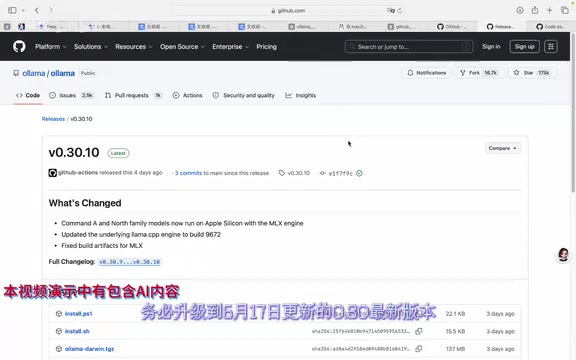
Ollama's default context window is only 4096 tokens, which is a very critical limitation.
The context window refers to the maximum number of tokens the model can process in a single inference pass. A token is the basic unit of text processing for the model — in Chinese, one character typically corresponds to 1-2 tokens. The default 4096-token window is roughly equivalent to 2000-3000 Chinese characters, which is sufficient for simple conversations. However, in agent scenarios, system prompts, tool definition descriptions, tool call results, and multi-turn conversation history accumulate rapidly and can easily exceed this limit. Extending the context window increases VRAM usage (approximately linearly), so it should be set reasonably based on hardware conditions.
In actual AI agent usage, tool call instructions, returned data, and multi-turn conversation history will quickly fill this window, causing content to be truncated and preventing the agent from functioning properly.
The solution is to execute a specific command in the terminal to extend the context limit. After configuration, start the Ollama Server — this terminal window must remain open because it needs to keep running in the background.
Verifying whether the service is running normally is simple: open another terminal window and type ollama ps to check the running status. If you can see model information, the Ollama service has started successfully.
Step 2: Set Up the Desktop Interaction Driver Environment
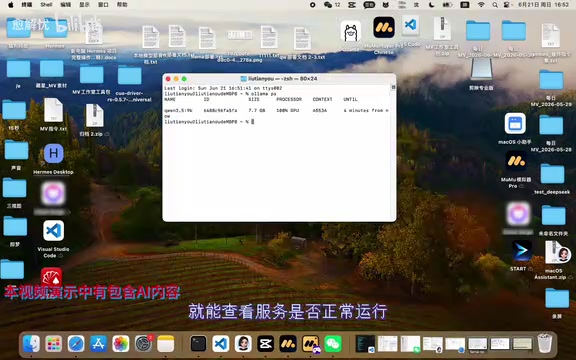
This step is key to transforming the AI from "can only talk" to "can actually do things." We need to start the COA Driver interaction driver in a cleanly initialized Hormis environment.
Technical Principles of Desktop Interaction
The essence of a desktop interaction driver is providing the AI with "eyes and hands" — identifying interface elements through screenshots (similar to computer vision) and operating applications through simulated mouse clicks and keyboard inputs. This technology is also known as an AI-enhanced version of RPA (Robotic Process Automation). Traditional RPA requires pre-written fixed scripts, while AI-driven desktop operations can dynamically determine operation steps based on natural language instructions, offering greater flexibility and generalization capability.
The specific process involves two steps:
- Enable the background service: Execute the startup command to run the COA Driver in the background
- Verify running status: Execute the check command to confirm the driver has started normally
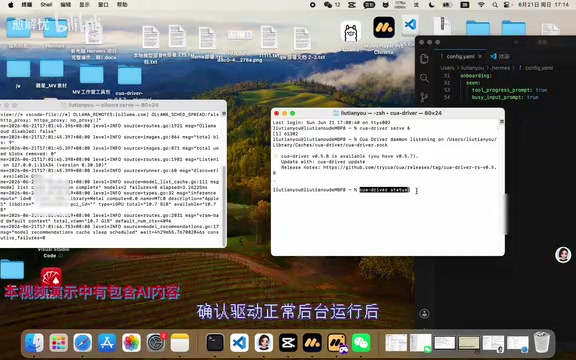
Only after confirming that the COA Driver is running normally can Hormis gain the ability to operate the local system — including reading local files, controlling desktop applications, and executing system-level operations. This driver essentially acts as a "bridge" between the AI brain and the computer's operating system.
Step 3: Launch Hormis and Assign Tasks
Once all environment configuration is complete, open Hormis to start using it. At this point, you're no longer facing a simple chatbot but an AI agent with multiple capabilities:
- Access local applications: Can open and operate various software installed on your computer
- Online research: Scrapes web content through tools like FireCrawl to obtain real-time information
- File management: Reads and organizes local files and data
- Chained task execution: Links multiple operations together to complete complex workflows
About FireCrawl Web Scraping
FireCrawl is a web content extraction tool designed specifically for AI. Unlike traditional crawlers — which scrape raw HTML — FireCrawl cleans web content into structured Markdown or plain text format, removing noise like ads and navigation bars, retaining only the core content. This processing approach significantly reduces the number of tokens fed to the model while improving the accuracy of the model's understanding of web content.
All these operations are assigned through natural language instructions, requiring no code writing or manual configuration.
Advantages and Limitations Analysis
Advantages
The biggest appeal of this solution is that it's completely free and keeps all data local. For users concerned about privacy or those unwilling to pay ongoing fees for cloud AI services, this is one of the most practical alternatives currently available. Qwen 3.5-9B's Chinese language capability performs excellently among open-source models of the same tier, more than sufficient for daily task processing.
Points to Note
- Hardware threshold: Although marketed as "low-spec," running a 9B model still requires at least a dedicated GPU with 8GB of VRAM; CPU-only inference will be extremely slow
- Context management: Even with an extended context window, local models' long-text processing capabilities still fall short of cloud-based large models
- Tool calling stability: Open-source models' Function Calling capabilities still lag behind commercial models like GPT-4; complex tasks may require multiple attempts
The Root Cause of Function Calling Capability Gaps
Function Calling is the key capability that enables large models to invoke external tools. The model needs to accurately understand user intent, determine which tool to call, and generate parameters in the correct format. Commercial models like GPT-4 have undergone extensive specialized training and RLHF (Reinforcement Learning from Human Feedback) alignment for tool-calling scenarios, achieving accuracy rates above 95%. While open-source models are catching up rapidly, they still show gaps in complex multi-tool scenarios, nested calls, and error recovery, manifesting as occasionally generating incorrectly formatted call instructions or selecting the wrong tool. With continued investment from the open-source community, this gap is gradually narrowing.
Conclusion
From a language model that can only chat to an AI agent capable of controlling the desktop, scraping web pages, and autonomously executing tasks, this local deployment solution demonstrates the maturity of the open-source AI ecosystem. The combination of Ollama + Qwen 3.5-9B + Hormis allows ordinary users to have a fully-featured personal AI assistant without spending a single penny.
For users who want to get started with AI agents but don't want to rely on cloud services, this is a very worthwhile starting point to try.
Related articles

Meta vs. Publishers: The AI Data Battle Over Terms of Service Changes and the Future of the Internet
Meta changed its business account terms to allow AI training on linked website data, sparking backlash from publishers and creators. Industry groups demanded negotiations, forcing Meta to remove 'training' wording and delay the effective date. The dispute reveals the deeper battle over data authorization and the future of the internet in the AI era.
When Outside Xbox Meets Blood on the Clocktower: A Legion Match in Minecraft
Outside Xbox guests Ellen and Mike play Minecraft Blood on the Clocktower in a Legion game. How can three good players fight an evil majority amid information noise? This article breaks down Legion mechanics, information-role mind games, and the endgame reversal.

Kimi K3.1 Hands-On Test: Open-Source Model Nears Opus, Video Generation Steals the Show
Kimi K3.1 completed motion graphics, 3D rendering, mini-games, and video generation in a live test. Analysis of its 2.8T MoE architecture, gap vs Opus/GPT, and hidden video generation.