Gemini Canvas Complete Guide: From Documents to Websites and Production-Ready Apps

Gemini Canvas is a hidden production layer that generates documents, websites, apps, and dashboards from a single prompt.
This article systematically breaks down Gemini Canvas's core features and real workflows. Canvas isn't a text editor — it's a production layer that generates and live-renders documents, single-page websites, interactive apps, data dashboards, and audio podcasts within a single interface. Its key advantage lies in inline editing and "click and ask" mechanics that eliminate the copy-paste loop between chat windows and editors. The article also covers four advanced workflow combinations and honestly addresses the core limitation: all Canvas apps are pure frontend prototypes with no backend or data persistence, requiring developer involvement before real-world deployment.
Many people use Gemini as a chatbot and miss the feature that can truly turn it into a production tool — Canvas. It's not the ordinary text editor you might imagine, but a complete production layer hidden inside the prompt bar's tools menu. This article walks through a real project to break down Canvas's core capabilities and workflows.
What Canvas Actually Is
Canvas is not a text editor. It can generate functional websites, no-code apps, dashboards, and even audio podcasts from a single prompt inside Gemini. Just open Canvas from the tools menu in the prompt bar, and everything Gemini generates will appear in a live, editable pane on the right side of your screen.
The difference from Google Docs becomes especially apparent with longer documents. In Docs, you manually move your cursor and retype text. In Canvas, you can still do that — but more powerfully, you can talk directly to the model about selected content on the page. Highlight a paragraph, and a prompt bubble pops up beside it. Type the change you want, and only the selected section gets rewritten — no new chat thread, no copy-pasting, no version confusion.
Within the AI tools ecosystem, Canvas is a concrete implementation of "generative UI": the model doesn't just output text, it outputs directly renderable, structured artifacts (HTML/CSS/JS or rich-text documents) while maintaining an interactive editing state within the same interface. The core difference from earlier chat-based AI is "context anchoring" — every subsequent edit instruction automatically uses the current canvas content as context, rather than reverting to a blank conversation. A similar design philosophy appears in Anthropic's Claude Artifacts and OpenAI's Canvas feature, all of which launched around 2024, marking a collective shift in AI interaction from "question and answer" toward "collaborative creation."
The Document Layer: Eliminating the Copy-Paste Loop
Take a brief explaining an Agent Pipeline to brand partners as an example. After opening Canvas, you get a structured document in about 30 seconds. Want the introduction more concise? Select it, type "shorter and more confident," and the model rewrites only that section — the rest of the document stays intact.
The top of the pane also has global controls: a length slider to expand or compress the entire document, a tone slider to shift between formal and casual — these produce real, visible changes you can immediately see, and you can undo them if you don't like the result.
There's also a "Suggest Edits" mode that marks proposed changes the way Google Docs does, letting you accept or reject them one by one. And the "Select and Ask" mode works on anything you highlight — a sentence, a heading, even a cell in a table — with an inline bubble that treats the selection as the active context for rewriting.
The core value of this layer: it completely eliminates the copy-paste loop from your workflow. You stay in the same panel the entire time, every edit is undoable, and you never need to switch between a chat window and a separate editor.
From Document to Web Page: Generating a Shareable Single-Page Site
Level up: same brief, but instead of sending a PDF, you want a clean web page shareable via URL. The prompt is simple — "Convert this brief into a clean single-page website with three sections: overview, agent workflow, and partnership options."
Canvas generates complete HTML, CSS, and JavaScript and renders it live in the preview pane. You're not looking at code — you see the actual page with styling and typography. You can keep editing just like a document: select a heading to rephrase it, switch to dark mode, add a contact form at the bottom — each instruction triggers a fresh render.
Beyond inline editing, there's a faster "click and ask" approach: click on the page and it dims, then you point directly at the element you want to change — a heading or a button — and Canvas only rewrites the corresponding code. It feels like pointing at something and talking to it. Even more surprisingly, you can drop a live AI chat widget directly into the page with one click, letting visitors ask questions about your content — transitioning from a static page to an interactive one without touching any code.
When you're satisfied, open the share menu in the upper right. You can share via Google Drive (following your Drive permissions) or copy the full code into any hosting service. It's not a one-click public link, but going from a single prompt to working, hosted code takes just a few minutes.
Building Functional Apps
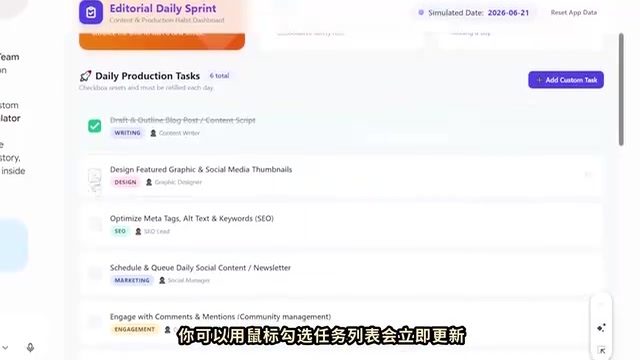
This is where most people's mental model breaks down — they don't believe it's possible. Take a habit tracker as an example: prompt "Build a simple habit tracker app with a daily task list, checkboxes, and a streak counter that resets if you miss a day," and Canvas renders a fully functional app in the preview pane.
One caveat: the streak only persists within the current Canvas session, because apps don't retain data after you close the tab.
What Apps Work Well in Canvas
Single-purpose tools are where Canvas truly shines — tip calculators, unit converters, simple browser games like number guessing. Anything with self-contained logic and a clear input/output flow tends to work on the first try.
A practical pattern: describe what you need, let Canvas generate the first version, then hand the code to a developer to wire up real data. The developer isn't starting from scratch — they're wiring up something that already works visually, which can cut back-and-forth in half.
You can also paste a screenshot of an existing app or website into Gemini and have Canvas clone the interface. It reads the visual information from the screenshot and writes entirely new code to replicate the layout and interaction patterns. It won't be pixel-perfect, but the structure is there and serves as a usable starting point.
Dashboards: Turning Real Data Into Visual Boards
Dashboards are where this feature becomes genuinely useful — but there's a trap to avoid: pointing Gemini at a Drive link and hoping it grabs the right path is unpredictable. The reliable approach is to put the numbers directly into the prompt.
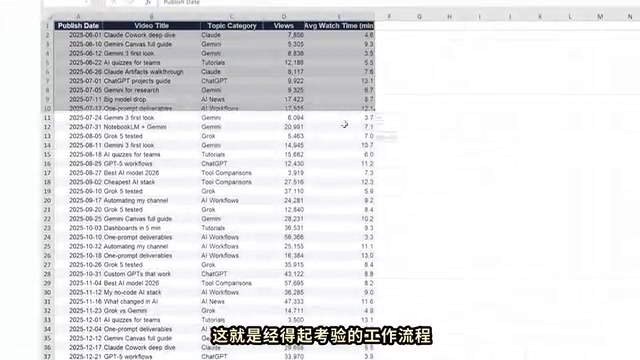
Open your spreadsheet, select the data you want to visualize, copy it directly into the prompt, then ask Canvas to build a dashboard from it. Because the numbers are embedded in the context, Gemini generates charts and summaries that actually reflect your performance — not generic placeholder data.
In practice, after pasting raw data, Canvas turned it into a complete analytics dashboard: headline numbers at the top (total views, average retention, library size, hit rate), a trend chart, a goal planner (calculating how many more videos you'd need to hit your target), an insights panel (flagging the strongest format), and a sortable table ranking content by performance — complete with CSV export. All from one prompt and a block of pasted numbers.
The technical bottleneck here is the large language model's "context window" limit. The context window determines the maximum amount of text a model can process in a single pass (including the prompt, conversation history, and generated content). Gemini 1.5 Pro's context window reaches 1 million tokens — theoretically large enough to accommodate substantial datasets — but in practice, the model's attention tends to decay for information near the end of the window. This is why pasting a trimmed set of key numbers works better than stuffing in an entire raw spreadsheet. It's not a hard capacity ceiling so much as ensuring the model prioritizes the most relevant values within its limited attention resources.
Canvas as a Learning Environment
Canvas can also transform content into learnable material. Paste a research article or long brief, ask it to build an interactive multiple-choice quiz, and Canvas will identify testable concepts and generate a complete quiz with radio buttons and a scoring interface.
Afterward, a "Keep Learning" panel appears with one-click options to convert the same material into a flashcard deck or a full study guide. The strengths panel also reads your answers and identifies weak areas. Flashcards follow the same principle, outputting an interactive deck you flip through card by card.
The most surprising format is audio: ask Canvas to convert a document into a podcast-style conversation, and it generates a genuine back-and-forth between two hosts that plays as synthesized audio. Feed it a brief and you get a five-minute conversation. The engine is similar to Notebook LM's audio overview — except it's built into Gemini, saving you a tool switch.
Four Advanced Workflow Combinations
Notebook LM into Canvas: Upload PDFs, web pages, and notes in Notebook LM for research, get a synthesized summary, copy it into Gemini, then have Canvas turn it into a website or formatted report — a "research to publication" pipeline in roughly 20 minutes.
Screen recording to app clone: Record yourself navigating a tool, then have Gemini analyze the recording and build a similar frontend in Canvas as a starting point.
Thinking mode for complex builds: When building something with real logic — multi-step calculators, forms with conditional branching — open thinking mode in the tools menu. Gemini spends more time reasoning through the structure before writing code, and the results are noticeably more reliable. Simple documents don't need it; interactive builds are worth the overhead.
Deep Research to finished format: Run a deep research query, Gemini browses the web and compiles a sourced report into Canvas. Once the report is ready, a "Create" button appears at the top, letting you convert the same report into a web page, infographic, quiz, or audio — all without leaving Canvas.

"Thinking mode" corresponds to the "Test-Time Compute Scaling" mechanism that major large language models have broadly adopted in recent years. Unlike standard inference that outputs answers directly, thinking mode has the model first generate a visible or hidden "chain of thought" — breaking a complex problem into sub-steps before synthesizing a final answer. This approach significantly improves performance on logical reasoning, code generation, and mathematical computation tasks, though it consumes more tokens and response time. Google calls this "thinking" in the Gemini 2.0 series; Anthropic calls it "extended thinking"; OpenAI achieves similar capabilities through the o1/o3 series. The article's recommendation to enable it only for interactive apps with real logic is precisely because simple document generation doesn't warrant that extra reasoning overhead.
Canvas's Real Limitations
The limitations need to be stated plainly. Everything Canvas builds runs in the browser — there's no backend, and data entered doesn't persist after you close the tab. If you need real storage or live API connections, you'll need to hand the output to a developer.
For data, pasting directly into the prompt is most reliable, but very large datasets will exceed the context window — so only keep what matters. These apps are impressive, but they're prototype-grade: suitable for demos, internal tools, and pitching. Anything customer-facing should have its code copied and hardened first.
Worth noting: every site and app has a code view behind the preview — click the toggle at the top to see the full source code and edit it directly, with the preview updating instantly. That source code is also exactly what you copy when handing it off to a developer.
"No backend, data doesn't persist" means the apps Canvas outputs run entirely in the browser (pure frontend applications), using localStorage or in-memory state rather than a server database. Once the tab closes or the browser cache clears, user data disappears with it. This contrasts with backend-as-a-service (BaaS) solutions like Firebase or Supabase, which provide hosted databases and authentication that can rapidly upgrade a prototype into a deployable product. For scenarios requiring multi-user collaboration, cross-device sync, or long-term data retention, Canvas output code needs to be connected to such services before reaching production quality — which is the technical context behind the article's recommendation to "hand it to a developer to wire up."
Closing Thoughts
Canvas is neither a text editor nor a gimmick — it's the production layer inside Gemini. Functional websites, dashboards, and audio are all one toggle away in the prompt bar. Open Gemini, click Tools, enable Canvas with thinking mode, and start with your next real task.
Related articles

Free Unlimited Claude Code Solution: Agnes AI + CC Switch Setup Guide
No paid subscription needed — pair the free AI platform Agnes AI with the open-source tool CC Switch to provide a backend for Claude Code, enabling unlimited free calls to text, image, and video models. This guide covers the full setup, test results, and usage boundaries.

A Complete Zero-Cost Guide to Getting Started with Claude Code for Beginners in China
A beginner's guide to Claude Code for users in China: two installation methods (command line and IDE plugin), full configuration steps for replacing the official API with the free domestic LongCat model, and a hands-on demo of building a small tool with natural language, plus tips.

When the NSA Gets Involved: The AI Supply Chain Crisis Behind Open-Source CVEs and API Key Hijacking
Multiple open-source projects disclosed severe CVEs in one day, PHP flaws alarmed the FBI, and Railway and OpenCode were breached with API keys stolen. This article breaks down the vulnerability window, AI-accelerated exploitation, and the AI supply chain crisis behind the API key black market, with a developer defense checklist.