Gemini CLI Model Switching Guide: /model Command and Launch Flags in Practice

Switch Gemini CLI models in 5 seconds: /model mid-session, --model at launch, sub-agents unaffected.
This article explains how to flexibly switch AI models in Gemini CLI to match the compute demands of different tasks. There are two core approaches: type /model in an active session to bring up a selection dialog, or specify the model at launch with the --model flag. Options include Auto (which dispatches by complexity) and Manual (which locks in a specific model) — Auto suits everyday use, while Manual shines when you already know a task's nature. The article also highlights a common misconception: sub-agents independently select their own models during execution and are not bound by the main session's setting, so multiple models appearing in usage reports is a scope limitation, not a bug.
Running a simple script fix in your terminal, but the CLI crawls along at a maddening pace — because it's using a heavyweight reasoning model for a task that doesn't need that kind of firepower. The flip side is just as frustrating: you're tackling a genuinely tricky refactor, but the CLI defaults to a fast-but-shallow model and misses exactly the kind of edge cases a stronger model would catch instinctively. These two seemingly opposite problems share a single solution, and once you know where it lives, the whole thing takes five seconds.
Switching Models Mid-Session: The /model Command
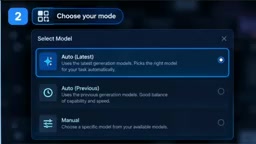
Inside an active session, just type /model and press Enter. A dialog appears with three real options:
- Auto (latest generation): Automatically dispatches across the latest-generation models
- Auto (previous generation): Automatically dispatches across the previous-generation models
- Manual: Lets you pick a specific model directly from your account's available model list
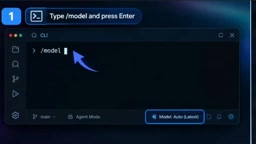
For most people, Auto is the right default. It selects a lighter, faster model for simple requests and automatically upgrades to a stronger one when a task genuinely demands it — meaning you don't have to manually babysit every prompt and make that call yourself.
When to Switch to Manual
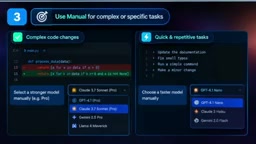
Manual mode earns its keep when you already know the nature of the task upfront. If you're facing a genuinely difficult refactor or a problem requiring careful multi-step reasoning, it's better to lock in the strongest Pro-tier model before you start rather than hoping Auto judges the complexity correctly on the first try.
Repetitive small tasks are the other classic scenario. Manually dropping down to a faster model can save you real time accumulated across dozens of minor requests — situations where heavyweight reasoning adds nothing but latency.
Setting the Model Before Launch: The --model Flag
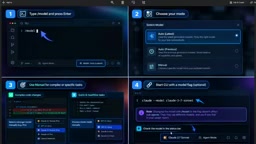
If you'd rather lock in the model before a session even starts, you can pass the model flag directly when launching the CLI in your terminal. The syntax specifies the model name right at launch, letting you skip the dialog entirely and start running on exactly the model you want from the first prompt.
This approach is especially useful when baking into scripts or workflows — when your model preference for a certain class of task is well established, it eliminates the manual selection step every session.
Pinning a model version via --model in scripts or CI/CD workflows also brings an added benefit: reproducibility. When you need to benchmark or compare outputs across runs of the same task type, ensuring every run uses the exact same model is a prerequisite for drawing reliable conclusions. In Auto mode, scheduling results can vary over time due to model updates or load changes, while --model locks that variable down. Note that some model names carry version-number suffixes — when specifying one, it's worth checking the exact model IDs available in your account to avoid launch failures from a name mismatch.
A Common Gotcha: Sub-Agents Aren't Bound by Your Selection
Here's a detail that leads many people to think something is broken. Whether you switch models via /model or a launch flag, that choice does not override the models used by sub-agents during task execution.
If the CLI spins up sub-agents to handle parts of a larger task, those sub-agents may run on different models than the one you explicitly selected. This shows up in your usage report — even though you personally only picked one model, the report may list several. This isn't a bug; it's a scope limitation worth understanding before you dive in.
To confirm which model your main session is actually running on, check the model name displayed in the status bar at the bottom of the terminal — that's the part your selection directly controls.
Sub-agents are the mechanism Gemini CLI uses to automatically break down complex tasks and execute subtasks in parallel or in sequence. After the main session receives your instruction, it may determine that certain subtasks are better handled by independent agent processes. These sub-agents independently select their own models based on their own assessment of each subtask's complexity — they don't inherit the main session's model setting. The design rationale is efficiency: sub-agents can make optimal model choices for each piece they're responsible for. The side effect is that usage statistics aggregate consumption across all sub-agents, causing models you never manually selected to appear in the report. Understanding this helps you build accurate cost expectations — total usage often runs higher than what you'd estimate from the main session alone.
Summary
The core logic behind switching models in Gemini CLI is actually quite straightforward:
- When you're unsure about task complexity, leave it to Auto
- When you know a task is clearly complex or clearly simple, use Manual or the launch flag to lock it in
- Stay clear-eyed about multiple models appearing in your usage report — that's sub-agent scope at work, not your selection going wrong
With these three points in hand, you can precisely match compute to the task at hand: no wasted reasoning power on trivial jobs, and no critical refactor left to a shallow model.
Related articles

AI Reverse-Engineers Monitor Firmware in 16 Minutes, Lowering the Bar for Vulnerability Research
A vulnerability researcher used AI to reverse-engineer Dell monitor firmware in 16 minutes: from binwalk entropy analysis and Ghidra MCP pseudo-C recovery to key extraction and MD5 cross-validation. This article analyzes the technical path of the experiment and the industry impact of distributing firmware encryption keys alongside firmware.

AI Cracks Dell Monitor Firmware in 15 Minutes: The Reverse Engineering Barrier Is Disappearing
A vulnerability researcher used AI to reverse engineer and decrypt Dell S34R monitor firmware in about 15 minutes—a process that used to take a week. This article analyzes how AI extracted the DLL key, reconstructed the code, and self-verified with MD5, and what the design flaw of distributing firmware keys to users means for hardware security.

Panasonic Camera Firmware Reverse Engineering: Software Layer Hits Roadblock, Pivots to Hardware Wire-Tapping Hack
Latest LumX Panasonic camera firmware reverse engineering progress: SEM2 software reverse engineering bottleneck, pivot to disassembly and wire-tapping for firmware images; first-gen S5 unlocked 200Mbps open-gate, second-gen Bluetooth link reverse engineering underway.