Gemini White Screen Won't Load? 5-Step Troubleshooting Guide
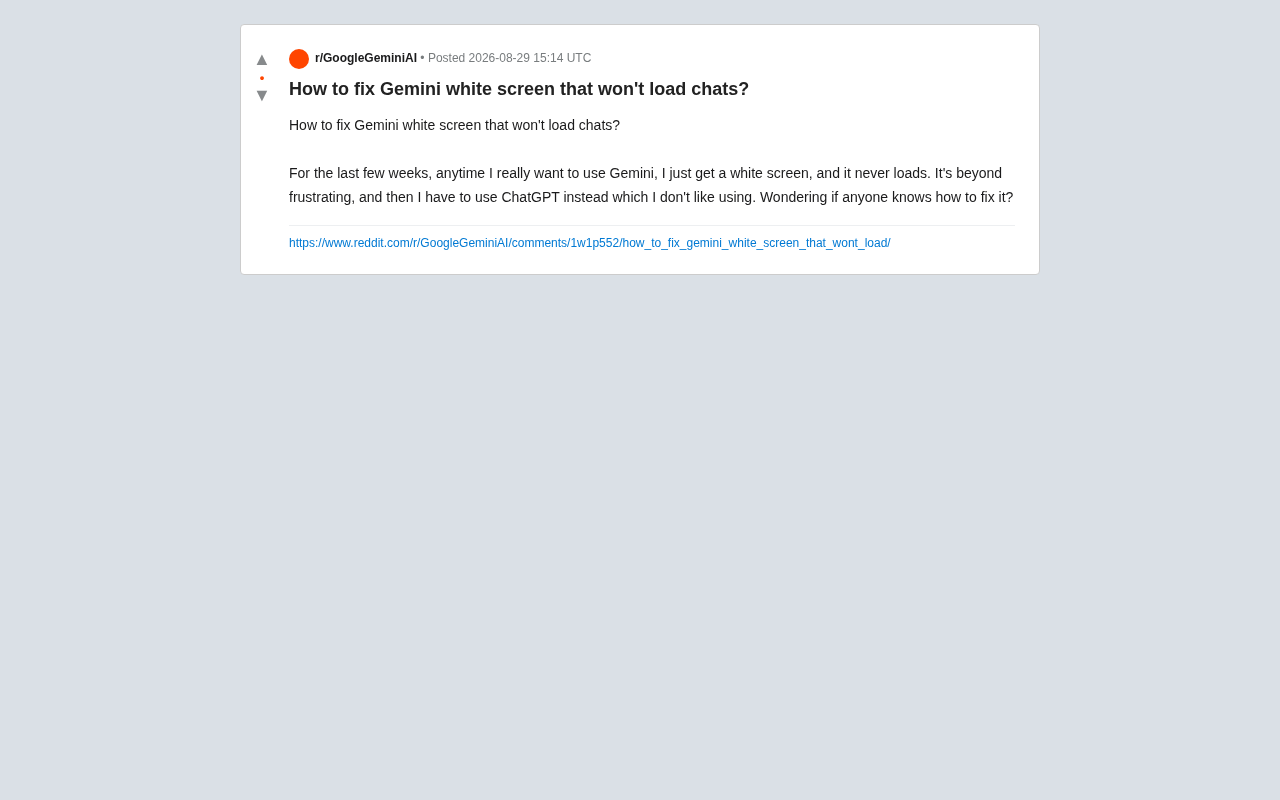
A 5-step troubleshooting guide to fix Google Gemini's white screen loading issue.
If Google Gemini displays a white screen and won't load conversations, the issue usually stems from browser cache conflicts, extension interference, or network problems — not the AI model itself. This guide walks through 5 actionable steps: force refreshing, testing in incognito mode, switching browsers, checking network/account status, and using the mobile app as a fallback to quickly restore normal functionality.
The Problem: Gemini Shows a White Screen and Won't Load Conversations
Recently on Reddit, numerous users have reported the same frustrating issue: every time they open Google Gemini to use it, the page displays nothing but a blank white screen, and conversations never load. One user vented: "For the past few weeks, every time I try to seriously use Gemini, all I get is a white screen that never loads. It's incredibly frustrating, and I end up going back to ChatGPT, which I don't even like using."
This type of white screen problem isn't uncommon with web-based AI applications. It's usually not a fault with the model itself, but rather an issue across multiple areas including frontend loading, browser cache, account sessions, or network environment. This article systematically breaks down the common causes of the Gemini white screen and provides an actionable step-by-step fix.
Common Causes of the Gemini White Screen
Browser Cache and Local Data Conflicts
The web version of Gemini is a typical Single Page Application (SPA) that heavily relies on locally stored scripts, cache, and session data in the browser. When Google frequently updates its frontend code, old cached files can conflict with the new version, causing JavaScript execution to break and ultimately rendering a blank page. This is why the Gemini white screen issue often appears suddenly "after an update" or "after using it for a while."
Interference from Browser Extensions
Extensions such as ad blockers, privacy protection plugins, and script management tools (e.g., uBlock, Privacy Badger, Tampermonkey) may mistakenly block resource requests that Gemini needs to load. When critical scripts, fonts, or style files are blocked, the page can't finish rendering, directly causing Gemini to fail to open or display a white screen.
Account Session and Network Environment Issues
Expired login sessions, corrupted cookies, or the use of VPNs, corporate proxies, or other special network environments can also cause authentication failures, leaving the page stuck at the loading stage. Additionally, unstable access to Google services in certain regions or networks can also cause Gemini to time out during loading.
5 Steps to Fix the Gemini White Screen
Step 1: Force Refresh and Clear Cache
The quickest thing to try is a "hard refresh": press Ctrl + Shift + R on Windows or Cmd + Shift + R on Mac to bypass the cache and reload the page. If that doesn't work, go to your browser settings, clear the cache and cookies for the Gemini site (gemini.google.com), and then log in again.
Step 2: Test in Incognito Mode
Open a browser incognito/private window and visit Gemini. Incognito mode disables most extensions by default and uses a clean session environment. If Gemini loads normally in incognito mode, you can be fairly certain the problem lies with an extension or local cache — from there, just disable extensions one by one to identify the culprit.
Step 3: Switch Browsers or Update Your Current One
Gemini has relatively high compatibility requirements for modern browsers. Make sure Chrome, Edge, or Firefox is updated to the latest version; if you still see a white screen, try a different browser to cross-verify. Differences in behavior across browsers with the same account can help determine whether the issue is on the client side or the server side.
Step 4: Check Your Network and Account Status
Turn off any VPN or proxy and try again to rule out network-level blocking. Also confirm that your Google account is in good standing — try visiting Gmail or Google Search first to verify that your login session is valid. If possible, switch to mobile data or a different network to quickly determine whether it's a local network issue.
Step 5: Switch to the Mobile App or an Alternative Entry Point
If the web version simply won't recover, temporarily switch to the Gemini mobile app, or access it through the entry point within the official Google app. This maintains your workflow while also helping verify whether the problem is limited to the desktop web version.
Reflections on the Stability of Web-Based AI Applications
This Reddit user's complaint actually highlights a common issue with today's web-based AI assistants: experience stability is highly dependent on frontend engineering quality and the browser environment. By comparison, standalone desktop or mobile applications typically have a more controlled runtime environment with a lower chance of errors.
Here's a telling detail — the user's final remark is quite representative: "I end up going back to ChatGPT, which I don't even like using." This shows that in an increasingly competitive AI assistant landscape, availability itself is a core competitive advantage. No matter how powerful a model is, if it frequently encounters basic experience issues like white screens and loading failures, it will push users straight to competitors. For Google, polishing frontend stability and error tolerance mechanisms is just as important as iterating on model performance.
Conclusion
In most cases, the Gemini white screen issue can be resolved on your own by clearing the cache, disabling extensions, switching browsers, or checking your network — it's not a defect in the model itself. If none of the above methods work, it's recommended to submit feedback to Google and monitor the service status page. From a broader perspective, issues like these serve as a reminder to all AI product teams: while pursuing more powerful models, don't forget to maintain the most fundamental experience baseline — that the product can be opened smoothly and used normally.
Related articles

High School Student Builds 3D Open-World Game Hedra from Scratch
High school student builds 3D open-world game Hedra from scratch, drawing attention on Hacker News. This article analyzes its technical challenges, indie dev insights, and lessons for the AI coding era.

AI and the Enclosure of the Scientific Commons
Starting from a Hacker News discussion, this article analyzes how AI is changing the public nature of scientific knowledge, exploring enclosure risks facing the scientific commons and possible institutional responses across data privatization, model opacity, and evaluation shifts.

agent-usage-guard: An Open-Source Tool to Protect Claude Code Usage Windows
agent-usage-guard is an open-source Claude Code mod from Hacker News that monitors usage windows and protects agent tasks from interruption near thresholds.