Generate n8n Workflows with Claude in One Shot: Say Goodbye to Manual Node Dragging

Use Claude to generate n8n workflow JSON, paste and run — no manual node dragging required.
This article introduces a method for building n8n workflows using Claude instead of manual node dragging. Since n8n workflows are structured JSON, a well-crafted prompt combining role anchoring and format constraints can get Claude to generate complete node configurations. Pasting the JSON into the n8n canvas instantly restores the visual workflow. The approach works well for clear-cut scenarios like webhook routing and data mapping, but "zero errors" should be taken with a grain of salt — treat AI output as a draft and verify manually. This reflects the broader trend of low-code platforms merging with LLMs.
Why Stop Building n8n Workflows by Hand
If you've ever used an automation tool like n8n, you know the grind: dragging and connecting nodes one by one, manually configuring every field, and watching the whole flow break the moment something's off. One YouTube creator shared his shift away from that — instead of building n8n workflows by hand, he lets Claude (referred to as "cloud" in the video, but actually Anthropic's Claude) generate the complete automation configuration directly.
The core idea is simple: an n8n workflow is fundamentally a structured JSON file. So why not let a large language model — which excels at generating structured content — write that JSON, then import it straight into the canvas? That's exactly the methodology this creator laid out.

It All Comes Down to One Precise Prompt
The heart of this approach is a single, well-crafted prompt with a clear role assignment. The creator's template looks roughly like this:
"You are an n8n workflow architect. Output valid n8n json."
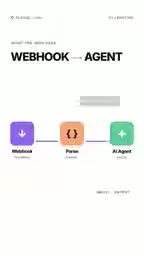
Followed by the specific requirement — for example, "parse an incoming webhook and route data to an AE agent." There are two reasons this prompt works so well:
First, role anchoring. Explicitly telling the model it's an "n8n workflow architect" steers the output toward professional standards and cuts out irrelevant content.
Second, format constraints. Emphasizing "Output valid n8n json" directly bounds the output to legally parseable JSON that n8n can read — not explanatory prose or pseudocode.
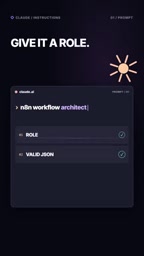
Role prompting is a classic prompt engineering technique. By assigning the model a specific identity, it activates the knowledge distribution in training data associated with that role, producing output that more closely follows that domain's conventions. For outputs with strict format requirements like n8n workflows, role assignment is especially important — the identity of "n8n workflow architect" guides the model to prioritize structures that resemble n8n's official documentation style, rather than generalized JSON or programming conventions. Paired with the format constraint ("Output valid n8n json"), this acts as a hard boundary: without explicit constraints, LLMs tend to append explanatory text around code, and that text will break JSON parsability the moment it gets mixed in. Together, these two elements control both the content direction and the formal structure of the output.
From Prompt to Running Workflow
In the creator's demo, Claude generates a complete node structure based on the requirements — including custom JavaScript formatting code — and claims "zero errors." The generated output includes node definitions for webhook parsing, data routing, and related logic.
Once you have the JSON, the next step couldn't be simpler: copy the code, click inside a blank n8n canvas, and press Ctrl + V. The entire workflow automatically expands into a visual node graph, ready to test and run.
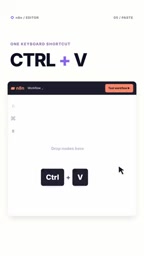
This leverages a useful but often overlooked n8n feature: the canvas supports pasting JSON directly to restore a workflow. It's typically used for sharing and reusing templates, but in this method, it becomes the bridge between AI-generated output and the visual editor.
n8n workflow JSON follows a fixed top-level structure: the nodes array describes each node's type (type), parameters (parameters), canvas coordinates (position), and unique ID; the connections object uses node names as keys to define directed relationships between nodes. Each node's type field must exactly match the installed n8n node package name (e.g., n8n-nodes-base.webhook) — version mismatches or missing nodes will trigger an "unknown node type" error after import. Understanding this structure makes it easier to quickly identify issues when AI-generated content goes wrong: whether it's a misspelled node type name, incorrect parameter key, or missing connection — enabling efficient manual review.
Where This Approach Shines — and Where It Falls Short
The efficiency gains are real. For workflows with clear structure and well-defined logic, describing your requirements in natural language and letting the model generate the configuration is genuinely much faster than dragging nodes one by one. This is especially true for repetitive data mapping and field formatting tasks, where hand-writing JavaScript is error-prone — handing it off to a model is actually more reliable.
That said, the "zero errors" claim deserves some skepticism. In practice, LLM-generated n8n JSON doesn't always import cleanly on the first try — node version differences, credential references, and specific node parameter structures can all cause errors after pasting. A more pragmatic approach is to treat AI generation as drafting, then manually review and fine-tune on the canvas.
There's also a complexity ceiling. For simple webhook routing and data transformation scenarios, the AI success rate is relatively high. But when workflows involve heavy conditional branching, loops, or fine-grained authentication for external services, your prompt needs to be extremely detailed — otherwise the output drift compounds quickly.
What This Means for Automation Workflows
This small trick reflects a much larger trend: low-code/no-code platforms are deeply integrating with large language models. Visual editors lower the barrier to entry, while AI goes a step further by automating the "building" step itself — users simply describe their intent, and the structural assembly is left to the model.
For n8n users, the practical path worth exploring is: build your own prompt template library. For common scenarios (webhook handling, API calls, data cleaning), prepare a set of prompts with clear role assignments and format constraints, then use the canvas paste feature to iterate quickly. This is far more efficient than dragging from scratch, and much easier to reuse and share.
Ultimately, the fastest way to build isn't always to get more skilled at operating tools — it's to express your requirements at a different level. Let AI understand what you want, then hand off the implementation details.
This trend is already visible at the tooling layer: n8n itself has shipped AI nodes (including LangChain integration and native Agent nodes) that allow calling LLMs from within a workflow; Zapier has launched "Zapier AI," which supports generating Zap flows from natural language descriptions. The next frontier is "meta-automation" — using AI to generate the automation configuration itself, not just to automate a business action. When prompt templates, generation scripts, and version management come together, this methodology effectively approaches a lightweight "Workflow as Code" practice, where workflow creation, modification, and reuse are all driven by natural language description — no GUI required.
Related articles

Free Unlimited Claude Code Solution: Agnes AI + CC Switch Setup Guide
No paid subscription needed — pair the free AI platform Agnes AI with the open-source tool CC Switch to provide a backend for Claude Code, enabling unlimited free calls to text, image, and video models. This guide covers the full setup, test results, and usage boundaries.

A Complete Zero-Cost Guide to Getting Started with Claude Code for Beginners in China
A beginner's guide to Claude Code for users in China: two installation methods (command line and IDE plugin), full configuration steps for replacing the official API with the free domestic LongCat model, and a hands-on demo of building a small tool with natural language, plus tips.

When the NSA Gets Involved: The AI Supply Chain Crisis Behind Open-Source CVEs and API Key Hijacking
Multiple open-source projects disclosed severe CVEs in one day, PHP flaws alarmed the FBI, and Railway and OpenCode were breached with API keys stolen. This article breaks down the vulnerability window, AI-accelerated exploitation, and the AI supply chain crisis behind the API key black market, with a developer defense checklist.