Getting Started with ChatGPT and Codex from Scratch: A Complete Guide to Installation, Setup, and Advanced Features

A complete beginner-to-advanced guide to using the merged ChatGPT + Codex desktop client.
Based on a detailed walkthrough video, this guide covers the full journey of using OpenAI's merged ChatGPT + Codex client: installation, Google login, third-party membership activation, and a deep dive into Codex's interface — including permissions, model selection, Goal/Plan/Branch modes, key settings across General, Personalization, and Computer Control, the simulated click plugin, and how to expand the default 200K context window to 1 million tokens. A desktop pet project is included as a starter exercise.
After OpenAI deeply integrated Codex into ChatGPT, many users find themselves confused by two different interaction paradigms and a bunch of unfamiliar buttons the first time they open the client. This tutorial is based on a detailed walkthrough video, organizing everything from download and installation to account login, membership activation, and advanced Codex configuration into a clear, linear path — so you can hit the ground running.
Note: The account registration and third-party payment information in this article is provided for reference only. Please assess compliance and security risks before taking any action.
Codex and ChatGPT Are Now Merged
One fact the video author repeatedly emphasizes is this: Codex and ChatGPT have been integrated into the same client. "Downloading Codex" simply means downloading the ChatGPT desktop app.
The installation itself is straightforward — open the official website, click the download button in the middle of the page, wait for the download to finish, double-click the installer from your downloads folder, and follow the prompts. What actually matters is understanding what happens after installation: the client will show two modes — Codex and ChatGPT — and they follow completely different task-handling logic:
- ChatGPT mode: Best for quick conversations and simple Q&A. Responses typically arrive within seconds.
- Codex mode: Best for telling it to actually do something — like writing code or processing files. Execution can take anywhere from 3 to 60 minutes.
Understanding this distinction is the foundation for getting the most out of the toolset. Anyone can hold a conversation; what's worth investing time in is learning Codex.
Background: Codex was originally an independent code-generation model released by OpenAI in 2021, fine-tuned from the GPT-3 architecture for programming tasks and serving as the underlying engine for GitHub Copilot. OpenAI gradually folded its coding capabilities into the main GPT-4 model family, and the standalone Codex API was officially retired in 2023. In 2025, OpenAI revived the "Codex" brand name to refer to an autonomous coding agent (Coding Agent) integrated directly into the ChatGPT client. This version no longer just "completes code" — it can autonomously run code, read and write files, and call tools within a sandboxed environment to complete end-to-end development tasks. The current Codex and the early Codex API are two entirely different generations of product; understanding this evolution helps set the right expectations.
Account Login and Membership Activation
For login, the author recommends signing in with a Google account, since most major overseas AI tools support Google login — one account for everything saves the hassle of repeated registrations. When creating a Google account, use Chrome and follow the standard registration flow. Keep in mind that the account's region will be automatically determined based on your network environment.
For membership activation, the video mentions that it's currently handled primarily through third-party top-up sites that support WeChat Pay. Using ChatGPT Plus / Pro as an example: you'll need to obtain an authorization code from the official website while logged in, paste it into the top-up platform's interface, verify your email to create an order, and the membership typically activates within a minute or two after payment. Once you refresh the client, a Plus badge next to your avatar confirms successful activation.
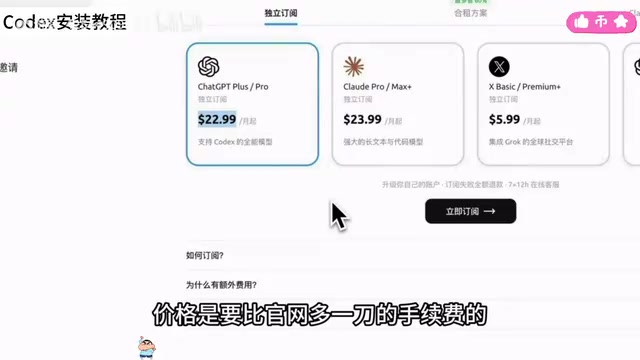
A word of caution: third-party top-up services carry account security risks and currency conversion premiums (the video mentions roughly one extra dollar in fees compared to the official price). Whether to use them is a judgment call. Once activated, the account can be used directly in Codex with full capabilities unlocked.
Core Features and Usage Tips for Codex
When you open a new Codex conversation, you'll encounter quite a few unfamiliar buttons. The author walks through each one:
Permissions and Model Selection
The most prominent option — Full Access (shown in red) — controls whether Codex needs your approval for each action it takes. The author defaults to enabling it for efficiency, but recommends new users spend a day or two getting familiar with the tool before turning it on. For model selection, the principle is "higher tier = better," but for everyday tasks, a mid-tier model is sufficient for most Plus subscribers. Save the higher-tier models for complex tasks to avoid burning through your quota too quickly.
Project, Goal, and Plan Modes
- Project: Designates a folder where all files Codex generates are stored, and which it reads from first at the start of each task.
- Goal mode: Gives Codex a target to pursue relentlessly until it's achieved. The author cites a Twitter example where someone enabled this mode and Codex — trying to wake up a user who needed to enter a password — wrote a program to make the computer emit sounds. The behavior can be quite "extreme," so use it only when the goal is clearly achievable.
- Plan mode: Breaks a task into a dozen or so steps for sequential execution. For complex tasks, you can manually edit the steps before running them, which improves success rates.
Background: The underlying logic of Goal mode comes from the "Agentic AI" design paradigm: the system continuously evaluates the gap between the current state and the target, and autonomously selects tools and actions to close that gap until it determines the goal has been met. Unlike standard single-turn or multi-turn conversations, Goal mode gives the model the authority to initiate the next action on its own — meaning it can consecutively invoke the file system, execute scripts, or even trigger external programs without human intervention. This architecture offers enormous automation potential but also introduces a "loss-of-control risk": if the goal is defined vaguely or the execution environment's boundaries are unclear, the model may take unexpected measures to "complete" the task. Before using Goal mode, clearly define your success criteria and set appropriate permission boundaries for Codex.
Skill Recording and Branch Features
Skill recording lets Codex observe your screen recording and distill a reusable set of operation steps — useful for repetitive, structured workflows like website admin panels that can be codified into SOPs. However, as soon as a task involves real-world information interaction, the results tend to be less reliable.
The author considers the branch feature to be the most practical — you can create branches under any conversation and spin up a dozen at once, letting Codex handle different phases of a task in parallel for a massive efficiency boost. The trade-off is that quota consumption scales up proportionally.

Essential Settings and Recommended Plugins
The right settings unlock Codex's full performance. Go to the settings page via your avatar in the lower-left corner. Focus on three sections: General, Personalization, and Computer Control:
- General: Enable automatic permission approval to save effort. Hold off on Full Access until you've spent a day getting familiar. Turn on "Context window usage" to monitor your remaining context and know when compression is approaching. Enable web search in settings to enhance task capability.
- Personalization: Check "Enable local memory" and "Allow tool-based memory generation." These slightly increase quota usage but make the tool smarter and more personalized over time.
- Computer Control: Install all screen-related options to enhance Codex's ability to handle tasks.

On plugins, the author's take is straightforward: plugins are skill sets for specific scenarios. For example, an Excel plugin strengthens document creation and analysis — install what you need. One plugin the author recommends for everyone is the simulated click plugin, which lets Codex precisely control your computer with mouse actions, making task results far more reliable.

Advanced: Expanding Context from 200K to 1 Million Tokens
The default context window in a Codex conversation is 200K tokens. Once exceeded, it auto-compresses — and compression typically degrades task performance. The author's solution is to enable the official (but off-by-default) one-million-token context: simply ask Codex to open the configuration file, open that file in Notepad through the file manager, paste in an official configuration directive, save, and restart the client. To verify, ask any question — the context indicator in the bottom-right corner should show a value close to 824K.
The trade-off is real: while a million-token context can sustain much longer tasks, quota consumption is also dramatically higher. The author recommends enabling it selectively rather than leaving it on by default.
Background: The context window refers to the maximum number of tokens a large language model can "see" in a single inference pass, including conversation history, uploaded files, tool outputs, and all other inputs. Tokens are not equivalent to characters — in Chinese, roughly 1–2 characters correspond to 1 token, while code tends to consume more due to its dense structure. When input exceeds the context limit, the model must discard or compress earlier content, causing it to "forget" early-stage constraints or intermediate results, which reduces consistency across long workflows. Expanding the context from 200K to roughly 820K tokens theoretically allows Codex to process a large codebase or very long document without losing information. The cost is that each inference pass must process a far larger number of tokens, driving up both API billing and local resource consumption proportionally — which is exactly why the author suggests enabling it judiciously.
A Starter Project: Build a Desktop Pet
The tutorial wraps up with a hands-on exercise: use Codex to create a desktop pet. The path is: your avatar → Codex settings → Pets → Create. In the dialog that appears, describe what you want and upload any assets, and Codex will generate a desktop companion. The author's demo even integrates LLM-powered conversation so the pet can read computer information in real time and interact with you. What comes next is limited only by your imagination.
Summary
Overall, the value of this tutorial lies in clearly explaining the settings and logic of Codex that are easy to overlook: understanding the division of labor between ChatGPT and Codex modes, leveraging parallel branches, installing plugins as needed, and being cautious about enabling Goal mode and the million-token context. Even the most powerful tools should be used within your means — the author's final reminder is that while the feature list is long, don't overindulge. Use responsibly.
Related articles

Free Unlimited Claude Code Solution: Agnes AI + CC Switch Setup Guide
No paid subscription needed — pair the free AI platform Agnes AI with the open-source tool CC Switch to provide a backend for Claude Code, enabling unlimited free calls to text, image, and video models. This guide covers the full setup, test results, and usage boundaries.

A Complete Zero-Cost Guide to Getting Started with Claude Code for Beginners in China
A beginner's guide to Claude Code for users in China: two installation methods (command line and IDE plugin), full configuration steps for replacing the official API with the free domestic LongCat model, and a hands-on demo of building a small tool with natural language, plus tips.

When the NSA Gets Involved: The AI Supply Chain Crisis Behind Open-Source CVEs and API Key Hijacking
Multiple open-source projects disclosed severe CVEs in one day, PHP flaws alarmed the FBI, and Railway and OpenCode were breached with API keys stolen. This article breaks down the vulnerability window, AI-accelerated exploitation, and the AI supply chain crisis behind the API key black market, with a developer defense checklist.