Getting Started with Claude Code: Installation, Switching to Chinese LLMs, and Git Workflows Explained

A hands-on guide to installing Claude Code, switching to Chinese LLMs, and mastering conversational Git workflows.
This guide walks developers through installing and configuring Claude Code, mastering CLI commands, and switching to Chinese LLMs such as DeepSeek and Kimi via CC Switch. It also covers conversational Git workflows and automated problem discovery and fixing, helping you quickly get productive with this AI coding collaborator.
The Evolution from Command-Line Tool to AI Collaborator
Claude Code has become one of the hottest AI programming tools around. Whether you're an individual developer or part of an engineering team, everyone is exploring the best way to integrate it into their daily development workflow. To truly understand why it has garnered such widespread attention, we need to trace its evolutionary path.
Claude Code originally started as just a command-line version—a pure command-line conversational tool that could analyze project code, understand dependencies between files, modify code, and offer optimization suggestions. With rapid version iterations, today's Claude Code is worlds apart from its early versions, having added a wealth of efficient tools while significantly strengthening its core capabilities.
The most crucial changes manifest across two dimensions:
- Upgraded context awareness: Evolving from understanding only a single file to being able to directly analyze an entire project structure and answer deep questions about module relationships and architectural design.
- Clear engineering orientation: Expanding from mere code generation to implementing complete engineering scenarios such as SDD (Specification-Driven Development) and automated testing.
In other words, Claude Code has gradually evolved from a "programming assistant" into a true "work partner"—humans are responsible for setting goals, defining constraints, making decisions, and steering direction, while the AI takes on the execution, analysis, comparison, and absorption of repetitive labor.
Real Value for Different Roles
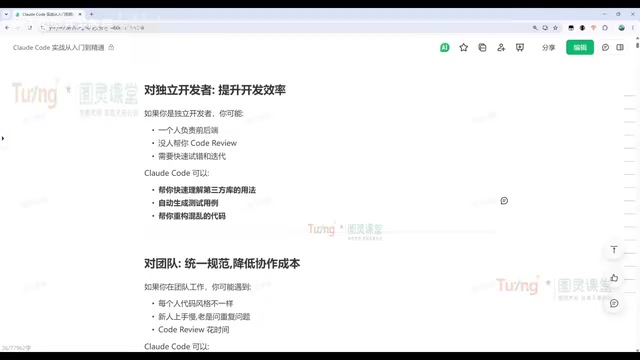
Programming beginners: Claude Code can help you quickly understand unfamiliar open-source project code, pinpoint the root causes of errors, and even discover legacy bugs and performance bottlenecks while providing fixes.
Independent developers: Dramatically compress development time across the entire front-end and back-end workflow. Through multi-agent orchestration, Claude Code can simultaneously play multiple roles—product, development, testing, operations—enabling one person to deliver engineering work at a team level.
Development teams: Unify standards and reduce collaboration friction. Common pain points such as inconsistent code styles, slow onboarding for newcomers, and time-consuming code reviews can all be addressed by building Skills to accumulate experience—for example, using CLAUDE.md to solidify development standards, automatically analyze issues, and enforce code style checks.
Installing Claude Code and Switching to Chinese LLMs
Claude Code currently comes in three main versions:
- Web version: Used directly in the browser, suitable for lightweight conversation scenarios
- CLI command-line version: The only version in the early days; basic commands are still worth mastering
- IDE plugin version: Integrated into mainstream editors like VS Code, Cursor, and PyCharm/IDEA
For day-to-day project development, the IDE plugin version and the CLI version are used most frequently.
CLI Installation Steps
CLI installation is very straightforward and can be completed with a single command:
- Mac / Linux / WSL: Use the official one-click installation command
- Windows: Use the corresponding irm installation command
After installation, run claude -v to check the version number. If you can see the version information, the installation was successful.
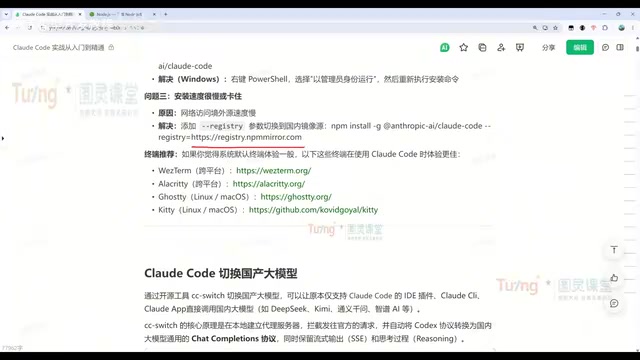
Before installing, make sure your Node.js environment is properly configured (version 22.x or above is recommended), and run node -v to confirm. If you encounter network issues, you can switch to a domestic mirror repository and install via npm. For future updates, simply run claude update—the tool itself will also prompt for automatic upgrades.
How to Switch to Chinese LLMs
Due to network issues, access to the official models is often unstable. We recommend using the CC Switch tool to quickly switch to Chinese LLMs such as DeepSeek, Kimi (Moonshot), and Tongyi Qianwen.
The configuration process is as follows:
- Download the appropriate version from the CC Switch project page (the portable version is recommended for Windows; be careful to distinguish between ARM / AMD64 architectures)
- Obtain the API key for your target model
- Add a new model configuration in CC Switch and fill in the API key (other addresses generally don't need to be changed)
- Click enable and check "Local Routing" in the settings
- Restart Claude Code for the changes to take effect
After switching, use the /model slash command to view and select models like DeepSeek. Chinese models are used in exactly the same way as the official models, with only a certain gap in performance—but their stability is actually more assured.
Claude Code Core Workflows Explained
Once you've mastered the basic installation and configuration, you can move on to actual project development.
Common Commands Quick Reference
Claude Code's commands fall into two categories—internal slash commands and external CLI commands:
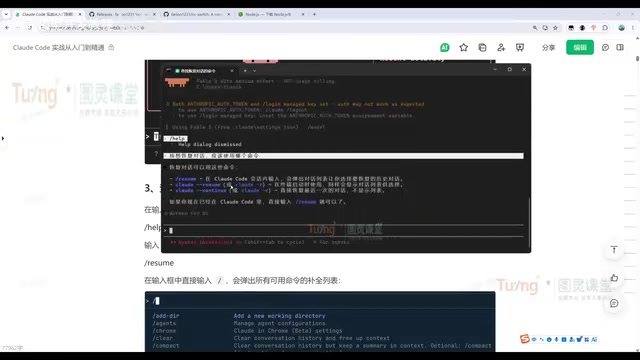
/help: Query all available commandsclaude --resume(orclaude -r): Display a list of conversation history, then select and resume a specific sessionclaude --continue(orclaude -c): Directly resume the previous conversation without selecting from a list/clear: Clear the current conversation record and start a fresh session
Interestingly, you can simply ask in natural language, "Which command should I use to resume a conversation?" and Claude Code will give you the answer—no need to consult the official documentation.
Step One: Use Claude Code to Analyze Project Structure
For enterprise-level project development, the first step is usually to have Claude Code analyze the entire project structure. Faced with an unfamiliar Java project, it can quickly identify the tech stack (such as a Vue-based admin management system built on Ruoyi) and analyze it module by module.
This is especially useful for newly onboarded developers—even without project documentation, they can quickly build an understanding of the overall architecture.
Code Modification Workflow
Every modification made by Claude Code follows a clear process:
- Locate the file: Automatically find the relevant files that need modification within the project
- Show the changes: Present the specific changes and wait for developer approval
- Confirm execution: You can approve item by item, or choose to accept all
Once the code is complete, Claude Code will automatically run tests to verify the results, truly achieving a closed loop from development to validation.
Conversational Git Workflow: Making Version Management More Natural
One of Claude Code's most practical capabilities is integrating Git operations into natural language conversation. Developers don't need to memorize complex commands—they just describe what they need.
Pulling, Committing, and Pushing
Through conversation, you can complete an entire Git operation chain:
- Use natural language to have it pull (clone) a remote repository
- Move local files into the project and complete the commit and push
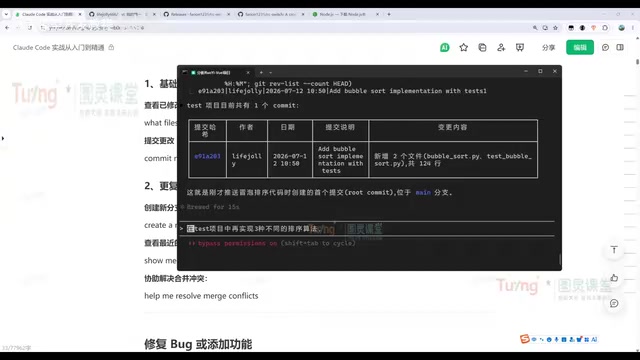
- Query the project's commit history in table format
Throughout the process, Claude Code automatically invokes the corresponding Git commands in the background to complete all operations.
Automated Problem Discovery and Fix Loop
Going a step further, Claude Code can complete an automated "discover problems—organize problems—fix problems" loop:
- Create a new dev branch, implement several sorting algorithms, and push
- Have Claude Code analyze the issues in that branch's code and output them to
issue.md(covering correctness issues, discrepancies between documentation and implementation, design portability issues, etc.) - Referencing the issue file, have it fix all the problems, then re-commit and push
The entire process requires no manual code editing—it's all done through conversation: writing code, running test validation, and Git commit/push, all in one smooth flow.
Headless Mode
In addition to the interactive conversation window, you can also use claude -p (headless mode) to directly execute a one-time task in command form. For example:
claude -p "Analyze the project structure of the Test directory"
There's no need to enter the interactive interface—the results are output directly to the console, making it perfect for scripting and integration into CI/CD automation scenarios.
Conclusion
Claude Code's core competitive strength lies in completing the leap from a "command-line code assistant" to an "engineering-grade AI collaborator." Whether it's helping beginners understand complex projects, boosting delivery efficiency for independent developers, or unifying development standards across teams, it provides real, tangible help.
For developers in China, switching to Chinese LLMs like DeepSeek and Kimi via CC Switch is a reliable way to work around network restrictions. But the key to truly unleashing this tool's productivity lies in mastering its conversational Git workflow and automated problem-fixing capabilities—this is what sets Claude Code apart from ordinary code-completion tools.
Related articles

Session-Based Home Server: Running a Low-Power Homelab on an Old Laptop
A Reddit user runs Plex, qBittorrent, and Watcharr on a 10-year-old laptop for just 10–12 hrs/day, using only 305MB RAM idle. Exploring session-based vs. 24/7 Homelab trade-offs.

OpenAI Launches ChatGPT for Financial Services: Built-in Financial Data + GPT-6 Reasoning
OpenAI launches ChatGPT for Financial Services, combining built-in financial data with GPT-6 Astra reasoning to support research, financial modeling, and client materials for financial institutions.

When AI Controls Your Credit Card: The Hidden Risks of Autonomous Payments
When AI agents gain credit card access, hidden dangers emerge: vague authorization, prompt injection attacks, and unclear liability. Learn the real risks and how to stay protected.