Google Gemini CLI Installation Guide: Get Started in Three npm Steps

Gemini CLI install guide: install Node, run one npm command, reopen terminal, verify, and log in.
Based on Aiden's demo on the JustBoz channel, this article walks through the complete Google Gemini CLI installation process and adds practical details beyond the steps. Core path: confirm Node.js is installed first, otherwise later steps will inevitably fail; then run `npm install -g @google/gemini-cli` for a global install, stressing that `@` and `/` in the package name must be entered exactly; after installing, reopen the terminal so the command enters PATH, and verify with `gemini --version`; on first run of `gemini`, choose between Google account login and a Google AI Studio API Key; after logging in, type `/help` to get familiar with commands — configuration and MCP servers live in the `.gemini` folder in your home directory. The article ends with tips on updating, project isolation, and troubleshooting order.
Google Gemini CLI is a command-line AI tool launched by Google that lets developers call the Gemini model directly from the terminal to handle tasks like code generation and file operations. Aiden from the YouTube channel JustBoz released a complete installation guide — it's not long, but it covers the key steps and the common pitfalls. This article restates the process while adding some practical details worth noting.
The Only Hard Dependency Before Installation: Node.js
Gemini CLI is distributed via npm, so the first step is to confirm that Node.js is installed on your machine. Run node -v in the terminal to check the version. If it isn't installed, download the installer from the official Node.js website first.
This step seems basic, but it's the most common cause of failure — many users run the install command directly without Node installed, then mistake the error for a typo in the package name. According to Aiden's demonstration, once you confirm Node is available and move on to the next step, the whole process goes much more smoothly.
Node.js is a JavaScript runtime environment built on the Chrome V8 engine that lets JavaScript code run directly on a server or local terminal outside the browser. npm (Node Package Manager) is the package management tool installed alongside Node.js and the world's largest software package registry, through which developers share and install various command-line tools and libraries. Gemini CLI is distributed as an npm package, which is why Node.js is a prerequisite for running it. When installing Node.js, it's recommended to choose the version labeled LTS (Long-Term Support) — these versions have been tested more thoroughly and have longer maintenance cycles, avoiding compatibility issues caused by versions that are too old or too new. After installation, node -v will output the version number, and npm -v can further confirm whether npm is ready as well.
Complete the Installation with One Command — Watch the Package Name
The install command is:
npm install -g @google/gemini-cli
In the video, Aiden specifically emphasizes that both @ and / are part of the package name and must be entered exactly as shown — they cannot be omitted or replaced. This is where Gemini CLI differs from ordinary npm packages, and it's also the most common mistake for beginners.
The -g flag means global installation, so that the gemini command can be called directly from any project directory.
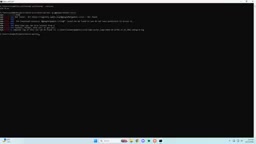
The @ prefix in an npm package name indicates a "scope" — @google identifies the package as published by the Google organization, while gemini-cli after the slash is the actual package name. The scope mechanism lets different organizations publish packages with the same name without conflicts and makes centralized management easier. The -g in npm install -g means global installation: the package is placed in Node.js's global directory (on macOS/Linux this is usually /usr/local/lib/node_modules or a path managed by nvm), and its executable is linked into the system PATH, so you can type gemini directly in any directory. If you omit -g, it's only installed into the current project's node_modules and can't be used globally from the terminal.
You Must Reopen the Terminal After Installing
After installation, Aiden recommends closing the current terminal window and opening a new one. The reason is that globally installed executables require the PATH environment variable to be reloaded, and an old terminal session won't automatically pick up the new command.
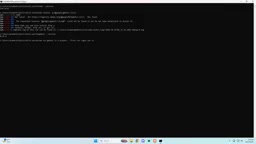
After reopening, run gemini --version. If the version number outputs normally, the installation was successful. This is a verification step and shouldn't be skipped — it exposes "installed but not working" problems early.
PATH is the environment variable the operating system uses to locate executables, and the terminal reads and caches its value at startup. After a global install adds the gemini executable to the system directory, an already-open terminal session won't automatically refresh this cache, so it will report "command not found." Reopening the terminal reloads the environment variables so the new command is recognized. If you don't want to close the window, you can also manually run source ~/.zshrc (or the corresponding shell config file) to refresh. In addition, on Windows, path separators and shell behavior differ from Unix-like systems, and reopening the terminal is likewise the most reliable way to make PATH take effect.
First Launch: Choose Between Google Account or API Key
Type gemini in any project folder to launch. The first run enters a login flow with two options:
- Google account login: suitable for individual developers, simpler process, authorization completed directly in the browser.
- API Key: obtained from Google AI Studio and pasted into the terminal, suitable for scenarios requiring independent quotas or use in a browserless environment.
Each method has its own use case; ordinary users can just go with account login first.
Google AI Studio is a free web platform Google provides for developers, where you can try the Gemini model online, adjust parameters, and directly generate an API Key. An API Key is a string used for identity verification; it must be submitted along with requests when calling the model API so Google can identify the caller and count usage against the corresponding quota. Compared with account login (an OAuth-based browser authorization flow), an API Key is better suited for scripting, graphical-interface-free environments, or scenarios where you need to manage call quotas separately from your personal account. Note that an API Key is a sensitive credential and should not be committed to public code repositories; if leaked, revoke it in AI Studio promptly and generate a new one.
Once Inside, Check /help First
After logging in successfully, type /help to view all available commands. This is the fastest way to get familiar with the tool — more direct than reading the docs.
Configuration information is stored in the .gemini folder under your home directory, and MCP servers are also configured in this directory. If you later want to integrate custom tools or extend capabilities, you'll need to locate this path.
A Few Practical Tips
Version management: CLI tools iterate quickly, so it's recommended to run npm update -g @google/gemini-cli periodically to stay up to date.
Project isolation: Although the CLI is installed globally, it's recommended to launch it from within a specific project directory so it can correctly read the current project's context files.
Troubleshooting order: If the command isn't found, first check whether Node is installed, whether the package name is correct, and whether the terminal has been reopened — these three steps cover most installation issues.
Who It's For
Gemini CLI is positioned toward developer workflows — letting the model read files, modify code, and execute tasks directly in the terminal, saving the cost of switching between the browser and the editor. If you're already using other command-line AI tools, the switching cost is low; if you're used to a graphical interface, you may need some time to adapt to pure text interaction.
JustBoz's video has a tight pace and is suitable for following along once. The complete process comes down to: install Node, run one npm command, reopen the terminal to verify, log in, and type /help to get started.
Related articles

Neuraltrust TrustGate vs TrueFoundry: A Practical Guide to Choosing a Multi-Model Gateway
Compare Neuraltrust TrustGate vs TrueFoundry as multi-model gateways: streaming latency, failover, prompt injection protection, personal data handling, and per-team cost tracking, with evaluation methods and recommendations for real traffic.
Reddit Content Removal: The Data Archiving Dilemma in the AI Era
Starting from a deleted Reddit post, this analysis examines how platform content removal affects AI training data, research reproducibility, and the web archiving ecosystem, with practical suggestions for individuals and platforms.

Use Claude Code CLI for Free: One-Click Windows Installation Tutorial
A YouTube Short shows how to install Claude Code CLI for free on Windows in one click. We break down the steps, the free-access mechanism, privacy/security risks of third-party relays, and safer alternatives.