How to Choose an AI Coding Agent: The CLI + IDE Combo That Avoids Common Pitfalls

Use a CLI-based coding agent paired with VS Code for native execution power plus code visibility.
With tools like Codex, Claude Code, Kimi Code, and OpenCode multiplying fast, choosing the right form factor matters more than picking a brand. The core recommendation: use CLI-based coding agents for their native, unrestricted system access and stronger execution capability. The main drawback — no visual feedback — is solved by pairing the CLI agent with VS Code, which displays the file tree and code diffs while the agent runs in the integrated terminal. This CLI + IDE combo gives users more control than all-in-one productized agents.
With AI coding tools exploding in popularity — from Codex and Claude Code to Kimi Code and OpenCode — the real question for most people isn't "should I use one?" but "which form factor should I choose?" This article walks through the selection logic for coding agents and offers a highly practical recommendation: prioritize CLI-based agents and pair them with an IDE.
Why CLI-Based Agents Are Recommended
At their core, coding agents work by writing code to control your computer. To understand why the CLI (Command Line Interface) form factor is preferred, it helps to think about how programmers have always worked.
Before graphical interfaces like Windows and macOS became mainstream, programmers controlled computers through the terminal — that "black box" window in your system. The terminal is the most fundamental, native entry point into the operating system. A CLI-based agent lives inside your terminal, which means it's accessing your system through that same native door.

Because of this native nature, CLI agents tend to perform better in practice. Without the overhead of a productized wrapper, they can call system capabilities more directly, execute commands, and read and write files more freely. The leading tools — Codex, Claude Code, Kimi Code, OpenCode — are all, in their most native form, CLI applications that run inside a terminal.

CLI (Command Line Interface) and GUI (Graphical User Interface) represent two fundamentally different ways of interacting with a computer. GUIs are the familiar windows, buttons, and icons we use every day; CLI means interacting with the system through pure text commands. For a coding agent, operating in CLI form means the agent runs directly in a shell environment (like bash or zsh), with essentially unrestricted ability to execute system commands, run scripts, and manipulate the file system — permissions approaching that of a system administrator. By contrast, productized agents (delivered as plugins or standalone apps) abstract and restrict low-level operations to lower the barrier to entry. What the agent can and cannot do is predetermined by the vendor, and users can't go beyond those limits. That's why, given the same underlying model, a CLI-based agent can typically handle more complex and customized programming tasks.
The Downside of CLI: No Visual Feedback
For all its strengths, CLI has one obvious drawback. Take Codex as an example: if you only open it inside a terminal, you can't see your code or your file structure.

This is especially problematic for non-programmers. When you can't clearly see which files the agent modified or what it generated, the whole experience becomes frustrating and hard to control. The efficiency of the terminal assumes familiarity with the command line — it's not beginner-friendly.
The Recommended Setup: CLI Agent + VS Code
The solution to this limitation is to pair your CLI agent with an IDE — VS Code being the go-to recommendation.

This combination gives you the best of both worlds: you can clearly see your file structure and code changes in VS Code, while still enjoying the native execution power and autonomy of a terminal-based agent. The visual layer solves the "can't see anything" problem, while the underlying CLI agent preserves all the efficiency advantages of the native form factor.
According to this approach, the "CLI + IDE" combination significantly outperforms highly productized agent tools. Productized agents lower the entry barrier but often sacrifice user autonomy and fine-grained control. Pairing a CLI agent with an IDE gives you more ownership over the process — and clear visibility into every step.
VS Code (Visual Studio Code) is a free, open-source code editor developed by Microsoft and one of the most widely used IDEs in the world. Its key advantages here are: a built-in file explorer that gives you a clear view of your entire project's directory structure; code change highlighting (Git Diff view) that lets you instantly see which lines were added, modified, or deleted; and an integrated terminal panel that lets you view both your code and your running CLI agent in a single window, with no need to switch between apps. This "one window, two perspectives" experience is exactly what the CLI + IDE combo looks like in practice: file tree and code on the left, CLI agent running in the bottom terminal, with every change the agent makes reflected in real time in the editor.
The Core Logic Behind This Approach
Distilling this advice down to its essence, it points to a clear selection framework:
- Prefer native over wrapped: The closer an agent operates to the system layer, the more capable it is. CLI agents live in the terminal, which is inherently closer to how computers are actually controlled.
- Visibility is a necessity, not a luxury: Whether or not you're a programmer, being able to see your files and code structure is essential for both usability and learning.
- Combinations beat all-in-one products: Rather than hoping for a single "do-everything" productized agent, a flexible CLI + IDE combination lets each tool do what it does best.
This setup works well for learning, research, and day-to-day work alike. It doesn't require you to be a seasoned developer, but it does ask you to take that first step toward getting comfortable with a terminal and an IDE. Once you clear that hurdle, you'll notice a meaningful boost in both your command over AI coding tools and your overall output.
Final Thoughts
In the AI era, the form factor you choose for your agent often matters more than the brand. CLI delivers the most native and capable execution environment; an IDE fills in the visual gap. Together, they represent a more recommended path forward. Rather than getting swept up in the marketing of polished productized tools, it's worth returning to first principles: let your agent truly live in your terminal — and make sure you can see exactly what it's doing.
Related articles

Anthropic IPO Countdown: The Compute Cost Ledger Behind a $2 Trillion Valuation
Anthropic's IPO targets up to $2 trillion — double its Series H valuation. We break down the timeline, compute cost logic, and the key question investor day must answer.

Anthropic IPO Prospectus Revealed: Behind 12x Revenue Growth, the Twin Tests of Compute Costs and Customer Concentration
Anthropic filed its IPO prospectus: 2025 revenue up 12x to $4.6B, net loss $42B including $34B non-cash. Breaking down compute costs, $2T valuation logic, customer concentration risks, and founder control.
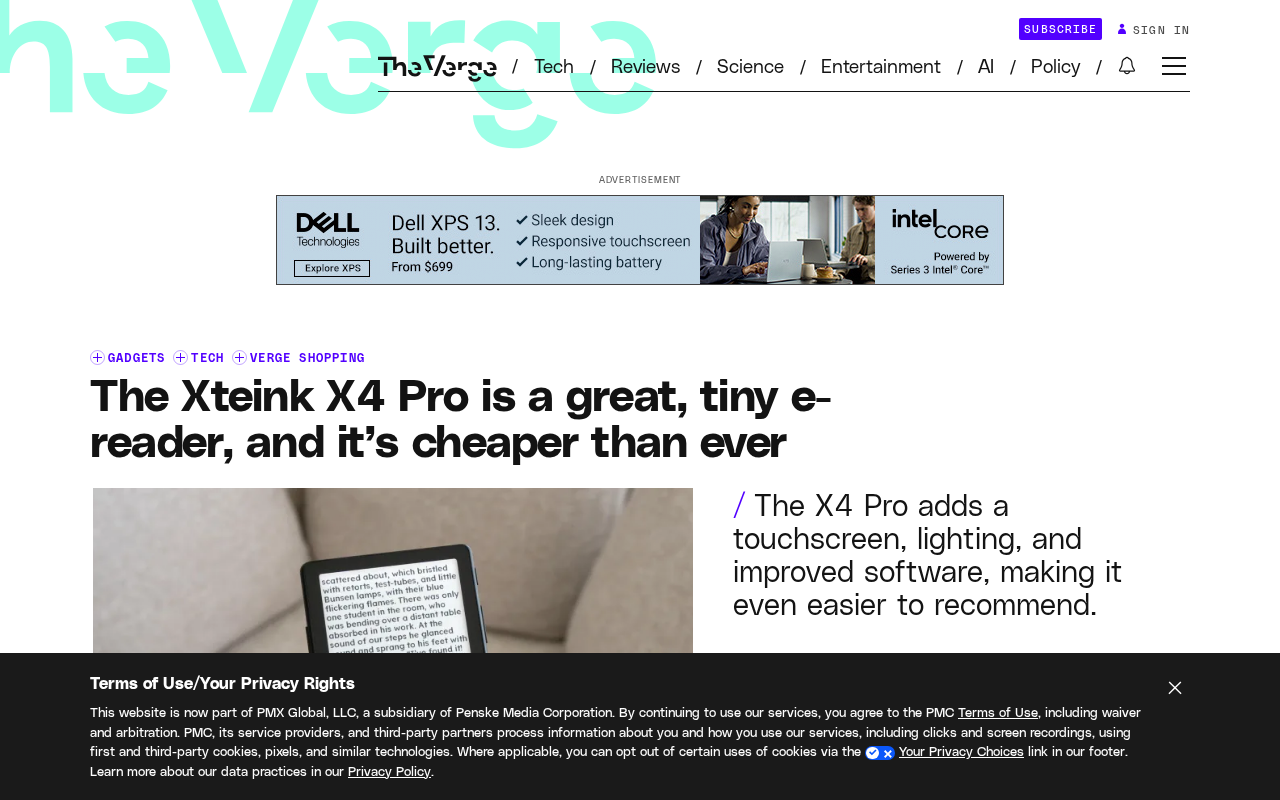
Xteink X4 Pro Review: A Mini E-Reader That Fits in Your Pocket, Now More Affordable
Xteink X4 Pro is a 4.26-inch mini e-reader, smaller and thinner than a 6-inch Kindle, magnetically attachable to phones, and cheaper than ever. We analyze its screen, design, use cases, and value.