How to Disable the Ask Gemini Bar at the Bottom of the Google App on Samsung Phones: 3 Methods

Three effective ways to disable the annoying Ask Gemini floating bar on Samsung phones.
Samsung phone users are frustrated by the Ask Gemini floating bar that keeps appearing at the bottom of the Google app while browsing. This article explains why it appears and provides three proven methods to disable it: adjusting Google app settings, changing the default browser (the quickest fix), and managing Gemini's system-level digital assistant permissions.
A Small but Annoying Detail
Recently, many Samsung phone users have been reporting the same issue on Reddit: when browsing the web through the Google app, an "Ask Gemini" floating bar keeps popping up at the bottom of the screen. As one user put it: "Every time I open a website, it pops up. It's really annoying."
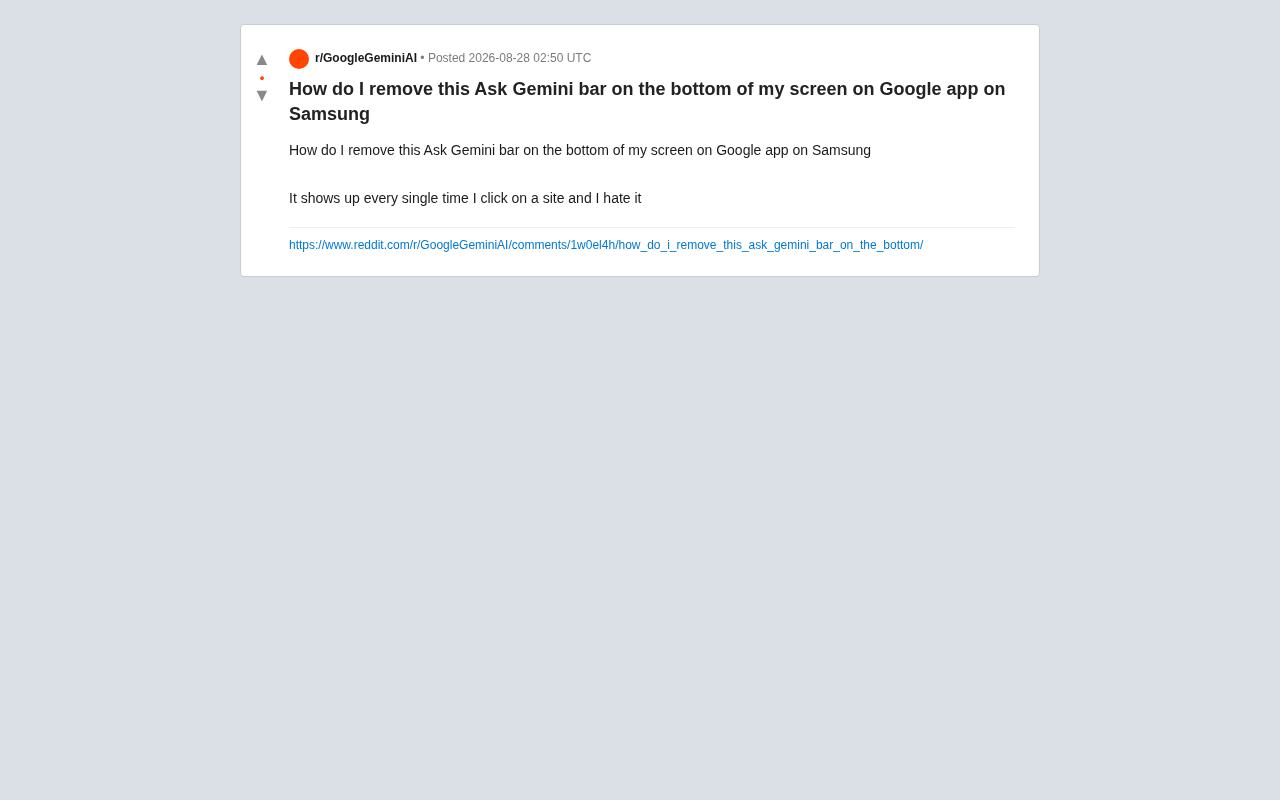
This seemingly minor UI element actually reflects the friction between user experience and vendor promotion strategies as AI features get aggressively pushed into consumer products. Google is pushing the Gemini assistant into every possible entry point, while users just want to browse the web in peace.
What Is the Ask Gemini Bar, and Why Does It Appear?
As Google pushes its Gemini ecosystem forward, the search and browsing functions within the Google app have been deeply integrated with AI capabilities. When you tap and open a webpage inside the Google app, the system automatically displays an "Ask Gemini" entry point at the bottom, making it easy for users to ask the AI questions about the current page content or generate summaries.
Gemini isn't a single product — it's an AI ecosystem spanning multiple tiers. At the model level, it includes versions ranging from the lightweight Nano (designed for on-device processing) to the high-performance Ultra, each tailored to different device capabilities. At the product level, Google is integrating Gemini into virtually all its core product lines: Search, Gmail, Google Docs, Google Maps, and the Android system assistant. This "AI Everywhere" strategy aims to make Gemini the default intelligence layer for all user interactions with Google services. As the largest phone manufacturer in the Android ecosystem, Samsung has a deep partnership with Google — at the 2024 Galaxy Unpacked event, Samsung announced deep integration of Gemini into its One UI system, which is one reason Samsung users encounter Gemini-related prompts more frequently.
From a product perspective, this is Google's way of lowering the barrier to AI usage and increasing Gemini's exposure — putting AI features as close to the user as possible. The problem is that this "enabled by default and repeatedly appearing" design becomes a constant distraction for users who don't need it. On Samsung devices in particular, the dual layering of One UI and Google services makes these prompts feel especially intrusive. Samsung's One UI is a heavily customized user interface layer built on top of the Android Open Source Project (AOSP), adding Samsung's own design language, system apps, and AI features (such as Galaxy AI) on top of stock Android. When One UI's custom features run alongside Google's pre-installed GMS (Google Mobile Services), users are effectively dealing with two parallel smart feature ecosystems — Samsung has its own Bixby assistant and Galaxy AI summarization features, while Google simultaneously pushes the Gemini assistant and AI search suggestions. This dual layering not only creates feature redundancy but also increases the density of notifications and pop-ups. When trying to disable a particular AI feature, users often need to check both Samsung settings and Google app settings.
Three Methods to Disable the Ask Gemini Bar
Although Google doesn't provide an obvious "one-click disable" toggle, the following methods can effectively reduce or remove this floating bar based on actual community feedback.
Method 1: Adjust Settings in the Google App
- Open the Google app
- Tap your profile picture in the top-right corner and go to Settings
- Look for options related to "Gemini," "AI features," or "Search personalization" in the settings menu
- Some versions allow users to turn off in-page AI suggestions or assistant entry points
Note that the menu structure varies across different versions of the Google app, so you may need to browse through each option.
Method 2: Change the Default Browser (Recommended)
The Ask Gemini bar primarily appears within the Google app's built-in browser (Custom Tabs) environment. It's worth explaining the technical background of Custom Tabs: this is a lightweight web browsing solution on the Android platform that allows apps to open web content without leaving their own interface. Unlike traditional WebView, Custom Tabs shares Chrome's rendering engine, cookies, and permission settings, resulting in faster loading speeds and support for features like auto-fill passwords. Because Custom Tabs runs within the Google app's process space, Google can inject additional UI elements into it — such as the Ask Gemini floating bar. This also explains why the floating bar disappears when you switch to a standalone browser: links are no longer processed through the Google app's Custom Tabs environment.
The most straightforward workaround is to stop links from opening through the Google app's embedded browser:
- Go to your phone's System Settings → Apps → Default Apps
- Change the default browser to Chrome or another standalone browser
- After this, tapping links will redirect to the standalone browser, and the Ask Gemini floating bar will no longer appear
This is currently the most reliable and quickest solution.
Method 3: Manage Gemini's System-Level Permissions
On some Android versions, Gemini already runs as the default digital assistant. You can adjust its permissions at the system level.
The "default digital assistant" in Android is a system-level API interface, originally introduced in Android 6.0 under the official name Assist API. Apps granted this permission can read the current screen content (via the AssistStructure class), respond to long-press Home button or specific gesture triggers, and display floating interfaces on top of other apps. Starting in 2024, Google began switching the default digital assistant from Google Assistant to Gemini on some devices, meaning Gemini gained system-level permissions for screen content reading and overlay display. This is the technical foundation that enables Gemini to pop up interactive interfaces across various app scenarios.
Here are the specific steps:
- Go to System Settings → Apps → Default Apps → Digital Assistant
- Check whether the current default assistant is set to Gemini
- If you don't need Gemini at all, you can switch back to the traditional Google Assistant or disable the related features entirely
After adjusting the digital assistant permissions, Gemini's pop-up behavior will decrease across the board. Switching the default assistant back to Google Assistant or disabling it entirely effectively revokes Gemini's special permissions at the system level.
Further Thoughts on AI Feature Intrusion
This small issue is actually worth paying attention to. When vendors rush to promote new features, it's easy to lose balance between "increasing visibility" and "respecting user choice." Good AI integration should let users easily toggle features on and off, rather than relying on repeated pop-ups for a hard sell.
Similar complaints on Reddit are far from rare. From Windows' Copilot button to AI entry points suddenly appearing in various apps, more and more users are expressing frustration with "overly intrusive AI." This has become a notable trend in the tech industry during 2024-2025 — Microsoft forcibly added the Copilot button and sidebar to Windows 11, Adobe embedded Firefly generative AI entry points in Creative Suite, and Meta planted Meta AI chat features in Instagram and WhatsApp — all of which have triggered varying degrees of user backlash. Nielsen Norman Group (a leading authority in UX research) noted in a 2024 study that AI features activated without explicit user consent significantly reduce user trust and product satisfaction.
The fundamental contradiction here is that the business value of AI features depends on user activity data — vendors need as many users as possible to "try it out" to justify their investment returns. But forced exposure strategies often backfire, causing users to develop resistance. This serves as a reminder to product teams: the value of AI features ultimately depends on whether users are willing to actively use them, not passively accept them. The truly smart approach is to make AI appear when needed and disappear when it's not.
Conclusion
For Samsung users bothered by the Ask Gemini floating bar, the most recommended solution is to change your default browser — it's simple and straightforward. If you want more granular control, you can check the relevant toggles in both the Google app settings and system digital assistant settings.
While the process may be somewhat tedious, it does restore a clean browsing experience. As user feedback continues to accumulate, we hope Google will provide clearer and more user-friendly feature control options in future updates.
Key Takeaways
Related articles
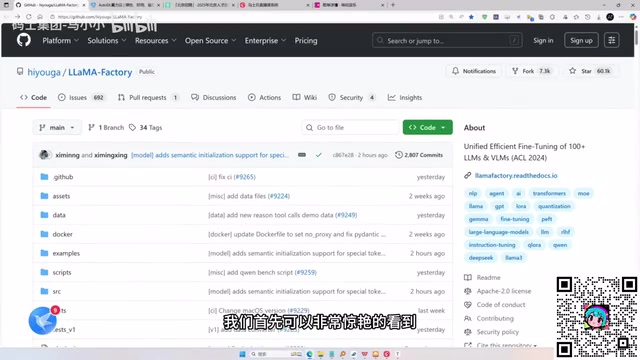
LLaMA-Factory in Practice: A Complete No-Code Guide to Fine-Tuning Large Models
An introduction to LLaMA-Factory, the open-source fine-tuning tool: its 60.1K-star background, supported models and algorithms, local vs. cloud deployment, and CUDA setup steps.

Zeng Ming's Deep Retrospective: Why OpenAI May Not Be the Ultimate Winner — and Why the Corporate System Will Disappear
Zeng Ming's deep retrospective on the AI endgame: model companies are just infrastructure, OpenAI and Anthropic won't be the final winners; the next battle is the Agent entry point standard; the corporate system will disappear as AI restructures collaboration, and only mission-driven companies can survive the cycle.

OpenHands v1.28.0: OpenCode and PI Added as Built-in Agents, API Keys Requestable In-Conversation
OpenHands ships 5 releases in 21 days: v1.27.0 adds OpenCode and PI as built-in agents, v1.28.0 enables in-chat key requests. ACP integration, credential reuse, model list changes, and upgrade advice.