Linux yes Command Explained: Practical Tips for Auto-Answering Prompts and Stress Testing

The Linux yes command endlessly outputs a string — useful for auto-answering prompts and CPU stress testing.
`yes` is a minimal GNU Core Utils command that continuously prints `Y` (or any custom string) to the terminal. Its primary practical value is piping output into package managers like pacman or apt (`yes | command`) to automatically confirm yes/no prompts. Redirecting its output to `/dev/null` in the background creates sustained CPU load for simple stress testing, while `yes ''` simulates repeated Enter key presses for interactive scripts. Despite its simplicity, it's a surprisingly useful tool for automation and sysadmin tasks — though auto-confirming all prompts in production carries real risk.
What Is the yes Command
yes is part of the GNU Core Utils standard toolkit, and its functionality is almost comically simple: it continuously prints a string to the terminal until you manually terminate the process.
Type yes in your terminal without any arguments and it will print the letter Y line after line, endlessly. Press Ctrl+C to kill the process. A command that just "spams your screen forever" might seem pointless, but it's actually a classic example of the Unix philosophy: small tools that combine to accomplish bigger tasks.
Core Use Case: Auto-Answering Interactive Prompts
Many terminal commands, scripts, and programs throw confirmation prompts at the user during execution — most commonly yes/no questions where Y means confirm and N means cancel. The real value of the yes command lies in automatically answering all of these prompts with Y.
Take package management on Arch Linux as an example. When you run sudo pacman -Syu to update the system, you might encounter package conflicts, a program removed from the repository, or a package that needs to overwrite another — at which point pacman will ask whether to proceed. If you don't want to answer each prompt manually, you can pipe yes into the command:
yes | sudo pacman -Syu
This automatically answers every yes/no question with Y.
The same approach works with any package manager. On Ubuntu or Debian, if apt-get install pops up a confirmation prompt, you can prepend yes | to auto-confirm it.
A word of caution: blindly answering "yes" to every prompt carries risks and can lead to unintended deletions or installations. This approach is not recommended for production environments.
Batch Deletion with rm -i
One of the most common personal use cases is pairing yes with rm. If you alias rm to always include the interactive flag -i — meaning it asks for confirmation before deleting each file — running rm file1 file2 file3 will trigger three separate yes/no prompts. If you've already decided all three files should go, you can use yes to answer all the deletion prompts at once, saving yourself the trouble of confirming each one individually.
The pipe (|) is the Unix/Linux mechanism for chaining commands together. It takes the standard output (stdout) of the command on the left and feeds it directly into the standard input (stdin) of the command on the right. yes | sudo pacman -Syu works because pacman reads from stdin when waiting for user input — and since stdin is now flooded with a continuous stream of Y from yes, the program "thinks" the user is repeatedly pressing Y and Enter to confirm. This same mechanism underpins tools like cat, grep, and awk, and is the concrete embodiment of the Unix philosophy: "each program does one thing well, and programs cooperate through pipes."
Using yes for CPU Stress Testing
yes has another less obvious but interesting use: testing a machine's CPU load. Because it generates output non-stop, it's inherently a process that continuously consumes CPU cycles.
yes > /dev/null &
This command redirects yes's output to /dev/null (the system's data "black hole" that discards everything written to it), while the trailing & runs it in the background. You won't see any screen flooding, but the process keeps eating CPU, letting you observe how the machine behaves under load.
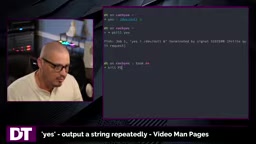
To stop the background process, use pkill yes — the terminal will report that the yes process from job 1 has been terminated and display the full command. Alternatively, use kill PID if you know the process ID.
/dev/null is a special character device file in Linux, often called the "black hole" or "bit bucket." Any data written to it is immediately discarded by the system, and reading from it instantly returns EOF (end of file). Redirecting yes's output here prevents the terminal from being flooded with text while keeping the process running at full speed, maintaining high CPU load. This approach is simple but only stresses a single core. For full-load testing on a multi-core processor, you'll typically need to launch multiple yes > /dev/null & instances in parallel, or use dedicated stress-testing tools like stress or stress-ng.
Custom Output Strings
yes isn't limited to printing the letter Y — you can specify any string for it to repeat. For example, yes string will continuously output the word string. This is useful when dealing with non-yes/no prompts where the confirmation answer is a fixed word, allowing you to auto-respond accordingly.
Auto-Answering "Press Enter to Continue"
Some programs or shell scripts confirm actions not by typing Y but by pressing Enter. Plain yes won't work here because it outputs Y, not a newline. The fix is to make yes output an empty string:
yes ''
Using two single quotes with nothing between them causes yes to continuously print blank lines — effectively simulating repeated Enter key presses. This is very handy for installation programs or scripts that require multiple Enter confirmations to proceed.
Summary
yes is a minimal command with almost no flags or options, yet it comes in handy for automation scripts, batch confirmations, and CPU stress testing. For more details, type man yes in your terminal to read its manual page. Mastering these seemingly minor Core Utils tools can significantly boost your command-line productivity.
Related articles
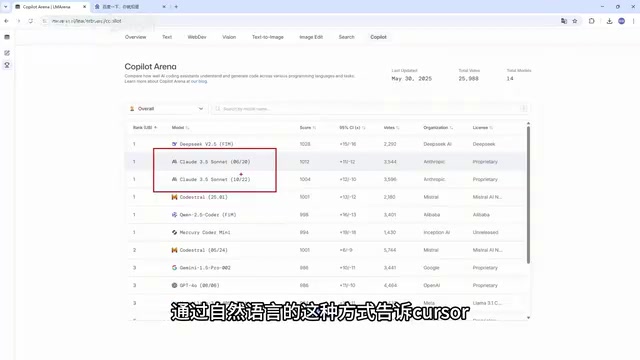
What Is Cursor? Core Differences Between This AI Coding Tool and Traditional IDEs
What is Cursor? This guide explains the AI-native code editor built on VS Code, how it compares to traditional IDEs, and its integration with Claude, DeepSeek, and Gemini.
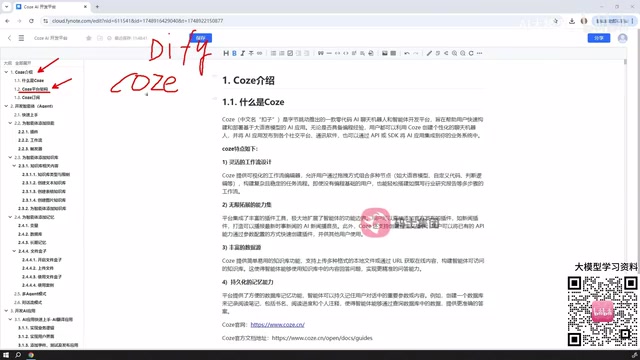
Coze 3.0 Beginner's Guide: A Complete Overview of Agents and AI Applications
A beginner's guide to Coze 3.0: covering agents, AI applications, workflows, and plugins on ByteDance's AI platform, plus a comparison with Dify.
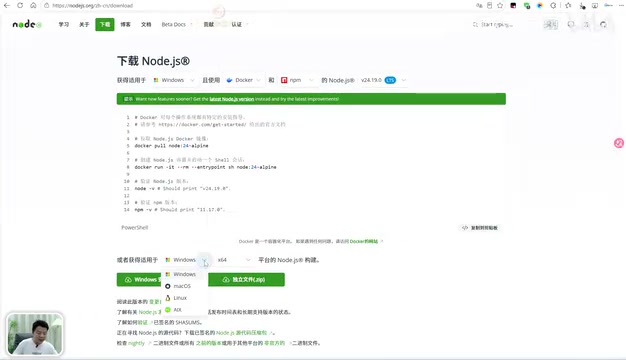
Setting Up the DeepSeek Harness Environment: A Complete Guide to Node.js Installation and Configuration
A beginner-friendly guide to setting up the DeepSeek Harness environment: Node.js installation, Add to PATH, redirecting npm global and cache directories, and configuring system environment variables.