n8n Hands-On Guide: Building AI Agents and Automation Workflows with Zero Code

A zero-code guide to building AI Agents in n8n, covering APIs, Webhooks, core nodes, and three hands-on projects.
Based on an n8n introductory course, this article lays out the complete knowledge path for building AI Agents and automation workflows from scratch. It contrasts n8n with Zapier, breaks down the AI Agent's three components (Trigger, Chat Model, Memory), compares Gemini and OpenAI, explains API calls, the HTTP Request node, and Webhooks, and details core nodes like IF, Switch, Merge, Summarize, Edit Fields, and Code. Three hands-on projects—audio transcription, sales data summarization, and sentiment analysis—demonstrate multi-node orchestration and workflow chaining.
n8n Hands-On Guide: Building AI Agents and Automation Workflows with Zero Code
n8n is an open-source workflow automation platform that connects hundreds of apps and services through a visual node interface. Unlike Zapier, n8n serves no-code, low-code, and advanced developers alike, offering capabilities such as custom scripts, API integrations, and conditional logic. Based on a complete introductory course, this article distills the core knowledge path for building an AI Agent from scratch.

1. Core Differences Between n8n and Zapier
n8n is positioned more toward engineering than Zapier. It also provides visual node orchestration, but additionally supports API integrations, custom code snippets, and more complex conditional routing. Zapier mainly serves no-code developers, while n8n's users span no-code, low-code, and advanced developers.
After signing up, you get a 14-day free trial, after which you can choose self-hosting on a local machine or server for completely free use. n8n ships with thousands of built-in templates categorized by scenarios like IT operations, marketing, and document processing, ready to reuse directly.
2. Building Your First AI Agent
Trigger and AI Agent Structure
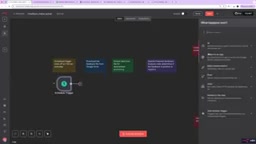
The first step in creating a workflow is configuring a Trigger. Taking chat as an example, a user typing a message into the chat window triggers the workflow. The AI Agent node's structure has three parts: an input window on the left (data from the previous node), an output window on the right, and a parameter settings area in the middle.
The system prompts you to configure the prompt source, typically selecting the user message passed from the previous step, using the expression $json.chatInput to get the actual text content. JSON is the core data format here—data passing between all nodes is based on key-value pair structures, with three view modes: Schema view, Table view, and JSON view.
How expressions and $json work: In n8n, the data output by each node flows between nodes as a list of "items," and each item contains a set of key-value pairs. An Expression is a piece of evaluated code wrapped in double curly braces {{ }} in n8n. Common syntax like {{ $json.chatInput }} means "take the field named chatInput from the current input item's JSON object." Besides $json, n8n also provides built-in variables such as $node["NodeName"].json to read output from any upstream node, $now/$today for time handling, and $env for reading environment variables, and it supports calling JavaScript methods for string concatenation and numeric operations. Understanding expressions is the key to mapping data between nodes—without them, nodes can only handle fixed static values and cannot change dynamically with upstream data.
Switching data views: n8n provides three views for node output: Schema, Table, and JSON. The Schema view displays field structure types, ideal for quickly confirming field names; the Table view displays each item's value row by row, ideal for browsing small datasets; the JSON view displays the raw structure, ideal for troubleshooting nested fields and arrays. The three are just different presentations of the same data—switching between them does not modify the data itself.
Choosing a Large Language Model
The Chat Model is the "brain" of the AI Agent. n8n supports OpenAI, Google Gemini, Llama, and many other models. The course recommends beginners start with Google Gemini because it offers a generous free tier and is simple to configure—visit aistudio.google.com to generate an API Key and paste it into n8n's credential settings.
Chat Model and the Credentials mechanism: The Chat Model node in n8n does not store the API Key directly; instead, it is uniformly managed through a "Credentials" object. Credentials are configured once and can be reused by all nodes of the same type, and the key is masked in the interface and stored encrypted in the database, avoiding hardcoding across multiple nodes. When switching models, you only need to change the Chat Model node and select the corresponding credentials—the rest of the Agent structure (Memory, tools, prompts) requires no changes. This is why the course emphasizes that "architecture design matters more than model choice."
Tokens and context windows: Large models measure input and output in tokens (roughly equivalent to English word fragments or Chinese characters). Each call sends the system prompt, conversation history, and current message together, and the total length is limited by the model's context window. This is why the Memory node only retains the most recent several messages, and why long-document transcription and summarization projects need to watch out for cost and truncation risks.
Configuring Conversation Memory
The Memory node is mandatory. Without it, the AI forgets the previous conversation after each reply. After adding the Simple Memory node, it retains the context of the most recent 5 messages by default. For example, if you first ask "What is the capital of France?" and then ask "What's the weather like there?", the AI can understand through memory that "there" refers to Paris.
Once configured, click Execute to view the complete input/output records in the logs, including the raw request sent to the Gemini backend and the returned result.
3. Gemini or OpenAI? A Comparison
According to the course's comparative analysis, the two platforms have different strengths:
- Cost and accessibility: Gemini offers a free tier with no credit card required; OpenAI uses pay-as-you-go with no free tier but low cost
- Agent capabilities: Gemini has strong native multimodal capabilities; OpenAI is the market leader, and function calling is the industry standard in the Agent space
- Ecosystem and community: OpenAI is more mature, with a large community, abundant tutorials, and third-party libraries like LangChain; Gemini is relatively young but growing fast
- Model update cadence: Gemini updates frequently but its API may change; OpenAI's release cycle is more predictable
Course recommendation: Gemini offers the best value during the learning phase, while OpenAI is preferred for production environments. The gap in real-world performance between the two is not dramatic—architecture design skills matter more than model choice.
4. API and Webhook: The Underlying Logic of Automation
The Essence of API Calls
An API (Application Programming Interface) can be compared to a restaurant waiter: the client makes a request, and the server returns a response. All the built-in nodes in n8n—the OpenAI node, Google Drive node, Slack node—are essentially wrappers around API calls.
Making an API request requires three elements: an Endpoint URL (the target address), an HTTP method (GET for retrieving data, POST for sending data), and authentication credentials (such as an API Key).
Common forms of authentication: Beyond simple API Keys, real-world integrations also encounter Bearer Tokens (carried in the Authorization header), Basic Auth (username and password Base64-encoded), and OAuth2 (which requires redirecting to an authorization page to exchange for an access token and supports refresh), among others. n8n provides a built-in authorization flow and automatic token renewal for OAuth2, so nodes like Google Drive and Slack don't require manual expiry management. Choosing the wrong authentication method returns 401/403 directly—the most common first hurdle when debugging APIs.
Status codes and idempotency: The status code in an API response is the basis for judging the call result—2xx means success, 4xx usually indicates a problem with the request itself (parameters, permissions), and 5xx indicates a server-side failure. When designing automation, idempotency should also be considered: retrying a POST request may create resources multiple times, so operations like uploading summary files or sending messages should either include deduplication logic or use endpoints that support idempotency keys. For calls that may fail momentarily, the "retry on fail" setting built into n8n nodes can improve stability without writing any code.
The Flexibility of the HTTP Request Node
Even if n8n doesn't have a built-in node for a particular service, you can connect to any API through the HTTP Request node. The course demonstrates using beeceptor.com to create a mock API server that defines a GET request returning static JSON data, then calls it from n8n and retrieves the response. This simplified demonstration illustrates the core concepts of API calls.
Webhook: Reverse Data Push
Webhooks work in the opposite direction from API calls—the client doesn't send a request; instead, the server actively pushes data to a pre-opened endpoint. The update of a phone's weather widget is a typical scenario: the server detects a weather change and pushes it to the phone via webhook.
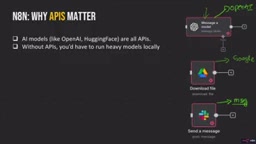
The Webhook node in n8n offers both a test URL and a production URL. The production URL is open to the public internet, and any external service can call it to trigger the workflow. The course demonstrates using one n8n workflow to call another n8n workflow's Webhook via HTTP Request, achieving workflow-to-workflow chaining.
5. Core Node Types in Detail
Decision Nodes
The IF node performs a binary true/false judgment, suitable for filtering and classification scenarios. The Switch node supports multiple branch routing, cleaner than stacking multiple IF nodes. For example, routing tickets to different processing paths based on priority (high/medium/low).
Data Aggregation Nodes
The Merge node combines two data streams, either by appending by position or matching by key. A typical scenario is joining an employee table and a salary table by employee ID, producing a complete table with names and salaries.
The Summarize node performs aggregation operations like sum, average, and count, and supports grouping by field. For example, grouping 50 sales orders by product and calculating each product's total units sold and total sales revenue.
Data Processing Nodes
The Edit Fields (Set) node is used to rename fields, add new columns, or modify existing values. It can clean up messy data without writing code, and also supports expressions and dynamic values.
The Code node allows you to write JavaScript to handle logic that other nodes cannot. For example, a simple loop that iterates over all items and adds a 10% tax rate field to each item's amount.
6. Project 1: Automated Audio Transcription and Summarization
Workflow Architecture
The core problem this project solves is automatically transcribing meeting recordings or podcast audio into text and generating a summary document. The process has six steps:
- A Google Drive trigger monitors a specified folder
- Download the newly uploaded audio file
- An OpenAI node transcribes the audio into text
- An OpenAI node summarizes the transcribed text and highlights key points
- A Google Docs node creates a blank document
- Write the summary content into the document
Note that the OpenAI API limits audio files to no more than 25MB; anything larger requires chunked processing.
The Value of Optimization
The course first uses the Google Docs node to complete document creation and content writing in two steps, then demonstrates a more efficient approach: using the Google Drive node's create file from text operation to complete creation and writing in one step. This comparison illustrates the importance of understanding node capability boundaries for architecture design—fewer moving parts mean lower error probability and maintenance cost.
7. Project 2: Automated Sales Data Summarization
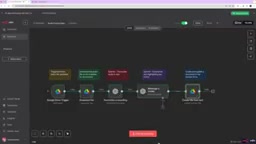
The workflow monitors the sales folder in Google Drive: after a new sales sheet is uploaded, it is automatically downloaded → extract the XLSX data → rename fields (SKU to product, QTY to units sold) → calculate the sales amount column → an IF node filters out refund orders → a Summarize node groups by product and sums → convert back to XLSX format → upload the summary file.
The course specifically points out an easy mistake: when calculating sales amount in the Edit Fields node, if the field type is not specified as Number, the result will always be 0. This detail reminds us that data types are crucial in automated processes.
8. Project 3: Comment Sentiment Analysis and Visualization
This project chains two workflows together, comprehensively applying multiple nodes including Schedule Trigger, Summarize, Edit Fields, Merge, Sentiment Analysis, HTTP Request, and Webhook.
Business Process
The first workflow triggers every day at 7 AM: download the product feedback sheet → extract the data → perform sentiment analysis on each comment (positive/neutral/negative) → count positive and negative comments separately → merge into a single data item → send to the second workflow's Webhook via POST request.
The second workflow, after receiving the data: calls the Quick Chart API to generate a bar chart → uploads the chart to a Slack channel.
Technical Highlights
The Sentiment Analysis node has a built-in system prompt and can be used directly. It's recommended to set temperature low to ensure consistency. When sending requests to the Quick Chart API, you need to convert the JavaScript chart configuration into a valid JSON format—ChatGPT can help with the conversion. When merging two branches, you must use the Merge node; otherwise, the HTTP Request will send two POST calls.
Temperature and the stability of sentiment analysis: Temperature is a parameter controlling the randomness of model output, typically ranging from 0 to 2. The lower the value, the more the model tends to choose the most probable, most certain output; the higher the value, the more diverse the expression. For tasks like sentiment analysis that need "the same comment to get the same label every time," temperature should be set close to 0, reducing the chance that the same input yields different classifications and making downstream counting and visualization results reproducible.
The timezone issue with Schedule Trigger: Scheduled triggers run on cron rules, and if the timezone is not explicitly set, they may execute according to the timezone of the server hosting the instance—causing "trigger at 7 AM" to become a different time after deploying to the cloud. For cross-region deployments or daily reports, always confirm the timezone in the workflow settings; otherwise, the statistical basis will misalign with business expectations.
Key Takeaways
- n8n's core advantages are being open-source and self-hostable, covering everything from no-code to advanced developers
- The three essential components for building an AI Agent: Chat Model (the brain), Memory (memory), and Trigger
- Gemini is suited for learning, OpenAI for production; architecture design matters more than model choice
- Understanding APIs and Webhooks is the foundation for designing complex workflows, and the HTTP Request node provides unlimited extensibility
- Choosing the right node types can significantly simplify workflows—fewer moving parts mean fewer failure points
Related articles

Automate Job Search with AI Agents and Residential Proxies for Precise Matching
Build an AI Agent with MCP and residential proxies to bypass recruitment site anti-scraping and geo-restrictions, scrape thousands of DevOps jobs, then have Claude score and rank each against your resume. Includes proxy comparison experiments, project structure, and cost analysis—filtering only, no auto-submission.

The AI Task Assistant That Knows When to Back Off: A Cure for Activation Struggles
One Small Step is an AI assistant for task initiation struggles, using agentic decisions for guilt-free reminders, timely retreat, and cross-platform task management. The developer shares real test results on 13 tasks and architectural trade-offs.

FastAPI: A High-Performance Python Framework and a Production-Ready API Development Powerhouse
FastAPI is a high-performance web framework based on Python type hints, supporting async and automatic OpenAPI docs. With over 100k GitHub stars, this article analyzes its core strengths, production readiness, and selection advice.