NetTrayMonitor: An Ultra-Lightweight Network Monitoring Tool Built in C++ with 0% CPU Usage

A pure C++ Win32 API network monitor achieving 0% CPU usage in the Windows system tray.
NetTrayMonitor is an ultra-lightweight open-source network monitoring tool built with pure C++ and Win32 API that embeds into the Windows system tray with virtually 0% CPU usage. It features precise WAN traffic filtering via GetBestInterface to exclude VM and container noise, true portability with no installation or registry modifications, automatic light/dark theme adaptation, and broad compatibility from Windows 7 to 11.
A Developer's "Anti-Bloat" Practice
In an era where network monitoring tools are becoming increasingly bloated, one developer chose to go against the grain. This open-source project called NetTrayMonitor is built with pure C++ and Win32 API, embeds directly into the Windows system tray, and claims to achieve 0% CPU usage.
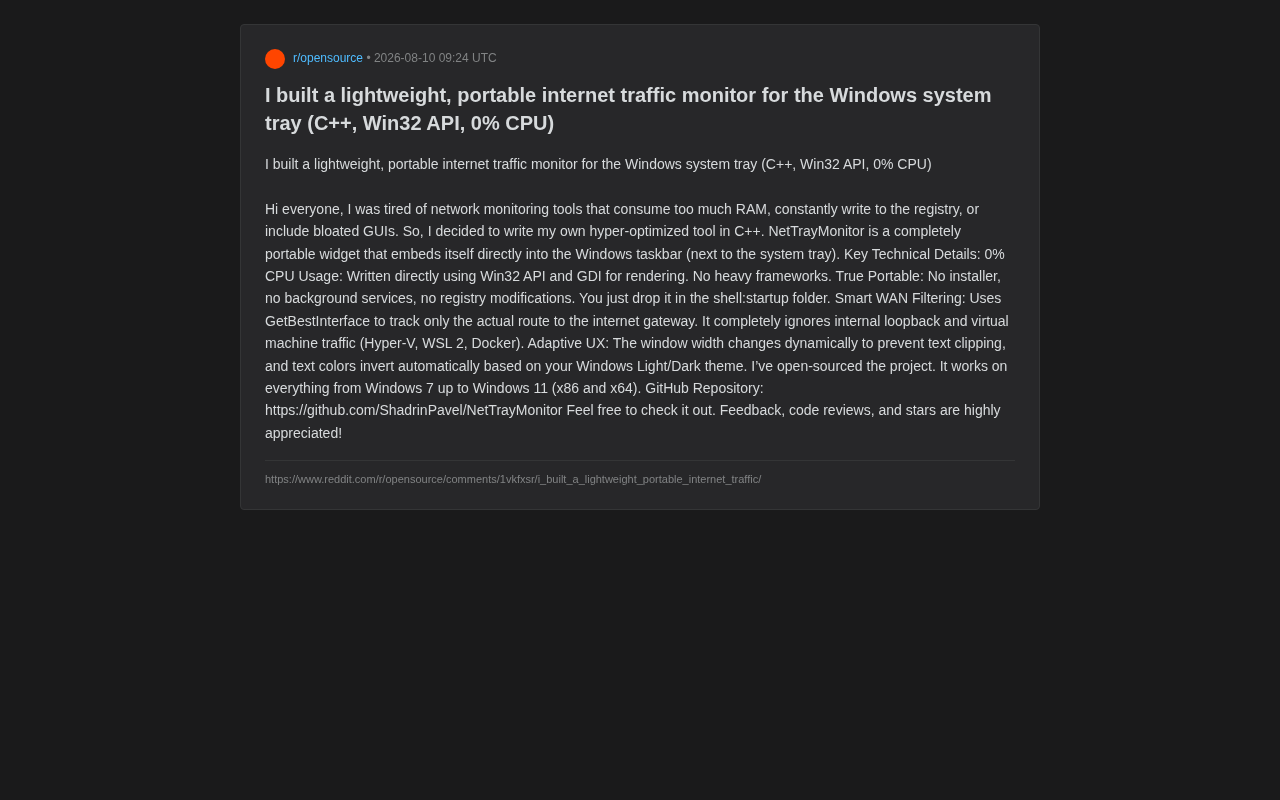
The project author shared their motivation on Reddit: fed up with network monitoring software that consumes massive amounts of memory, frequently writes to the registry, and bundles bloated GUI interfaces. So they decided to build an "ultra-optimized" alternative themselves. This "less is more" engineering philosophy is particularly rare in today's framework-driven software ecosystem where applications routinely consume hundreds of megabytes of memory.
In fact, Software Bloat has become a notable trend in software engineering over the past decade. The proliferation of the Electron framework means every desktop application essentially embeds a complete Chromium browser—installation packages for apps like Slack, VS Code, and Discord easily reach hundreds of megabytes. Wirth's Law, proposed by computer scientist Niklaus Wirth, states that "software is getting slower more rapidly than hardware is getting faster," which has been thoroughly validated in the modern software ecosystem. A simple to-do app might consume 200MB of memory, and a text editor's installation package might exceed 300MB. The root cause of this trend lies in the engineering culture that prioritizes development efficiency: using high-level frameworks dramatically reduces development costs and cross-platform maintenance complexity, but the tradeoff is significant degradation in runtime performance and resource consumption. The "back to basics" philosophy that NetTrayMonitor represents is a technical reflection on this trend.
Core Technical Highlights: Ultimate Performance and Low-Level Implementation
Zero Overhead Through Direct Win32 API Calls
NetTrayMonitor's biggest selling point is its extreme conservation of system resources. The author abandoned any heavyweight framework, opting instead to render directly using Win32 API and GDI. This means no Electron, no .NET runtime, and no overhead from cross-platform frameworks like Qt.
The Win32 API is the lowest-level programming interface for the Windows operating system, dating back to the Windows 3.1 era. It allows developers to interact directly with the OS kernel, controlling core functions like window creation, message handling, and memory management. GDI (Graphics Device Interface) is Windows' native 2D graphics rendering engine, responsible for text drawing, graphics output, and other visual presentation. Compared to Electron (based on the Chromium browser engine, with single applications often consuming 100MB+ of memory), .NET WPF (which requires loading the complete CLR runtime), or Qt (which includes a complete cross-platform abstraction layer and widget library), calling Win32 API directly means zero intermediate layer overhead—every line of code in the program is doing "useful work," with no indirect costs from framework initialization, garbage collection, or virtual DOM updates. This is also why many classic tools bundled with Windows (such as early versions of Task Manager and Notepad) were built this way.
The direct benefit of this low-level implementation approach is near-zero CPU usage. For a tray tool that needs to reside in the background long-term and continuously refresh data, the level of resource consumption directly determines whether it becomes a "burden" on the system. The author answered this question in the most primitive yet most efficient way possible.
Truly Portable: Zero Installation, Zero Residue
Many so-called "portable software" isn't actually clean—they secretly write to the registry, create background services, or leave traces throughout the system. NetTrayMonitor achieves true portability:
- No installer required
- No background services
- No registry modifications
Users simply place the executable in the shell:startup folder to enable auto-start on boot. shell:startup is a Windows Shell special folder path corresponding to the current user's startup directory (typically located at %APPDATA%\\Microsoft\\Windows\\Start Menu\\Programs\\Startup). Programs or shortcuts placed in this folder are automatically executed when the user logs in. Compared to other auto-start methods—such as writing to the registry's Run/RunOnce keys, registering as a Windows service, or creating scheduled tasks—the startup folder approach is the most transparent and controllable: users can directly see which programs are set to auto-start, and simply deleting the file cancels it. This approach leaves no hidden persistence traces in the system, doesn't require administrator privileges, and fully aligns with the "principle of least privilege" security practice.
Uninstalling is as simple as deleting the file, leaving absolutely no junk in the system. This design is extremely attractive for users who value system cleanliness and scenarios requiring rapid deployment across multiple machines.
Intelligent Design Details
Precise WAN Traffic Filtering
The network environment on modern Windows systems is often quite complex—virtual machines, containers, and subsystems each have their own network interfaces. Accurately capturing "real internet traffic" amidst all this interference is a significant technical challenge.
NetTrayMonitor uses the GetBestInterface function to track the actual route to the internet gateway. It completely ignores internal loopback and virtual machine traffic, including network activity generated by Hyper-V, WSL 2, and Docker.
GetBestInterface is a key function in the Windows IP Helper API that accepts a target IP address as a parameter and returns the index of the best network interface in the system routing table for reaching that target. In practice, developers typically pass in a public IP (such as 8.8.8.8) to determine which network interface is the physical or wireless adapter actually connected to the internet. On a modern Windows system, a single computer might simultaneously have over a dozen network interfaces: physical Ethernet adapters, Wi-Fi adapters, Hyper-V virtual switches, WSL 2's vEthernet adapters, Docker's NAT bridges, VPN tunnel interfaces, and the loopback interface. If you simply aggregate traffic data from all interfaces, the results will be severely contaminated by "noise" from inter-container communication, internal VM networking, and so on. By using GetBestInterface to precisely identify the egress interface, then using GetIfEntry or GetIfEntry2 to obtain that interface's byte counters, the tool can accurately calculate real internet upload and download speeds.
This design ensures that users see actual internet upload/download traffic rather than numbers polluted by various virtual network interfaces. For the developer user base, this filtering capability is particularly practical.
Adaptive User Experience
Beyond performance and filtering capabilities, the author also put effort into user experience. The tool features two "adaptive" characteristics:
- Dynamic window width: The window dynamically adjusts its width based on the displayed traffic values, preventing text truncation and ensuring data remains clearly readable at all times.
- Automatic theme adaptation: Text color automatically inverts based on Windows' light/dark theme, maintaining consistency with the system appearance.
These seemingly minor details reflect a conscientious developer's pursuit of product completeness—even a tray utility of just a few dozen KB should have proper visual presentation. The theme adaptation feature is typically implemented by reading the AppsUseLightTheme registry key or calling undocumented APIs like ShouldAppsUseDarkMode, which requires developers to have deep understanding of Windows system internals.
Broad System Compatibility: Full Coverage from Windows 7 to Windows 11
The project is fully open-source and hosted on GitHub. In terms of compatibility, NetTrayMonitor covers all mainstream versions from Windows 7 to Windows 11, supporting both x86 and x64 architectures.
This "backward compatibility" capability is rarely seen in many modern tools. Thanks to direct Win32 API calls, it naturally avoids compatibility issues that newer frameworks have with older systems. For example, .NET 6+ no longer supports Windows 7, and many modern UI frameworks require Windows 10 1809 or later. As the most stable programming interface on the Windows platform for decades, the Win32 API maintains extremely high backward compatibility for its core functions across all Windows versions. This allows users still running older Windows systems to enjoy a lightweight and efficient network monitoring experience.
Final Thoughts: The Return of Lightweight Tool Values
NetTrayMonitor may not be the most feature-rich network monitoring tool, but it represents an engineering philosophy worth championing: using the most appropriate technology to do the purest thing. In an era where software is generally trending toward bloat, a tool that focuses solely on "displaying real-time network traffic" and achieves ultimate lightweightness feels refreshingly clean.
This design philosophy recalls the core Unix philosophy principle of "do one thing and do it well." In today's software development, over-engineering has become a pervasive problem—developers often introduce complex architectures and heavyweight dependencies at the beginning of a project, reserving extensibility for requirements that may never materialize, ultimately drowning simple problems in complex solutions. NetTrayMonitor proves that when you clearly define problem boundaries and choose the appropriate technology stack, a few dozen KB of code can elegantly solve a practical problem.
The author sincerely invites community participation—everyone is welcome to try it out, review the code, submit feedback, and give the project a Star. For technical users who care about low-level development and system cleanliness, this project is undoubtedly worth trying.
GitHub Repository: https://github.com/ShadrinPavel/NetTrayMonitor
It reminds us that good software doesn't have to be large—being sufficient, efficient, and clean is equally a form of excellence.
Related articles

Cursor AI Programming in Practice: Build a Student Management System from Scratch in 30 Minutes
A Bilibili creator demonstrates Cursor AI programming: generating a student management system in 30 minutes with natural language. Details on Agent mode, Claude selection, prompt techniques, and thresholds.

Top 20 AI Coding Tools Ranking: From Rock-Solid to Lackluster, a Scored Matrix
Bilibili creator releases top 20 AI coding tools ranking, tiered T0–T4 from rock-solid to lackluster, with Claude Code and Codex tied at T0. This article details the scoring dimensions (capability, reliability, robustness, durability, cost, domestic availability) and tool performances to help developers choose the right AI coding assistant.

Vibe Coding Systematic Tutorial: Master AI-Assisted Programming from Zero
A three-month Vibe Coding tutorial from a Bilibili creator covering Codex, ClaudeCode, and Cursor, from core logic to commercial project practice for beginners.