NVIDIA DGX Spark in Action: Deploying Local Models with Ollama and Connecting to Automation Tools
Complete guide to deploying local LLMs on NVIDIA DGX Spark using Ollama and connecting them to automation tools.
Adapted from a hands-on demo, this article covers installing Ollama on NVIDIA DGX Spark, downloading and launching local models (qwen3.5:9b and a 31B model), and integrating them into an automation tool. Two critical details stand out: the API endpoint must include the /v1 suffix or requests will hang indefinitely, and disabling extra inference modes helps reduce latency for local tasks. Message channels and web search are optional and can be skipped for purely local use cases.
Running local large language models on the NVIDIA DGX Spark mini PC is a hot topic among AI enthusiasts. This article is adapted from a hands-on demo video and walks through the complete process of deploying Ollama on DGX Spark, loading a local model, and connecting it to an automation tool for task execution. The overall workflow is largely the same as on Windows or macOS, but there are a few key gotchas worth noting.
Preparing to Install Ollama
The DGX Spark desktop typically comes with two pre-installed documentation files. Double-clicking one will take you to the official website. Scrolling down the page, you'll find the Ollama installation command — simply copy it, paste it into a terminal, and wait for the installation to finish.
There's not much complex configuration at this step. Ollama is designed specifically to simplify local LLM deployment. Once installed, it runs as a background service, providing the interface support needed for subsequent model downloads and calls. For users new to local deployment, this single-command setup dramatically lowers the barrier to entry.
Ollama is an open-source framework for running large language models locally. Its core goal is to let users pull and run mainstream open-source models on their own machines without needing to understand low-level details like CUDA or model weight formats. It has a built-in model registry (similar in concept to Docker Hub) — you can automatically download quantized model files (typically in GGUF format) with
ollama pullorollama run. At runtime, Ollama starts a local HTTP service (listening on port 11434 by default) that exposes an OpenAI-compatible API, which is why various automation tools can connect to it so easily. Quantization techniques (such as Q4 and Q8) allow models that would otherwise require tens of gigabytes of VRAM to run on consumer-grade or compact professional hardware, at the cost of a small reduction in precision.
Downloading and Launching a Local Model
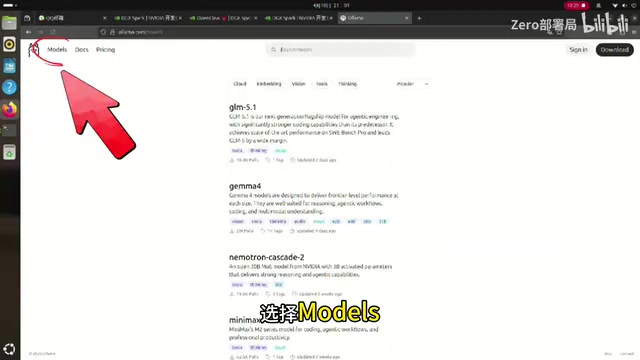
Open a browser and go to the Ollama website. Click on Models to see a list of all available models. In the demo, the author selected two models: one at 31B scale and one at 9B — the Qwen 3.5 9B.
Installing a model is straightforward. Just type ollama run qwen3.5:9b in the terminal, and Ollama will automatically download the model file and launch it once the download is complete. The choice of model size needs to be weighed against the DGX Spark's VRAM and compute capacity — 9B-scale models run relatively smoothly on this type of compact machine, while 31B models have much higher hardware requirements.
The author makes a special note: when connecting this model to a tool for task execution, it's recommended to disable the "four modes" (certain inference-related feature options). Otherwise, task responses can take a very long time. This is a practical tip for balancing speed and quality in local inference scenarios.
There is a direct relationship between model scale (parameter count) and the VRAM required. Using Q4 quantization as a reference: 7B–9B models require approximately 5–6 GB of VRAM, 31B models need around 18–20 GB, and 70B models typically require 40 GB or more. The NVIDIA DGX Spark is equipped with the GB10 Grace Blackwell Superchip and 128 GB of unified memory, with the GPU able to access a significant portion of that — making it possible to run 31B or even larger models on a single machine. Beyond VRAM, inference speed (tokens/s) is also a consideration: more parameters mean higher per-request latency, which is especially noticeable in multi-turn, automated task scenarios. This is also why the author recommends disabling extra inference modes to reduce latency.
Key Configuration for Connecting to an Automation Tool
Once the model is running, you can select Ollama as the backend in your automation tool's settings. There is one critically important detail here: when configuring the Ollama API endpoint address, you should append -V1 to use the v1 API path.
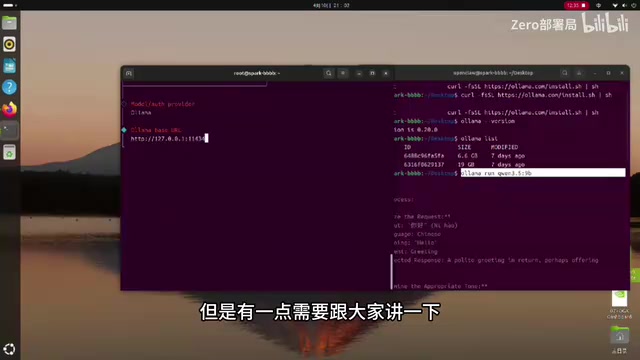
The author emphasizes that without this -V1 suffix, the tool will likely spin indefinitely when calling the model and never return a result. This is because Ollama's compatibility interface path needs to explicitly point to the v1 version — many failed integrations trace back to this exact issue. Once you add it and press Enter, the tool will automatically detect the locally installed models.
When configuring the model source, simply select "Local Model." Since the author had already installed both qwen3.5 and the 31B model, the tool detected them immediately. After selecting the qwen3.5 9B model and pressing Enter, the configuration is automatically written to the config file, and you can start making calls right away.
The
/v1path stems from OpenAI's API design convention — OpenAI's official endpoint looks likehttps://api.openai.com/v1/chat/completions, and many third-party tools send requests to this path format by default. Ollama maintains two sets of interfaces simultaneously: its native/api/path (Ollama's own format) and an OpenAI-compatible/v1/path. When an automation tool connects to Ollama in OpenAI-compatible mode, if the configured Base URL does not explicitly include/v1, the tool's requests will hit the wrong path, causing the server to be unable to parse them and resulting in an indefinite wait. Therefore, the correct local address is typicallyhttp://127.0.0.1:11434/v1, not just the host and port number.
Optional: Channels and Search Engine Configuration
During the setup process, the tool will also prompt you to configure message channels — such as Feishu, WeCom, or DingTalk — for pushing task results. In the demo, the author skipped all of these steps.
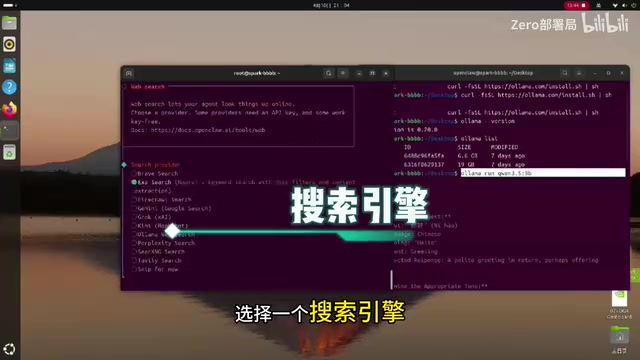
Next comes the search engine configuration step. The tool supports connecting to web search engines. Ollama also offers web search capabilities, but this requires configuring a corresponding API Key. To get one, open the Ollama website, register an account, and obtain the API Key from the relevant page. For scenarios where you only want to run local tasks without web retrieval, this step can be skipped as well.
The tool will continue to ask whether you want to configure additional extensions. In the demo, the author skipped all of them. Once everything is skipped, the initial tool configuration is essentially complete, and both the Ollama service and the local model are up and running.
Running Tasks and Verification
After configuration is complete, run the tool and have it load the config file (via a Gateway-related command). Once you're notified that the config file has been successfully loaded, open a browser and go to 127.0.0.1:18789 to access the tool's visual interface.
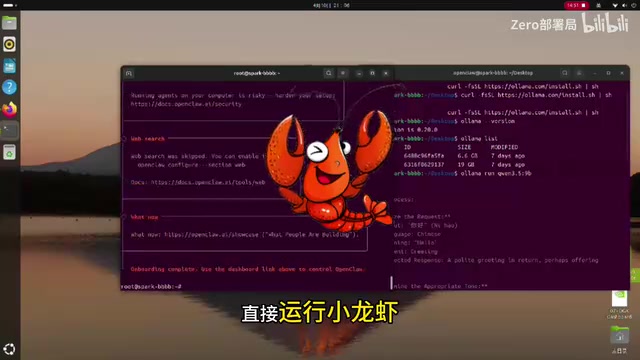
In the interface, select the qwen3.5 9B model, and you can have it start executing tasks. At this point, the entire flow — from tool installation to Ollama deployment to model integration — is fully operational. Overall, the local deployment experience on DGX Spark is highly consistent with mainstream desktop systems. The real differences lie in the higher model size ceiling enabled by the hardware's compute power, and interface-level details like the -V1 suffix.
Summary
The value of this workflow is that it transforms the DGX Spark from a piece of hardware into a fully functional local AI workstation. For users who want to keep their data on-premises while still having solid inference performance, the combination of Ollama + local models + automation tools offers a clear and practical path. The two most important things to remember in practice are: always append -V1 to the API endpoint when connecting tools, and choose your model size wisely based on your hardware's performance while disabling unnecessary inference modes.
Related articles
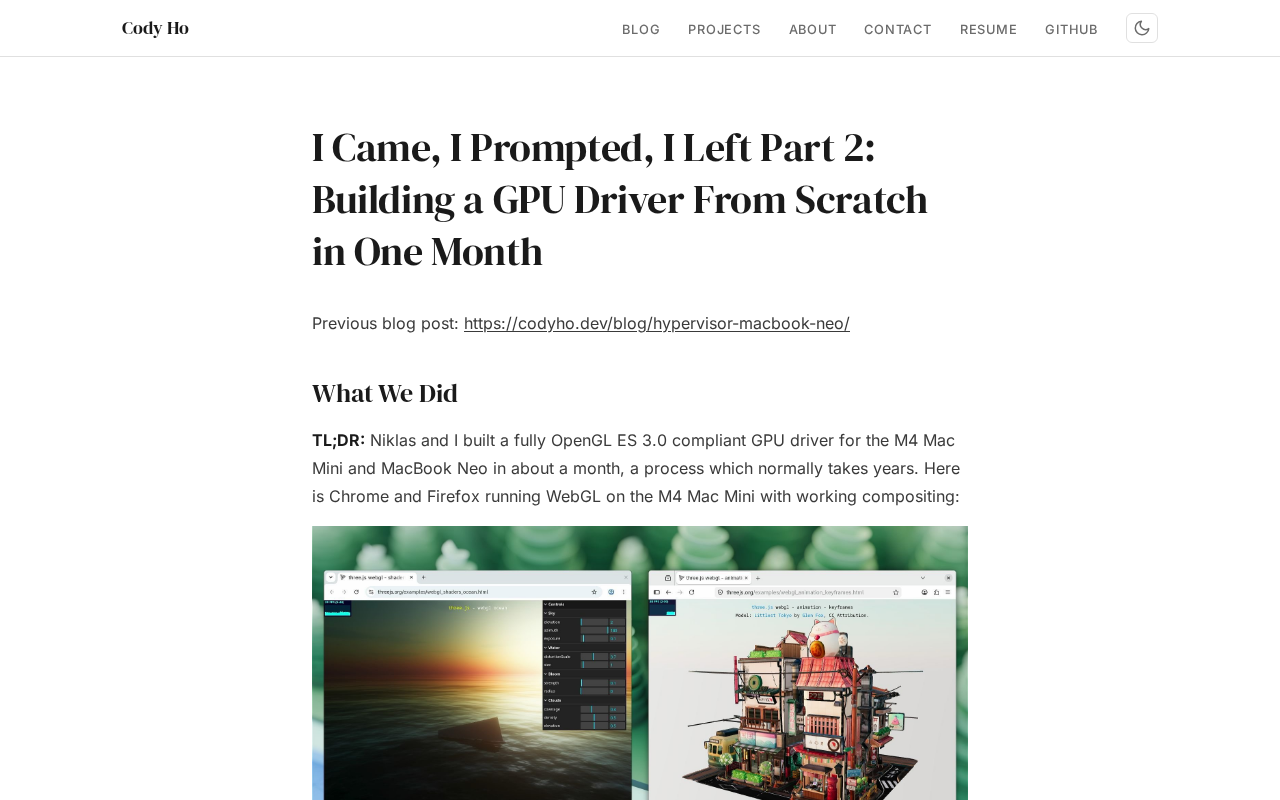
The Technical Challenges of Developing a Linux GPU Driver for the M4 Mac Mini in One Month
Developer Cody Ho built a Linux GPU driver for the M4 Mac Mini in one month. We break down the core challenges of reverse engineering Apple Silicon's closed GPU architecture.
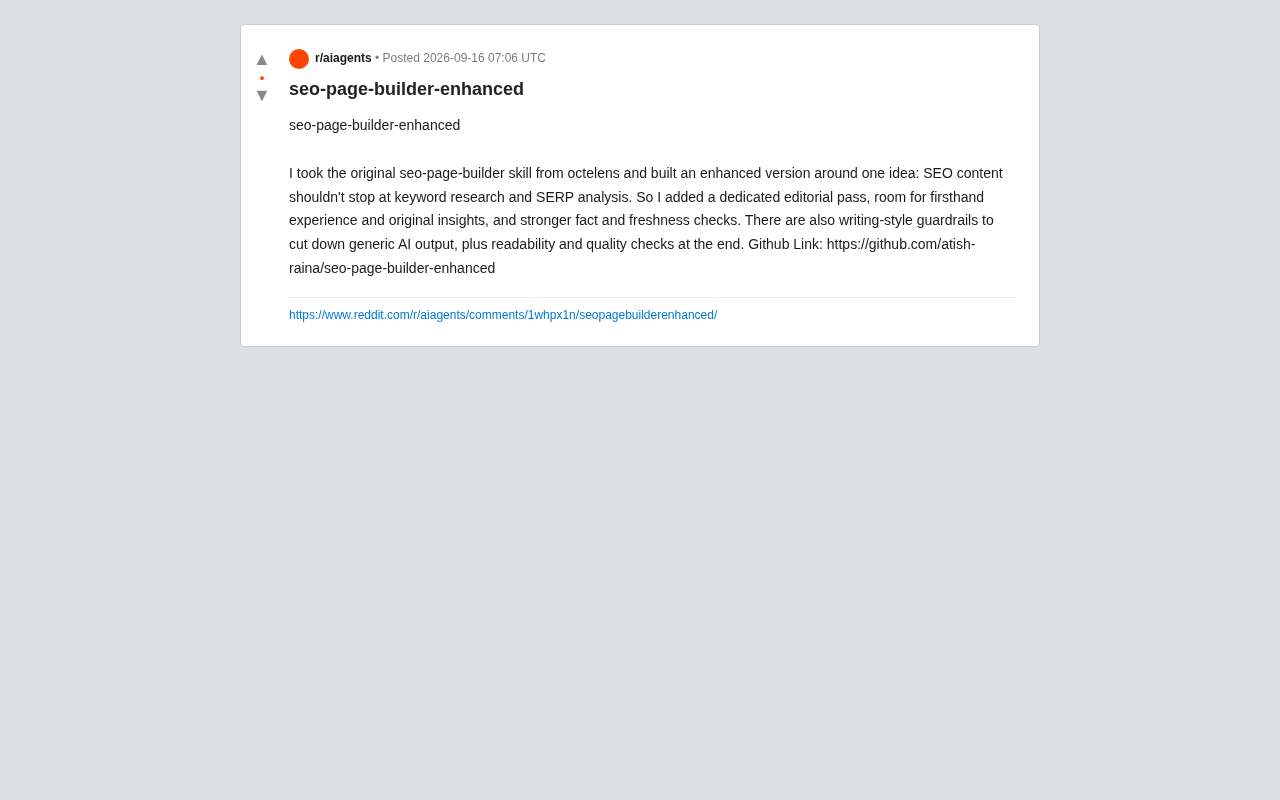
SEO Page Builder Enhanced: Breaking Free from Generic AI-Generated SEO Content
An open-source enhanced SEO content tool that adds editorial review, firsthand experience, fact-checking, and writing-style guardrails to combat generic AI content.
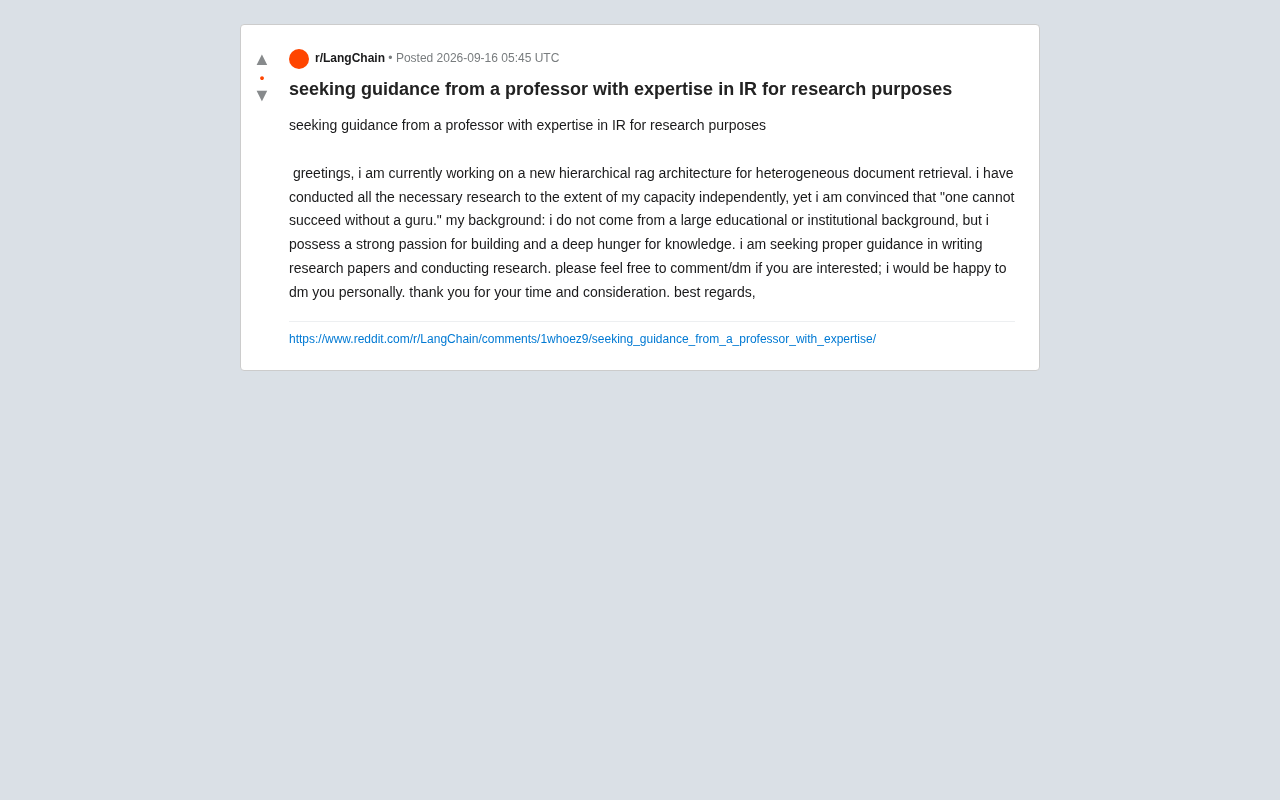
Hierarchical RAG Architecture Research: How Independent Developers Can Break Into Academic Research
An indie developer on Reddit seeks IR professor guidance for hierarchical RAG research. This article explores the technical background and practical advice for independent AI researchers facing academic barriers.