Ollama Beginner's Guide: Run Large Language Models Locally on Your Own Computer
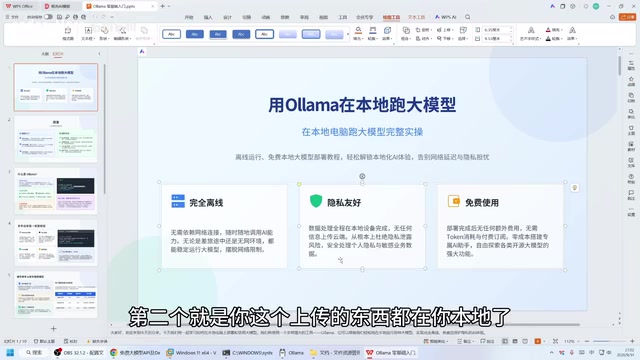
Ollama lets you run large language models fully offline on your own PC with just a few commands.
Ollama is an open-source tool for running LLMs like DeepSeek and Qwen locally on your personal computer — fully offline, private, and free with no usage limits. It offers both a CLI and a graphical Web UI, with only a handful of core commands (pull, run, rm) to learn. The main constraint is hardware, especially RAM: the larger the model, the more memory it needs. Once running, Ollama's built-in OpenAI-compatible local API lets you connect the model to third-party clients or custom apps.
Online AI tools are convenient, but they all share one requirement — you need an internet connection. Tools like Doubao, DeepSeek, and Tongyi Qianwen are essentially web-based services: no connection, no access. On top of that, everything you type gets uploaded to the cloud. If you want to use a large language model in a fully offline environment — or if you have stricter data privacy requirements — Ollama is well worth trying. This tutorial is based on a related demonstration video and walks you through the complete Ollama installation and usage process.
What Is Ollama and What Problem Does It Solve?
Ollama is a tool that lets large language models run directly on your local computer. In simple terms, it downloads the model — which you'd otherwise access online — onto your own machine, turning your computer into its own LLM server.
Compared to online tools, running models locally offers three main advantages:
- Fully offline: Works without an internet connection, with no dependency on any external server.
- Private by default: All inputs and outputs stay on your machine — nothing is uploaded to the cloud.
- Free with no usage limits: No tokens to consume, no credits to purchase. Set it up once and use it indefinitely.
For users who frequently handle sensitive documents, or who operate in restricted network environments, these benefits are particularly compelling.
From a technical standpoint, Ollama is essentially a local model inference runtime. It stores quantized model weight files on your local disk and uses your CPU or GPU for computation at runtime. The primary model format Ollama supports is GGUF — a quantized format optimized for local inference that significantly reduces model size with only a minor loss in accuracy. For example, a 7B-parameter model at full precision might require over 14 GB of storage, but after 4-bit quantization, it typically shrinks to just 4–5 GB — well within reach of a standard consumer PC. Ollama also includes a built-in local server that is compatible with the OpenAI API format (listening on localhost:11434 by default). This means any third-party tool that supports the OpenAI API can seamlessly connect to your local model simply by pointing its API address to your machine, with no other code changes required.
Two Ways to Use Ollama: CLI and Web UI
Once Ollama is installed, you have two ways to interact with it: the command-line interface (CLI), and a graphical Web UI.
Command-Line Usage
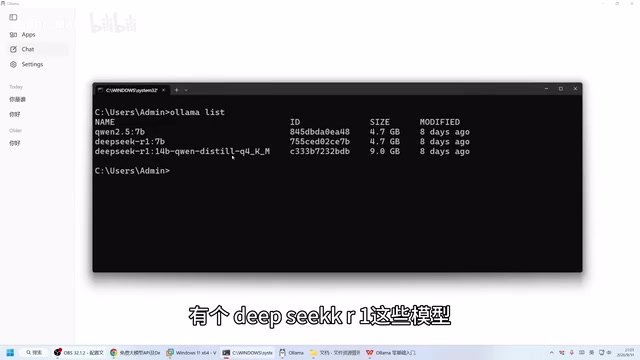
In a terminal, you can start by checking which models you've already downloaded. In the demo video, the author had three models installed locally — including Qwen (Tongyi Qianwen) and two DeepSeekAd models, one of which is the 14B version of DeepSeek R1.
To run a model, simply execute one command:
ollama run <model-name>
Once the command runs, you can start typing questions directly. Ask it "Who are you?" and it responds quickly; ask it to write a snippet of code, and it generates the result on the spot. Overall response speed depends on the model size and your hardware.
Web UI Usage
If the command line isn't your thing, the Web UI offers an experience almost identical to a web-based chat interface. The UI launches automatically after installation, and switching between models or asking questions is completely intuitive. For beginners, this approach has a much lower barrier to entry.
Full Installation and Model Download Walkthrough
Installing Ollama
Installation is straightforward. Visit the Ollama website and download the installer for your operating system — macOS users grab the Mac version, Windows users grab the Windows version. Note that download speeds from the official site can be slow, so be patient.
Once downloaded, follow the prompts and click Install. If prompted to install any required runtime libraries during setup, just confirm and proceed. The UI will launch automatically after installation — but at this point no models are available yet, so you'll need to download one first.
Two Ways to Download a Model
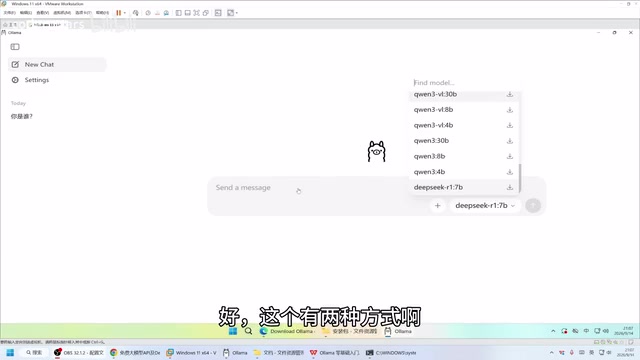
Method 1: Search and download via the Web UI
Simply search for the model name directly in the UI, click on it, and send a message — the system will automatically begin downloading it.
Method 2: Download via the command line
Run ollama pull <model-name> in your terminal. The author noted that command-line downloads seem to feel faster (though it may just be psychological), and it's his preferred method.
After the download finishes, use the list command to confirm the model is ready. When the new model appears in the list, the download was successful and you can use it in either the UI or the CLI.
Hardware Requirements: RAM Is the Bottleneck
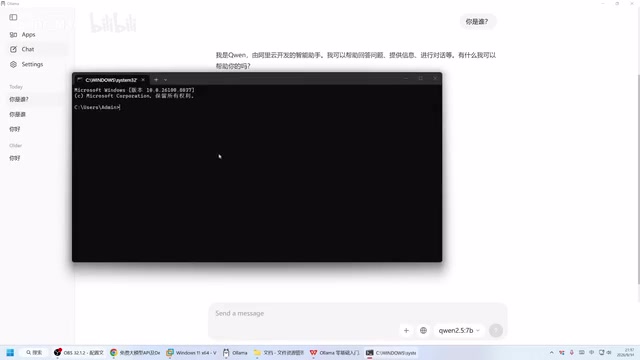
The video demo includes a noteworthy hiccup: after downloading a model inside a virtual machine, the author couldn't get it to run. The reason was insufficient system memory allocated to the VM, which caused the model to fail to load.
This serves as a useful reminder that running LLMs locally does have hardware requirements — RAM in particular. The larger the model (e.g., the 14B version), the more memory and VRAM it demands. If your hardware falls short, the model either won't run at all or will respond very slowly. When choosing a model, it's best to start with something smaller and work your way up based on your actual hardware.
A simple rule of thumb for estimating hardware needs: multiply the model's parameter count (in billions) by the bytes per parameter for your chosen quantization level to get the approximate memory/VRAM required. For common 4-bit quantization, each parameter occupies roughly 0.5 bytes — so a 7B model needs about 3.5 GB, a 14B model needs about 7 GB, and a 70B model needs around 35 GB. If you don't have a dedicated GPU or your VRAM is insufficient, Ollama will automatically fall back to CPU inference, which is noticeably slower but still functional. System RAM should exceed the model size by at least 1.5× to account for overhead. For beginners, small models in the 3B–7B range — such as Qwen2.5-7B or Llama3.2-3B — offer the best bang for your buck and can run smoothly on a standard laptop with 8 GB of RAM.
Common Management Commands
Beyond running and downloading models, there are a few management commands you'll use regularly:
- Delete a model: Replace
pullwithrmin the command to delete the corresponding model. Deletion is fast. - Stop a session: During a model conversation, press
Ctrl + Dto exit the current session.
With these commands, you can handle everything from downloading and running to stopping and cleaning up — covering the vast majority of everyday use cases.
What Can You Do with a Local LLM?
Getting Ollama up and running is just the starting point. Once you have a local LLM service, you can integrate it into all kinds of tools — plug it into DeepSeek-compatible clients, write your own API calls, or build personalized AI applications.
For developers, a local model means a far more flexible experimentation environment — no API costs, no rate limits. For everyday users, it's a personal AI assistant that's always available and keeps your data right where it belongs.
Ollama turns what used to be a complex local deployment process into just a few commands, dramatically lowering the barrier to running large models locally. If you care about data privacy or want to use an LLM in an offline environment, follow this guide and give it a try.
Related articles

Deleted Reddit Post Sparks Debate Over AI Content Moderation
A Reddit post removed with only a 'Removed by Reddit' notice highlights AI content moderation's transparency gaps, misjudgment risks, and appeal challenges for platforms and creators.

DSH + Ollama Local LLM Deployment in Practice: Free Chat with Da Fei Yu
Bilibili creator tests DSH + Ollama local LLM deployment end to end: Ollama install, Xunlei-accelerated downloads, ModelScope GGUF model import, DSH custom API address setup, and a comparison of Qwen 3.5 4B, 8B, Gemma, and other models on 8GB VRAM, with advice on choosing local deployment vs. API calls.

Tested: A $899 Mac Mini vs. a $200/Month AI Subscription
Real-world test of whether an M4 Mac mini can replace a $200 AI subscription: 16GB can't fit large models, and both speed and quality fall short—but privacy, no caps, and near-zero running costs make it an ideal host for an always-on agent. Includes buying advice per configuration and money-saving strategies.