Ollama + Chatbox Tutorial: Run Large Language Models Locally on Your Own Computer
Set up a fully offline, GUI-based local AI assistant using Ollama + Chatbox in about 15 minutes.
This guide walks through a beginner-friendly local LLM setup: Ollama handles model downloading and inference as the backend, while Chatbox provides a lightweight GUI in place of the command line. A key step is using a hardware-filtering tool before downloading any model to avoid mismatches. No coding knowledge is required — installation, model pulling, and interface configuration all follow clear steps. The main benefits are data privacy, offline use, and zero ongoing cost, though model capability is constrained by consumer hardware.
Running a large language model on your own computer might sound like something only hardcore developers do — but with the Ollama and Chatbox combo, everyday users can set up a fully local AI assistant in about fifteen minutes. This tutorial is based on a hands-on walkthrough by Bilibili creator Lunan, covering everything from environment setup to chatting through a graphical interface.
The biggest advantage of local deployment is privacy and autonomy: your data never leaves your machine, you don't need internet access to call a cloud API, and you don't have to worry about rate limits or subscription fees. The trade-off is that it requires some hardware resources, and you'll need to pick a model that matches your machine's specs.
Step 1: Install the Ollama Runtime
Ollama is the foundational framework for running large models locally — it handles model downloading, loading, and inference scheduling. Installation is straightforward: open your browser, go to ollama.com, click Download, and select your operating system (this tutorial uses Windows as an example). Once downloaded, double-click the installer and follow the prompts.
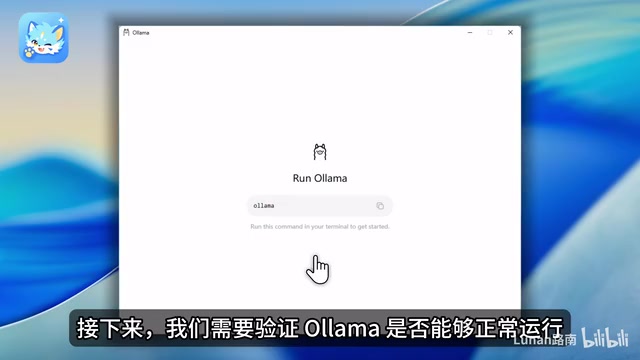
On first launch, Ollama will show a setup screen. Click Continue, then select "Use Ollama Locally" to enter the local runtime environment. At this point, your runtime is ready.
To verify the installation, press Win + R to open the Run dialog, type cmd to open a Command Prompt, then type ollama. If the terminal displays Ollama's command help and related information, the installation was successful and everything is working correctly.
Ollama's core mechanism wraps model inference into a local HTTP service (listening on localhost:11434 by default). Other applications like Chatbox can communicate with it via standard API requests — which is exactly why Chatbox can "auto-fill the service address." It directly calls the local interface that Ollama exposes, using the exact same architecture as calling OpenAI's cloud API, just with your own computer as the target. Ollama also manages model file storage (defaulting to the .ollama folder in your user directory on Windows) and automatically distributes inference tasks between CPU and GPU. If a compatible NVIDIA or AMD GPU is detected, it will prioritize VRAM for acceleration; without a dedicated GPU, it falls back to CPU-only mode, which is noticeably slower but still functional.
Step 2: Choose the Right Model for Your Hardware
Having the environment set up doesn't mean you're ready to go — you still need to download a specific model. Here's the most common mistake beginners make: blindly downloading large models. Different parameter sizes have vastly different requirements for RAM, VRAM, and disk space. Insufficient hardware leads to sluggish performance or the model failing to run at all.
The tutorial's solution is to use a "models you can run" filtering tool to assess your hardware first. On the relevant website, scroll down to find the filter options. The tool will list compatible open-source models based on your computer's hardware configuration. The demonstration uses a mid-sized model from the Qwen (Tongyi Qianwen) series as an example.
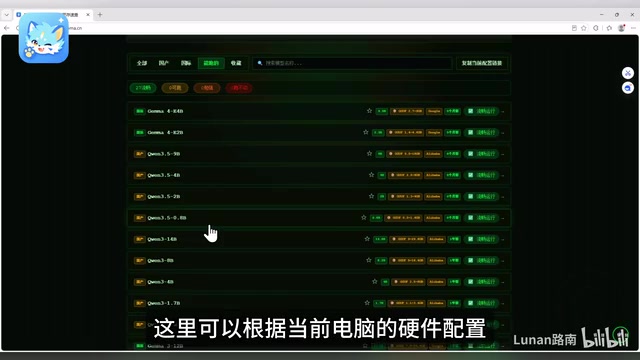
Once you've found your target model, click the Ollama link in the resource section — it will take you directly to that model's official page on Ollama. The page provides a ready-to-use run command; just click the copy button.
Download and Run the Model
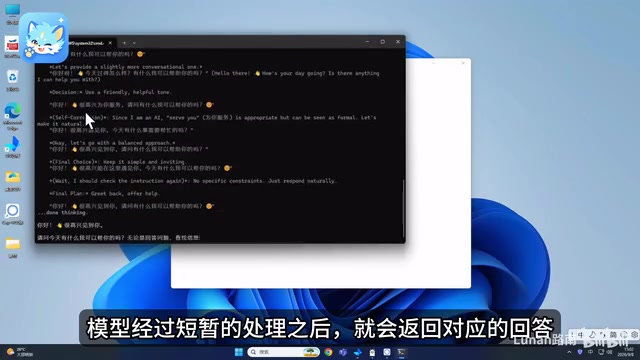
Open cmd again with Win + R, paste the command you just copied, and press Enter. Ollama will automatically begin pulling the model. Download time depends on the model's file size and your network speed. When the terminal shows a success message, the model has been successfully deployed.
At this point, you can test it directly in the command line by typing something like "你好" (Hello). After a brief processing delay, the model will return a response — which means your local inference pipeline is working.
A model's "parameter count" is typically expressed in B (billions) — for example, 7B means 7 billion parameters. More parameters generally means more capable, but hardware requirements scale up dramatically. A rough rule of thumb: with 4-bit quantization as the baseline, running a 7B model requires roughly 6–8 GB of VRAM or RAM; 13B needs about 12 GB; and 70B requires over 40 GB. "Quantization" refers to the technique of compressing model weights from 32-bit floating point to lower precision (like 4-bit integers), which dramatically reduces memory usage and file size at the cost of a slight precision loss — though the impact on everyday use is minimal. The Qwen series is an open-source model family from Alibaba, optimized for Chinese. It understands and generates Chinese more effectively than many English-base models at the same parameter count, making it a popular choice for Chinese-speaking users doing local deployment.
Step 3: Add a Chat Interface with Chatbox
Command-line conversations work, but having to open a terminal and type commands every time isn't a great experience. While OpenWebUI is feature-rich, its deployment process can be complex for beginners. The tutorial recommends the lighter-weight Chatbox as a graphical interface instead.
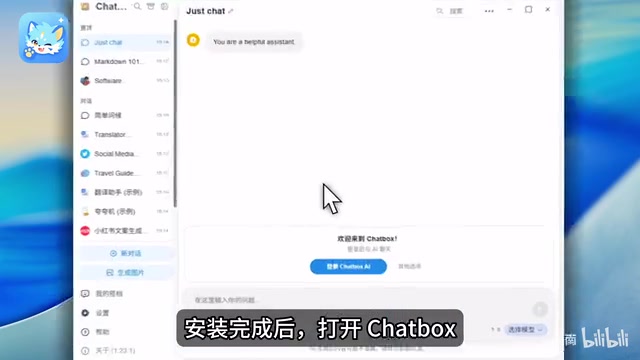
Go to the Chatbox official website, download the Windows version, and double-click the installer to complete the setup. After opening the app, go to Settings, find Model Provider, and select Ollama. Chatbox will automatically pre-fill the local Ollama service address — you typically don't need to change anything manually.
Click the Fetch button at the bottom. Chatbox will automatically query your local Ollama installation for the list of installed models. Add the model you just deployed, then close the settings.
Now create a new conversation, type something like "Hello, please introduce yourself," and wait for the model to respond. At this point, your fully local, graphical AI assistant is up and running.
OpenWebUI and Chatbox represent two different design philosophies for local AI front-ends. OpenWebUI is a browser-based web application with a full feature set (multi-user support, RAG document retrieval, model management, etc.), but it requires Docker container deployment, which has a learning curve for users unfamiliar with the command line. Chatbox is a native desktop client — install and go, with an interface similar to mainstream chat apps, making it better suited for users who just want to "start chatting out of the box." Chatbox also supports multiple backends: in addition to Ollama, it can connect to OpenAI, Claude, Azure, and other cloud services, meaning you can switch between local and cloud models within the same interface — balancing privacy needs against performance needs.
Is Local Deployment Worth the Effort?
The overall logic is clean: Ollama handles the underlying inference, Chatbox handles the interface, and a model filtering tool helps you avoid hardware mismatches. Compared to calling cloud APIs, the local approach offers clear advantages in privacy protection, offline availability, and zero ongoing costs.
One important caveat: local model capabilities are limited by your hardware. Consumer-grade computers can typically only run small to mid-sized models smoothly, and response quality and inference speed will still lag behind top-tier cloud models. For users who prioritize data privacy or want to learn how large models work under the hood, this combo is an excellent starting point. If you're after maximum performance, cloud services remain the more convenient option.
Related articles

Qwen 3.8 Beats Opus at Coding—But Can Your Mac Run It?
Open-source Qwen 3.8 beats Opus 4.6 at coding at just 18GB, but how much Mac memory do you need? 24GB crashes; 32GB is the sweet spot. Full config guide inside.

Claude Code + Agent: Building a Fully Automated AI Testing Loop
Bilibili course breakdown: how test developers can use Claude Code terminal-based Agents to build a fully automated AI testing loop. Compares permission boundaries of terminal vs. device Agents, explains why enterprise projects choose Claude Code over Open Claude-type tools, and outlines the Node.js environment setup and DeepSeek model integration path.

Working with AI Agents Requires Nerves of Steel
The more autonomous AI agents become, the heavier the user's psychological burden. Drawing from a Hacker News discussion, this article analyzes black-box anxiety, behavior drift, and monitoring fatigue in agent collaboration, and offers practical approaches like sandbox isolation, permission control, and task granularity management to reduce cognitive load.