Ollama VRAM Overflow? Three Default Settings Are Secretly Doubling Your Memory Usage
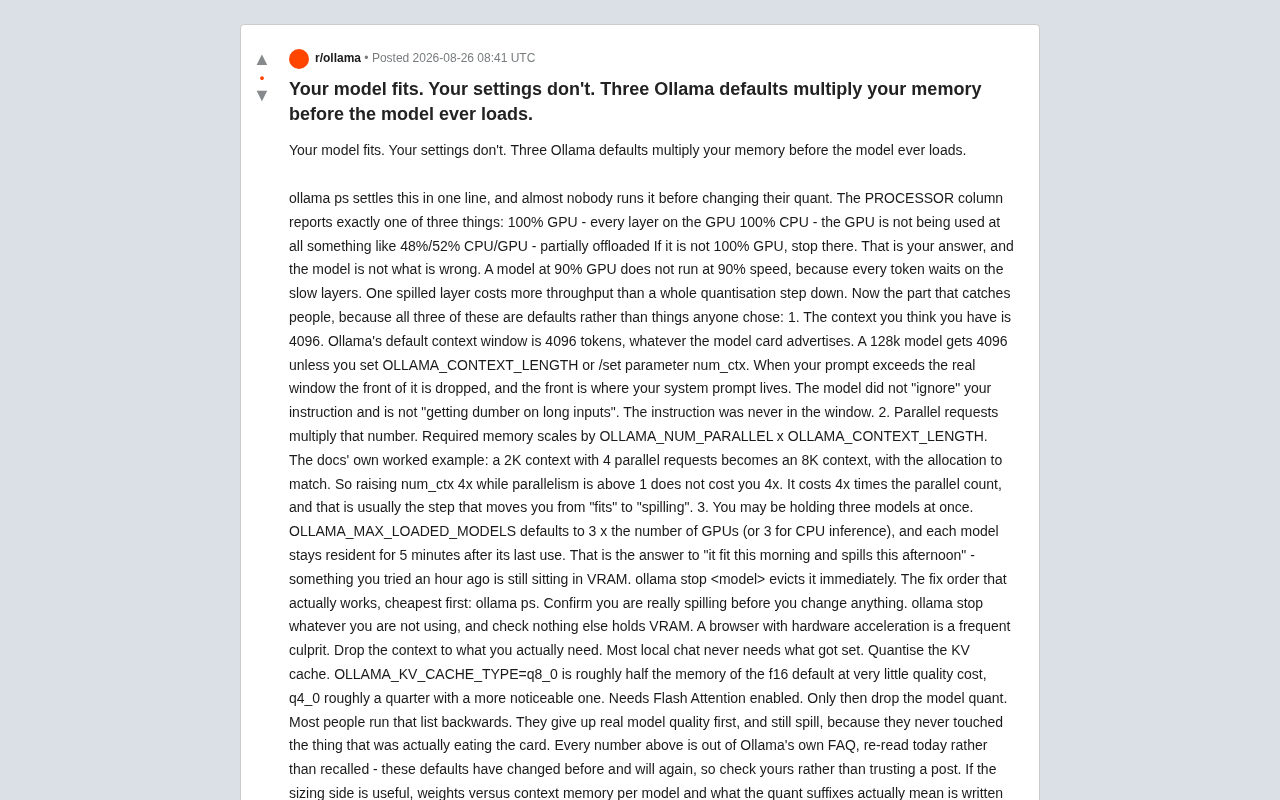
Three hidden Ollama defaults silently double your VRAM usage before the model even loads.
Ollama's default settings for context window (4096 tokens), parallel requests (which multiply VRAM allocation), and model residency (multiple models staying loaded in VRAM) often cause unexpected memory overflow — even when the model itself fits. This guide explains the correct troubleshooting order: run `ollama ps` first, stop unused models, reduce context size, quantize the KV cache, and only then consider lowering model quantization.
The Model Fits, But the Default Settings Don't
Many users running local LLMs have encountered this puzzling situation: the model size clearly matches the available VRAM, yet inference is painfully slow or even frequently spills over to CPU. The problem often isn't the model itself — it's a few default parameters in Ollama that quietly double your VRAM requirements before the model even finishes loading.
There's a key concept to understand here: when deploying LLMs locally, VRAM usage consists of two components — model weights and runtime memory (primarily the KV cache). Model weights are a fixed cost determined by parameter count and quantization precision, while runtime memory is a dynamic cost that scales linearly — or even multiplicatively — with context length, parallel request count, and other parameters. Most people only pay attention to the former while overlooking the latter, which is often the straw that breaks the camel's back.
This analysis comes from a power user on the Reddit community whose core argument is: most people have never run ollama ps before tweaking their model quantization (quant), yet this single command can pinpoint the problem at a glance.
One Command to Reveal the Truth About Ollama's VRAM Usage
Run ollama ps and focus on the PROCESSOR column. It will report one of three states:
- 100% GPU — All layers are on the GPU. Ideal state.
- 100% CPU — The GPU isn't being used at all.
- Something like 48%/52% CPU/GPU — Some layers have been offloaded to CPU.
If it's not 100% GPU, that's your answer — the problem isn't the model itself.
Here's a critical performance insight: a model running at 90% GPU does not run at 90% speed. Every token generated must wait for those slow layers running on CPU. Modern LLMs are composed of dozens of stacked Transformer blocks, and autoregressive generation is strictly sequential — each layer's output is the next layer's input. Even if only a few layers are on CPU, every single token's generation gets bottlenecked by those layers. On top of that, data must shuttle back and forth between GPU VRAM and system memory over the PCIe bus, which typically has only 1/10th to 1/20th the bandwidth of GPU memory. A single layer spilled to CPU hurts throughput more than dropping an entire quantization level. This is the fundamental reason why many people aggressively lower model precision yet still experience sluggish performance.
Three Ollama Defaults That Secretly Multiply Memory Usage
The real trap is that the following three settings are all defaults — not something anyone actively chose.
Default Context Window Is Only 4096 Tokens
Ollama's default context window is 4096 tokens, regardless of what the model card advertises. A model that claims 128k context will only use 4096 in practice unless you set OLLAMA_CONTEXT_LENGTH or use /set parameter num_ctx.
To understand this, you need to know how context windows work: an LLM's context window determines how many tokens it can "see" at once. In a typical conversation, the context is a concatenation of the system prompt, conversation history, and the current user input, with the system prompt placed at the very beginning. When the total token count exceeds the context window limit, Ollama uses a truncation strategy that drops the earliest content (i.e., a sliding window) rather than throwing an error or compressing.
This silent truncation is incredibly deceptive — when your prompt exceeds the actual window, the earliest parts get discarded, and the system prompt sits right at the front. So the model isn't "ignoring your instructions" or "getting dumber with longer inputs" — those instructions never even entered the window. Users see no error message and simply feel the model is behaving strangely. This misconception is extremely widespread in the community.
It's worth noting that the context window's VRAM cost is completely independent of model weights. Even if your model weights only occupy 60% of VRAM, setting an excessively large context length can cause the KV cache overhead to consume the remaining 40% entirely — or even overflow.
Parallel Requests Multiply VRAM Requirements
The VRAM formula is: OLLAMA_NUM_PARALLEL × OLLAMA_CONTEXT_LENGTH.
Ollama's official documentation provides an intuitive example: a 2K context with 4 parallel requests effectively becomes an 8K context in terms of VRAM allocation.
The reason lies in how KV cache works: the attention mechanism in the Transformer architecture must maintain independent Key and Value vector caches for each request. During autoregressive generation, every new token needs to compute attention relationships with all preceding tokens. Recomputing from scratch each time would be enormously expensive, so previously computed Key-Value pairs are cached in VRAM. Each parallel request needs its own independent KV cache space — these caches cannot be shared. So when parallelism is greater than 1, increasing num_ctx by 4x doesn't cost 4x — it costs 4x multiplied by the number of parallel slots. This is usually what pushes you from "barely fits" to "overflow." Many people completely overlook this multiplication when increasing context size.
Multiple Models Staying Resident in VRAM
OLLAMA_MAX_LOADED_MODELS defaults to 3 times the number of GPUs (or 3 for CPU inference). Moreover, each model continues to stay resident for 5 minutes after its last use.
This explains the classic complaint: "It worked fine this morning but overflows in the afternoon" — a model you tried an hour ago is still quietly occupying VRAM. Use ollama stop <model> to evict it immediately.
Another easily overlooked source of VRAM consumption is hardware-accelerated browsers (like Chrome), video players, and even desktop compositors. These programs can occupy hundreds of MB to several GB of VRAM, and they're completely invisible when you're calculating model size.
The Correct Troubleshooting Order for Ollama VRAM Overflow
Most people's troubleshooting order is backwards: the first thing they do is sacrifice model quality by lowering quantization, only to find it still overflows — because they never touched what's actually eating the VRAM.
Some background on quantization: quantization compresses model parameters from high-precision floating point (e.g., 16-bit FP16/BF16) to lower bit widths (e.g., 8-bit, 4-bit, or even 2-bit). Common quantization format suffixes like Q4_K_M, Q5_K_S, Q8_0, etc., where the number represents bit width and the letters indicate grouping strategy and precision retention method. GGUF is currently the most popular quantization format in the local deployment ecosystem, driven by the llama.cpp project — and Ollama is built on top of llama.cpp under the hood. The core trade-off of quantization is: lower bit width means smaller model files and less VRAM usage, but also reduced model expressiveness and output quality. Rushing to lower quantization before exhausting other lower-cost optimization options is a classic case of putting the cart before the horse.
The correct order starts with the lowest-cost actions:
- Run
ollama psfirst — Before changing any settings, confirm you're actually overflowing. - Stop unused models (
ollama stop) and check whether other programs are consuming VRAM. Hardware-accelerated browsers are a common culprit. - Reduce context to what you actually need. Most local chat scenarios don't need anywhere near the default. Everyday conversations typically need only 2048–4096; you only need larger windows for long documents or complex multi-turn dialogues.
- Quantize the KV cache.
OLLAMA_KV_CACHE_TYPE=q8_0uses roughly half the memory of the f16 default with minimal quality loss;q4_0uses about a quarter but with slightly more noticeable degradation. Note that this requires Flash Attention (enabled by settingOLLAMA_FLASH_ATTENTION=1). Flash Attention is an efficient attention computation algorithm proposed by Tri Dao et al. at Stanford. It uses tiling and kernel fusion to keep most computation within the GPU's high-speed SRAM, dramatically reducing dependence on memory bandwidth. Quantized KV cache implementation relies on Flash Attention's tiling framework, which is why both must be enabled together. - Only then consider lowering the model's quantization level.
Save precious model quality for last — that's the rational approach.
Building Documentation Habits Matters More Than Memorizing Parameters
One detail worth noting: every single number above comes from Ollama's official FAQ. These defaults have changed in the past and will change again in the future.
This is an important reminder for everyone deploying local AI — a tool's default behavior changes across iterations. Rather than trusting a tutorial or post from months ago, it's better to develop the habit of checking official documentation and running diagnostic commands yourself. For users who care about VRAM allocation, understanding the distinction between "model weights vs. context memory (KV cache)" and the real meaning behind quantization suffixes (e.g., in Q4_K_M, the 4 represents 4-bit quantization, K represents K-quant grouping strategy, and M represents medium precision retention) is fundamental knowledge for local deployment. As model sizes continue to grow and quantization techniques keep evolving (with different approaches like GPTQ, AWQ, and GGUF each having their own strengths), maintaining an understanding of the underlying mechanisms has far more long-term value than memorizing a set of parameter values.
Key Takeaways
Related articles

Uber Deploys ChatGPT Work Company-Wide: AI in the Workplace Enters the Scaled Implementation Phase
Uber deploys ChatGPT Work to 30,000+ employees, extending it from engineering to all roles. We analyze its expert-engineer pairing, end-to-end automation, and questions of AI control and power concentration—insights for scaling AI in the workplace.

Shift at Midnight Hands-On: When "ID Verification" Becomes Alien Hunting
Shift at Midnight blends ID verification with horror survival in a four-player co-op game. We break down its inspection mechanics and chaotic humor.

Zelensky Recounts the Outbreak of War: I Need Ammunition, Not a Ride
Zelensky recalls the first day of war in a YouTube interview: farewell to family, rejecting Biden's evacuation offer with "I need ammunition, not a ride," and how Bucha shaped his stance on compromise and peace talks.