Open WebUI in Practice: Giving Your Local LLM a Chat Interface

Build a web chat interface for local Ollama models with Open WebUI—distinguish ports, verify connections, confirm persistence.
Based on a Bilibili tutorial, this article explains how to use Open WebUI to build a web chat frontend for an already-running local Ollama model. The key is distinguishing two services: Open WebUI provides the browser interface on port 8080, while Ollama handles inference on port 11434. Install into a virtual environment, store chat data in a separate Data directory, verify the connection by selecting a model, test with an extraction task, and confirm persistence after restart. Troubleshooting follows a layered approach.
Open WebUI in Practice: Giving Your Local LLM a Chat Interface
Talking to a local LLM in the terminal is efficient, but having to type commands and stare at plain-text output every time is hardly a friendly experience. Giving your model a web chat interface is like adding a graphical window to a command-line tool—more intuitive to operate, with traceable history and easier feature expansion. The Bilibili tutorial "Local LLM Deployment Series 07" is dedicated to exactly this: using Open WebUI to build a chat frontend for an Ollama model that's already up and running. The whole process revolves around "distinguishing the two services, connecting correctly, and verifying persistence," with every step emphasizing confirming usability before moving on.
First, Distinguish: The Web Service and the Model Service Are Two Different Things
Many beginners fill in the ports backward on their first setup, resulting in either a web page that won't open or a failure to connect to the model. The tutorial repeatedly reminds us: 8080 is for the web page, 11434 is for the model service. Open WebUI handles the chat interface you see in the browser, while Ollama handles the actual calls to the local model to generate answers. Each has its own address, and you can't mix them up.
Think of it like house numbers—when you go to the web service, you knock on the door marked 8080; when you go to the model service, you knock on the door marked 11434. Get it wrong, and either the browser shows a connection failure or the chat interface shows no models to select. Switching interfaces doesn't magically make the model smarter; it just forwards requests to the backend, and the one actually doing the work is still that small model you already got running before.
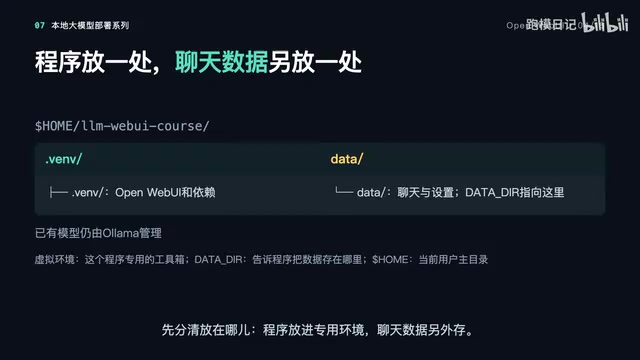
Another easily overlooked point is the data directory. Open WebUI's program files are stored separately from chat history and settings—the program goes into the virtual environment, while chat data is stored in a separate Data directory. The benefit of this design is that when you upgrade or reinstall the interface later, your past conversations won't be lost. The tutorial recommends fixing this data directory on the first install and reusing the same path on subsequent launches—don't move it around.
Ollama is a tool for running large language models locally. It wraps model downloading, loading, and inference into simple command-line operations, and starts an HTTP service in the background (listening on port 11434 by default) that exposes an API. In other words, Ollama is both a "model repository" and an "inference engine"—any frontend that sends requests in its API format can call the local model to generate answers. Open WebUI itself contains no models; it plays the role of a client—forwarding the text you type on the web page to Ollama, then rendering the returned results as chat bubbles. Understanding this division of labor—"the frontend only handles interaction, the backend handles computation"—makes it clear why the two ports must be distinguished, and why not seeing models in the interface often isn't because the interface is broken, but because the backend connection isn't configured properly.
Installation Prep: Get the Python Version and Model Connectivity Right First
Before installing, the tutorial requires confirming two things: Python version at least 3.11, and the existing local model working properly. If the ollama list output is empty, or you can't even connect to the model service, fix the model layer first before installing the interface. This order matters—installing the interface with a broken backend only makes troubleshooting more confusing.
The installation process happens in the system terminal—don't send commands to the model chat box. First create the course directory, then create and activate a dedicated virtual environment. A virtual environment is like a separate toolbox, designed to avoid interfering with other Python software. After activation, install Open WebUI with one command, then check package information with another. Seeing the package info means it's installed; note the version number, but the web service hasn't started yet.
Python virtual environment (venv) is Python's built-in isolation mechanism: creating one in a project directory generates an independent bin/Scripts directory. While activated, python and pip both point to the copies in this directory, and installed packages only go into this environment, not polluting the system's global Python. The direct benefit is that Open WebUI's dependency library versions won't conflict with other Python projects on the machine, and when uninstalling or reinstalling, you just delete the directory with no leftovers. The activation command is source venv/bin/activate on macOS/Linux and venv\Scripts\activate on Windows; after activation, the environment name usually appears before the terminal prompt. You need to reactivate every time you reopen the terminal, which is why the tutorial emphasizes "don't exit the virtual environment"—once you exit, the open-webui command can't be found.
Starting the Service: A Command That "Stands There"
Installed doesn't mean usable—you still need to start the service. The tutorial specifically emphasizes: the startup command will occupy the terminal continuously; it's not a background service, so don't change directories or exit the virtual environment you just activated. The backslash at the end of the command means the next line continues; just copy the whole block.
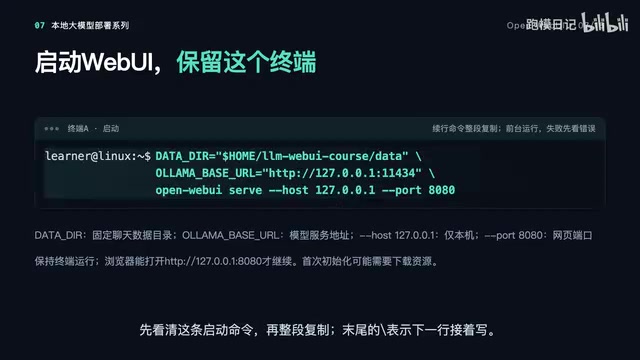
The startup command sets the data directory and model address, with the web page only exposed on local port 8080. Leave this terminal as is, wait for initialization to complete, then open the full URL shown on screen in your browser. Note that this address refers to the computer you're using—typing it on your phone won't point to this machine. First-time access to a new instance requires creating a local admin account; if you already have an account, just log in. Getting to the chat page means the web service is working; whether the model is connected still needs another check.
Connection Check: Only When You Can Select the Model Is It Truly Connected
If you don't see any models in the chat interface, go to the admin settings' connection page and check the Ollama connection. Enter the full address here, with port 11434 and no trailing slash. The tutorial specifically distinguishes the /v1 compatible interface (with slash) from the native connection—they can't be mixed, and the key shouldn't just be filled with EMPTY. After saving, return to the chat interface and see if you can select your original local model—if you can, continue to the next step.
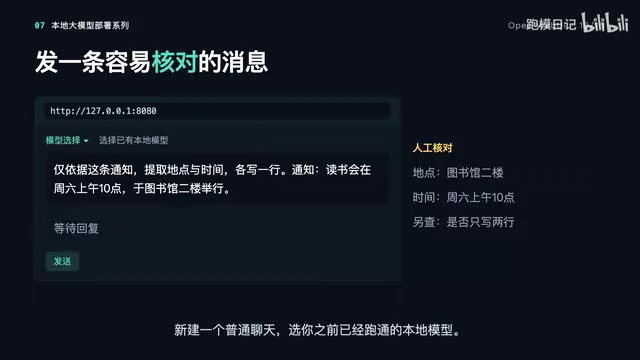
Once the connection is confirmed, create a new regular chat, select the local model you already got running, and send an instruction that requires extracting information as a test. For example, send a book club notice and ask it to extract only the location and time. After sending, wait for the actual reply; if there's no reply, go back to the model service layer to troubleshoot. Verify the location, time, and two-line format yourself—displaying an answer doesn't mean it's correct; the model may deviate from the format or miss key information.
Ollama's API has two path styles: native interfaces like /api/chat and /api/tags, and OpenAI-format-compatible interfaces like /v1/chat/completions. In Open WebUI's connection settings, entering http://localhost:11434 uses the native interface, giving full access to model listing, model pulling, and other features; entering http://localhost:11434/v1 connects in OpenAI-compatible mode, where some advanced features may be limited. Adding an extra trailing slash causes URL concatenation errors and 404s; and filling the API Key field with EMPTY is just a placeholder some compatible services require—it's not a universal practice for local Ollama, and arbitrary entries may actually trigger authentication failures. So when entering the address: include the full protocol, correct port, matching path for the chosen mode, and no trailing slash.
Verify Persistence and Restart: Where Chat History Is Actually Stored
Chat history is saved by the web service, not written into model weights—that is, the model's parameters. The tutorial has you practice saving by choosing a regular chat (not a temporary chat), then closing the tab and reopening the same address, logging in with the same account, and finding the previous chat. If you can find it, that proves the history was actually saved.
To stop the web service, press Ctrl+C in the terminal running it and wait for the system prompt to return. Next time, go into the same directory, activate the original environment, and run the same startup command—don't forget Ollama also needs to be working, and the data directory must be the original one. Reopening the original address, logging in, and finding your history proves you've learned how to restart and pick up where you left off.
Model weights are the parameter files fixed after model training completes (such as .gguf, .safetensors), typically ranging from a few GB to tens of GB. Their contents are the numerical values of the neural network's layers, which only determine "how the model answers" and store no user conversations. Chat history, accounts, and interface settings are application-layer data written by Open WebUI into the Data directory specified at startup (usually a SQLite file like data/webui.db). Therefore, starting with a different Data directory is equivalent to starting a brand-new instance, and previous conversations naturally "disappear." This also explains why backing up chat history only requires backing up the Data directory, and reinstalling or upgrading the Open WebUI program itself won't affect existing records.
Troubleshooting Approach: First Locate Which Layer Is Stuck
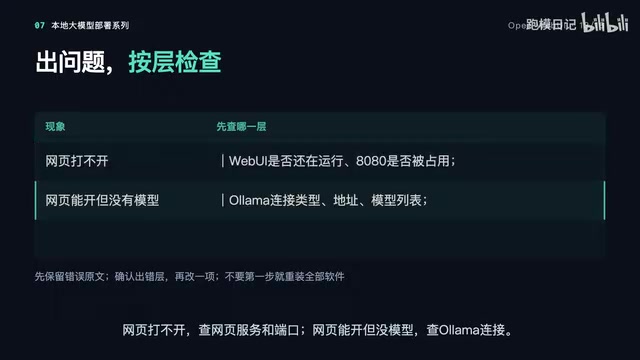
When something goes wrong, don't just reinstall everything at once. The tutorial provides a layered troubleshooting path: if the web page won't open, check the web service and port; if the page opens but there are no models, check the Ollama connection; if you can select a model but it doesn't reply, try the original terminal chat and capture the actual error. Fix one layer at a time and continue once recovered—that way you know exactly which step the problem is at.
As for the "thinking" feature, when you later switch to a model that supports thinking, an expandable section may appear above the answer. Collapsing it only hides the content—it doesn't mean the model stops thinking. To truly control thinking, first check whether the model and backend support it; don't just copy a toggle switch. Turning off thinking also doesn't guarantee being twice as fast; for now, focus on getting regular chat working well without changing templates.
The tutorial ends with a self-test: start the service yourself, select a model, send a question with a verifiable answer, then restart once more to see if you can find that regular chat. Completing all three steps means this session's goal is achieved. The next episode turns to the problem of slow model downloads, covering tips for avoiding pitfalls on domestic networks.
One-line Summary
Use Open WebUI to build a web chat interface for a local Ollama model—distinguish ports, verify connections, confirm persistence.
Paragraph Summary
The article, based on a Bilibili tutorial, explains how to use Open WebUI to build a web chat frontend for an already-running local Ollama model. The core is distinguishing two services: Open WebUI provides the browser interface on port 8080, while Ollama handles actual inference on port 11434—don't mix up the addresses. Before installing, confirm Python 3.11+ and that the local model works; install the program into a virtual environment and store chat data in a separate Data directory so upgrades don't lose records. The startup command occupies the terminal rather than running in the background, and first access requires creating an admin account. Once in the interface, you must enter the correct Ollama address in connection settings—only when you can select the model is it truly connected—and verify by sending instructions and checking answers. Chat history is saved by the web service, not written into model weights; only when records are found after a restart is the task complete. Troubleshooting follows a layered approach: no web page means check the port, no models means check the connection, no reply means check the model service.
Related articles

Amphibious Transforming Drone: Beyond 100x Power Savings, What Are the Real Needs?
Is the amphibious transforming drone just a gimmick? Starting from the 100x power difference of the M4 Morphobot, explore real application scenarios and thesis topic ideas, analyzing boundary conditions where pure drones and pure ground robots both fail.

Warhound Raises $200 Million: Genetically Engineered "War Dogs" Paired with Anduril Gear
Warhound raises $200M, backed by Ben Lamm and Palmer Luckey, to genetically engineer dogs for military and law enforcement use and equip them with Anduril gear. This article analyzes its technology direction, funding logic, and ethical controversy.

Claude API Comes to Google Cloud: IAM Integration and SDK Access Guide
Anthropic hosts the full Claude API on Google Cloud with IAM-controlled permissions and unified billing. This guide covers the Vertex AI and Anthropic-hosted entry points, IAM role configuration, and SDK access.