OpenCode Getting Started Guide: Complete Installation and Configuration Walkthrough

A full beginner-to-advanced guide covering OpenCode installation, configuration, Agents, and MCP integration.
OpenCode is an AI coding assistant built around deep customizability — supporting model selection, rule-based constraints, multi-type Agent management, and integration with external tools via the MCP (Model Context Protocol) ecosystem. It offers two installation paths: a simple desktop install and a WSL-based setup officially recommended for Windows users. Advanced features include custom commands, reusable tools, and ready-made SQL Agents from the community. The recommended learning path is to start with the desktop version for quick onboarding, then migrate to WSL for a more stable deep-use experience.
OpenCode is an AI coding tool that has been gaining traction in developer communities, attracting a growing number of users looking to boost their coding efficiency. This tutorial starts from scratch and systematically walks through OpenCode's installation, configuration, and practical use — helping first-time users build a solid foundation. The content below is based on an introductory course by a Bilibili creator, aimed at faithfully covering the tool's core capabilities and configuration logic.
What Is OpenCode
OpenCode is an AI-powered coding assistant designed for developers, with its core value centered on leveraging large language models to assist with software development. Its value goes beyond code completion or Q&A — it lies in a highly customizable configuration system that gives users full control over model selection, rule files, and Agent management.
For users accustomed to closed-off AI coding tools, OpenCode's flexibility is its biggest differentiator. It supports connecting to different models, defining custom commands and tools, and even calling external MCP services — all of which provide much more room for building personalized workflows.
Two Ways to Install OpenCode
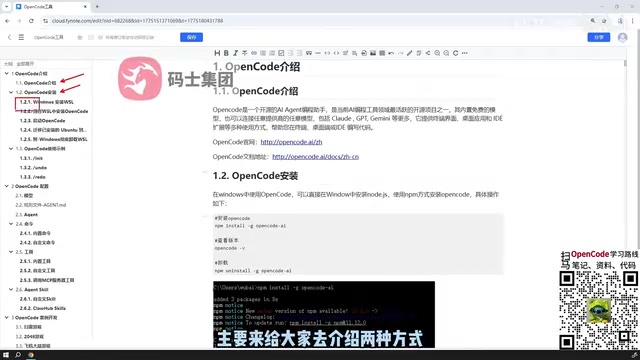
The course highlights two installation paths to suit users at different levels.
Desktop Installation
The first option is the desktop installation — the simplest and most straightforward approach. For users who just want to get started quickly without dealing with environment setup, the desktop installation has virtually no barrier: just download and run.
WSL-Based Installation
The second option targets Windows users: install a virtual Linux system via WSL (Windows Subsystem for Linux), then install OpenCode inside that environment. This path is more involved, but according to the tutorial, it is the officially recommended approach.
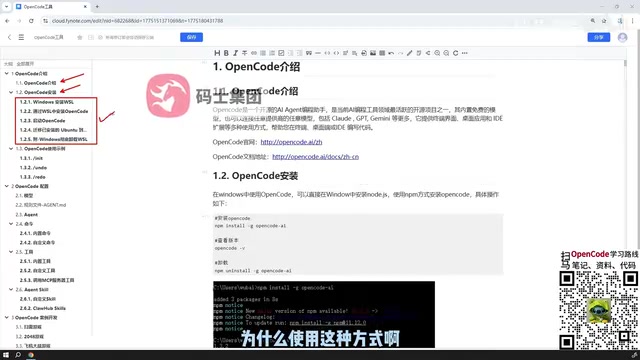
The official recommendation for WSL is primarily because many AI coding tools run more stably in Linux-like environments, with better compatibility for command-line tools, dependency management, and script execution. For users planning to use OpenCode extensively, the time investment in setting up WSL is well worth it.
WSL (Windows Subsystem for Linux) is a compatibility layer built into Windows 10/11 by Microsoft, allowing users to run a full Linux distribution (such as Ubuntu) without installing a virtual machine. Compared to traditional VMs, WSL uses fewer resources, integrates more smoothly with the Windows file system, and starts up at near-native speed. For AI coding tools, the advantages of a Linux environment include more consistent package management (apt/brew), simpler path configuration for runtimes like Node.js and Python, and no Windows path-escaping compatibility issues when running shell scripts. The basic steps to install WSL 2 are: run
wsl --installin PowerShell as an administrator, restart when prompted, then set up a Linux username and password to enter the Ubuntu environment. From there, the process of installing OpenCode is identical to a standard Linux installation.
Core Configuration System
OpenCode's configuration capabilities are what set it apart from similar tools, and this is where the tutorial spends the most time.
Model Configuration and Rule Files
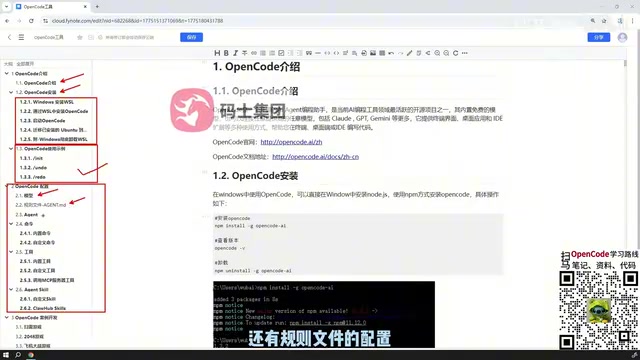
The configuration section starts with model setup. Users can select or switch between different large language models based on the task at hand, which determines the upper limit of AI assistance and response characteristics. Rule file configuration is used to constrain how the AI behaves, keeping outputs more aligned with project standards and personal preferences.
Agent Categories
OpenCode comes with several built-in Agent types, each responsible for different tasks. Understanding Agent categories is a prerequisite for getting the most out of OpenCode — it determines how the tool organizes its capabilities and allocates resources across different scenarios.
Custom Commands, Tools, and MCP Services
OpenCode supports custom commands and custom tools, allowing users to package frequently used operations into reusable instructions and significantly reduce repetitive work. Going further, it also supports calling tools published by external MCP (Model Context Protocol) services — meaning OpenCode can tap into a much broader tool ecosystem beyond its built-in capabilities.
This open-ended design is especially friendly to power users. When built-in tools fall short of specific needs, extending capabilities via MCP services lets OpenCode integrate into more complex development workflows.
MCP (Model Context Protocol) is an open protocol proposed by Anthropic in 2024, designed to establish a standardized communication interface between AI models and external tools or data sources. Think of it as the "USB port" of the AI tool world — as long as a tool service is published according to MCP specifications, any MCP-compatible AI client (including OpenCode) can call it directly, without needing custom integration logic for each tool. The community already has a large number of MCP-based tool services covering common scenarios such as file system operations, database queries, web search, and code execution. For OpenCode users, connecting to MCP services means standing on the shoulders of the entire open-source ecosystem — adding new capabilities to your workflow at low cost, without waiting for official built-in support.
Agent SQL Support
OpenCode also supports Agent SQL. Users can either define their own SQL-related Agents or directly bring in ready-made SQL solutions from the community and use them within OpenCode.
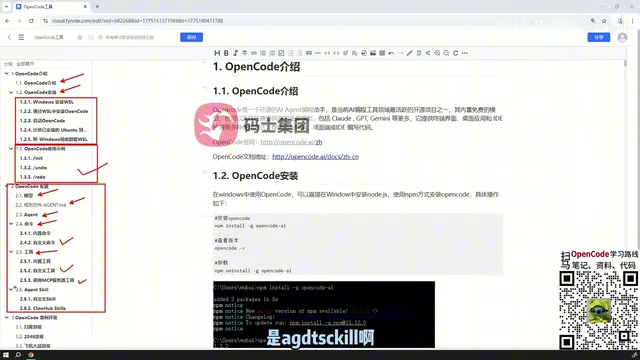
This capability lowers the barrier for database-related tasks. For developers who frequently interact with databases, reusing community-built SQL Agents can save a significant amount of time that would otherwise be spent building from scratch.
Hands-On Demo
The tutorial wraps up with a simple development example that ties together the installation, configuration, and tool capabilities covered earlier. The purpose of the demo is to ground the scattered configuration knowledge in a real development scenario, helping learners understand how the various features work together.
Learning Recommendations
Overall, OpenCode has a clear learning path: start with installation (desktop or WSL), then progressively master model configuration, rule files, and Agent categories, before moving into the advanced territory of custom commands, tools, and MCP services. For beginners, it's recommended to start with the desktop version to quickly experience the core features, then migrate to the WSL environment for a more stable and capable setup once you're comfortable.
It's worth noting that this article is based on an introductory tutorial. Specific operational details should still be verified against the official documentation and your actual version, as installation environments and configuration syntax may change across updates.
Related articles

Five Industry Implementations of LLM FDE: Vibe Coding and DeepSeek Harness Explained
Based on a Bilibili technical livestream, this article analyzes FDE implementations of large models in five industries including e-commerce, healthcare, and logistics, covering Vibe Coding automated programming and the DeepSeek Harness toolchain, and summarizes key engineering points from demo to production.

WorkBuddy Hands-On Tutorial: Getting Started with Desktop AI Agent Office Automation
WorkBuddy desktop AI Agent hands-on tutorial: installation, claiming credits, file organization, image-to-video, personal website development, Feishu connectors, and automated scheduled tasks—covering three working modes and the three ecosystems of skills, experts, and connectors, with a pitfall-avoidance guide.

VBE Direct Connect Assistant Desktop Edition Released: Complete Guide to AI IDE and Agent Terminal Configuration
VBE Direct Connect Assistant releases a standalone desktop edition, solving the issue where the VSIX sidebar can't be configured in Agent editors. This article details the 5MB installer, Node environment detection, workbook export, MCP registration for eight clients, and VBA/Excel mode switching.