OpenTandem Hands-On: Control Claude Code and Other AI Coding Tools from Your Phone

Control AI coding tools like Claude Code remotely from your phone browser with OpenTandem.
OpenTandem is a tool for managing AI coding tasks remotely from a mobile device. The core idea: compute runs locally, control happens on your phone. Run one command on your computer to connect via reverse tunnel, then use your phone's browser to check progress, send instructions, and preview AI-generated images, videos, HTML pages, and Markdown — no terminal path-wrangling required. It supports Claude Code, Codex, Cursor, Gemini, OpenCode, CodeBuddy, and allows mid-task agent and model switching with full context preserved. Ideal for developers who let AI agents run autonomously for long periods.
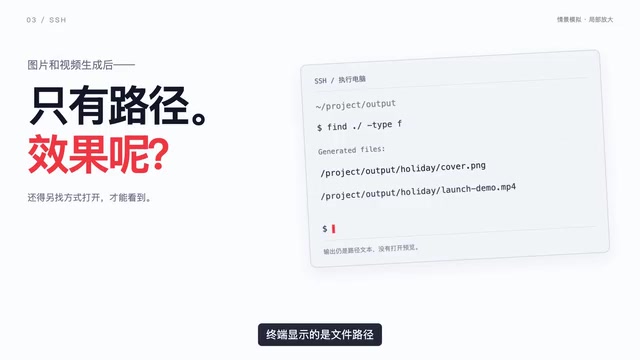
You're away on a long holiday, but the AI coding project running on your home computer just won't leave your mind. You want to check in from your phone — but Codex or Claude Code connections feel sluggish, messages take forever, and tasks keep dropping. SSH is more reliable, but typing commands, editing paths, and wrestling with quotes on a phone screen is a nightmare. And when AI generates images or videos, the terminal just spits out a file path — you still have to figure out how to actually view the result.
OpenTandem was built exactly for this pain point: it lets you keep AI coding tasks running on your computer while you're out, and use your phone's browser to send instructions, check progress, and view results.
What Problems Does OpenTandem Solve
Traditional mobile remote-work solutions either rely on unstable direct connections or force you to work the command line on a phone — neither is great. This is especially painful with AI-generated multimedia content: images, videos, and HTML pages all show up in the terminal as nothing more than file paths, with no way to preview them directly.
OpenTandem supports a range of mainstream AI coding tools, including OpenCode, Codex, Claude Code, Cursor, Gemini, CodeBuddy, and more. The core idea is simple: compute and tasks stay on your local machine, while your phone acts as a lightweight control and viewing interface via the browser. You get the full power of your local environment, with none of the mobile interaction headaches.
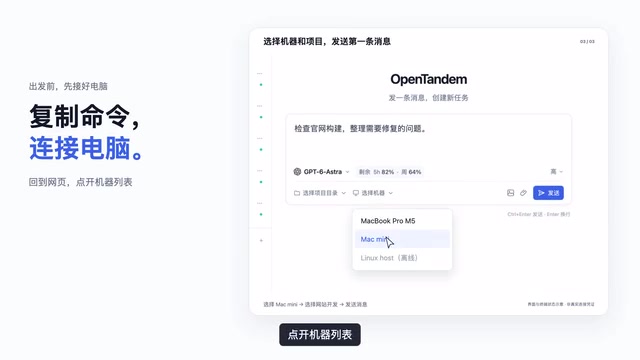
Before You Leave: Connecting Your Machine
The workflow has two parts: connecting your machine from the computer side, and operating from your phone. Before heading out, complete the machine connection on your computer:
- Open the machine connection page and copy the generated connection command.
- Paste and run the command in your terminal.
- Go back to the webpage, open the machine list, and confirm the machine status shows as connected.
The key requirement is keeping your computer on and connected to the internet so tasks can keep running after you leave. Compared to manually configuring SSH, this copy-and-run approach is far friendlier for non-expert users.
Under the hood, OpenTandem uses a reverse tunnel architecture: a lightweight agent runs on your computer and maintains a persistent outbound connection to OpenTandem's relay server. Your phone communicates with your computer through that server — no need to manually open ports on your router or set up a public IP. The difference from traditional SSH is significant: SSH requires your computer to have a reachable public address, while a reverse tunnel only needs your computer to be able to reach the internet. This is also why "copy the command and you're connected" works — that command launches a tunnel client authenticated with a token, which the server uses to identify and bind to your account.
Operating from Your Phone: Pick Up Where You Left Off
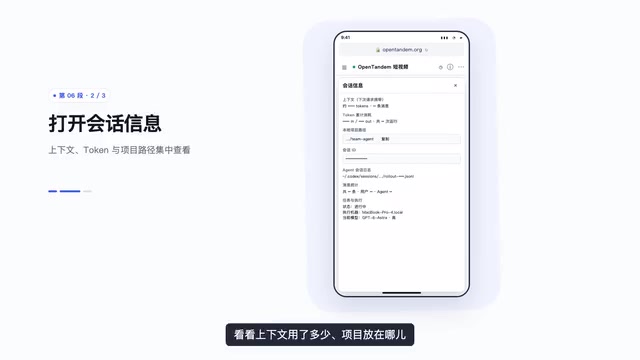
When you want to check in on the road, open your phone's browser and go to OpenTandem.org. Enter your email, accept the terms, get a verification code, and log in. Once logged in, tap the top-left corner to expand the menu, select your project, and open an existing task — the conversation from your computer continues seamlessly on your phone. Check the latest reply to catch up on progress, and tap the info icon in the top-right corner to view context usage and the project's local path.
If you're managing multiple computers or projects, use the left-side menu to navigate between machines and project task lists. This multi-machine management design is particularly handy for developers juggling multiple environments.
Switching Agents and Models
Want to switch to a different AI agent mid-task? Tap the selector below the input box, choose your agent, then choose your model, and confirm the switch. Your conversation history and files are all preserved — you can keep chatting right where you left off. This solves a common frustration: when different models excel at different things, switching mid-task usually means losing your context.
The AI coding tool landscape currently features multiple agents, each with its strengths: Claude Code is built on Anthropic's Claude model and excels at long-context code understanding and refactoring; Codex is OpenAI's code-optimized tool; Cursor is an AI-native IDE with multi-model support; Gemini is Google's multimodal model with particular strengths in image and video generation; OpenCode targets the open-source community, while CodeBuddy (Tencent Cloud) is aimed at the Chinese developer ecosystem. These agents differ in code completion speed, long-context retention, and multimodal capabilities. Being able to switch mid-task without losing context means you can draft a plan with a model that's good at reasoning, then hand off execution to one that's strong at implementation.
View Results Directly on Your Phone
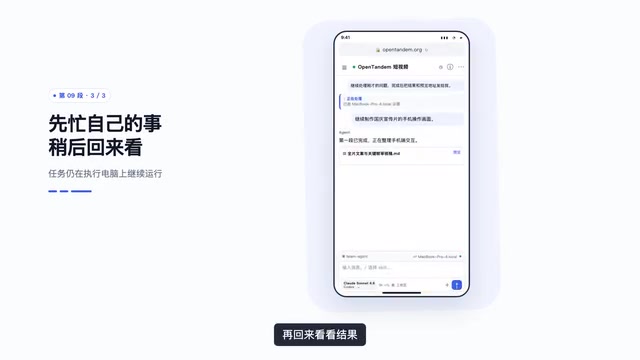
OpenTandem's most practical feature is result previewing. You can send an instruction like "when done, send me the result and a preview link," hit send, close the browser, go about your day, and come back later to check.
Once results are ready, you can view all types of content directly on your phone:
- Images: Tap to enlarge and see the details clearly.
- Videos: Tap to play and see the actual output.
- HTML pages: Open directly and scroll to check the layout.
- Markdown: Body text and tables render properly for easy reading.
If you want to view a page running live on your computer, tap the local preview link in the message, wait for it to connect to that machine, and the page will open — you can scroll and tap buttons right there on your phone. When you're done, tap minimize to return to the task and keep giving feedback.
Tips and Use Cases
OpenTandem has a clear positioning: it doesn't move AI to your phone — it gives locally running AI coding tools a mobile remote control. For developers who like to let AI agents run autonomously for extended periods, this "computer does the work, phone keeps watch" model genuinely eases the anxiety of being away from your desk.
One important prerequisite: your computer must stay on and connected to the internet for tasks to keep running. Overall, OpenTandem significantly lowers the bar for remotely managing AI coding tools from a mobile device, turning what used to require SSH configuration into something you can handle with a few taps in a browser. If you're the type who can't stop thinking about your project while on vacation, this workflow is worth a try.
Related articles

AI-Powered SRC Vulnerability Hunting: A Hands-On Guide to Building the Hermes Agent Workbench
Based on a hands-on Bilibili video: how to build an AI-powered SRC vulnerability hunting workbench—three-step method, four report elements, Agent mode vs web chat, and tool selection.

CLI-Anything Complete Beginner's Guide: How AI Operates Software — Principles and Practice
A complete beginner's guide to CLI-Anything: how AI Agents operate professional software via the command line, covering the three-layer architecture, CLI Hub installation, DrawIO practice, generator principles, and limits.

Carbon-X: A 14.8B Open-Source Model That Handles DNA and Text Simultaneously
Carbon-X is a 14.8B open-source multimodal model on Hugging Face where DNA and text share a token stream. 6-mer tokenization, 302B token mid-training, deployable on a single 80GB GPU, 66.7% average on five DNA benchmarks, Apache 2.0 license.