Qwen3.8-27B Local Deployment Guide: Run This AI Video Powerhouse on Just 8GB VRAM
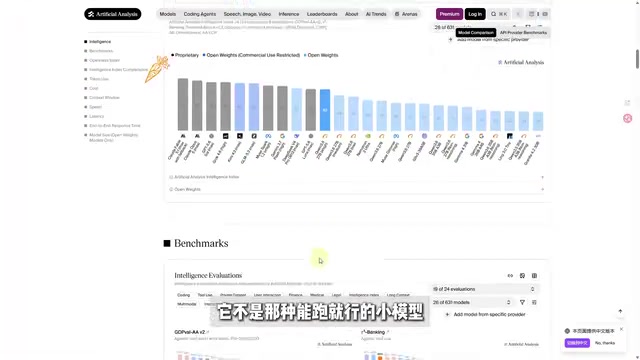
Run Qwen3.8-27B locally on 8GB VRAM and plug it into ComfyUI for automated AI video creation.
Alibaba's open-source Qwen3.8-27B ranks 26th among 600+ models on Artificial Analysis and leads its parameter class with multimodal capabilities including image, video, and long-context understanding. Community GGUF quantization makes it runnable on consumer GPUs with as little as 6–8GB VRAM. LM Studio simplifies deployment with a GUI interface, while integration with ComfyUI enables a fully local pipeline where Qwen3.8 auto-expands prompts to drive video rendering via models like MiniMax — cutting API costs and preserving data privacy.
Alibaba's newly released open-weight model Qwen3.8-27B (Tongyi Qianwen 3.8) is quickly becoming one of the hottest topics in the local deployment community. With nearly 5 million downloads in a single month, this model goes well beyond simple chat — it can analyze images, understand video, handle long-context documents, and follow complex instructions. Best of all, it's surprisingly friendly to low-VRAM setups: thanks to community-produced quantized versions, even devices with 8GB or 6GB of VRAM can run it.
This article is based on hands-on tutorials published by a Bilibili creator. We'll walk you through the model's real-world capabilities and give you a step-by-step guide to local deployment and integration with a video creation workflow.
Top Tier at the 27B Scale
Many people assume open-source models are just "good enough to run" — Qwen3.8-27B challenges that assumption. On the complex capability leaderboard at third-party benchmarking site Artificial Analysis, it ranks 26th out of more than 600 models.
Nearly everything ranked above it is a flagship paid model from major providers. In other words, within the 27B parameter class, Qwen3.8 genuinely belongs to the top tier — not the kind of small model that's just filling a slot. For users who want near-flagship capability locally without paying for API access, this positioning is very compelling.
Its multimodal capabilities are also worth noting: image understanding, video comprehension, long-context processing, and complex instruction-following make it far more than a chat tool — it's a productivity component that can be embedded directly into real creative workflows.
27B parameters represent a key threshold concept in local deployment. A model's parameter count determines its capability ceiling and directly affects VRAM requirements: a full-precision (FP16) 27B model typically needs around 54GB of VRAM, which is completely impractical for consumer-grade GPUs. This is precisely why quantization exists — by compressing parameters from 16-bit floats to 4-bit or lower-precision integers (formats like Q4_K_M, Q5_K_S, etc.), model size can shrink to roughly one-quarter of the original, dramatically reducing VRAM usage while preserving most capability. GGUF is today's dominant quantization format, defined by the llama.cpp project and widely supported by local tools like LM Studio. Quantization does introduce a small precision loss, but for larger models like 27B, the capability degradation at moderate quantization levels is generally imperceptible in real-world use.
Deploying Locally with LM Studio
The barrier to local deployment is actually much lower than most people expect. The entire process can be summarized in three steps: pick your version, download the model, set up the tool.
Step 1: Choose the right quantized version based on your GPU's VRAM. There are options for 8GB, 12GB, and 16GB setups — low-VRAM users don't need to feel left out.
Step 2: Download and install LM Studio. Once it's open, click the icon in the bottom-left corner to enter settings, then find the "Model Directory" option.
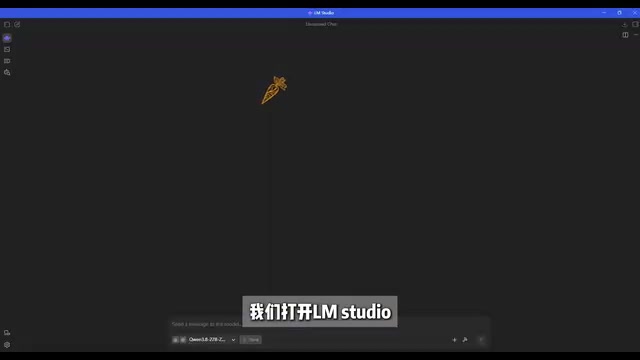
Here's a gotcha worth knowing: the path where you place your model must contain a newly created subfolder (e.g., a folder named "Qwen") — otherwise LM Studio won't correctly detect the GGUF model file.
A handy disk-saving trick: place the model directly inside ComfyUI's models folder. That way, one copy of the model serves both applications, avoiding duplicate storage. Once you've configured this and restarted, Qwen3.8 will be ready to run locally.
LM Studio is a graphical interface tool for running large language models locally, designed for everyday users. Under the hood it's powered by the llama.cpp inference engine, and it supports Windows, macOS, and Linux. It bundles model downloading, loading, chat, and a local API server (OpenAI-compatible interface) into one package — no command line required. Its built-in model marketplace connects directly to Hugging Face, letting you search and download GGUF models with a click. The local API server feature is particularly important: once LM Studio is running, it exposes an OpenAI-compatible HTTP endpoint on your machine. Other applications (such as custom nodes in ComfyUI) can point their API address at localhost and call your local model exactly as they would a cloud API — enabling seamless tool-to-tool collaboration.
Connecting to ComfyUI for Video Generation
Local deployment is just the beginning. The real highlight is plugging Qwen3.8 into ComfyUI to generate high-quality prompts for video generation workflows using tools like MiniMax.
The approach involves installing a node package that supports calling the Qwen3.8 model, along with llama-cpp and its related dependencies (commonly called "wheels" in the Python community). The creator notes that step-by-step illustrated guides are provided for all of this — just follow along.
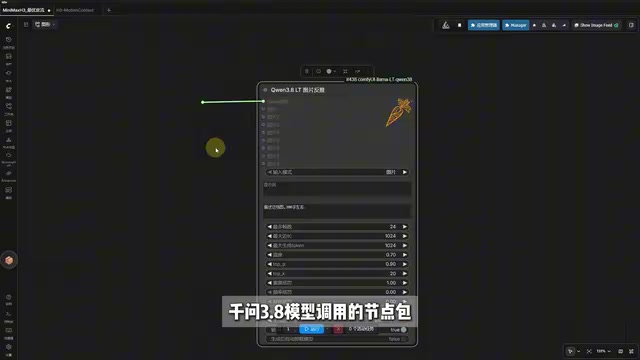
The quantized version used in the tutorial was optimized by a community contributor specifically for 16GB VRAM users — it preserves a relatively complete set of capabilities while reducing VRAM pressure for smoother local inference. There's also a so-called "Zero Refusal" uncensored version available. Compared to the official release — which declines to answer certain questions — the uncensored version responds to everything. Users should assess compliance and risk independently before using such versions.
ComfyUI is currently the most popular node-based workflow tool in the AI creative space. Users build image or video generation pipelines by dragging and connecting "nodes." Each node handles one specific function — loading a model, entering a prompt, running the sampler, saving output — and the connections between nodes define the data flow. This architecture makes it straightforward to chain a language model (Qwen3.8) with a video generation model (MiniMax, etc.): the language model node expands a user's brief description into a detailed prompt suited to the video model's preferences, and the video model node then renders based on that prompt. llama-cpp is the key dependency that allows ComfyUI nodes to call GGUF-format language models locally. "Wheels" is Python community slang for pre-compiled installation packages, typically distributed as .whl files — when installing, make sure the version matches your local CUDA version.
The Complete One-Click Video Generation Workflow
Once you have the workflow loaded, the logic is straightforward:
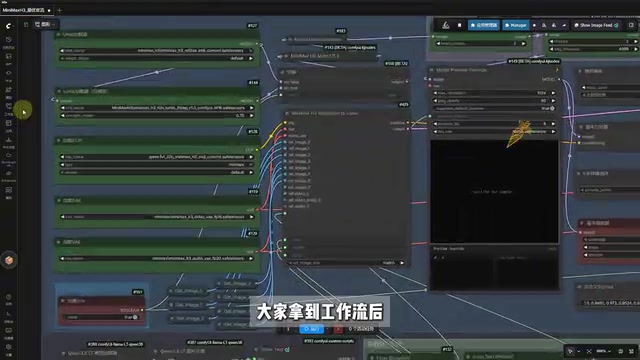
- Select the appropriate model version — dedicated low-VRAM nodes are configured for 8GB and 12GB setups;
- Adjust the video aspect ratio and desired duration;
- Upload a reference image;
- In the Qwen3.8 inference module, enter a rough description of your video — the system prompt is pre-filled and usually doesn't need to be changed;
- Choose your inference intensity based on your needs, click Run, and wait for the video to be generated.
The full pipeline chains text understanding + prompt generation + video rendering into a single automated flow. For AI video creators, this means being able to handle most of the work from concept to finished clip entirely on-device — reducing API costs while keeping your data private.
Final Thoughts
The value of Qwen3.8-27B lies in combining flagship-level capability with low-VRAM accessibility. Whether you want a powerful multimodal assistant running locally or want to build an AI video production pipeline, it offers a cost-controlled, approachable option.
One word of caution: the uncensored version raises content compliance questions, and users should carefully evaluate the risks before using it. Overall, for local deployment enthusiasts who are comfortable getting their hands dirty, this setup is well worth trying.
Related articles

AI Digital Twin in Action: Using DOT to Automatically Track Bugs and User Feedback
DOTS engineers demonstrate how AI digital twin DOT collects cross-platform user feedback, categorizes issue themes, opens threads to investigate bug root causes, and submits PRs—showcasing a complete AI agent workflow for defect triage with auditable design.

Why Transistors Are No Longer Flat: The Evolution from Planar to Gate-All-Around
Transistor evolution from planar to FinFET to gate-all-around: why gates went from three-sided to four-sided wrapping to suppress short-channel effects and leakage current, extending Moore's Law.

Swarm Intelligence = a Single RL Agent? A Proof of Multi-Armed Bandit Equivalence
A paper proves that collective decision-making through local imitation in swarms is mathematically equivalent to single-agent reinforcement learning: N blind imitators act as N parallel environment samples, with an effective learning rate of 1/N. This article explains the derivation and implications of the Maynard-Cross Learning algorithm.