Run AI Locally on Mac: Complete Ollama Installation and Model Selection Guide

How to run free, private local AI on any Mac using Ollama and Open WebUI.
This guide covers the complete workflow for running local AI on a Mac using Ollama as the model engine and Open WebUI for a graphical interface. Local AI offers privacy, zero cost, and no usage limits — the trade-off is speed and hardware dependency. The key variable is RAM: Apple Silicon's unified memory is shared between the system and AI models, so 20–30% must be reserved for macOS. Based on real-world testing, 16GB Macs should run DeepSeek R1 7B, 36GB+ can handle 35B-class models, and 48GB approaches GPT-4 quality. Setup is straightforward — one terminal command gets you started, and adding Docker unlocks a PDF-capable web interface.
Running local AI models on your Mac means you get a free, unlimited ChatGPT-like assistant — and all your data stays on your device, never sent to any company for model training. This guide is based on real-world testing on an M1 Pro MacBook Pro (16GB RAM) and an M5 Max Mac Studio (36GB RAM), covering everything from engine installation to model selection.
Why Choose Local AI
The three core advantages of local AI are: privacy, cost-free usage, and no restrictions. Your prompts, uploaded contracts, and PDF documents are all processed locally — nothing is sent to the cloud, and nothing becomes training data for an AI company. For users who need to analyze private files or don't want their creative work leaked, this is enormously valuable.
The trade-off is speed. Local inference depends entirely on your own hardware, and response times are noticeably slower than cloud-based ChatGPT — especially on machines with less RAM. When processing large PDFs, your Mac will run hot and fans will spin up fast, so it's best to stay plugged in.
Your RAM Determines How Large a Model You Can Run
On Apple Silicon, memory (unified memory) is shared between the system and AI models, so choosing the right model size is the first priority. The rule of thumb from testing: reserve 20–30% of your RAM for macOS and other apps, and the rest is available for the model.
Here's a quick reference:
- 8GB base Mac: Stick to small models in the 1B–3B range
- 16GB Mac: 7B–8B models are the sweet spot — e.g., DeepSeekAd R1 7B, Llama 3 8B
- 36GB Mac Studio: Easily handles 14B–35B models
- 48GB / 64GB Mac: Can run very large models with quality approaching GPT-4
One important warning: if a model is too large for your available RAM, macOS will start swapping data to the SSD. This not only drops generation speed to under one word per second, but causes serious long-term SSD wear. Always size down rather than force a model that's too big.
Apple Silicon uses a Unified Memory Architecture (UMA), where the CPU, GPU, and Neural Engine all share the same physical memory pool — unlike traditional PCs where the GPU has its own dedicated VRAM. This means AI model weights can be accessed directly by the GPU without copying data between CPU memory and VRAM, dramatically reducing latency and improving bandwidth efficiency. It's why the same parameter-count model often runs more smoothly on an Apple Silicon Mac than on a similarly priced Windows laptop with a budget discrete GPU. The downside, as mentioned above, is that AI models and the system compete for the same memory — once you exceed physical RAM, macOS swaps to SSD and performance collapses.
Method 1: Run Ollama Directly from the Terminal
Every local model needs an engine to manage it — that's where Ollama comes in. Installation is straightforward:
- Go to ollama.com and click the Mac download button
- Open the file and drag the Ollama app into your Applications folder
- Launch the app — a llama icon in the menu bar means it's running in the background
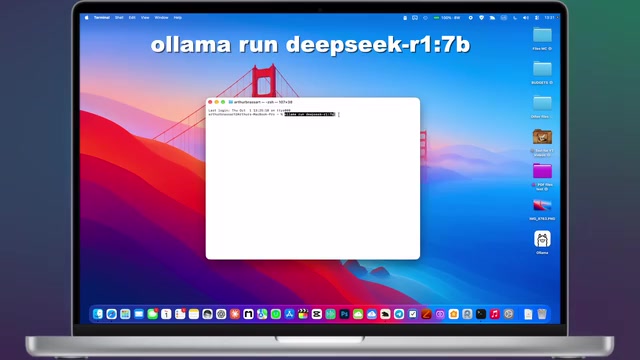
Next, open Terminal and enter the command for your chosen model. To install DeepSeek R1 7B on a 16GB MacBook Pro:
ollama run deepseek-r1:7b
This model is about 4.7GB — with a decent internet connection, it downloads and installs in roughly a minute. Once you see the "Success, Send a message" prompt, you can chat directly in the terminal. In testing on a 16GB machine, simple Q&A responses were quite fast, and you can even watch the model's "thinking process" unfold.
Worth noting: small models like this are often "distilled" from larger ones — trained by bigger models to pack a remarkable amount of intelligence into a tiny footprint. Don't underestimate a 7B model; on lower-spec hardware, it's genuinely useful.
Ollama is essentially a local model server. It runs in the background as an HTTP API and handles model downloading, loading, inference, and memory management. After installation, it listens on local port 11434 — which is exactly how front-end interfaces like Open WebUI communicate with it. Ollama uses the GGUF (GPT-Generated Unified Format) model format, a quantized format optimized for inference that lets larger models run within limited memory. For example, a 7B parameter model requires roughly 14GB at full precision, but after 4-bit quantization it shrinks to about 4–5GB while retaining most of its reasoning capability. Quantization is one of the key technologies that makes local AI viable on consumer hardware.
Method 2: Build a ChatGPT-Style Interface with Open WebUI
If you're used to ChatGPT's web interface, you can pair Ollama with Open WebUI to get a visual chat interface that also supports uploading PDFs, images, and other attachments. First, you'll need Docker:
- Download the free Docker Desktop from docker.com
- Open the DMG, drag it into Applications, and launch it
- Grant the required permissions and accept the service agreement on first launch — no account registration needed, just skip it
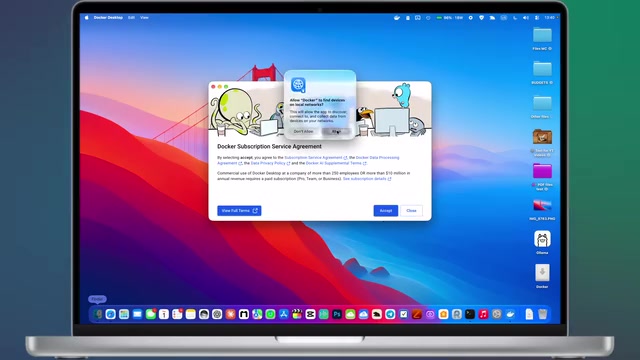
Once both the Ollama and Docker icons appear in your menu bar, paste the deployment command (available in the video description) into Terminal. It will download and install Open WebUI. When it's done, close the terminal and open localhost:3000 in Safari to access the local web interface.
This interface is only accessible to you — it makes no external connections. The email and password you fill in during first-time setup are stored locally only, so you can enter anything. Once configured, as long as both Ollama and Docker are running, you can access localhost:3000 anytime without repeating the setup.
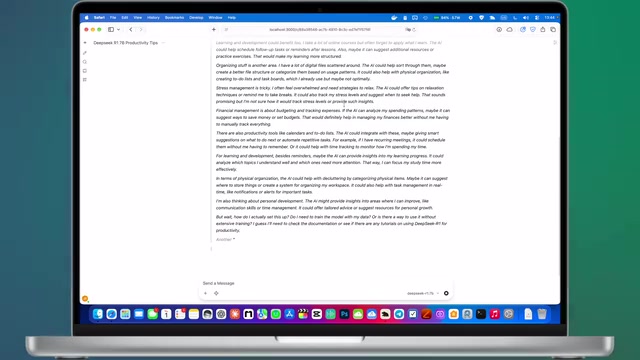
In testing, a technical document for the iPad Pro was uploaded and the model was asked to summarize it. On the 16GB machine, local AI consumed nearly 87% of available memory, and processing a larger PDF required some patience — but it ultimately produced a complete summary. Entirely private, fully local, and completely free.
Docker is a containerization technology that packages an application and all its dependencies into an isolated "container," eliminating the need to manually configure Python environments or deal with dependency version conflicts. Open WebUI provides a ready-made Docker image, so deployment takes just one command — no knowledge of the underlying tech required. Docker Desktop itself consumes some memory when running on Mac (typically 1–2GB), which should be factored into your overall memory planning. Also note that Open WebUI stores data (chat history, uploaded files, etc.) in a Docker persistent volume by default, so it survives container restarts. However, if you delete the container without properly handling the volume, your history may be wiped — worth keeping in mind.
Real-World Performance Across Different Machines
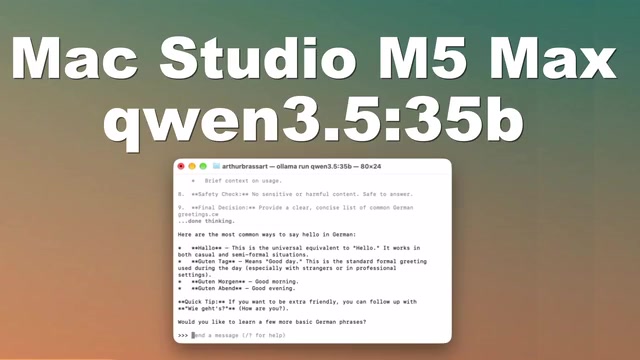
On the 36GB Mac Studio, running the 35B-parameter Qwen 3.5 model showed noticeably faster thinking speeds compared to the small model on the 16GB machine, with richer responses. For example, asking "how do you say hello in German" didn't return just one answer — it listed multiple options including Guten Tag, Guten Morgen, and Guten Abend, demonstrating the greater capability of a larger model.
- DeepSeek R1 7B: Great for fast everyday tasks — drafting emails, summarizing long texts, private creative work. Runs efficiently even on lower-spec Macs
- 35B-class large models: Noticeably smarter, better at multi-step reasoning, advanced data analysis, content creation, and complex problem-solving. Ideal when quality is the priority
Recommended Models
Based on hands-on testing, here's a curated shortlist:
- DeepSeek R1 7B: The most balanced choice for daily use — recommended for 16GB or more
- NeuralChat: Strong conversational ability, great for brainstorming
- TinyLlama (1.1B): Only for 8GB legacy machines — fast, low power draw, basic chat capability
- DeepSeek R1 32B: With 48GB or more, quality approaches GPT-4 — strong at logical reasoning and coding
Conclusion
Setting up local AI on a Mac is easier than you might expect: install Ollama, run one command, and you're up. Add Docker + Open WebUI if you want a graphical interface. The real decision isn't whether you can set it up — it's choosing the right model size for your RAM. That single factor determines whether your experience is smooth or painfully sluggish. For users who care about privacy and want free, unlimited AI access, this is a route well worth exploring.
Related articles

Bilibili's Hit Dify Tutorial: A Practical Guide to Building 20+ AI Apps from Scratch
A distilled guide to Bilibili's top-rated Dify tutorial: Windows + Docker deployment, MySQL connection, five app types, model integration strategy, and publishing.

Agent Skills Beginner's Guide: From Concepts to Multi-Agent Collaboration in Practice
A comprehensive guide to Agent Skills: core concepts, components, the importance of Description, standardization, beginner learning paths, and multi-agent collaboration.

One Neuron Detects Both Cats and Cars? We Reproduced It and Found a New Explanation
The cat-car neuron reinterpreted: researcher Cammarata argues it distinguishes pointy from round, not cats from cars. We reproduced the experiment and found the new explanation holds on most inputs—but cars are the exception. The interpretability debate continues on language models.