Run Qwen3-27B Locally on 8GB VRAM: A Beginner-Friendly Deployment & AI Video Creation Tutorial

Deploy quantized Qwen3-27B locally with LM Studio and ComfyUI to build a low-cost AI video creation pipeline.
This guide covers deploying Alibaba's open-weight Qwen3-27B model on consumer GPUs and connecting it to ComfyUI to power MiniMax video generation workflows. Ranked 26th out of 600+ models on Artificial Analysis, Qwen3-27B is a top-tier 27B model made accessible via GGUF quantization. Using LM Studio for local deployment and llama-cpp-python with custom ComfyUI nodes, it serves as an automatic prompt generator for AI video creation — with dedicated configurations for 8GB, 12GB, and 16GB VRAM users.
Alibaba's latest open-weight model Qwen3-27B has made it possible for users with modest GPUs to run a "flagship-grade" large language model locally. This tutorial breaks down where it stands in the model landscape, walks you through deploying it on your own machine step by step, and shows you how to connect it to ComfyUI to power a MiniMax video generation workflow with high-quality prompts.
What Makes Qwen3-27B Worth Your Attention
Qwen3-27B is Alibaba's latest open-weight model, with nearly 5 million downloads in a single month. It's not just a conversational chatbot — it's a multimodal model capable of image understanding, video comprehension, long-context processing, and complex instruction following. For users with limited VRAM, the community has also produced quantized versions that dramatically lower the barrier to local deployment.
What really sets it apart is its performance ranking. On the complex reasoning leaderboard at the third-party benchmarking site Artificial Analysis, Qwen3-27B ranks 26th out of over 600 models — and nearly everything above it is a paid flagship model from major labs. This means it's not a "good enough for the size" small model; it's genuinely a top-tier performer at the 27B parameter scale.
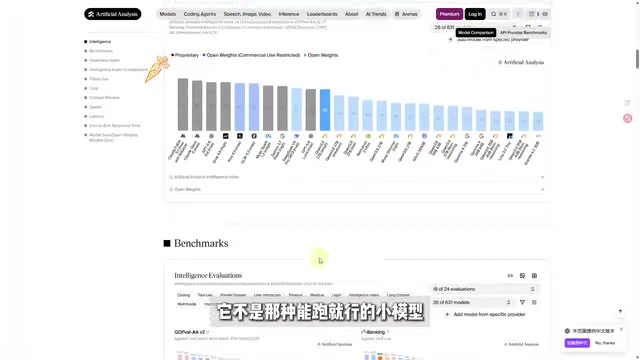
For local deployment users, this positioning matters: you're getting near-flagship inference quality from a consumer GPU. That's precisely the value proposition of open-weight models.
GGUF and Quantization are the two key concepts for understanding local deployment. Quantization refers to compressing model weights from high-precision floating point (e.g., FP16, 2 bytes per parameter) down to low-precision integers (e.g., Q4, ~0.5 bytes per parameter), dramatically reducing file size and VRAM usage at the cost of a slight quality drop. GGUF is a model file format defined by the llama.cpp project, designed specifically for hybrid CPU/GPU inference on consumer hardware — it has become the de facto community standard for distributing quantized models. Common quantization levels range from Q2_K to Q8_0; higher numbers mean better precision, larger files, and higher VRAM requirements. A 27B model requires roughly 54GB of VRAM at FP16, but Q4 quantization brings that down to around 14–16GB — which is exactly how a 16GB consumer GPU can run a flagship-class model.
Local Deployment: Running It in Three Steps with LM Studio
The deployment process is simpler than you might expect. The first step is downloading the model version that matches your hardware — different VRAM capacities call for different quantization levels. Choosing the wrong version will either cause it to fail or leave performance on the table, so pick carefully based on your actual specs.
Once the model is downloaded, install LM Studio. After opening the app, click the gear icon in the bottom-left corner to access Settings, find "Model Directory" on the general settings page, and point it to wherever your model files are stored to import the Qwen3 GGUF model.
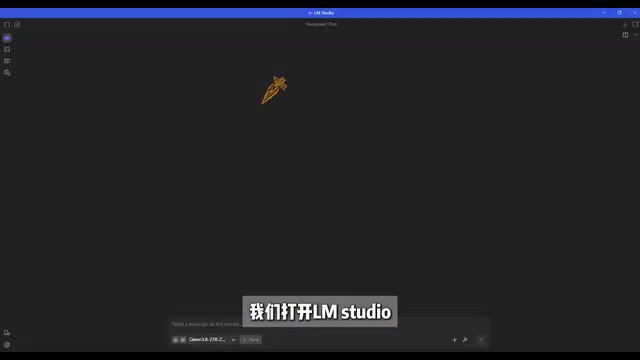
There's one easy-to-miss gotcha here: you must create a subfolder inside the model directory to place the model file (for example, a folder named "Qwen"). LM Studio won't recognize model files dumped directly in the root directory — they need to live inside a named subfolder.
A practical tip: place the model inside your ComfyUI models folder so both tools can share the same file. This saves significant disk space and avoids downloading a multi-gigabyte file twice. After configuring this and restarting, Qwen3 will be ready to run locally.
Connecting to ComfyUI: Generating Prompts for Your Video Workflow
The goal of connecting Qwen3 to ComfyUI is to use it as the "prompt brain" — automatically generating high-quality text prompts for the MiniMax video generation workflow.
In practice, you'll need to install the custom node package that supports Qwen3 model calls, then install the appropriate llama-cpp wheel dependencies. Both steps come with illustrated guides — just follow along.
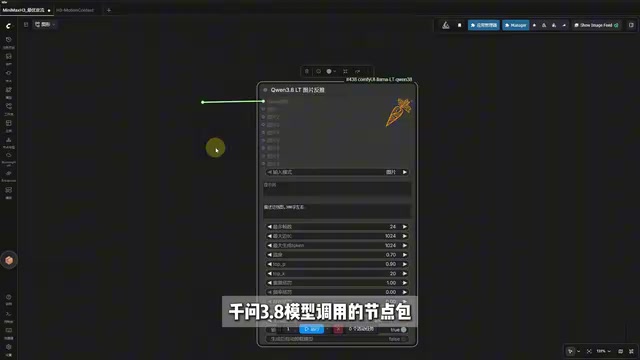
Regarding which quantized version to use: this tutorial uses a community-quantized build specifically optimized for 16GB VRAM users, balancing strong capability retention with lower memory pressure and comfortable local inference speeds. In other words, it's a deliberate trade-off between model quality and hardware accessibility.
It's also worth noting that the video demonstrates a comparison between the official version and a community Zero Refusal version: given the same prompt, the official version refuses to respond, while the Zero Refusal version answers freely. The latter offers greater creative freedom, but users are responsible for their own compliance and ethical use.
llama-cpp-python is the Python binding for llama.cpp. It allows Python-based tools — including ComfyUI custom nodes — to directly invoke llama.cpp's efficient inference engine to load and run GGUF models. When installing, you need to download a precompiled wheel (.whl file) matching your specific CUDA version, because a standard pip install typically won't enable GPU acceleration. You must match your local GPU driver and CUDA toolkit version to fully leverage VRAM for accelerated inference. MiniMax video generation refers to the AI video generation API from MiniMax (such as the video-01 series), which takes text prompts as input and outputs short video clips. Since video generation models are highly sensitive to prompt quality, using a local LLM to automatically expand and refine descriptions can significantly improve the final video's visual quality and camera movement accuracy.
Running the Workflow and Hardware Configuration
Using the workflow is fairly intuitive. Once you load it, select the appropriate model, then configure the dedicated nodes based on your VRAM — the tutorial includes ready-to-use node configurations specifically for 8GB and 12GB VRAM users, so lower-spec hardware can complete the full pipeline.
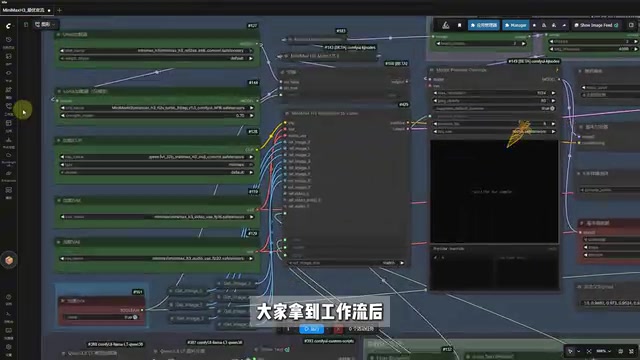
From there, the steps include: adjusting the video aspect ratio, setting the desired clip length in seconds, uploading a reference image, and entering a rough description of the video content in the Qwen3 inference module. The system prompt is pre-filled by the author and generally doesn't need to be modified.
The "inference intensity" setting in the model loader can be adjusted as needed — higher intensity typically produces better prompts but increases VRAM usage and generation time. Once everything is configured, just hit Run and wait for the video.
The complete pipeline strings together "local LLM + video generation workflow" into a low-cost creative production chain: the local model eliminates API call fees, quantization lowers the hardware barrier, and users with anywhere from 6GB to 16GB of VRAM can participate in AI video creation.
Conclusion
The significance of Qwen3-27B isn't the parameter count — it's that it brings "flagship-grade capability" within reach of consumer GPUs. Combined with LM Studio for local deployment and ComfyUI for workflow integration, everyday users can build a complete AI video creation environment. For newcomers to local deployment, following the three key steps — selecting the right model version, configuring the correct path, and installing the node dependencies — should get you through without issues.
Related articles

Free Unlimited Claude Code Solution: Agnes AI + CC Switch Setup Guide
No paid subscription needed — pair the free AI platform Agnes AI with the open-source tool CC Switch to provide a backend for Claude Code, enabling unlimited free calls to text, image, and video models. This guide covers the full setup, test results, and usage boundaries.

A Complete Zero-Cost Guide to Getting Started with Claude Code for Beginners in China
A beginner's guide to Claude Code for users in China: two installation methods (command line and IDE plugin), full configuration steps for replacing the official API with the free domestic LongCat model, and a hands-on demo of building a small tool with natural language, plus tips.

When the NSA Gets Involved: The AI Supply Chain Crisis Behind Open-Source CVEs and API Key Hijacking
Multiple open-source projects disclosed severe CVEs in one day, PHP flaws alarmed the FBI, and Railway and OpenCode were breached with API keys stolen. This article breaks down the vulnerability window, AI-accelerated exploitation, and the AI supply chain crisis behind the API key black market, with a developer defense checklist.