Running LLMs Locally with Llama.cpp: A Hands-On Guide to GGUF Conversion and Quantization

A complete walkthrough of local LLM deployment with Llama.cpp, from source build to quantized inference.
Based on tech YouTuber Chung's demo, this article covers the full Llama.cpp local deployment workflow: what Llama.cpp is (a C++ lightweight foundation for Ollama and Llama Studio), four deployment options and source build steps, converting safetensors to GGUF, tuning llama-cli parameters (temperature, Top-K/Top-P, GPU layers), llama-quantize compression, running on iPhone, and how it compares with Ollama.
Llama.cpp is the "founding father" of local LLM deployment. Thanks to its C++ implementation, it's lightweight and highly adaptable to hardware, making it the technical foundation for countless local inference tools. Based on a hands-on demo by tech YouTuber Chung, this article walks through the full workflow—from building from source and model format conversion to quantization and chat inference—so you can get your first local LLM running on your own machine.
What Is Llama.cpp and Why It Matters
Llama.cpp was created by Meta engineer Georgi Gerganov. The name comes from two facts: the project was initially aimed at model architectures similar to Meta Llama, and the core is implemented in C++. That C++ lightweight design is exactly why it can compile and run on Mac, Windows, Linux, and even phones.
More importantly, look at its place in the ecosystem—well-known tools like Ollama and Llama Studio are built on top of Llama.cpp. In other words, learning Llama.cpp means understanding the capabilities and tuning logic of these higher-level tools. Think of it as a "Swiss Army knife": from model format conversion and quantization/compression to an HTTP API server, one toolchain covers it all.
Four Deployment Options and a Hands-On Build
There are four ways to deploy Llama.cpp: download the source and build locally, install via a package manager like Homebrew (Mac/Linux), use a Docker image, or download prebuilt binaries. The host recommends the first option because it gives you the most control over parameters.
The build process isn't complicated: git clone the code, create a Python virtual environment and install the dependencies in requirements.txt, then compile. On Mac, the build enables the Metal backend by default, so inference can use the GPU directly; Windows/Linux users can enable CUDA or Vulkan support via flags. To speed up compilation, append -j8 or -j32 to the make command for parallel builds.
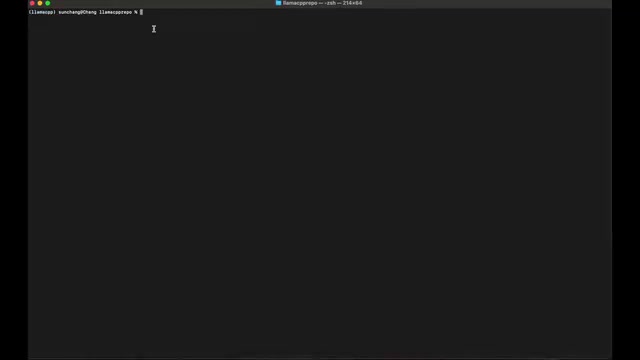
After the build completes, several core executables are generated: llama-cli for running model chat, llama-quantize for model quantization, and llama-server for starting an HTTP service for API calls. All subsequent operations revolve around these commands.
From safetensors to GGUF: The Full Conversion Workflow
Most models on Hugging Face are stored in safetensors format, which effectively prevents parameter tampering, but Llama.cpp needs GGUF. The conversion tool is convert_huggingface_to_gguf.py in the repo.
Take Gemma 2 2B as an example. When running the conversion command, specify the model folder path and output precision (e.g., f16). In testing, conversion took under a minute and produced a file of about 5.2GB, roughly matching the original safetensors at 4.9GB—because f16 preserves the original parameter precision, so the file size is naturally close.
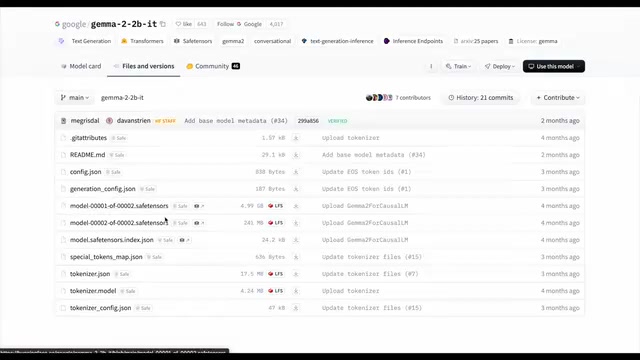
Why this matters: GGUF is the "universal currency" of the Llama.cpp ecosystem. Once converted, you can move on to quantization or run inference directly.
GGUF (GPT-Generated Unified Format) is the model file format defined in the llama.cpp ecosystem, replacing the earlier GGML format. Its core design goal is to provide the inference engine with a self-describing, extensible, single-file model package: the header contains metadata (architecture type, hyperparameters, tokenizer configuration, tensor list, etc.), followed by tensor data arranged according to alignment rules. Unlike safetensors, which only stores weights, GGUF embeds all the configuration needed for inference, so llama.cpp doesn't need extra config.json or tokenizer files when loading. GGUF also supports multiple quantization types (e.g., Q4_K_M, Q5_K_M, Q8_0), so the same format can carry different precisions—which is why it's called the ecosystem's "universal currency."
safetensors, on the other hand, is a weight storage format introduced by Hugging Face. It's essentially a simple binary container: a JSON header at the start describes each tensor's data type, shape, and byte offsets, followed directly by raw tensor data. Compared with pickle, it doesn't execute any code, avoiding the deserialization risks of malicious model files, and it supports zero-copy memory mapping for faster loading. But safetensors only stores weights; model structure, tokenizer, generation config, etc. still require accompanying files, so llama.cpp must first merge this information into GGUF via the conversion script.
Parameter Tuning and Local Chat Inference
When loading a model with llama-cli, Llama.cpp's parameter depth far exceeds most comparable frameworks—from performance settings to model hyperparameters, everything can be finely tuned, which is exactly why it suits deep optimization.
A few key parameters are worth noting: -m sets the model path (required); --prompt sets the model's persona; -cnv enables chat mode, otherwise it defaults to completion mode; --temp controls temperature (the host sets 0.5, default 0.8); Top-K and Top-P are set to 40 and 0.8, respectively. On the performance side, --split-mode determines whether the model is distributed across GPUs, and --n-gpu-layers specifies how many layers go into VRAM—in the demo, only 2 of the model's 27 layers were placed on the GPU; users can adjust based on available VRAM to maximize efficiency.
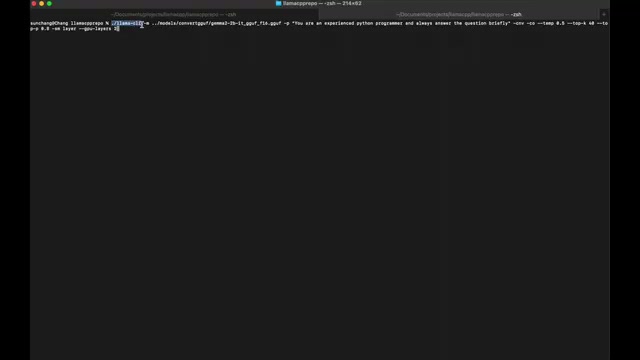
In testing, the model loaded quickly, started outputting in under a second after entering the prompt, and generated a complete piece of game code plus detailed explanation in under 30 seconds. After the conversation ends, pressing Ctrl+C prints performance metrics like sampling time and tokens per second, making it easy to compare tools side by side.
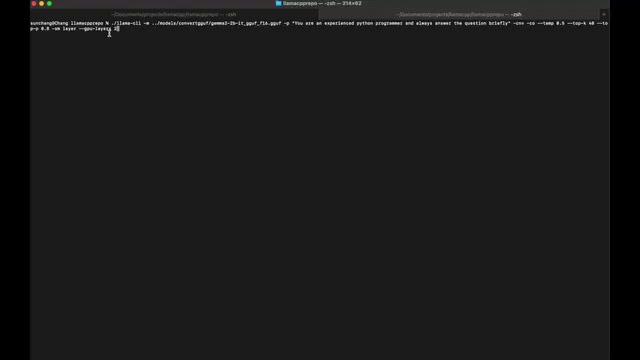
Temperature, Top-K, and Top-P are the three core sampling parameters that control the randomness of text generation. Understanding how they work together helps you dial in the output style you want. Temperature scales the logits before softmax: lower values (e.g., 0.2) sharpen the distribution, pushing the model toward high-probability words—stable but potentially repetitive; higher values (e.g., 1.2) flatten the distribution, increasing diversity but risking drift. Top-K restricts candidates to the K most probable words, directly truncating the long tail; smaller K is more conservative. Top-P (nucleus sampling) dynamically selects the smallest set of words whose cumulative probability reaches P, adapting better to different context distributions than a fixed K. The three are usually used together: Top-K/Top-P first narrow the candidate range, then temperature adjusts final sampling. Common practice is temperature 0.7–0.8, Top-K 40, Top-P 0.9–0.95; for deterministic tasks like code generation, lower the temperature appropriately.
The mechanism behind --n-gpu-layers is layer offloading: a Transformer model is a stack of dozens of structurally identical layers, and llama.cpp can place some of those layers' computation and weights in GPU VRAM, leaving the rest in CPU memory for the CPU to compute. Since each layer's weight size is fixed, the more layers you offload, the more VRAM is used—but the larger the share of GPU parallel computation, and the higher the tokens per second. If VRAM can't hold the specified number of layers, the program will error or fall back to CPU, so start with a small number and increase gradually to find the point where VRAM is nearly full without overflowing. --split-mode determines how the model is split in multi-GPU setups; single-GPU users generally don't need to worry about it.
Quantization and Mobile: Llama.cpp's Differentiated Value
The llama-quantize tool can further compress an f16 model into lower-precision versions like 4-bit or 5-bit, greatly reducing memory usage. This is a key part of local LLM deployment—especially on devices with limited VRAM.
The host also shared a more interesting result: successfully running an LLM locally on an iPhone with Llama.cpp. This confirms the cross-platform advantage of the C++ implementation and shows that the barrier to local AI is dropping from "having a good computer" to "having a phone." For privacy-sensitive or offline scenarios, the practical value of such capabilities will only continue to rise.
For users accustomed to Ollama, the host's subjective comparison is: Llama.cpp may be slightly better in response speed and output quality, and its number and granularity of tunable parameters are clearly superior. Of course, Ollama's ease of use remains its advantage—the two are essentially the same underlying tool with different trade-offs at different abstraction layers.
Quantization is the process of converting model weights from high-precision floating point (e.g., f16, 2 bytes per parameter) to a lower-precision representation (e.g., 4-bit, about 0.5 bytes per parameter), aiming to compress size and reduce memory bandwidth requirements while preserving model capability as much as possible. llama-quantize in llama.cpp implements a block-wise quantization scheme: weights are divided into small groups (e.g., 32 or 256 elements), each group shares a scale factor, and values within the group are approximated with low-bit integers, balancing precision and compression. The K-series names (e.g., Q4_K_M, Q5_K_M) indicate a mixed k-quants strategy—different bit widths are assigned to different tensors (e.g., attention layers vs. FFN layers), with M standing for medium. Empirically, Q4_K_M cuts size by more than half while retaining most of the original performance, making it the most common compromise for local deployment; Q8_0 is nearly lossless but offers limited compression. Quantized models can be loaded directly by llama-cli without further conversion.
FAQ
Q: Do I need extra GPU acceleration configuration on Mac? A: No, the Metal backend is enabled by default at compile time.
Q: Why is the converted f16 file larger than the original model? A: This is normal. Both have the same precision; the size difference comes from format packaging overhead. 5.2GB vs. 4.9GB is within a reasonable range.
Q: How do I decide how many layers to put on the GPU? A: Start with a small number and increase gradually until VRAM is nearly full, watching whether tokens per second improve, to find the optimal value for your machine.
One-line Summary
From source build to quantized inference, a complete walkthrough of local LLM deployment with Llama.cpp.
Paragraph Summary
Based on a hands-on demo by tech YouTuber Chung, this article systematically covers the full local deployment workflow for Llama.cpp. It first introduces Llama.cpp's positioning: implemented in C++ by Georgi Gerganov, lightweight with strong hardware adaptability, and the technical foundation for higher-level tools like Ollama and Llama Studio. It then compares four deployment options, recommending a source build for maximum parameter control, and explains that Mac enables Metal by default and that -j can parallelize builds. Next, it covers converting safetensors models to GGUF with convert_huggingface_to_gguf.py and tuning llama-cli's key parameters (temperature, Top-K/Top-P, GPU layers). Finally, it introduces llama-quantize's compression capabilities and an iPhone local-run result, and compares the trade-offs between Llama.cpp and Ollama.
Related articles

Agent Skills Beginner's Guide: From Concepts to Multi-Agent Collaboration in Practice
A comprehensive guide to Agent Skills: core concepts, components, the importance of Description, standardization, beginner learning paths, and multi-agent collaboration.

One Neuron Detects Both Cats and Cars? We Reproduced It and Found a New Explanation
The cat-car neuron reinterpreted: researcher Cammarata argues it distinguishes pointy from round, not cats from cars. We reproduced the experiment and found the new explanation holds on most inputs—but cars are the exception. The interpretability debate continues on language models.

MCP Server + Python Assistant: A MicroStation Design Efficiency Revolution
Explore the early preview of the MCP Server and Python Assistant in MicroStation 2026: custom tools in five minutes, intelligent sheet index checks, and how AI is reshaping drawing workflows to unleash design creativity.