Running Local LLMs on AMD GPUs: Ditching Ollama for LM Studio Delivers 7x Speed Boost

Ditching Ollama for LM Studio on an AMD 7900XT boosted local LLM token speed 7x and eliminated GPU blackouts.
A persistent black-screen issue while running local LLMs on an AMD 7900XT turned out to be caused by Ollama's poor AMD support — not a hardware problem. This article breaks down Ollama's three core pain points for AMD users, walks through migrating to LM Studio, and details ROCm configuration, Speculative Decoding setup, and the GFX version pitfall that trips up most online guides.
A Black Screen That Almost Cost Me a New Power Supply
It started with a routine task: pasting a 10,000-word document into a local large language model. The screen went black, and the GPU disappeared entirely. The problem kept recurring, and at one point I convinced myself my 750W power supply couldn't handle the 7900XT — I even added a 1000W unit to my shopping cart and started planning a full system rebuild.
After staring at monitoring software for an entire night, the truth emerged: ERV voltage, power draw, and cable temperatures were all completely normal. The hardware was fine. The real culprit was the software that 90% of local LLM tutorials recommend as the first thing to install — Ollama.
After swapping it out and retuning the parameters, on the exact same machine with the exact same model, token generation speed jumped from 5 to 36 tokens per second, running stably for 30 minutes without a single GPU disconnect. This full post-mortem is highly relevant for anyone running local LLMs on AMD hardware.
Three Fatal Pain Points of Ollama for AMD Users
Nearly every tutorial starts with "install Ollama." For NVIDIA users, that's fine. For AMD GPU users, following that advice is essentially wasted effort. The reason: Ollama hard-locks two of the most valuable performance switches on the AMD platform.
Pain Point 1: Core Performance Switches Are Completely Locked Down
Batch Size, Flash Attention, Speculative Decoding, KV cache — none of these critical performance options have any GUI in Ollama. You're stuck editing environment variables and writing Model Files by hand.
Flash Attention is an attention computation optimization algorithm developed at Stanford. Its core idea is to tile the attention calculation so that intermediate results stay in the GPU's fast on-chip SRAM rather than being read from and written to the slower HBM (main VRAM), dramatically reducing memory bandwidth pressure while also lowering VRAM usage. In long-text inference scenarios, standard Attention's VRAM consumption grows quadratically with sequence length; Flash Attention compresses that to linear growth. For tasks like processing 10,000-word documents, this is critical — and it's the root cause of the black screen at the start of this article. Without Flash Attention enabled, the instantaneous VRAM demand spiked, triggering the system's TDR protection mechanism.
Speculative Decoding is a technique that uses a small model to accelerate inference on a large model. A tiny "draft model" rapidly generates several candidate tokens, which the main model then validates in parallel in a single pass. Accepted tokens are used directly; rejected ones are discarded and regenerated. Because validation is parallel rather than serial, overall throughput increases substantially. This technique is particularly well-suited to AMD GPUs: AMD's architecture is most efficient at high parallel compute density, and Speculative Decoding is designed to exploit exactly that. Real-world speed improvements of 30–60% are common.
To make things worse, Flash Attention can only be set as a global variable (OLLAMA_FLASH_ATTENTION=1) with no per-model control, and Speculative Decoding — which can hand AMD users a free 30%+ speed boost — is simply never exposed, even though the underlying llama.cpp backend fully supports it.
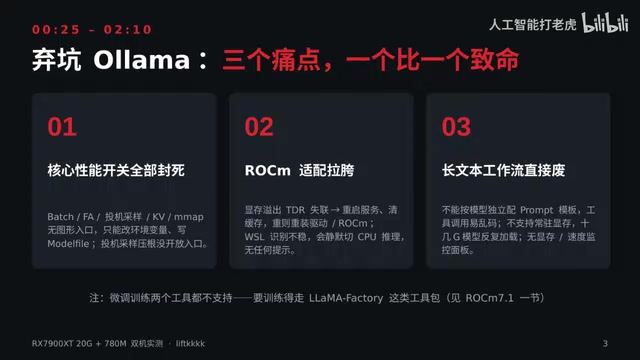
Pain Point 2: Poor ROCm Integration
When VRAM hits its limit, it triggers TDR (Timeout Detection and Recovery), causing the GPU to disconnect — this was the other culprit behind the black screen.
TDR (Timeout Detection and Recovery) is a kernel-level GPU watchdog mechanism in Windows. If the GPU is unresponsive for the default 2 seconds, the system forcibly resets the GPU driver to prevent a full system hang. In local LLM inference, a momentary VRAM spike can cause the GPU task queue to stall, triggering TDR and resulting in a black screen or GPU disconnect — sometimes requiring a full system reboot. AMD's ROCm driver handles TDR recovery on Windows less gracefully than NVIDIA's WDDM, making it much easier to trigger. Recovery ranges from restarting the service and clearing the cache to reinstalling the driver and ROCm entirely.
Even more insidious: Ollama unreliably detects AMD GPUs and will silently fall back to CPU inference without any warning. You think your 20GB VRAM card is grinding away at full tilt; in reality, your CPU is doing all the work, which explains the inexplicably slow speeds.
Pain Point 3: Long-Context Workflows Are Broken
Ollama can't configure independent prompt templates per model, tool-calling outputs frequently garble, it doesn't support keeping models resident in VRAM, and multi-gigabyte models get loaded and unloaded repeatedly. And there's no VRAM or speed monitoring panel at all — debugging a GPU disconnect is pure guesswork.
One important note up front: inference and training are entirely different things. Both Ollama and LM Studio (discussed below) handle inference only — neither supports fine-tuning or training. For training, you need a dedicated toolkit like LLaMA Factory.
LM Studio: The Best Inference Solution for AMD Right Now
After hands-on testing on both a desktop with the X7900XT and a laptop with the integrated 780M GPU, the conclusion is clear: LM Studio is currently the best option for local LLM inference on AMD hardware.

Native Backend and Visual Toggle Switches
LM Studio natively bundles llama.cpp's Vulkan/ROCm-specific backend, with deep optimization for both the desktop 7900XT and the laptop 780M. Most importantly, Speculative Decoding and Flash Attention are both exposed as visual checkboxes, controllable per model independently — no more hand-writing obscure environment variables.
In the Speculative Decoding interface, you can directly specify the draft model and enable it with a single click, yielding roughly 30–60% speed improvement without changing output quality. This is the primary reason token speed jumped from 5 to 36.
Full Parameter GUI and AMD-Specific Fixes
LM Studio provides a full graphical interface for all parameters — change a setting, reload, and test. It also includes an AMD-specific fix that lets you disable memory mapping (mmap) with one click, avoiding the crashes caused by ROCm memory mapping issues. VRAM usage is displayed in real time — if I'd used this from the start, I would have immediately seen that the black screen was caused by a momentary VRAM spike, not a power delivery problem, and never would have nearly bought an extra power supply for a software issue.
API Compatibility and Fault Tolerance
LM Studio is natively compatible with the OpenAI standard API, integrating seamlessly with agent tools. Each model gets its own conversation template configuration, and persistent VRAM residency is supported. Fault tolerance is strong — the vast majority of GPU disconnect issues can be resolved by tweaking parameters, without reinstalling drivers. The laptop 780M also gets a lightweight mode that caps VRAM usage with one click, preventing it from dragging down the whole system.
A Major Step Forward: ROCm Native Windows Support
Inference alone isn't the whole picture. AMD's biggest recent development is ROCm officially landing on Windows — AMD now ships a PyTorch on Windows build that can be installed natively on Windows 11 with ROCm support, no Linux required for training and fine-tuning.
ROCm (Radeon Open Compute) is AMD's open-source GPU compute software stack, analogous to NVIDIA's CUDA ecosystem. Its core component, HIP (Heterogeneous-Compute Interface for Portability), provides an API that closely mirrors CUDA, allowing a large body of CUDA code to run on AMD GPUs after conversion with the hipify tool. This is why, during validation later, the ROCm build of PyTorch reuses the torch.cuda namespace — this is intentional HIP design philosophy, aimed at minimizing migration costs from CUDA. For years, ROCm primarily served Linux platforms, with Windows support severely lagging. AMD's recent native Windows ROCm support is a meaningful milestone for local users.

The Transformers library's ROCm support is now quite mature, with full hardware acceleration for PEFT and LoRA. Combined with a training toolkit like LLaMA Factory, the 7900XT can run long-context LoRA fine-tuning locally on Windows, and the 780M laptop can handle lightweight testing on small datasets.
One important caveat: ROCm does not support bitsandbytes (BNB). If you want to do QLoRA quantized training, don't bang your head against BNB — just use an alternative, and the training workflow will work fine. AMD platform alternatives include GPTQ quantization format with AutoGPTQ or ExLlamaV2 for inference-side quantization; on the training side, consider torchao (PyTorch's official quantization library) or training directly in BFloat16 precision to reduce VRAM pressure. LLaMA Factory already wraps these alternative paths reasonably well, so AMD users can complete a full LoRA workflow without depending on BNB.
In short: use LM Studio for inference, LLaMA Factory for training, one driver environment (GFX1100 / GFX1103) covers both.
Four-Step Migration Guide and Two Critical Pitfalls
Migrating from Ollama to the new setup works the same way for both desktop and laptop — four steps:
Step 1: Clean Uninstall and Fresh Driver Install
Completely uninstall the old driver, then install the latest Adrenalin driver. Do not use a stripped-down or lite package — make sure to keep the ROCm GPU interaction components.
Step 2: System and Environment Preparation
Requires Windows 11 22H2 or later, or Ubuntu 22.04 as a fallback. Note that WSL has limited GPU acceleration support — prioritize the native Windows path.
Step 3: Install ROCm and Add User to Groups
Install the full ROCm components and add your current user to the render and video groups.
This is where there's a widely-circulated mistake online: when using the WSL or Linux path, the 780M integrated GPU requires setting HSA_OVERRIDE_GFX_VERSION=11.0.0 to masquerade the GFX1103 as GFX1100 for things to work.
GFX version numbers are LLVM compiler target architecture identifiers for AMD GPUs. GFX1100 refers to the RDNA3 flagship discrete GPU architecture (e.g., RX 7900 series); GFX1103 refers to the RDNA3 integrated GPU architecture (e.g., 780M). Because ROCm's official support list only covers mainstream discrete GPUs like GFX1100, the 780M's GFX1103 is not included by default. By setting HSA_OVERRIDE_GFX_VERSION=11.0.0, the ROCm runtime treats the 780M as GFX1100 architecture, bypassing the compatibility check. Both belong to the RDNA3 generation with highly compatible instruction sets, making this workaround safe in practice. The value 11.5.1 circulating online is the architecture codename for the Strix Halo platform — a newer RDNA3.5 generation, completely different from the 780M's GFX1103. Copying it blindly will break things. The 7900XT is natively GFX1100 and is on the official support list, so no workaround is needed.

Step 4: Dual Verification
In LM Studio, switch to the ROCm backend and confirm that the GPU is fully recognized, the toggles work correctly, and there's no CPU fallback. Simultaneously verify in Python that torch.cuda.is_available() returns an AMD device, and that the ROCm build of PyTorch is using the CUDA namespace (this is not an installation error — it's normal HIP behavior, deliberately designed to enable seamless migration of CUDA code to AMD hardware). Both checks must pass before you're truly up and running.
Final Thoughts
Back to that original black screen and GPU disconnect: not a single piece of hardware was changed. Just uninstalling Ollama, switching to LM Studio, and tuning the parameters — and speed multiplied several times over.
This whole saga is a reminder for every AMD user: choosing the wrong tool means throwing away half your hardware's performance — and as this story shows, can even lead you to nearly buy a new power supply for what was purely a software problem. As the AMD ecosystem continues to mature, choosing the right inference and training toolchain matters more than blindly upgrading hardware.
Key Takeaways
Related articles

Apple HomeView Hands-On Review: Is the $300 Smart Home Hub Worth It?
Apple HomeView hands-on: a $300 smart home hub with facial recognition for quick account switching, but no App Store or voice recognition. Is the wall-mounted version worth it? Should you buy the first generation?

Meta Muse Wonder Launch: What It Means for Meta's Return to the Frontier AI Race
Meta releases Muse Wonder and WonderFull, benchmarks reach the frontier, community feedback is polarized. An in-depth look at Meta's return to the frontier AI race, its personal agent strategy, and Zuckerberg's different path.

Apple Home Smart Home Lineup Leaked: LG and Schneider Team Up, UWB Door Lock on Board
Apple Home ecosystem gains new LG and Schneider devices: UWB smart lock with proximity unlock, 2.5K dual-camera doorbell, privacy indoor camera, and AirPods-like seamless pairing.