Squint: A Productivity Tool That Lets You Ask AI About Anything on Your Screen

Squint lets you select any screen area with a hotkey and ask AI questions in place, built with Rust for native speed.
Squint is a desktop productivity tool that just launched on Product Hunt. Press a hotkey, draw a selection box anywhere on your screen, and answers appear right beside the selection — no window switching needed. It collapses the traditional screenshot-upload-switch-ask workflow into a single step. Squint offers Fast (1–2s) and Best (deep analysis) response modes, is built with Rust using native screen capture for speed, and supports Windows 10/11 and Linux (Wayland). It provides 3 free captures per day, with no macOS support yet. It debuted at 78 upvotes and ranked 14th on Product Hunt.
An Overlooked Productivity Pain Point
Anyone who's used AI to work with on-screen content knows the drill: take a screenshot, switch to a chat interface, upload the image, then flip back to the original window. It sounds simple, but this workflow constantly breaks your focus — and the accumulated cost to your attention is real. Squint, a new tool that just launched on Product Hunt, aims to fix exactly this problem.
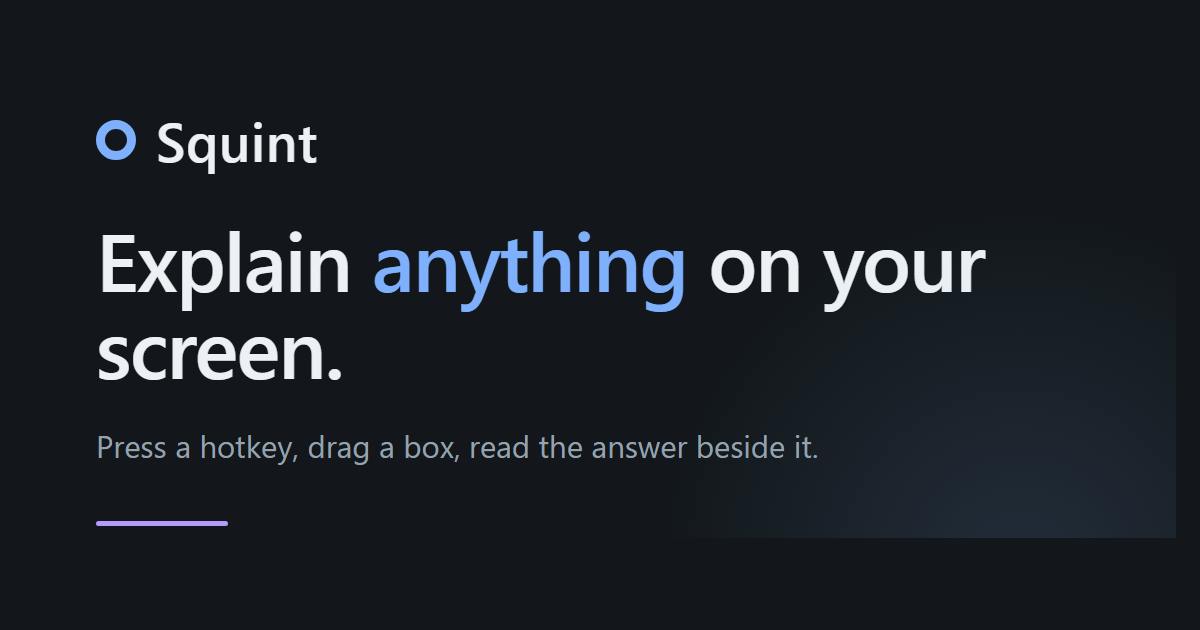
Its core idea can be summed up in one sentence: press a hotkey, draw a box over any part of your screen, and ask your question. The answer appears right next to your selection — no need to leave your current window. This "ask-in-place" interaction collapses what used to be four or five steps into one.
Interaction Design: Minimizing Friction
Squint's value doesn't come from the underlying model — it comes from redesigning how people interact with AI. In the traditional screenshot-and-upload workflow, the biggest hidden cost is context switching. Every time you jump between your source material and a chat window, your train of thought gets interrupted.
By displaying answers directly beside the selected area and supporting follow-up questions, Squint keeps the entire conversation within your visual focus. For users who frequently reference documentation, code, or charts, this design significantly reduces cognitive load.
Functionally, it offers two modes: Fast mode typically starts responding within 1–2 seconds, ideal for quick lookups; Best mode delivers deeper analysis for scenarios requiring careful interpretation. This tiered approach lets users choose their own balance between speed and depth.
Tech Stack: Choosing Rust for Speed
Squint's technical implementation is worth noting. It's built with Rust and uses native screen capture to ensure performance. Choosing Rust over the more common Electron or web-based stacks signals that the developer placed "speed" at the top of the product's priority list.
Native screen capture combined with local processing reduces latency — which is the technical foundation behind Fast mode's 1–2 second response times. For a productivity tool where speed is the selling point, this engineering investment makes sense. Many comparable tools rely on browser extensions or cross-platform frameworks, which often come at a noticeable cost to responsiveness.
Rust is a systems programming language renowned for memory safety and high performance, originally developed by Mozilla. It has seen rapid adoption in recent years across CLI tools, game engines, and desktop applications. Compared to Electron — which essentially bundles an entire Chromium browser into the app, resulting in high startup overhead, heavy memory usage (often hundreds of MB), and noticeable latency — Rust compiles to native binaries with no garbage collection pauses, typically using a tenth of the memory. For screen capture scenarios that require direct interaction with OS-level APIs (such as Windows' DXGI Desktop Duplication or Linux's PipeWire/wlroots), Rust's zero-cost abstractions maximize hardware utilization. This is why more and more desktop productivity tool developers are choosing Rust.
Platform Support and Pricing Strategy
Squint currently supports Windows 10/11 and Linux (Wayland). Explicitly calling out Wayland support is a meaningful gesture toward Linux desktop users — screen capture under Wayland has historically been a weak spot for many tools. That said, macOS support is not mentioned, which may limit its reach for a significant portion of users.
On pricing, Squint offers a free tier with 3 screen captures per day. This is enough to let users experience the core feature, but clearly insufficient for power users — a classic "try before you pay" strategy.
As of this writing, Squint has received 78 upvotes and 7 comments on Product Hunt, ranking 14th. It's a solid debut that shows the concept resonates, though it hasn't yet triggered a viral spike.
Wayland is the next-generation compositor protocol on the Linux desktop, replacing the aging X11 display system. It's now the default session environment in major distributions like Fedora and Ubuntu. Because Wayland's security model prevents apps from freely capturing the contents of other windows (a significant security improvement over X11), many tools that rely on traditional screenshot APIs will simply fail or capture a black screen under Wayland. Proper screen capture in a Wayland environment requires going through PipeWire combined with the xdg-desktop-portal permission system — a considerably higher development cost. Squint's explicit Wayland support means this work has been done, providing a real usability guarantee for users who have already migrated to modern Linux desktop environments.
Who Is Squint For?
This kind of tool is best suited for people who regularly encounter on-screen content they want to immediately ask about:
- Users reading English documentation or academic papers who need instant translation or explanation
- Developers who want to quickly understand error messages while debugging code
- Knowledge workers who need AI assistance interpreting complex charts or interface screenshots
At its core, Squint turns "AI visual Q&A" into a system-level utility that's always one hotkey away. Rather than opening a full-featured chat application, it's more like an "instant answer" shortcut that lives on your screen.
Closing Thoughts
Squint doesn't attempt to revolutionize AI capabilities — instead, it strips away friction at the interaction layer. It identifies the "screenshot-and-ask" pattern as a high-frequency but underserved workflow, then uses a single hotkey and a selection box to simplify it as much as possible. The speed advantages of Rust and its Linux support are genuine differentiators from comparable tools. Of course, the 3-free-uses-per-day cap and the absence of macOS support are real barriers it will need to address as it grows. For users who value efficiency and are tired of constantly switching windows, it's worth trying.
Related articles

Free Unlimited Claude Code Solution: Agnes AI + CC Switch Setup Guide
No paid subscription needed — pair the free AI platform Agnes AI with the open-source tool CC Switch to provide a backend for Claude Code, enabling unlimited free calls to text, image, and video models. This guide covers the full setup, test results, and usage boundaries.

A Complete Zero-Cost Guide to Getting Started with Claude Code for Beginners in China
A beginner's guide to Claude Code for users in China: two installation methods (command line and IDE plugin), full configuration steps for replacing the official API with the free domestic LongCat model, and a hands-on demo of building a small tool with natural language, plus tips.

When the NSA Gets Involved: The AI Supply Chain Crisis Behind Open-Source CVEs and API Key Hijacking
Multiple open-source projects disclosed severe CVEs in one day, PHP flaws alarmed the FBI, and Railway and OpenCode were breached with API keys stolen. This article breaks down the vulnerability window, AI-accelerated exploitation, and the AI supply chain crisis behind the API key black market, with a developer defense checklist.