The Ultimate Codex Guide: From Installation to Hands-On Practice — Let AI Automatically Organize Files and Build Reports

A Bilibili creator shows Codex AI directly operating a computer to organize files, generate reports, and build dashboards — no coding required.
This article is based on a Bilibili creator's hands-on Codex tutorial and introduces an AI assistant that can directly operate a computer. Unlike conversational AI, Codex can organize files, extract data, generate reports, and build visual dashboards. The article details installation and setup, recommends setting the work mode to "Everyday work," and introduces "project folders" as context boundaries. Two real-world cases demonstrate Codex's workflow and iteration capabilities, including data validation and human-AI collaboration in Plan Mode. The desktop pet feature shows task progress in real time. The article concludes with suitable scenarios and boundaries, noting that complex business judgments still need human review and sensitive data operations require cautious authorization.
Title
Codex Ultimate Guide: From Installation to Hands-On Practice — Let AI Automatically Organize Files and Build Reports
Meta Description
Based on a Bilibili creator's hands-on tutorial, this detailed walkthrough covers Codex AI assistant from installation and setup to real-world use: organizing cluttered files, extracting PDF data into Excel reports, and building visual dashboards with Plan Mode, plus details like the desktop pet progress monitor — ideal for non-technical users getting started fast.
Article Content
AI tools are moving from "chatting" to "getting things done." A hands-on Codex video shared by a Bilibili creator demonstrates an AI assistant that can directly operate a computer — organizing files, extracting data, generating reports, and even building visual dashboards, all without writing a single line of code. This article distills the complete workflow from installation and configuration to complex real-world tasks based on that tutorial, and adds key details and usage recommendations.
What Is Codex: An AI Assistant That Can Take Action
Unlike conversational AIs such as Doubao and DeepSeekAd, Codex's core difference is that it can directly operate the user's computer. According to the creator's demo, it can organize folders, create Excel reports, read documents and write weekly reports, generate PPTs, operate a browser, and even set scheduled tasks to run automatically in the background.
This "ability to act" means users don't need programming or scripting knowledge — describing requirements in natural language is enough. Installation is simple too: Codex is available on the Microsoft and Apple app stores — just search and install.

Agent is the key concept for understanding Codex's positioning. Unlike traditional conversational AI that only generates text replies, an agent can perceive its environment, formulate plans, invoke tools, and execute actions. Codex directly controls the computer through operating system APIs or by simulating user operations — such as reading and writing files, opening applications, and clicking buttons — thereby turning natural-language instructions into actual task results. This "ability to act" relies on the reasoning and planning capabilities of large language models, combined with tool-calling interfaces to achieve closed-loop execution. The core challenges of agents lie in error handling and security, so Codex introduces project folders as sandbox boundaries and may involve permission-control mechanisms to ensure operations are limited to authorized scopes.
Installation and Basic Configuration
The first time you open Codex, the interface resembles the web version of Doubao: an input box in the center and a sidebar on the left, but the sidebar has extra extensions such as plugins and automated workflows. The creator suggests first adjusting one key setting — the work mode.
In settings, switch "level of technical detail displayed" to "Everyday work" mode. This way Codex can still complete tasks but won't output a large amount of technical detail, making the experience cleaner. For non-technical users, this step significantly reduces cognitive load.
Core Concept: Project Folders
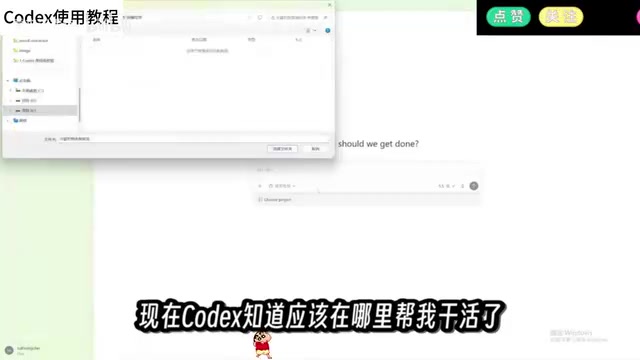
Codex needs a working directory to get things done on your computer, which it calls a "project," displayed in the sidebar. The creator suggests creating different folders by task type, such as "Sales Analysis" or "Weekly Report Materials," so that each time you chat, you select the corresponding project below the input box and Codex can read all files in that folder.
The design logic is clear: a project is the context boundary. Users put related files into the same folder, and the AI can execute tasks based on complete information, avoiding the hassle of manually uploading files each time.
Practice 1: Organizing Cluttered Files and Generating a Summary Table
The creator prepared a folder called "Computer Story Café" containing a mix of sales records, invoices, and inventory lists in formats ranging from spreadsheets and PDFs to images. The task instruction was: organize the files and extract key data into Excel.
Codex's execution process includes analyzing files, moving and categorizing them, modifying content, and creating new files. A few minutes later, the folder was organized by purpose, and a summary table containing sales data and product rankings was generated, along with details extracted from PDF invoices.
You may not have noticed that the creator deliberately planted errors in the original files — some transaction records were missing and two invoices were anomalous. Codex flagged these issues in the summary. This shows it's not just mechanically moving data around; it also has a degree of data-validation awareness. For everyday tasks like report organization and daily report writing, this capability is already practical enough.

Practice 2: Building a Visual Dashboard with Plan Mode
The second task escalates in difficulty: building a visual dashboard for the café based on the summary table, displaying business metrics such as sales, expenses, costs, and inventory, along with recommendations on what to watch.
Because the task was complex, the creator switched to "Plan Mode." In this mode, Codex doesn't execute immediately; instead, it first analyzes the requirements and lists an execution checklist, asks the user questions when it encounters uncertain details, and only starts after confirmation. During the demo, the creator received questions from Codex and made selections, after which the task officially began.
For complex tasks, the value of Plan Mode lies in turning "black-box execution" into a "reviewable process." Users can adjust direction during the planning stage, avoiding rework after the AI goes off track.
Plan Mode is a human-AI collaboration paradigm whose design philosophy stems from having the AI first perform requirement analysis and planning in complex tasks rather than executing directly. This mode typically includes steps such as requirement parsing, task decomposition, dependency identification, and risk checking, and allows the AI to ask users clarifying questions when information is insufficient. This resembles the requirements review phase in software development, aiming to translate vague user intent into an executable step list, thereby improving task success rates and reducing rework. The output of Plan Mode is usually a structured execution checklist that users can review and adjust, reflecting the "Human-in-the-loop" interaction principle and suitable for multi-step, high-uncertainty scenarios.
Desktop Pet: Visualizing Task Progress
The video also showcases a fun feature: typing a slash in the input box brings up a "pet," and a small widget appears on the desktop showing the task currently being executed in real time. Clicking the pet jumps to the corresponding task interface. The pet's appearance can be changed in settings.
This design solves a real problem — when the AI executes long tasks in the background, users need to know the progress. Compared with repeatedly switching windows to check, a persistent desktop progress indicator is more intuitive.

Background tasks and progress visualization are important design elements that improve an AI assistant's usability. When the AI executes time-consuming tasks (such as batch file processing or complex analysis), users need to perceive task status to avoid anxiety or duplicate operations. As a lightweight indicator in a persistent interface, the desktop pet essentially maps the state of the task queue to visual elements and supports quick navigation. This design borrows from progress-indication patterns in operating systems (such as taskbar progress bars) but enhances approachability through an anthropomorphic figure. Its technical implementation typically involves state subscription from a task manager and front-end rendering, ensuring low resource usage and real-time updates.
Results and Iteration: Dashboard Effect and Theme Adjustments
Once the dashboard was complete, the interface included modules for sales, expenses, costs, and inventory, with business recommendations and key items listed at the bottom. The creator admitted not being a sales professional and unable to judge the professionalism of the recommendations, but the visual effect was "very professional."
Then the creator made a modification request: switch to a more modern, intuitive theme, "like Apple's." After Codex made the adjustment, the interface style changed noticeably. This "generate-feedback-iterate" loop is exactly the typical pattern of AI-assisted work — users don't need to specify every detail at once and can continuously fine-tune on top of the results.
Usage Recommendations and Boundaries
Judging from the demo, Codex is suitable for the following scenarios: file categorization and organization, multi-format data extraction and summarization, report generation, simple visualization building, and scheduled tasks. Its advantage is lowering the technical barrier, enabling non-programmers to automate repetitive work.
But boundaries also need attention: complex business judgments (such as the professionalism of business recommendations) still require human review; operations involving sensitive data should be authorized cautiously; and the questioning step in Plan Mode requires users to invest time confirming details.
Overall, Codex represents the trend of AI tools evolving from "conversation" to "execution." For knowledge workers looking to reduce repetitive labor, it's worth trying.
One-line Summary
A Bilibili creator shows the Codex AI assistant directly operating a computer to organize files, generate reports, and build dashboards — no programming required.
Paragraph Summary
Based on a Bilibili creator's hands-on Codex tutorial, this article introduces this AI assistant that can directly operate the user's computer. Unlike conversational AI, Codex can perform file organization, data extraction, report generation, and visual dashboard building. The article explains installation and configuration steps in detail, emphasizing setting the work mode to "Everyday work" to reduce technical detail and introducing "project folders" as context boundaries. Through two real-world cases — organizing cluttered files and generating a summary table, and building a visual dashboard with Plan Mode — it demonstrates Codex's task execution workflow and iteration capabilities, including data-validation awareness and human-AI collaboration in Plan Mode. In addition, the desktop pet feature displays task progress in real time. The article concludes by summarizing suitable scenarios and boundaries, noting that complex business judgments still require human review and that sensitive data operations should be authorized cautiously.
Related articles
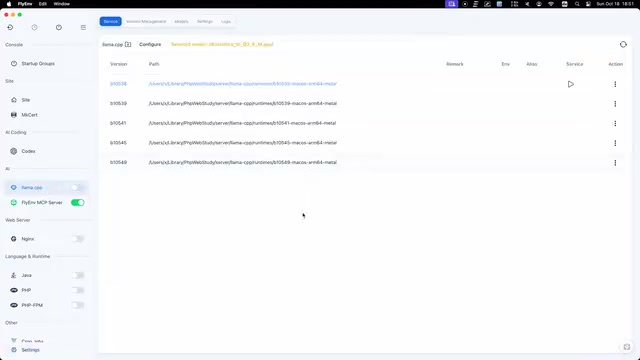
FlyEnv Plugin Review: Visually Running llama.cpp and Managing GGUF Models
FlyEnv launches the official llama.cpp plugin with side-by-side Metal runtime management, public GGUF repository indexing with file type labels, and visual configuration of context, threads, and GPU layers—saving templates and speculative decoding with each model for one-click local LLM inference.
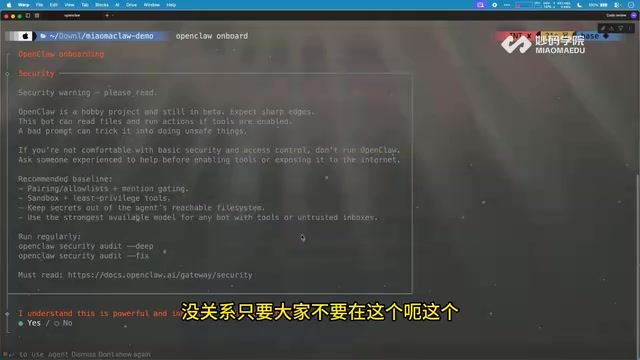
How Can Frontend Developers Advance into AI Agent Development? Deconstructing System-Level Agent Architecture from OpenClaw
Starting from the OpenClaw demo in a Bilibili open class, this article breaks down the three-layer architecture and universal formula of system-level AI agents, and analyzes the path for frontend developers to enter agent development based on TypeScript, including plugin-based design and security/memory layer challenges, with an interview answer framework.

WorkBuddy in Action: How AI Agents Automate Batch File Conversion and Archiving
Bilibili creator Teacher Shanyao tests WorkBuddy vs. Doubao on batch file conversion, showing how AI Agents move from "giving solutions" to "direct execution," with a full workflow and credit cost reference.