The Ultimate Codex Guide: From Installation to Hands-On Practice, Let AI Operate Your Computer for You

A hands-on Codex tutorial shows AI directly operating a computer to organize files, build reports, and create dashboards.
The article covers Bilibili creator "Computer Story"'s hands-on Codex tutorial, showing how this AI tool upgrades from "chatting" to "getting things done." It can directly operate a computer, reading spreadsheets, PDFs, and images from project folders to organize files, extract invoice details, and build Excel summaries, and in Plan Mode it constructs a visual dashboard for café operations. The tutorial also notes that Daily Work mode reduces technical jargon and a desktop pet shows task status in real time. The author sees its value in offering a replicable path for ordinary users, while warning that direct computer operation brings permission and privacy risks — better to start with low-risk tasks.
AI tools are moving from "chatting" to "getting things done." A hands-on Codex tutorial from Bilibili creator "Computer Story" uses a real café's data to fully demonstrate how this tool can directly operate a computer, organize files, generate reports, and even build visual dashboards. Its biggest difference from Doubao and DeepSeek is this: the latter can only chat with you, while Codex can directly execute tasks on your computer — organizing folders, reading PDF invoices, building Excel summaries, writing weekly reports, making PPTs, operating a browser, and even setting up scheduled tasks to run automatically while you sleep.
Installation and Initial Setup: Get Started in Two Minutes
Codex is already available in the Microsoft and Apple app stores — just search and install it. The interface after opening resembles the web version of Doubao: an input box in the center, while the left sidebar adds advanced features like plugins, automation, and workflows.

The creator suggests adjusting the work mode first. In settings, Codex by default displays a lot of technical detail; after switching to "Daily Work" mode, it remains powerful but won't bombard you with a pile of incomprehensible jargon — a clear experience improvement for non-technical users.
Core Concept: The Project Folder Is the Starting Point for Collaboration
For Codex to work on your computer, it needs to know where to work. Folders it calls "projects" appear in the sidebar, and you can create different projects by task type, such as "Work Reports," "Study Materials," or "Café Operations." After selecting the project corresponding to the current conversation below the input box, Codex can read all files in that folder to complete the task.
The creator prepared a real folder named "Computer Story Café," packed with sales records, invoices, and inventory lists in formats spanning spreadsheets, PDFs, and images. The task he gave Codex: tidy up the files and extract the key information and data into a single Excel table.
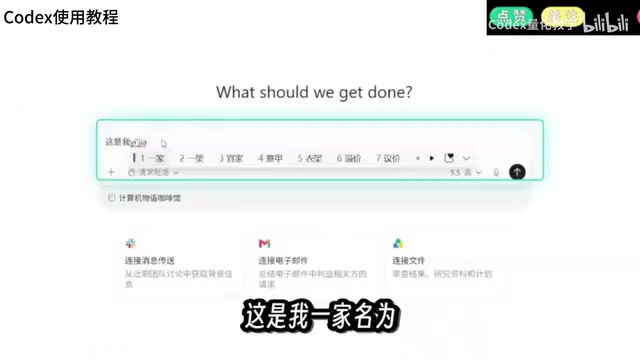
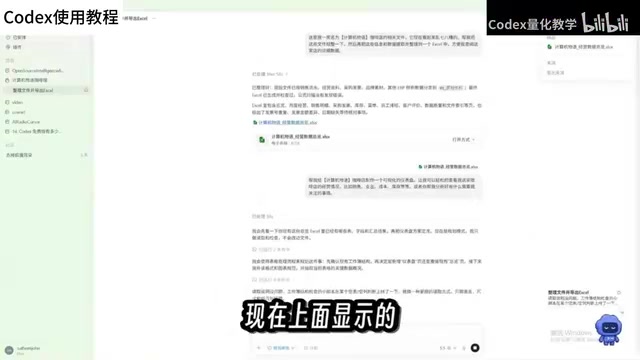
This seemingly beginner-level task is actually quite tedious: Codex needs to analyze file types, move files, modify content, and create new files. Within minutes, it organized the folder clearly by purpose, generated categorized sales data tables, and extracted details from PDF invoices. More importantly, the creator deliberately planted traps in the data — Codex flagged missing transaction records and spotted anomalies in two invoices.
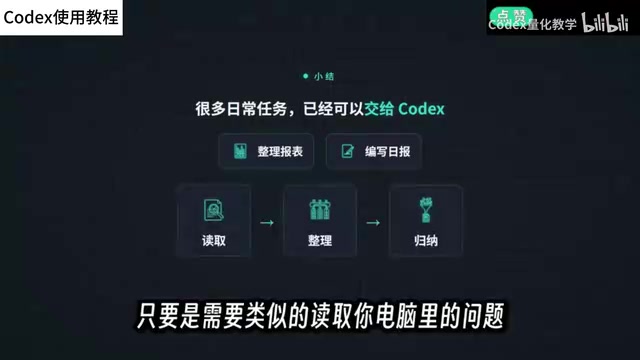
This means that routine report organization, daily report writing, and material summarization — anything that involves reading files from your computer and producing organized output — can be handed off to Codex.
The so-called "project folder" can be understood as a working sandbox that Codex can read and write once authorized. Unlike web-based chatbots that can only see the text you paste into the dialog box, Codex locally treats that folder as its root directory, recursively scans all files within it, and invokes the appropriate reading capabilities (such as parsing PDFs, recognizing images, and parsing spreadsheets) as the task requires. This also means the authorization boundary is the folder boundary: confining tasks to a designated project prevents it from accidentally reading private files on your desktop, in Downloads, or in Documents. For first-time users, it's advisable to create a dedicated empty folder as the project and put only the materials relevant to the current task into it; after the task is done, decide whether to keep or delete it. This ensures both quality and risk control.
Advanced Hands-On: Building a Data Dashboard with Plan Mode
Organizing files was just a warm-up. The creator then added a summary table via the command line and asked Codex to build a visual dashboard for the café showing sales, expenses, costs, inventory, and other operational metrics, along with items that need attention.
Complex tasks like this are suited to turning on "Plan Mode." Codex doesn't act immediately; it first analyzes the requirements and lists a detailed execution checklist, and proactively asks questions where things are uncertain, proceeding only after you confirm. During the process, the creator was asked several detailed questions and only after making selections did the task move forward. This "plan first, confirm, then execute" flow significantly reduces the chance of complex tasks going off track.
The final dashboard is quite professional: it includes all the requested operational metrics, with suggestions and key items listed below. The creator admits he isn't a sales professional and finds it hard to judge its practicality, but for people in relevant industries, this is already a draft that can be put to direct use. He then asked for a modern "Apple-style" theme, which Codex also completed smoothly.
Technically, "Plan Mode" is an agentic workflow of "plan first, execute later." In normal conversation mode, the model tends to think and output at the same time — once a misunderstanding occurs midway, subsequent steps go astray one after another. Plan Mode instead first produces a structured task list, breaking a big goal into several verifiable sub-steps, and pauses at key branches to confirm parameters and preferences with the user. For complex tasks, this approach lets users spot directional problems early and makes it easy to resume from a certain step after a long task is interrupted, rather than starting over. It's similar to the "workflow" concept in automation tools, except the plan is dynamically generated by the model rather than manually orchestrated by the user.
An Easter Egg: Desktop Pet
Type a slash in the input box to bring up a desktop pet. Besides being cute, it displays the task currently being executed in real time, and clicking it jumps to the corresponding conversation. Its appearance can be changed in settings — a bit of fun and observability for long-running tasks.
What This Means
The value of this tutorial isn't in showing off some stunning demo, but in presenting a path ordinary users can replicate: install, create a project, assign a task, and use Plan Mode for complex needs. Codex frees the "AI assistant" from the chat box and turns it into an operator that can act on your computer. For working professionals who don't write code, this may be a more practical productivity tool than a chatbot. Of course, letting it directly operate your computer also means you need to manage permissions and privacy yourself — starting with low-risk tasks like organizing files is a safer way to begin.
The permission issues brought by local agent-style tools deserve separate mention. When AI can directly move, modify, and create files, it effectively gains the same file system access as the current user account. Sound practices include: starting with read-only or low-risk tasks (such as organizing and summarizing); backing up important data before execution; reviewing the record of each step it generates; and being cautious with actions involving deletion, overwriting, and uploading. In addition, invoices, inventory, customer information, and the like often contain private or commercially sensitive content, and whether to allow it to read and process them should be judged according to your own data compliance requirements — you shouldn't let everything through by default just because it's "convenient."
Related articles

Free Unlimited Claude Code Solution: Agnes AI + CC Switch Setup Guide
No paid subscription needed — pair the free AI platform Agnes AI with the open-source tool CC Switch to provide a backend for Claude Code, enabling unlimited free calls to text, image, and video models. This guide covers the full setup, test results, and usage boundaries.

A Complete Zero-Cost Guide to Getting Started with Claude Code for Beginners in China
A beginner's guide to Claude Code for users in China: two installation methods (command line and IDE plugin), full configuration steps for replacing the official API with the free domestic LongCat model, and a hands-on demo of building a small tool with natural language, plus tips.

When the NSA Gets Involved: The AI Supply Chain Crisis Behind Open-Source CVEs and API Key Hijacking
Multiple open-source projects disclosed severe CVEs in one day, PHP flaws alarmed the FBI, and Railway and OpenCode were breached with API keys stolen. This article breaks down the vulnerability window, AI-accelerated exploitation, and the AI supply chain crisis behind the API key black market, with a developer defense checklist.