Vibe Coder Planner Bundles Free AI Model GLM 5.3: Build Your First Project in Seven Steps

Vibe Coder Planner bundles GLM 5.3 with no API setup, building your first project in seven steps.
Vibe Coder Planner's Pro subscription ($4.99/month) bundles the GLM 5.3 development model, letting users go from planning straight to code execution without applying for an API key, while other AI providers remain available via your own keys. The article notes the tool splits development into four stages—describing the idea, breaking down tasks, preparing prompts, and tracking execution—and walks through a seven-step Laravel + Vue client portal example: sign up and describe a minimal viable version, review the generated plan, activate Pro, connect a GitHub repo, start with a clearly defined task, verify against the original requirements using two accounts, and layer on features after completing tasks. The author stresses that the built-in model lowers configuration cost; success still depends on clear requirement boundaries, controllable task granularity, and actually verifying features rather than just reading execution logs.
Vibe Coder Planner Bundles Free AI Model GLM 5.3: Build Your First Project in Seven Steps
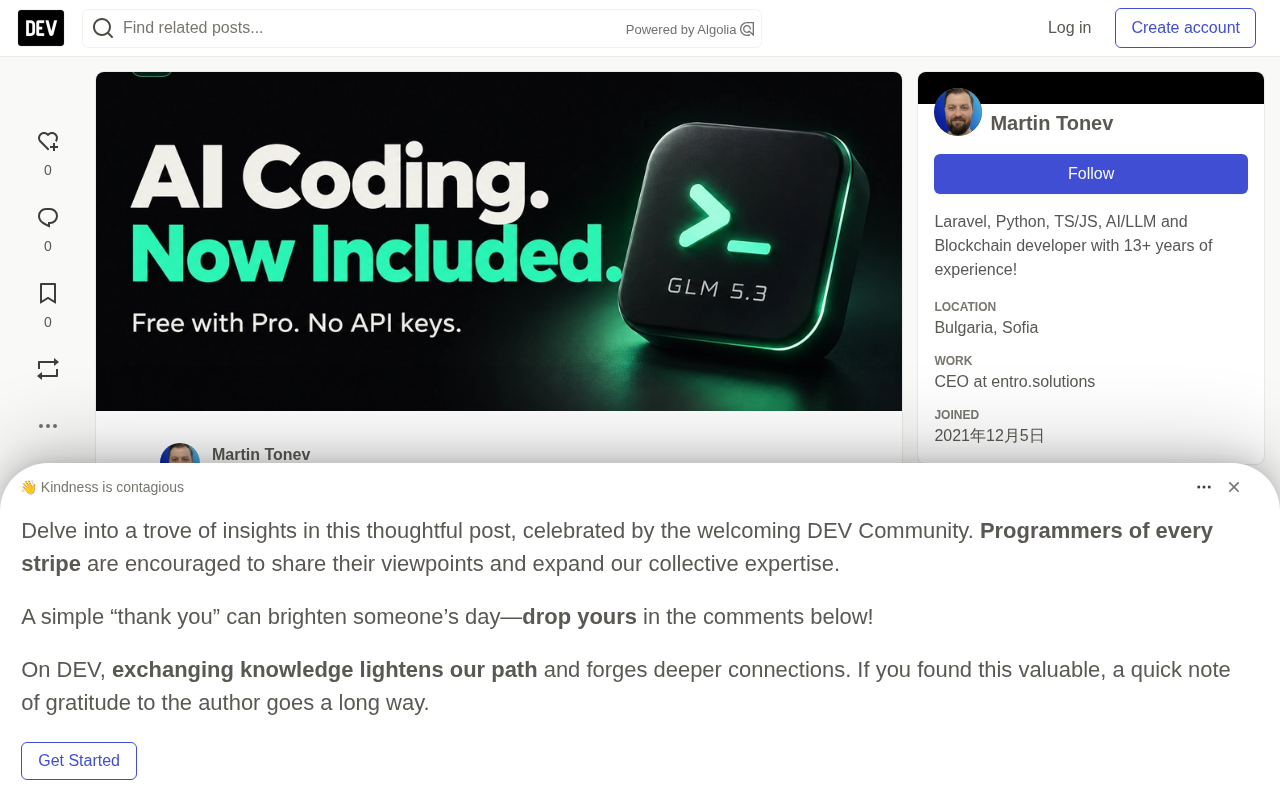
AI coding tools are shifting from "autocompleting code" to "managing the entire development workflow." The latest Vibe Coder Planner update pushes this trend one step further: Pro subscribers can now use the built-in GLM 5.3 development model directly, without having to apply for a separate API key or configure another AI provider account.
From "Stacking Prompts" to a "Structured Development Workflow"
The original article points to a dilemma many indie developers know well: writing code with AI goes smoothly at first, but once a project involves authentication, databases, permissions, and dashboards, prompts get longer and longer, every conversation rehashes decisions already made, and the time spent "explaining the project" eventually exceeds the time spent "moving the project forward." Add to that registering accounts with multiple AI providers, configuring APIs, and being billed separately, and a small project that should be lightweight becomes remarkably heavy.
Vibe Coder Planner's approach is to break software development into a few connected stages: describe the idea, break it into tasks, prepare coding prompts, and track execution progress. The point of the built-in model is to remove the threshold between "planning" and "execution" that previously required external configuration to cross—once the plan is written, a usable execution tool is right there in the same product.
What the Built-in Model Changes
The most direct change is the startup cost. According to the original article, the Pro subscription includes access to GLM 5.3, so users don't need to generate an external API key themselves; meanwhile, other supported AI providers can still be connected optionally using the user's own keys, billed separately.
The product logic behind this is worth noting: it bets on a "validate the idea first, then decide how much to invest" way of working. For a side project, the first question that really needs answering isn't whether the architecture is elegant, but whether "this minimal workflow can run end to end." The built-in model lowers the barrier to answering that question.
Building a Client Portal in Seven Steps
The original article uses a client portal for a freelance developer or small agency as an example to demonstrate the complete process. This example can be swapped for any idea of your own.
Step 1: Sign Up and Describe a Sufficiently Small Version
Go to vibecoderplanner.com to create an account. The free preview includes an AI-generated project plan, a task outline, and prompts for the first three tasks; the built-in development model requires a Pro or Enterprise subscription.
The project description should make two things clear: who uses it, and what it's used to accomplish. The example given in the article is: build a client portal with Laravel and Vue, where clients can log in, submit support requests, and view the status of their own requests; admins can view all requests, assign statuses, and reply to clients. The first version focuses only on these flows, leaving billing, live chat, and file uploads for later versions.
The value of this description lies in its clear boundaries—the users, main flows, tech stack, and deferrable items are all spelled out. If you already have a codebase, you should also describe its current state, e.g., "login is already implemented; new features should reuse the existing user accounts."
Step 2: Generate the Plan and Review It Before Executing
The tool turns the description into development tasks, with complexity estimates, model recommendations, and task-specific prompts. But the article stresses reading this plan from the perspective of a product owner: does it describe the app you want to build? Has it slipped in features you didn't ask for? Are the dependencies ordered correctly?
For the client portal, a sensible order is to first build the application structure, then handle authentication and permissions, then create the request data model, and finally build the client-side and admin-side interfaces.
The permissions section is especially worth pausing over. The sentence "clients can see requests" omits the key question: whose requests can they see? A clearer phrasing is: each client can only view their own requests, and admins can view all; access restrictions must hold even if a user opens a request directly via URL. The article says outright that spending a few minutes clarifying this requirement can prevent far more rework later.
Step 3: Activate Pro to Use the Built-in Model
Just activate Pro when you're ready to execute tasks with the built-in model. According to the information published in the article, Pro was priced at $4.99 per month at the time, including unlimited project planning, all task prompts, and the GLM 5.3 model for the subscription period. When executing with the built-in model, select GLM 5.3; no external credentials need to be generated.
Step 4: Connect GitHub and Link the Repository
To let the AI operate on project files and deliver changes as pull requests, you need to connect GitHub: open AI Integrations in the dashboard sidebar, select Connect GitHub to complete authorization, then go to the project, select Link GitHub Repo, and specify the repository. For new projects, a dedicated repo is recommended; for an existing product, be sure to confirm you've selected the right repository before executing tasks.
A pull request (PR) is GitHub's mechanism for proposing code changes: a developer branches off from the main branch, commits changes, and opens a PR, where reviewers can inspect the diff line by line, leave comments, request changes, and merge once approved. Keeping AI output confined to PRs effectively adds a human gate to automated changes—changes don't land directly on the main branch but appear in a reviewable, revertible form.
Branch protection rules are the other half of this setup: repository admins can require that PRs pass CI checks or at least one approval before merging. The article's statement that "moving a task to Completed triggers a merge request, and GitHub-side checks still apply" refers precisely to this layer of constraint remaining in effect—automation cannot bypass it.
Step 5: Start With a Single, Clearly Defined Task
Pick the earliest task whose prerequisites are in place. In the client portal example, if the request data model isn't built yet, you shouldn't start with the admin dashboard.
Before executing, read the task prompt through and confirm the outcome it describes is verifiable. A request-management task, for example, should specify which fields are required, who can create requests, and who can access them after creation. Following the process documented in the article, move the configured task from Backlog to In Progress, and the agent will operate on the linked repository, create a branch, implement the changes, and open a pull request; the execution panel shows progress and changed files.
Step 6: Verify Against the Original Requirements
Once the pull request is ready, inspect the changes and actually try the feature. The verification method for the client portal is very concrete: create two test client accounts, submit a request with the first, and then log in as the second—can it see the request? What happens if you paste the first request's URL into the browser? Then walk through the normal flow: can a client submit a request with required information? Does the request appear in the admin list? Is the status update correctly displayed to the client?
The article reminds us that a generated interface or a successful execution log cannot, by itself, answer whether "the feature meets the requirements." If verification fails, turn the failure into a specific correction instruction, e.g.: "Client B can access Client A's request via URL. Restrict request access to the owner or an admin, and add tests covering unauthorized access." That way the next task gets a reproducible problem and a clear expected outcome.
Step 7: Complete the Task, Then Build on Top
After review and testing pass, complete the task. Under the GitHub flow described in the docs, moving a task to Completed triggers a merge request for the corresponding pull request, and the checks or reviews required on GitHub's side still apply—the article advises treating this action as approval of the code.
The first useful milestone in this example is modest: a client submits a request, the agency replies, and the client sees the update. Get this chain working before adding billing, attachments, notifications, or more complex dashboards. By then, you can demo it to potential users and ask a better question: "Would this help you manage requests?"
Beyond the Tool, the Process Remains Central
The built-in model removes a configuration burden, but the article's position is clear: the value of the workflow still comes from clearly defining the work, executing controllable tasks, and checking actual results. You decide what the app should do; the plan makes the work easier to track; the built-in model simply lets you start executing without first setting up another AI provider account.
For an idea that's been sitting in your notes for weeks, the starting point is its smallest useful workflow: describe it, review the plan, and complete the first task.
Background
GLM is a large language model series from Zhipu AI, originally open-sourced under the ChatGLM name, with later iterations targeting code and agent scenarios. Compared with general-purpose chat models, code-oriented models are typically trained specifically for repository-level context understanding, multi-file changes, and tool calling. The "5.3" in the article is a version identifier within this series; specific capability boundaries should be based on the vendor's release notes.
Another common implementation of a built-in model is "platform-managed credentials": users never touch the API key, and calls are routed uniformly by the platform and counted against the subscription quota. This model eliminates registration, top-ups, and key management, but it also means model selection, rate limits, and data handling are decided by the platform—compliance-sensitive projects should still confirm data flows.
Related articles

Free Unlimited Claude Code Solution: Agnes AI + CC Switch Setup Guide
No paid subscription needed — pair the free AI platform Agnes AI with the open-source tool CC Switch to provide a backend for Claude Code, enabling unlimited free calls to text, image, and video models. This guide covers the full setup, test results, and usage boundaries.

A Complete Zero-Cost Guide to Getting Started with Claude Code for Beginners in China
A beginner's guide to Claude Code for users in China: two installation methods (command line and IDE plugin), full configuration steps for replacing the official API with the free domestic LongCat model, and a hands-on demo of building a small tool with natural language, plus tips.

When the NSA Gets Involved: The AI Supply Chain Crisis Behind Open-Source CVEs and API Key Hijacking
Multiple open-source projects disclosed severe CVEs in one day, PHP flaws alarmed the FBI, and Railway and OpenCode were breached with API keys stolen. This article breaks down the vulnerability window, AI-accelerated exploitation, and the AI supply chain crisis behind the API key black market, with a developer defense checklist.