WorkBuddy Beginner's Guide: Interface, Three Modes, and Task Creation Walkthrough

A complete beginner's guide to WorkBuddy covering interface, modes, task creation, and writing tips.
This guide introduces WorkBuddy's three-zone interface (sidebar, conversation area, results panel) and three working modes: Craft for direct execution, Plan for complex multi-step tasks, and Ask for read-only analysis. It then walks through the eight-step task creation process and explains the six essential elements of a strong task description — goal, input, action, constraints, output, and acceptance criteria — with a consistent emphasis on safety-first practices throughout.
WorkBuddy is an AI agent tool that's attracting a growing number of users who want to handle everyday office tasks with AI. This tutorial is based on a series of lessons from a Bilibili creator, focusing on two core beginner topics: understanding the software interface and its three working modes, and how to create and write your first task from scratch. Many newcomers struggle with tools like this not because they lack ability, but because they haven't grasped the underlying operational logic and task structure.
Getting to Know the Main Interface: Three Zones, Three Roles
When you open WorkBuddyAd, the entire interface can be broken down into three main zones: the left sidebar, the center conversation area, and the right results panel. Understanding what each zone does is the foundation for using the tool effectively.
The left sidebar is for managing tasks — you can create new ones, search for tasks, and switch between past sessions. There are two concepts to distinguish here: tasks and workspaces. A workspace is a dedicated local directory assigned to a task, essentially a "work room" for the AI. The AI can only operate on files within that directory. If you don't manually specify a workspace, tasks will be saved to the software's default directory.
The center conversation area is the real action zone — this is where you type and send all your instructions, and where the AI's reasoning process, confirmation prompts, and error messages are all displayed. The right results panel shows the files produced by the AI. You can preview outputs, browse all files, and view a change history — every edit the AI made is clearly visible, making it easy to verify whether the changes match your expectations.
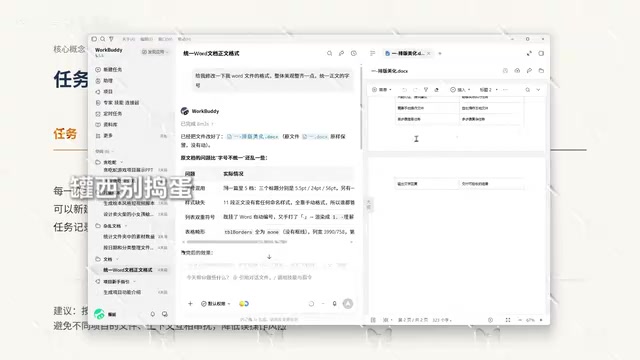
One practical tip worth emphasizing: set up a separate workspace for each project. Keeping directories isolated prevents files and context from different projects from getting mixed up, reducing the risk of accidental operations. Don't dump all your tasks into the default directory — this is a safety detail that beginners often overlook.
Three Working Modes: Think of the AI as Different Types of Employees
The best way to understand WorkBuddy's three modes is through a simple analogy: think of them as different types of digital employees. Some employees dive straight into a task the moment they receive it; others align on requirements and lay out a full plan before acting; and some only look things up and answer questions without making any changes. These three styles map directly to the software's three modes.
Craft — Just Do It: The Default Execution Mode
Craft is the default execution mode and the one you'll use most often. It's designed for tasks with clear goals and well-defined steps — once you give the instruction, the AI can directly read and write local files to get things done. There's also an "Enhance Prompt" feature below the input box that, when clicked, automatically refines your instruction for more reliable execution — very beginner-friendly. File organization tasks, for example, use this mode.
Plan — Think It Through: Plan First, Then Execute
Plan is the planning mode. It generates a complete task plan first and waits for your confirmation before taking any action. This is ideal for multi-step, high-complexity tasks where there's a greater risk of unwanted changes. For instance, if you ask it to set up a website project, Plan mode won't start writing code immediately — instead, it proactively clarifies requirements, confirms the theme and features, and maps out a full execution roadmap for your review. You approve (or revise) the plan before anything actually runs, so you won't discover a wrong direction only after everything's already been done.
Ask — Just Ask: Read-Only Analysis, No File Changes
Ask is a pure Q&A mode. It feels a bit like a traditional large language model, but with the ability to read your local files — the key distinction being that it only analyzes, never modifies anything. For example, if you want to count how many files are in a media folder, just switch to Ask mode, send the instruction, and it will scan the folder and return a breakdown: how many documents, images, and videos there are.
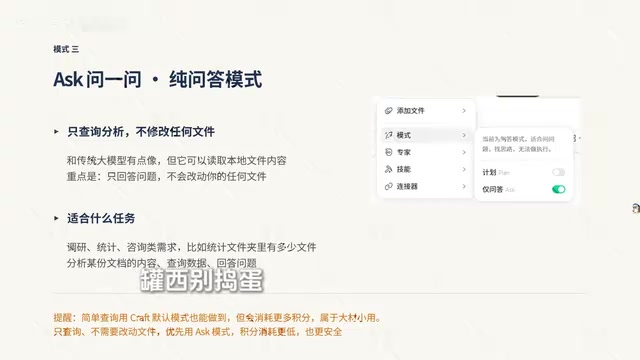
While Craft mode can also handle queries, it consumes more credits — it's overkill for read-only tasks. When you only need to look something up without modifying files, use Ask mode — it's more credit-efficient and safer. The core logic for choosing a mode can be summarized as: straightforward tasks with clear steps → Craft; complex multi-step tasks → Plan; read-only analysis or consultation → Ask.
The fundamental difference between AI agent tools and traditional chat-based AI lies in tool use (also called Function Calling). Traditional large language models can only output text, whereas agents can invoke external tools — reading and writing local files, executing scripts, querying databases — to actually complete operational tasks rather than just offering advice. WorkBuddy's three modes are essentially different authorization levels for this capability: Craft grants full execution authority; Plan inserts a human review checkpoint before execution; Ask disables write access entirely, leaving only read and analysis capabilities. Understanding this hierarchy helps you make informed decisions based on task risk level, rather than relying purely on intuition.
Creating Your First Task: An Eight-Step Walkthrough
Once you understand the interface and modes, you're ready to create a task. The entire process takes just eight steps — the first four are preparation, and the last four cover execution and review.
The four preparation steps are: create a new task, select a working directory, choose a mode, and select a model. Choosing the working directory is especially important — it designates a dedicated folder for the task, and the AI can only operate within that folder, leaving everything else on your computer untouched.
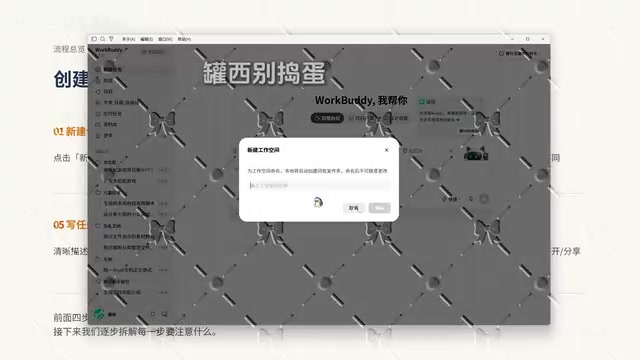
Here's a critical safety reminder: WorkBuddy uses a folder-authorization and high-risk interception mechanism. For your first time, it's recommended to run tests in a practice directory, and to pay close attention to what you've authorized. When working with real business data, confirm carefully — don't use important files as your initial experiment. For model selection, the default model is fine for simple tasks; you can switch to a more powerful model for complex ones. Beginners should stick with default settings for both mode and model, then adjust as they get more comfortable.
The four execution steps are: write the task description, configure enhancements, send and observe, and review the output. After you hit send, the workspace displays the AI's thinking, planning, and execution steps in real time — which tools it called, which files it read, and what changes were made to the folder are all fully transparent, allowing you to intervene at any point. Finally, preview the output in the results panel and confirm it meets your expectations before opening it locally, uploading it to the cloud, or sharing it.
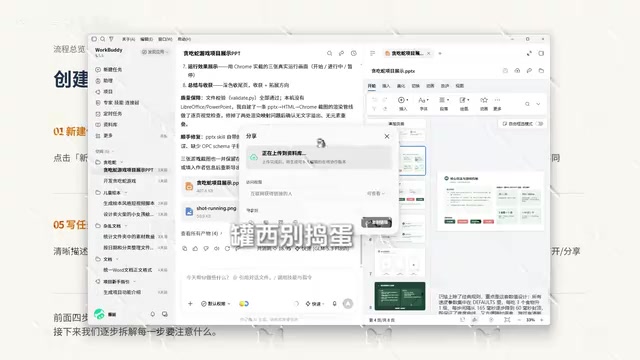
Note: before sharing any output, make sure it doesn't contain sensitive or confidential information, and choose your sharing scope according to your organization's guidelines.
Six Elements of a Good Task Description
The most critical of the eight steps is step five — writing the task description. How well you write it directly determines whether the AI's output matches your expectations. A solid task description covers six elements:
- Goal: What result do you want to achieve?
- Input: Which files or data should be processed?
- Action: What specific operations should be performed?
- Constraints: What should the AI NOT do? What limitations apply?
- Output: What files should be produced, and in what format?
- Acceptance criteria: What standard determines success?
Beginners can start with a simplified version and gradually fill in all six elements as they become more comfortable. The tutorial provides three ready-to-use starter examples:
- Task A — File Organization: Identify file types, propose a categorization scheme, generate a checklist for confirmation before moving anything, and do not delete or overwrite any original files.
- Task B — Meeting Minutes: Extract conclusions, action items, owners, and deadlines from the notes; write "TBD" for anything uncertain rather than filling in guesses.
- Task C — Word to PowerPoint: Convert to no more than 10 slides, preserve all facts and numbers from the original, and do not add any unverified data.
What these three examples share is that they all explicitly define the AI's behavioral boundaries — especially the emphasis on "don't guess" and "don't add unverified data." These are exactly the pitfalls most likely to trip you up when using AI tools on real work. Just swap out the file names and requirements for your own, and these templates are ready to use.
The structure of these six elements closely mirrors the thinking behind software engineering's "requirements specification" documents, and aligns with widely validated best practices in prompt engineering. Research shows that large language models tend to "hallucinate" when faced with vague instructions — filling in information gaps with content that looks plausible but isn't verified. Explicitly writing out the Constraints and Acceptance criteria elements essentially draws hard behavioral boundaries for the AI, directly suppressing this tendency to fill in the blanks. Of the six elements, beginners most often leave out Constraints and Acceptance criteria — and yet these two are precisely what determine whether the output can be trusted. Before sending any task, take 30 seconds to check that all six elements are covered.
Summary
This beginner's tutorial covers the two most fundamental and important aspects of WorkBuddy: understanding the three-zone interface and the role of each working mode, and mastering the eight-step task creation process along with the six elements of a good task description. Running through everything is one consistent theme: safety first — isolate workspaces, authorize carefully, test in a practice directory first, and check for sensitive information before sharing. For beginners looking to boost their productivity with AI, internalizing these foundational concepts is more valuable than rushing into advanced features. Everything that follows — expert skills, connectors, and more — builds on this foundation.
Related articles

Uber Deploys ChatGPT Work Company-Wide: AI in the Workplace Enters the Scaled Implementation Phase
Uber deploys ChatGPT Work to 30,000+ employees, extending it from engineering to all roles. We analyze its expert-engineer pairing, end-to-end automation, and questions of AI control and power concentration—insights for scaling AI in the workplace.

Shift at Midnight Hands-On: When "ID Verification" Becomes Alien Hunting
Shift at Midnight blends ID verification with horror survival in a four-player co-op game. We break down its inspection mechanics and chaotic humor.

Zelensky Recounts the Outbreak of War: I Need Ammunition, Not a Ride
Zelensky recalls the first day of war in a YouTube interview: farewell to family, rejecting Biden's evacuation offer with "I need ammunition, not a ride," and how Bucha shaped his stance on compromise and peace talks.