WorkBuddy Installation and Configuration: A Step-by-Step Guide to Avoid C Drive Pitfalls

A beginner's guide to WorkBuddy installation and four key settings to avoid pitfalls and speed things up.
Based on the hands-on tutorial by Bilibili creator "Pan Ge," this article walks through WorkBuddy's key steps from download and installation to routine configuration. During installation, change the default C drive path to avoid filling the system drive. After login, migrate the workspace storage path, turn off the Experience Optimization Program to prevent data being used for training, and adjust font size as needed. In personalization, choose an efficient or blunt tone to cut token waste and use custom instructions to lock in rules. Finally, enable conversation memory so the tool accumulates your preferences. The setup takes minutes but directly impacts system cleanliness and response quality.
WorkBuddy is an automation agent tool that can be downloaded and used directly in China. It has a low installation barrier, but there are a few details that are easy to trip up on during initial configuration. Based on the hands-on tutorial by Bilibili creator "Pan Ge," this article walks through the key steps from download and installation to routine settings, helping complete beginners get the tool tuned to a smooth, usable state.
Download and Installation: Pick the Right Version and Avoid the System Drive
WorkBuddyAd's official website offers installation packages for multiple platforms—Windows, Mac, HarmonyOS PC version, as well as Android and iOS mobile clients—so you can choose as needed. The installation process itself has no difficulties; just click "Next" all the way through.
What really deserves attention is the installation directory. The installer defaults to installing the software on the C drive, and it takes up considerable space. As the system drive, C usually has tighter space, and the software size plus files continuously generated by subsequent tasks can easily slow down system responsiveness. The tutorial's approach is to create a Tool directory in advance on the D or F drive, click "Browse" during installation to change the path, then click OK to continue.
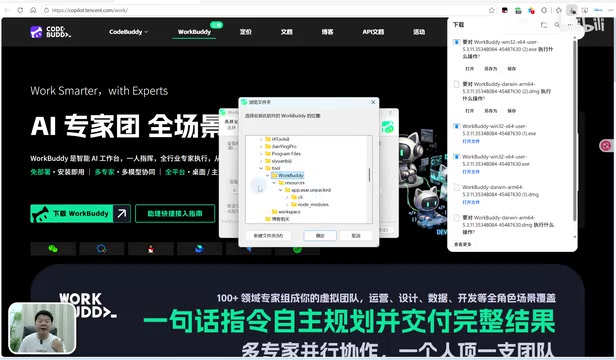
After installation, opening the app for the first time brings up a login window; just follow the prompts to log in. Once logged in, you can see account information in the lower-left corner. New users usually have a credits claim entry—just click to claim. The tutorial also notes that WorkBuddy's built-in Hunyuan HY3 model is currently free to use, making it suitable for direct calls during the onboarding phase.
Three System Settings: Storage Path, Data Switch, Experience Optimization
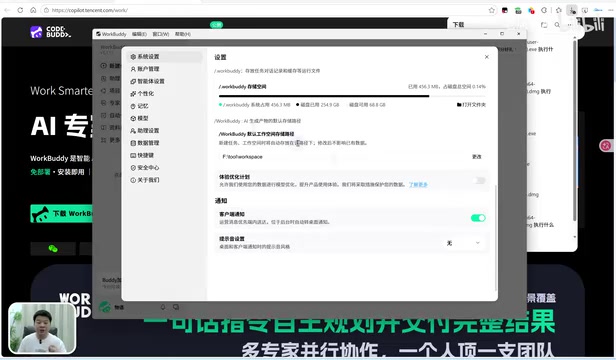
After logging in, open "Settings" next to your account and go to the system settings area. The most important thing to change here is the "Default Workspace Storage Path." The default path also points to the C drive, and all files, images, videos, and other artifacts generated by WorkBuddy when executing tasks are stored in that directory. The larger the workload, the easier it is to fill up the C drive. The tutorial recommends clicking "Change" and pointing the path to a workspace directory you've planned out, such as the WorkBase folder under Tool on the F drive. This change doesn't affect existing data—new workspaces will simply be saved to the new path automatically.
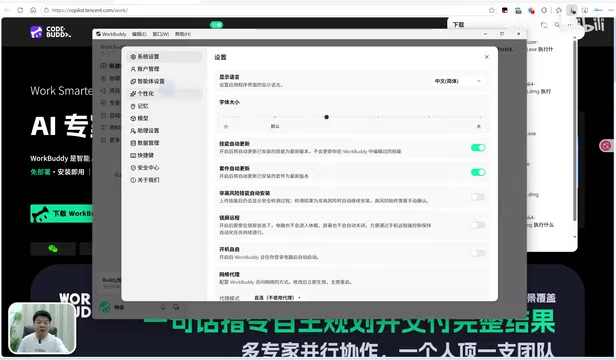
The second switch is the "Experience Optimization Program." When enabled, it means allowing the official team to use your data for model optimization—essentially submitting your usage data for training. The tutorial's recommendation is to turn it off directly to prevent data outflow.
The third is font size adjustment. Dragging the slider in settings enlarges the interface text, but the tutorial author thinks there's no need to make it too large—keeping the default or moderately enlarging it is fine.
Personalization: Make the Model Cut the Fluff
Open the "Personalization" settings; the core here is adjusting the base tone and style. Large models tend to reply with flattering language by default—"Great question," "You're absolutely right"—and these pleasantries also consume tokens. The tutorial recommends choosing "Efficient and Pragmatic" or "Blunt" from the preset styles. The former aims to carry the maximum information with the fewest words, while the latter directly reduces sycophantic expressions. By comparison, the default style is the most verbose and is not recommended to keep.
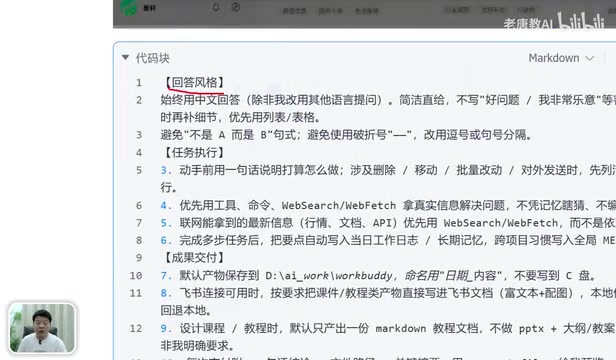
Another worthwhile configuration is "Custom Instructions." AI tools used over time tend to drift from expected rules, and custom instructions are how you lock in rules and preferences in advance. The tutorial provides a reusable template consisting mainly of two parts: first, response style constraints—for example, prohibiting pleasantry openers like "Great question, I'm very happy to..." and avoiding the "not A but B" sentence pattern; second, task execution rules, where users can replace specific items as needed. Paste the template into the custom instructions box and click confirm to save, and it takes effect.
The Cost Relationship Between Tokens and Sycophantic Expressions
A token is the basic unit large models use to process text. One Chinese character usually corresponds to 1–2 tokens, while English words are calculated by subword splitting. When generating replies, the model predicts token by token, and each token counts toward API call costs and response latency. Therefore, polite openers like "Great question," "You're absolutely right," and "I'm very happy to serve you" are not zero-cost—they carry no effective semantic information yet genuinely occupy context window space and billing quota. When users embed large models into automated workflows and call them frequently, the cumulative overhead of such redundant expressions cannot be ignored. The "Efficient and Pragmatic" and "Blunt" presets recommended in the article essentially compress output length and increase information density per token through style constraints—a highly cost-effective one-time tuning action.
Enable Memory to Make the Tool Smoother Over Time
The final step is the "Memory" setting. AI has no conversation memory by default, so you need to manually turn on "Generate Conversation Memory" in the memory options, letting it automatically organize context and retain records. Once enabled, WorkBuddy will gradually build up an understanding of your preferences and habits, and subsequent interactions will become noticeably smoother.
The whole configuration can be summarized as four things: change the default C drive path during installation, migrate the workspace storage directory in system settings, turn off the Experience Optimization Program, select an efficient and pragmatic tone in personalization and write custom instructions, and enable conversation memory in Memory. These steps take only a few minutes but directly determine the cleanliness of your system drive and the quality of model responses in subsequent use.
The tutorial itself focuses on installation and routine settings; hands-on content such as canvas building, API integration, and scenario debugging is left for later lessons. For beginners, getting this basic configuration solid is the prerequisite for implementing AI automation down the road.
Why Large Models Have "No Memory" by Default
Large model inference is stateless: each request is an independent assembly of context, and the model itself does not save the previous round of conversation. What users perceive as "it remembers what was just said" is actually the client stuffing historical messages into the context window and resending them. The window length is limited, so long conversations get truncated and memory is lost. The so-called "conversation memory" feature maintains a persistent summary store outside the model—the system periodically compresses historical interactions into structured key points, which are then retrieved and injected on the next request. This bypasses the window length limit while avoiding retransmitting the entire history each time. Note that memory content is automatically distilled by the system, so users should watch for its accuracy and manually clean up or correct it when necessary, lest outdated preferences affect output over the long term.
One-line Summary
A beginner's guide to installing WorkBuddy and four key settings to avoid pitfalls and speed things up.
Paragraph Summary
Based on the hands-on tutorial by Bilibili creator "Pan Ge," this article walks through the key steps of the WorkBuddy automation agent from download and installation to routine configuration. During installation, pay special attention to changing the default C drive installation path to avoid the software size and task artifacts filling up the system drive. After logging in, go to system settings to migrate the default workspace storage path, turn off the "Experience Optimization Program" to prevent data from being used for model training, and adjust font size as needed. In personalization, it's recommended to choose "Efficient and Pragmatic" or "Blunt" tone to reduce token consumption from sycophantic expressions, and use custom instructions to lock in response style and task execution rules. Finally, enable "Generate Conversation Memory" so the tool gradually accumulates your preferences. The whole configuration takes just a few minutes but directly affects system cleanliness and model response quality in subsequent use.
Related articles

WorkBuddy Beginner's Guide: Build AI Workflows from Scratch
A detailed breakdown of the WorkBuddy tutorial: this local AI tool billed as a domestic Codex alternative focuses on zero-config automation, covering documents, spreadsheets, code, and browser control. We analyze its positioning, capability boundaries, and the learning path of the 720-minute tutorial to help beginners decide rationally whether it's worth the investment.

Monzo's In-House AI Coding Agent: 1,800 Tasks a Day and Over 10% of Merged Code
Monzo's in-house Slack AI coding agent Agent Chip handles 1,800+ tasks daily and contributes over 10% of merged PRs. We break down its MCP gateway, sandboxed architecture, and platform strategy.

WorkBuddy Advanced Features Explained: A Hands-On Tutorial from Zero to AI Efficiency Master
A deep dive into WorkBuddy's advanced features, based on a 720-minute Bilibili tutorial covering local AI workbench capabilities, real-world scenarios, and learning paths.