WorkBuddy's Three Work Modes Explained: How to Choose Between Ask, Plan, and Full Access

WorkBuddy's Ask, Plan, and Full Access modes have increasing authorization—choosing the right mode based on task risk matters more than stacking commands.
WorkBuddy is a Codex-like tool, but most users treat it as just a chat window. Based on one lesson from a nearly 360-minute Bilibili hands-on course, this article explains its three work modes: Ask mode is read-only and suits looking up local materials and analyzing files and code; Plan mode drafts a plan and executes after confirmation, suiting complex or high-risk tasks; Allow Full Access has the highest permissions, entered from the Default Permissions menu, reducing confirmation steps but risking accidental file changes. The course demonstrates the differences with read and delete file commands, and notes that credit consumption is highest for Plan, then Full Access, then Ask. It also clarifies three common misconceptions—abusing Full Access, avoiding Plan for being slow, and assuming Ask is no different from a large model—and recommends choosing Plan in 99% of cases when actually doing work.
WorkBuddy's Three Work Modes Explained: How to Choose Between Ask, Plan, and Full Access
WorkBuddyAd is often seen as China's answer to Codex—the interface and operating logic are similar, but it requires no complex configuration, has low device requirements, offers a free quota, and directly adapts to commonly used domestic office software. Organizing materials, generating documents, analyzing spreadsheets, and handling repetitive operations can all be handed over to it.
But many people open WorkBuddy and treat it as nothing more than a chat window—ask a few simple questions and call it a day. The tool is powerful, but the usage stays superficial. In a nearly 360-minute WorkBuddy hands-on course on Bilibili, one lesson is dedicated to explaining the three core work modes: Ask mode, Plan mode, and Allow Full Access mode. Choosing the right mode can significantly improve task success rates and reduce wasted credits.
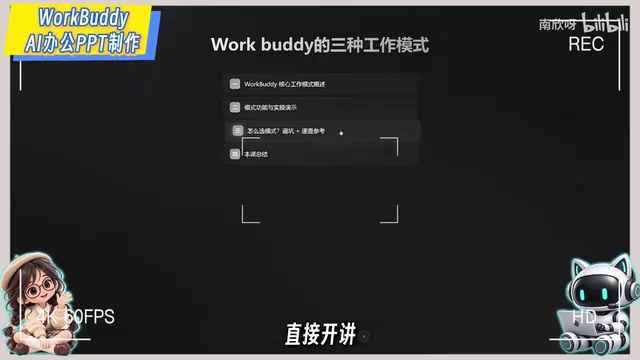
What the Three Modes Are
Open WorkBuddy and you'll find a plus sign at the bottom left of the input window. Click it and in the secondary menu you'll see a "Mode" option, currently offering Plan and Ask.
Ask mode is the Q&A mode. In this mode, WorkBuddy works like a traditional AI large language model, mainly handling inquiries, finding ideas, and offering suggestions. It does not perform operations on local computer files.
Plan mode is the planning mode. Once enabled, WorkBuddy first plans the task and executes after you confirm. The course uses an analogy: treat WorkBuddy as your employee—Plan mode is the employee first preparing a work proposal and asking you, "Boss, should I execute this plan?"
Allow Full Access mode has the highest permissions, but its entry point isn't in the "Mode" menu—it's in the "Default Permissions" dropdown below. Clicking it pops up an enable button, with a description stating: enabling it reduces confirmation steps and allows the AI to directly execute various operations. The cost is that it may involve sensitive operations such as file modification and deletion.
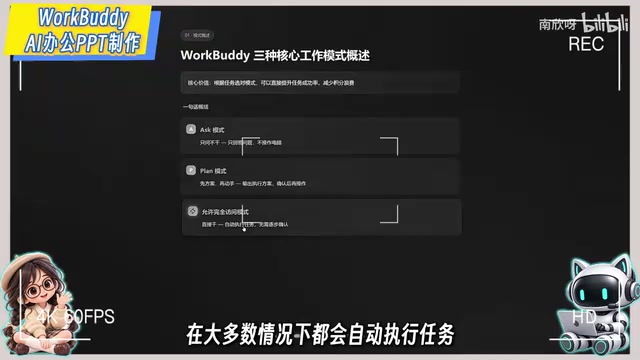
Permission tiers and the principle of least privilege
The three modes of WorkBuddy essentially correspond to different authorization levels. In information security, the "Principle of Least Privilege" means a system should grant a subject only the minimum permissions necessary to complete the task, to reduce the risk of errors and malicious operations. Ask mode is equivalent to read-only permission, Plan mode to write permission requiring human approval, and Full Access mode to read-write-execute permission without approval. Understanding this tiering helps users judge the minimum permission needed for a specific task rather than habitually maxing it out.
Hands-on Comparison: Same Command, Three Outcomes
The course uses two commands—"read folder contents" and "delete a text file"—to demonstrate the differences.
Switch to Ask mode, select a desktop folder as the workspace, and send "tell me the detailed information of what's in this folder"—you'll quickly get a complete answer with paths, file names, file types, and content status. Continue in Ask mode and send "delete this text file"—WorkBuddy will prompt that it's currently in Ask mode and requires switching modes to delete.
Then turn off Ask mode, check "Allow Full Access" in Default Permissions, confirm the risk warning, and resend the delete command—the file is successfully deleted. However, the course also notes that such deletion operations use a relatively conservative strategy—moving to the recycle bin rather than permanently deleting. Even so, it's not recommended to enable Full Access unless necessary—accidentally deleting system files or installing something you shouldn't can affect normal use.
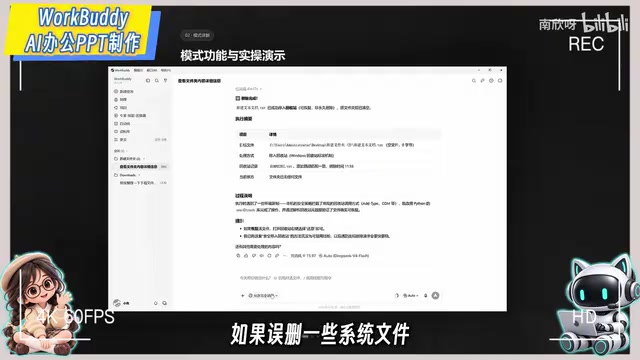
In most cases, the safer approach is to turn off Full Access—neither enabling Ask nor Plan—and use default permissions for daily tasks.
Workspace
A workspace is the range of local directories authorized for access in WorkBuddy. After the user selects a folder as the workspace, the AI's file reading, modification, and deletion operations are restricted to that directory, avoiding accidental touches elsewhere in the system. When choosing a workspace, follow the minimum-scope principle: only add folders that are truly needed for the current task, and don't point directly at the entire desktop or the user root directory. After completing a task, consider removing workspaces that are no longer needed to reduce the possibility of future misoperations.
Which Mode to Use for Which Scenario
Ask mode suits read-only tasks: reading local files, looking up local materials, data analysis, reading code. Compared with traditional large models, its Q&A scope extends from search engines to local computer files—more like a document mode suited to office work.
Plan mode suits complex requirements, unclear requirements, or higher-risk tasks. Each step: first draft a plan, then ask whether to execute, then act after confirmation.
Allow Full Access mode suits simple tasks with very clear requirements. If the description is vague, the task is complex, the risk is high, or system files might be modified, it's not recommended.
In terms of credit consumption, Plan mode is usually the highest, followed by Full Access mode, with Ask mode the lowest since it doesn't actually operate. The course's rule of thumb: use Ask first for looking up local materials; when you need WorkBuddy to actually do work, choose Plan 99% of the time.
Three Common Misconceptions
Misconception 1: Enable Full Access for everything. This mode easily backfires. The computer system has built-in protection, and when WorkBuddy modifies system files it may trigger protection, requiring various workarounds to complete commands—wasting a lot of credits in the process. Even simple tasks may take a long detour.
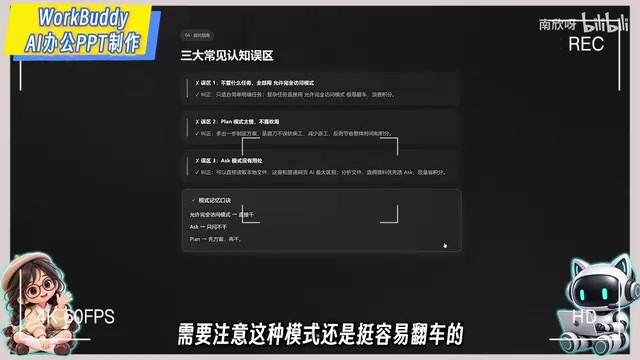
Misconception 2: Plan mode is too slow, so I avoid it. Many people think their commands are written in enough detail, but details still get missed during execution. Plan mode first drafts a complete plan and executes after confirmation, which actually saves time and credits.
Misconception 3: Ask mode is useless—no different from a large model. The difference is that Ask mode, besides answering questions, can also read local computer files, helping analyze local files and look up local materials—it's a Q&A mode better suited to office work.
Choosing the Right Mode Matters More Than Stacking Commands
The essential difference among the three modes lies in the "degree of authorization": Ask is read-only, Plan confirms before executing, and Full Access just goes ahead. Understand this, and you can choose based on task risk and information completeness rather than maxing out permissions for convenience. When you occasionally need Full Access, also learn to precisely describe the specific task to execute.
The course content comes from a single episode of a WorkBuddy hands-on tutorial series on Bilibili, covering beginner, advanced, application, and industry modules—28 knowledge points in total, with supporting materials including installation instructions and case breakdowns. For users new to WorkBuddy, mastering the lesson on mode selection before tackling actual tasks can save a lot of detours.
Background Notes
System protection and workaround costs
Operating systems typically have write protection for critical directories (such as the system drive, registry, and program installation directories) and pop up User Account Control (UAC) confirmations for sensitive operations like file deletion and permission changes. When AI attempts to modify such protected areas, it may repeatedly trigger interception, try alternative paths, or adjust its approach—a process known as "working around." Workarounds not only lengthen task time but also continuously consume model calls and credits. This is also why Full Access mode actually costs more credits when system files are involved.
Related articles

Qwen 4 First Test Leaks: Performance Rivals Opus 5.5, DeepSeek V4 Series Surfaces
Early Qwen 4 test outputs leak, with front-end generation said to rival Opus 5.5; DeepSeek V4 Mini, Flash, and Pro names appear in a code repo; Ant Group's Ling-3.1-flash surfaces too. Here's the latest on model tiering and on-device lightweight models.

OpenCode Makes DeepSeek V4.1 Flash Free, AI Daily Roundup
AI daily roundup: OpenCode makes DeepSeek V4.1 Flash free, StepFun Step5 Preview and Ling 3.1 Flash open-sourced, Grok Voice 3.0 tops speech leaderboard, Matrix Game 4.0 open-sourced, and the EU opens its first AI Act enforcement probe into OpenAI and Anthropic.

DeepSeek V4.1 Flash 1017 Released: Reasoning and Coding Upgrades, Search and Fetch API Now Available
DeepSeek releases V4.1 Flash 1017 with major gains in reasoning, coding, and agentic tasks, plus web search and fetch APIs at 5 yuan per 1,000 requests. Tencent Hunyuan open-sources High Memory 2.0, Perplexity open-sources multimodal decision models, and MOFCOM seeks comments on AI export catalog.