AI Code Editor Cursor: A Breakdown of Tab, Chat, and Agent

Cursor embeds AI into the editor via Tab, Chat, and Agent—faster, but never a substitute for developer judgment.
The article introduces the AI code editor Cursor. Built on VS Code, it preserves the familiar interface and habits, lowering migration costs. Its core interactions are three actions: press Tab to accept gray suggestions; use built-in Chat to ask about functions or fix bugs, cutting context-switching; and use Agent to propose cross-file edits based on a task description, then review green/red diffs item by item to accept or reject. The article stresses that these features boost speed, but understanding code, reading diffs, and running tests remain the developer's job—the more proactive the tool, the less you can skip review. Suitable for beginners and for experienced developers doing repetitive refactoring.
AI code editors are changing how developers work. These tools aren't replacing programmers—they embed an AI assistant directly into the editor to help with repetitive tasks. Cursor is a typical example: built on VS Code, it has a low barrier to entry for developers already familiar with VS Code.
According to a short demo from the YouTube channel "Freshers' Corner," Cursor's core interactions boil down to three actions: press Tab to accept suggestions, use Chat to ask questions, and let Agent make cross-file edits. This combo pulls AI out of the "chat window" and into the main arena of code editing.
What Is Cursor: A Code Editor with a Built-in AI Assistant
An AI code editor is still fundamentally a code editor—the difference is that it makes the AI assistant a native capability. Cursor is one example. Because it's built on VS Code, its interface and interaction habits match VS Code, so developers don't need to learn a new editor logic.
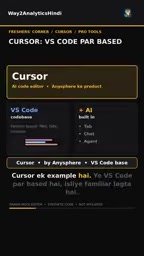
This point is key. The cost of switching tools often lies not in the features themselves but in muscle memory. By standing on VS Code's shoulders, Cursor directly inherits its vast plugin ecosystem and keyboard shortcut habits. For newcomers to AI coding, this "familiarity" lowers the barrier to trying it out.
VS Code (Visual Studio Code) is a free, open-source code editor from Microsoft. With its lightweight core plus plugin-extension architecture, it has become one of the most widely used development tools today. Its marketplace covers language support, debugging, version control, themes, and more, while its shortcuts and Command Palette have become muscle memory for many developers. Because VS Code's core is open-sourced under the MIT license (the Code-OSS project), third parties can build on it—which is how many derivative editors came to be. Understanding this makes it clear why AI editors built on VS Code can preserve existing plugins and habits while embedding AI capabilities as native features.
Three Core Features: Tab, Chat, Agent
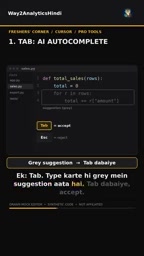
Tab: Gray Suggestions as You Type
When you type code in Cursor, the editor shows suggestions in gray text. Press Tab to accept. This interaction is very lightweight—no switching windows or opening a sidebar; completion happens right at the cursor.
Chat: Ask Questions and Debug Anytime
The second action is Chat. Developers can directly ask what a function does or have the AI help fix a bug. Compared with switching back and forth between the browser and the editor, the built-in Chat embeds Q&A right where you're coding.
This design reduces the cost of context switching. When you encounter unfamiliar code, asking in place is more efficient than copying and pasting into an external chat tool.
Agent: Batch Edits Across Files
The third action is Agent. After the developer describes a task, the Agent proposes changes across multiple files. At this point you need to read the diff: green represents additions, red represents deletions, and then you choose to accept or reject.

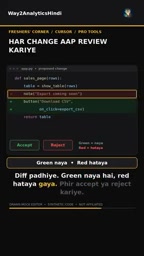
The value of Agent lies in expanding "change one spot" to "change a whole area." But this also means greater review responsibility—the larger the scope of changes, the more developers need to confirm each diff item by item.
A diff (difference comparison) is a fundamental way of presenting changes in version control and code review: it shows code before and after side by side, with green lines for additions, red lines for deletions, and uncolored lines as unchanged context. Diffs can be line-level or precise to the character level, making it easy to see when a variable name or punctuation mark was changed. In Git workflows, git diff and the Pull Request pages of code hosting platforms all follow the same idea. For AI-generated changes, the diff is the primary interface for human review—developers don't need to reread the entire file, only focus on the changed parts to judge whether there are logic errors, accidentally deleted dependencies, or unsafe calls introduced.
Efficiency Gains and the Responsibility Boundary
The demo explicitly mentions that these features bring speed improvements. But the show also emphasizes a precondition: understanding the code and testing the code remain the developer's own job. AI proposes; humans judge.
This boundary is worth repeating. Tab completion may introduce subtle errors, Chat answers may be inaccurate, and Agent's cross-file edits may touch unexpected dependencies. The more proactive the tool, the less you can skip review.
Who It's For
For developers just starting out, Cursor's familiar interface and built-in AI lower the learning cost; for experienced developers, Agent's batch-editing capability suits repetitive refactoring. But whichever type of user you are, you need to keep the habit of reading diffs and running tests.
According to the channel's preview, upcoming content will cover Tableau's LOD fixed expressions, indicating that this channel takes a practical-skills approach. Newcomers interested in AI coding tools can try Cursor as their first editor for AI-assisted development.
One-line Summary
Cursor embeds AI into the editor through three actions—Tab, Chat, and Agent—speeding things up without replacing developer judgment.
Paragraph Summary
The article introduces the positioning and usage of the AI code editor Cursor. Built on VS Code, Cursor continues the existing ecosystem's interface and interaction habits, lowering migration costs. Its core interactions boil down to three actions: press Tab to accept gray completion suggestions while typing; use the built-in Chat to ask what a function does or to help fix bugs, reducing the context-switching cost of moving between browser and editor; and use Agent to propose changes across multiple files based on a task description, reviewing them item by item via green/red diffs before accepting or rejecting. The article emphasizes that these features bring speed improvements, but understanding code, reading diffs, and running tests remain the developer's own responsibility—the more proactive the tool, the less you can skip review. It's suitable for beginners and for experienced developers doing repetitive refactoring.
Related articles

A 19-Year-Old's Rental Horror Story: Ceiling Collapse, Bug Infestation, and the Lessons It Taught Me
At 19, my first off-campus rental brought bug infestations, no heat, a collapsed ceiling, and a ruined laptop with no renter's insurance. Here are the hard-won lessons for first-time student renters.

Veda Nurse's Cranial Nerve Exam: Why ASMR Role-Play Is Going Viral
Bilibili creator Veda's cranial nerve exam ASMR video goes viral, blending humor and sensory triggers through nurse role-play. This article analyzes its unique appeal and the audience psychology behind ASMR role-play.

LG Cinebeam AI Review: 120-Inch Giant Screen + 3000 Lumens, a New Choice for the Living Room Theater
LG Cinebeam AI projector review: 3000 ANSI lumens, 4K, 100 inches from about 8 cm and 120 inches from about 18 cm. Built-in webOS, AI Concierge voice recommendations, AI Sound Pro 11.1.2 virtual surround, and Game Optimizer—positioned for fixed living room installation, complementing the portable Cinebeam S.