APTV + Ollama Local Model: Zero-Cost AI Chinese Subtitle Translation for Live TV

Run AI real-time Chinese subtitles for live TV using APTV + Ollama local LLM — completely free.
This guide walks through a local LLM-based real-time subtitle translation setup using Ollama and APTV, with no cloud API required. Install Ollama, pull the Qwen 3 4B model, then configure APTV with your local IP (127.0.0.1), Ollama's default port 11434, and the model name. Since APTV's "Disable Thinking" toggle doesn't work with Ollama models, an optimization script is needed to bring latency down to around 3–4 seconds. A speech recognition model must also be downloaded in APTV to complete the pipeline. The result is slightly inferior to cloud solutions like DeepSeek but is entirely free and keeps all data local.
Want to watch global live TV but frustrated by the lack of Chinese subtitles? This tutorial shows you how to use APTV with a local Ollama large language model to build a real-time AI subtitle translation system — completely free of charge. Unlike cloud API-based solutions, local deployment means no translation credits to purchase; all computation runs on your own machine, giving you better privacy and full cost control.
Why Use a Local LLM for Subtitle Translation
APTV natively supports AI translation APIs, and tutorials for cloud-based services (such as DeepSeekAd) already exist. The problem with cloud solutions, however, is that they require API keys and often charge per usage. A local LLM eliminates these barriers entirely — once the model is downloaded, all translation happens on your machine with zero API costs.
This demo runs on a Mac mini M4 using the Qwen 3 series 4B small model. The author candidly notes that due to hardware limitations, only a smaller parameter model could be used for the demonstration; users with more powerful machines can absolutely switch to a larger model with better translation quality. This highlights the core trade-off of local deployment: translation accuracy and speed are constrained by your local hardware.
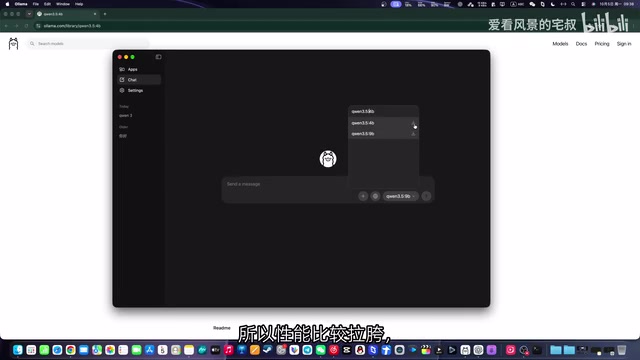
Qwen 3 is a multilingual large language model series open-sourced by Alibaba DAMO Academy, with strong bilingual Chinese-English capabilities that make it well-suited for translation tasks. The "4B" refers to 4 Billion parameters — a lightweight configuration. By comparison, mainstream cloud translation services typically run models with tens or even hundreds of billions of parameters, which explains why local small models tend to sacrifice some translation accuracy. More parameters generally mean stronger semantic understanding and contextual awareness, but also exponentially higher memory demands (especially VRAM or unified memory). The Mac mini M4 uses Apple's Unified Memory Architecture, where the CPU and GPU share a common memory pool — giving it advantages in power efficiency and latency stability when running small models compared to traditional x86 platforms.
Installing Ollama and Downloading a Model
Ollama is the core tool for this setup — it handles loading and running LLMs locally. There are two ways to get started:
Manual Download and Installation
Visit the Ollama official website and download the installer manually. Once downloaded, install it just like any regular app by dragging it into place. The process is no different from installing standard software.
Pulling a Model via Command Line
After installing Ollama, open its chat interface, type in the model name (e.g., Qwen 4B), and send a simple greeting like "Hello." Ollama will automatically begin downloading the corresponding model. Once the download is complete, the 4B model will be stored locally on your machine.
Make sure to enter the model name accurately — this is critical for successful invocation later. Ollama uses a fixed default port (11434), which you'll need when configuring APTV.
Ollama is essentially a local LLM management and inference framework — similar in concept to Docker, but purpose-built for large language models. It bundles model weight downloading, quantized format conversion, an inference engine (based on llama.cpp), and an HTTP API server into a single package, so users don't need to manually configure CUDA, PyTorch, or other complex environments. Once installed, Ollama runs in the background and exposes a REST API interface (listening by default on localhost:11434), which any client supporting an OpenAI-compatible API can call directly. Model files are stored in .gguf format and automatically quantized for compression — a 4B parameter model typically requires only 2–4 GB of disk space, making it very friendly for consumer-grade hardware.
Configuring the Local Model in APTV
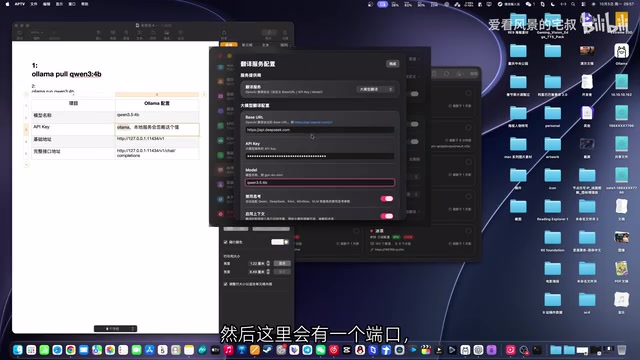
Open APTV's settings panel. The configuration process is similar to the cloud API tutorial, but there are a few parameters specific to local deployment:
- Local address: If APTV and the LLM are both running on the same machine, use
127.0.0.1as the address. If APTV is running on a different device, replace this with the LAN IP address of the machine running Ollama. - Port: Enter Ollama's default port,
11434. - Model name: Enter the name of the model you downloaded.
Once these fields are filled in, click Test. However, the author ran into a minor issue during testing: the test response took an unusually long time to complete. After investigating, it turned out that the "Disable Thinking" toggle in APTV had no effect on the Ollama-loaded model — meaning the model was still generating lengthy internal "reasoning" output before responding, significantly slowing things down. In theory, disabling thinking should noticeably improve response speed.
Using a Script to Optimize Connection Speed
To address the latency caused by the "Disable Thinking" toggle not working, the author provides an optimization script that works on both Windows and Mac. Here's how to use it:
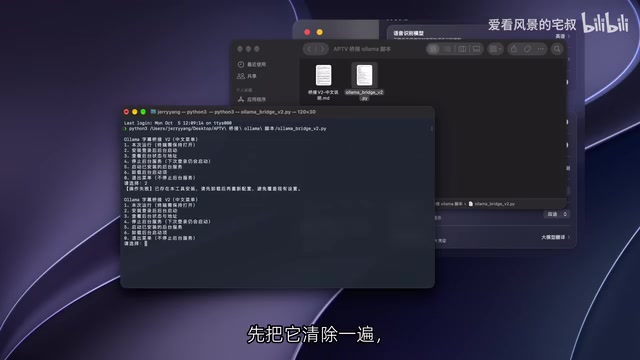
- Open your terminal, type
python3followed by a space, then drag the extracted script file into the terminal window. - Follow the prompts — start by selecting the "Clear" option (option 6) to reset, then select Install (option 2).
- When prompted, enter the model name (must be accurate) and a port number (any unused port on your LAN — the demo uses
1009). - The script will generate a base URL. Copy it into the corresponding field in APTV's settings, and paste in the model name as well.
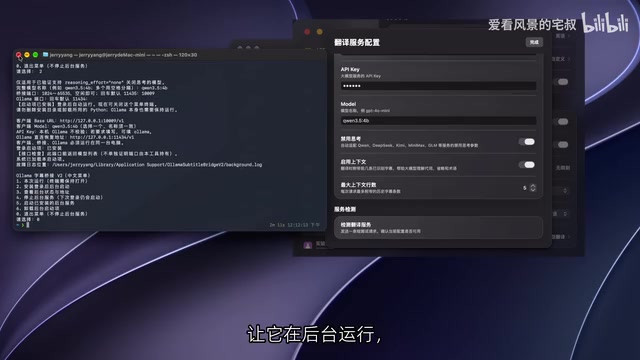
- Select the background run option (option 0) from the script menu. You can then close the terminal window.
Before the script, latency was very high. After running it, latency dropped to roughly three to four seconds. Clicking Test again may hit the cache and respond even faster.
Don't Forget to Download the Speech Recognition Model
In addition to the translation model, you must also download a speech recognition model in APTV first. Make sure to select the model that matches the language of the TV program — for English-language content, select an English recognition model, and so on. Speech recognition converts audio into text, while the translation model then converts that text into Chinese. Both components are essential.
APTV's subtitle generation pipeline consists of two independent stages: first, a speech recognition model (typically based on the Whisper architecture) transcribes the audio stream into source-language text in real time; then, the translation LLM converts that text into Chinese subtitles. Whisper is an open-source speech recognition system from OpenAI that supports transcription and translation across 99 languages. Different languages correspond to different acoustic features, so selecting the wrong recognition model will directly cause transcription failure or garbled output — no matter how capable the translation model is. Speech recognition models also come in different sizes (tiny, base, small, medium, large); smaller models respond faster but with slightly lower accuracy. For real-time subtitling, small or medium is typically recommended to balance speed and precision.
Results and Use Cases
The author offers a fairly balanced assessment of the final results: compared to the DeepSeek cloud-based solution used previously, the local open-source model does take a noticeable hit in translation accuracy and speed, but is overall "reasonably usable."
The real value of the local approach lies in:
- Completely free and open-source — no API fees;
- Low hardware requirements — even modest machines can run it, especially with stable performance on Mac;
- Data never leaves your device, offering better privacy.
For users who prioritize zero cost, value privacy, and can tolerate a slight reduction in translation quality, APTV + Ollama is a combination well worth trying. For those who demand higher translation quality, using a larger parameter model or returning to a cloud API solution remains a viable option.
Related articles

iPhone Duo Tips: An Essential Getting-Started Guide
iPhone Duo is Apple's all-new iPhone form factor with an obvious learning curve. This guide offers getting-started tips to help pre-order users adapt quickly.

Cursor AI Programming in Practice: Build a Student Management System from Scratch in 30 Minutes
A Bilibili creator demonstrates Cursor AI programming: generating a student management system in 30 minutes with natural language. Details on Agent mode, Claude selection, prompt techniques, and thresholds.

Top 20 AI Coding Tools Ranking: From Rock-Solid to Lackluster, a Scored Matrix
Bilibili creator releases top 20 AI coding tools ranking, tiered T0–T4 from rock-solid to lackluster, with Claude Code and Codex tied at T0. This article details the scoring dimensions (capability, reliability, robustness, durability, cost, domestic availability) and tool performances to help developers choose the right AI coding assistant.