DeepSeek Harness Desktop Tutorial: Four Modes and Plugin Hands-On

DeepSeek Harness desktop quick start: four modes, plugin architecture, and building an image-generation plugin.
Based on a Bilibili quick-start tutorial, this guide covers installing the DeepSeek Harness desktop app, workspace and permission setup, and the differences between its four modes: standard, PTC, minimal, and creation. It then digs into the "everything is a plugin" architecture, managing plugins via the DSH Market community marketplace, and a full walkthrough of generating a Doubao image plugin with a prompt and obtaining an API Token on Volcano Ark.
DeepSeek Harness has finally launched an official desktop app — a welcome new toy for anyone who likes tinkering with AI agents in a local environment. This guide is based on a quick-start tutorial from a Bilibili creator, and it covers installation, the page logic, the differences between the four modes, and the core plugin capabilities in one go. At the end, we'll build an image-generation plugin from scratch.
Installation and Workspace Setup
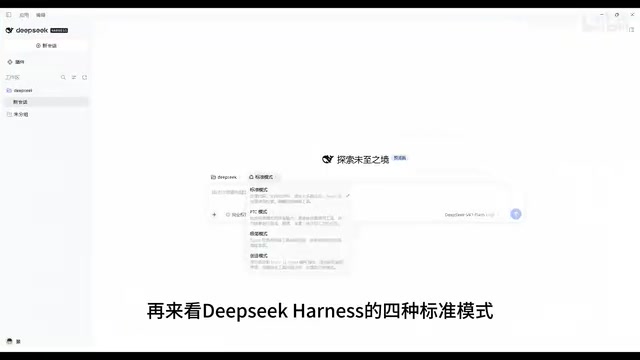
Getting the desktop app is straightforward: go to the DeepSeekAd Harness official site, download the installer for your OS, and double-click to install. The first thing to do after launching is add a workspace — either pick an existing folder or create a new one. All subsequent read and write operations by Harness will be confined to this directory. This step is critical, as it defines the file boundary the agent can touch.
Permissions and Model Selection
The plus menu on the left side of the page comes with preset shortcuts such as adding files, compressing conversations, and changing permissions. Permissions come in three tiers: read-only mode allows only viewing the workspace; workspace-modification mode adds the ability to create, delete, and modify files; and full permissions open up all files on the entire computer, with a corresponding increase in risk. It's best to enable these as needed.
For the model, the creator recommends DeepSeek V4e Flash, citing it as the strongest option currently available, with built-in vision capabilities and fast response times. For scenarios that require reading images or handling multimodal tasks, vision is a hard requirement.
Choosing Among the Four Standard Modes
Harness offers four modes with clearly distinct positioning:
Standard mode is the default option and provides general-purpose agent capabilities — reading and writing files, executing commands, searching, and so on. Use this for everyday work.
PTC mode has the same capabilities as standard mode, but instead of having the model call tools one by one, it writes a piece of code to invoke them in batch. When processing large numbers of files and needing to aggregate results, this batch-processing approach is less hassle.
Minimal mode keeps only a terminal and compresses the system prompt down to a single sentence. It's designed specifically for testing how strong a model's fundamentals are, or for comparing against other modes. Regular users will basically never need it.
Creation mode builds on standard mode's tools and additionally opens up the ability to query Harness's internal APIs and write plugins. If you want to add features to Harness, modify the interface, or even craft a new mode of your own, this is the mode you need.
On the "code-based batch tool invocation" in PTC mode: PTC stands for Programmatic Tool Calling. Its core idea is to stop having the model issue tool calls one at a time, one round per call, and instead have it generate a script that invokes multiple tools sequentially or concurrently within the script, with the script aggregating and returning the final results. With traditional sequential calls, intermediate results must be fed back to the model every round, accumulating both token consumption and latency; batch processing keeps the intermediate state inside the code and returns only the final summary to the model. That's why it's less hassle when handling hundreds or thousands of files that need unified statistics or format conversion.
On the minimal mode that "compresses the system prompt to a single sentence": The system prompt is the global instruction injected at the start of every conversation, typically containing role definition, descriptions of available tools, behavioral constraints, and so on — often thousands of tokens long. Minimal mode compresses it to a single sentence, effectively stripping away all guidance and "scaffolding" so the model can only rely on its own pretrained capabilities to complete the task. It's therefore more of a benchmark tool — used to measure a model's true level with almost no prompt-engineering assistance, and convenient for ablation comparisons against other modes. Its value for everyday use is limited.
Plugin Architecture: Harness's Most Talked-About Design
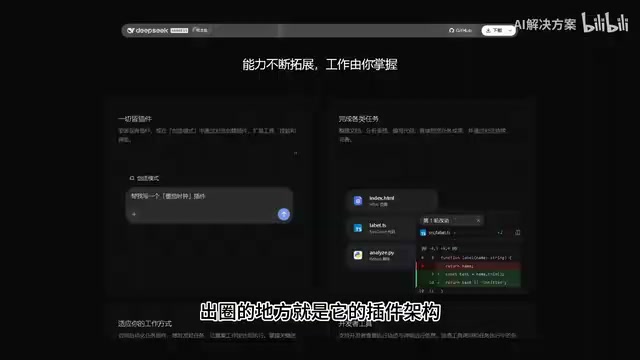
The most discussed aspect of Harness this time around is its plugin architecture — all agent capabilities, including models, tools, and skills, are composed of plugins that can be freely swapped and recombined. This means you can customize an agent that best suits you by adding or removing plugins, rather than being locked into fixed functionality.
The official built-in plugin management experience is so-so. The creator's approach is to first install the community plugin marketplace DSH Market. Enter DSH Market in the add-plugin field and install it. Once enabled, go back to the home page and click Settings in the bottom-left corner to see the plugin marketplace entry.
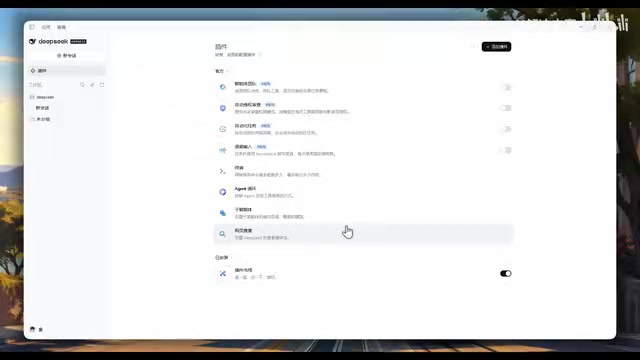
Take checking token usage as an example: install DSH Context under the Usage and Billing category. After refreshing the page, a plugin entry appears in the top-left corner. It supports filtering by time and lets you see the specific consumption of each conversation.
On the architectural meaning of "everything is a plugin": Traditional agent frameworks usually hard-code the core loop (read instructions, select tools, execute, feed back results) into the main program, with extensions possible only through limited hooks or tool registration interfaces. Harness's approach abstracts model integration, tool implementations, skills, and even UI elements into plugins under a unified contract, dynamically assembled by the framework at runtime. The benefit is that the same agent loop can be completely restructured — switching models is just swapping a provider plugin, adding capabilities is just attaching a tool plugin, and changing interactions is just replacing a UI plugin. The cost is that dependencies between plugins and version compatibility require extra management, which is exactly why the community plugin marketplace DSH Market exists: it takes on the responsibilities of distribution, discovery, and version management, compensating for the relatively weak official plugin management features.
Hands-On: Building an Image-Generation Plugin
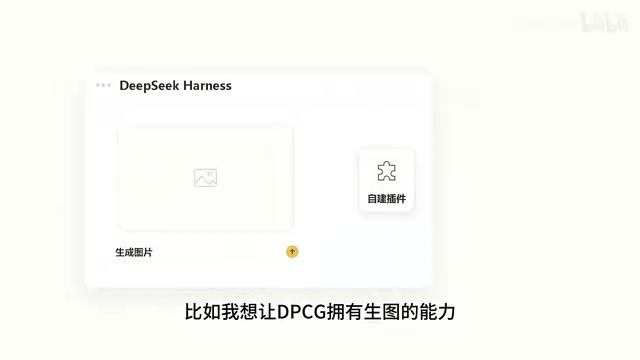
When the plugin marketplace doesn't have the feature you want, you can build it yourself. The creator demonstrates a plugin workflow that integrates the Doubao image-generation API: switch the mode to creation mode, send a prompt describing the requirements, and Harness automatically generates the plugin. When it's done, the Doubao image-generation plugin appears on the Settings page — just fill in the API Token.
You get the API Token on the Volcano Ark platform: go to the large-model page, find the Doubao image-creation model, click API access, create a Token, enable the model with one click, then fill the Token back into Harness and save. At this point, Harness has image-generation capabilities.
Looking at the whole process, Harness's plugin-based approach is more thorough than expected — it doesn't just add a few extension points, but breaks every layer of agent capability into swappable building blocks. For users who want to deeply customize their workflows, this may be one of the most flexible options available today.
On API Tokens and "one-click model activation": Volcano Ark is ByteDance's large-model service platform, through which the Doubao series models provide inference services. The platform uses API Key (Token) authentication: after the user creates a key in the console and fills it into the caller (here, the Harness plugin), the server uses it to identify the user, meter usage, and bill accordingly. Note that creating a key and activating a specific model are two separate steps — only after you've first activated the model on the platform (i.e., accepted the terms of service and enabled it) will key-based calls avoid returning unauthorized errors. This is why the tutorial emphasizes "create a Token, then enable the model with one click." Also, treat the key like a password and keep it safe; if it leaks, revoke and recreate it on the platform immediately.
One-line Summary
DeepSeek Harness desktop quick start: the four modes, plugin architecture, and a full walkthrough of building your own image-generation plugin.
Paragraph Summary
Based on a Bilibili quick-start tutorial, this article systematically introduces installation and use of the official DeepSeek Harness desktop app. On first launch you add a workspace to define the agent's file boundary; permissions come in three tiers — read-only, workspace modification, and full permissions — and the recommended model is DeepSeek V4e Flash, which has vision capabilities. The four modes serve different purposes: standard mode for everyday general tasks, PTC mode for writing code to invoke tools in batch, minimal mode for testing model fundamentals with a one-sentence system prompt, and creation mode, which additionally opens up internal API queries and plugin authoring. The article focuses on the "everything is a plugin" architecture — models, tools, and skills can all be swapped and recombined, with plugins manageable via the community marketplace DSH Market (e.g., using DSH Context to view token usage). Finally, it demonstrates the complete workflow of using a prompt in creation mode to auto-generate a Doubao image-generation plugin and obtaining an API Token on Volcano Ark.
Related articles

GPT-Next Leak, Gemini 4 Argon Imminent: AI News Roundup
GPT-Next leak suggests extreme efficiency; OpenAI's 28-day shipping pledge boosts speed 50%; Gemini 4 Argon nears release; Anthropic subscription value report sparks debate.

GPT-Next Leaked, Gemini 4 Argon Speeds Up, Fable 5.5 May Launch Today
OpenAI's GPT-Next model leaks, expected to be extremely low-cost and possibly part of the 28-day release plan; Gemini 4 Argon internal testing accelerates, NanoBanana 2.1 is live; Semi Analysis tests show Claude Max's equivalent API value is about 5 times that of ChatGPT Pro; Fable 5.5 may launch today.

Gemini 4 Argon Launches Globally: Key Highlights from the AI Daily Brief
Google opens Gemini 4 Argon globally across Pro and Ultra subscriptions and the API, and demonstrates robot control. This article rounds up open-source models, Agent infrastructure, cost transparency, and safety governance updates.