Ollama Local LLM Deployment Guide: Achieve Token Freedom at Zero Cost
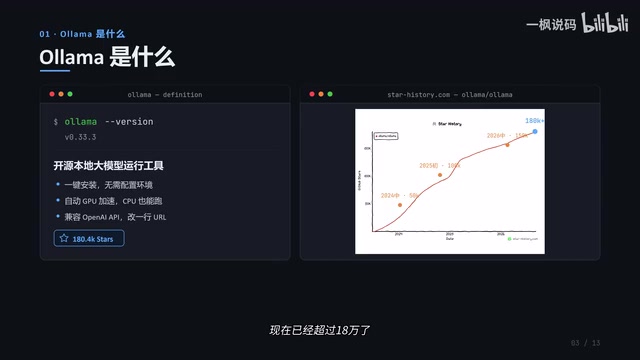
Ollama makes running local LLMs as easy as installing any app — free, offline, and fully private.
Ollama is GitHub's most popular local LLM deployment tool (180K+ stars), designed to eliminate the cost, privacy, and connectivity pain points of cloud-based AI. It supports Windows/Mac/Linux, requires no command-line setup, and auto-detects your GPU. Model selection follows a simple rule: 4B (~3 GB) for beginners, 8B for daily use, 27B+ for high-end hardware. Top recommended models include Qwen 3 for Chinese, DeepSeek R1 for reasoning, and Llama 3.1 for general use. Developers benefit from full OpenAI API compatibility — just change the base URL to switch from cloud to local with zero code changes.
Cloud-based LLMs are convenient, but over time a few unavoidable pain points emerge: pay-per-token API costs that keep climbing, services that require a credit card or identity verification, the unease of sending company code or personal documents to the cloud, and complete outages when you lose internet access. All of these problems can be solved at once with a single open-source tool — Ollama, currently the most popular local LLM deployment tool on GitHub, with over 180,000 stars in just three years.
This article is based on a hands-on tutorial from a Bilibili creator, covering everything from installation and model selection to API integration for developers — a complete guide to local deployment in one place.
What Is Ollama, and Why Is It Worth Using
Ollama is fundamentally a tool that lets you run large language models locally. Its greatest value lies in lowering the barrier to entry: no manual environment setup, no driver installation — after installing, it automatically detects your GPU and accelerates when possible, falling back to CPU if no GPU is available.
Looking at its star growth curve, the project launched in 2023, hit 50,000 stars by mid-2024, broke 100,000 in 2025, and now exceeds 180,000 — the undisputed leader in the local deployment space.
Its core advantages can be summed up in three points: completely free, data never leaves your machine, and full support for Windows/Mac/Linux. For users who prioritize privacy and cost control, these three points are essentially non-negotiable requirements.
Installation: No Command Line Required
Using Windows as an example, the process is remarkably simple: go to the Ollama official website download page, click Download for Windows, double-click the installer, click Install, and wait for the progress bar to complete. No commands needed at any point. The process is essentially the same on Mac and Linux.
There's one pitfall that beginners most commonly overlook: Ollama installs to the C drive by default, and models are also stored there. Since a single model can easily take up tens of gigabytes, your C drive can fill up fast.
It's strongly recommended to customize the installation path from the start: add a DIR parameter to the install command to specify a directory, then update the Model Location in settings afterward. This keeps both the application and model files off your system drive, making long-term management much cleaner.
Model Selection: Match Your Hardware, Don't Chase Size
The number after a model name (e.g., 4B, 8B) represents the parameter count. Larger numbers mean more "intelligence," but also higher hardware requirements. The core principle of model selection is to be realistic about your hardware:
- ~4B: ~3 GB, runs on 6 GB of RAM — smooth even on a thin-and-light laptop, ideal for getting started;
- 7B–8B: ~5 GB, requires 8 GB VRAM — handles everyday conversation and coding tasks, the best choice for most people;
- 14B+: requires 16 GB of RAM, suitable for scenarios where output quality is a higher priority;
- 27B–32B: requires 24 GB VRAM, the high-end choice for those who demand the best output quality.
One-line summary: If you don't know where to start, begin with 4B. 8B handles daily use. Only go to 27B if you have a capable GPU.

How to Choose Among Popular Models
When it comes to specific models, the tutorial recommends four mainstream options:
- Llama 3.1 (Meta): strongest all-around capability, most versatile;
- DeepSeek R1 (DeepSeek): excels at deep reasoning and logical thinking;
- Qwen 3 (Alibaba Tongyi Qianwen): best Chinese language performance;
- Gemma 3 (Google): multimodal, capable of processing images and audio.
For beginners, Qwen 3's 4B version is the go-to for Chinese-language use cases, while Llama 3.1's 8B version is the best all-rounder — these two cover the vast majority of needs.
A note on parameters and quantization: The parameter count refers to the number of trainable weights in the model, typically measured in "B" (billions). More parameters generally means more knowledge and better performance on complex tasks, but memory/VRAM usage scales proportionally. When running locally, the model file is loaded into VRAM (if you have a discrete GPU) or RAM (CPU-only mode), so your available memory directly determines the largest model you can run. Models are also typically distributed in quantized versions (e.g., Q4, Q8) — Q4 means each parameter is stored with 4-bit precision, which slightly reduces accuracy but dramatically reduces file size. Ollama downloads quantized versions by default, which is why a 4B model only requires ~3 GB rather than much more.
Two Ways to Use It: GUI Client and Command Line
There are two paths for downloading and using models. The first is Ollama's built-in client — just select a model, send a message, and the app will download it automatically. This is the most beginner-friendly option.

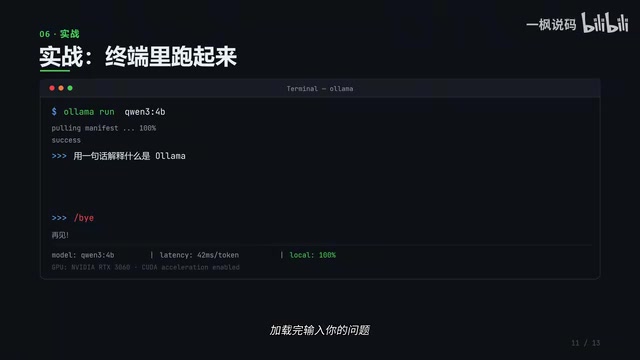
The second is the command line, which offers more flexibility: ollama pull downloads a model, ollama run downloads and launches it, and ollama list shows all installed models. The first launch triggers an automatic download; afterward you can call it directly.
In practice, type ollama run qwen3:4b and press Enter — once loaded, you can start asking questions. Responses stream out token by token, nearly identical to the cloud experience. The only difference: it's running entirely on your own machine, with no cost, no internet connection, and no data uploaded.
For Developers: OpenAI API Compatibility
Ollama is especially developer-friendly because it is compatible with the OpenAI API format. You can keep using the familiar OpenAI SDK — just point the base URL to local port 11434, enter any string as the API key, set the model parameter to your local model name, and everything else works exactly as it does with the cloud API.
This means near-zero migration cost for existing projects — change one URL and you've seamlessly switched from cloud to local. For teams concerned about cost or data compliance, this is a highly compelling feature.
Recent updates have also added significant new capabilities: multimodal support (Gemma 3 can process images and audio), tool calling (models can proactively call external interfaces), deep thinking mode, GPU acceleration across all platforms (NVIDIA, Apple Silicon, and AMD), and newly added support for connecting to ChatGPT and Claude desktop models, allowing local models to be used in place of cloud models.
A note on the OpenAI API standard: The OpenAI API has become the de facto interface standard in the LLM industry. It defines a common HTTP request format where developers interact with models by sending structured JSON to endpoints like
/v1/chat/completions. Since virtually all major LLM services (including Claude, Gemini, and others) offer interfaces compatible with this format, the ecosystem of SDKs, frameworks (such as LangChain and LlamaIndex), and tooling built around it is enormous. When Ollama starts locally, it listens onlocalhost:11434and simulates the same interface spec — so any code written with the OpenAI SDK only needs thebase_urlchanged fromhttps://api.openai.com/v1tohttp://localhost:11434/v1to redirect requests from the cloud to your local model, with no changes to business logic required.
Beginner's Troubleshooting Guide
A few common issues are worth knowing about in advance:
- Insufficient VRAM: Ollama will automatically fall back to CPU mode — slower but still functional. To be safe, stick to models 8B or smaller;
- Slow downloads: Large model files take time; let them download in the background or configure a mirror for faster speeds;
- Port conflict: If the default port
11434is already in use, changing an environment variable resolves the issue.
For anything else, the official documentation covers most questions.
Conclusion
With one-click installation, automatic GPU acceleration, and a handful of simple commands, Ollama has lowered the barrier to local LLM deployment to the point where anyone can get started. Match your model to your hardware — start with 4B, use 8B for daily tasks — and developers can migrate existing projects with near-zero effort thanks to OpenAI API compatibility. For users who care about cost, privacy, and offline availability, it's arguably the best solution available today: in about three minutes, you can have a fully private, offline-capable, zero-cost local LLM up and running.
Related articles
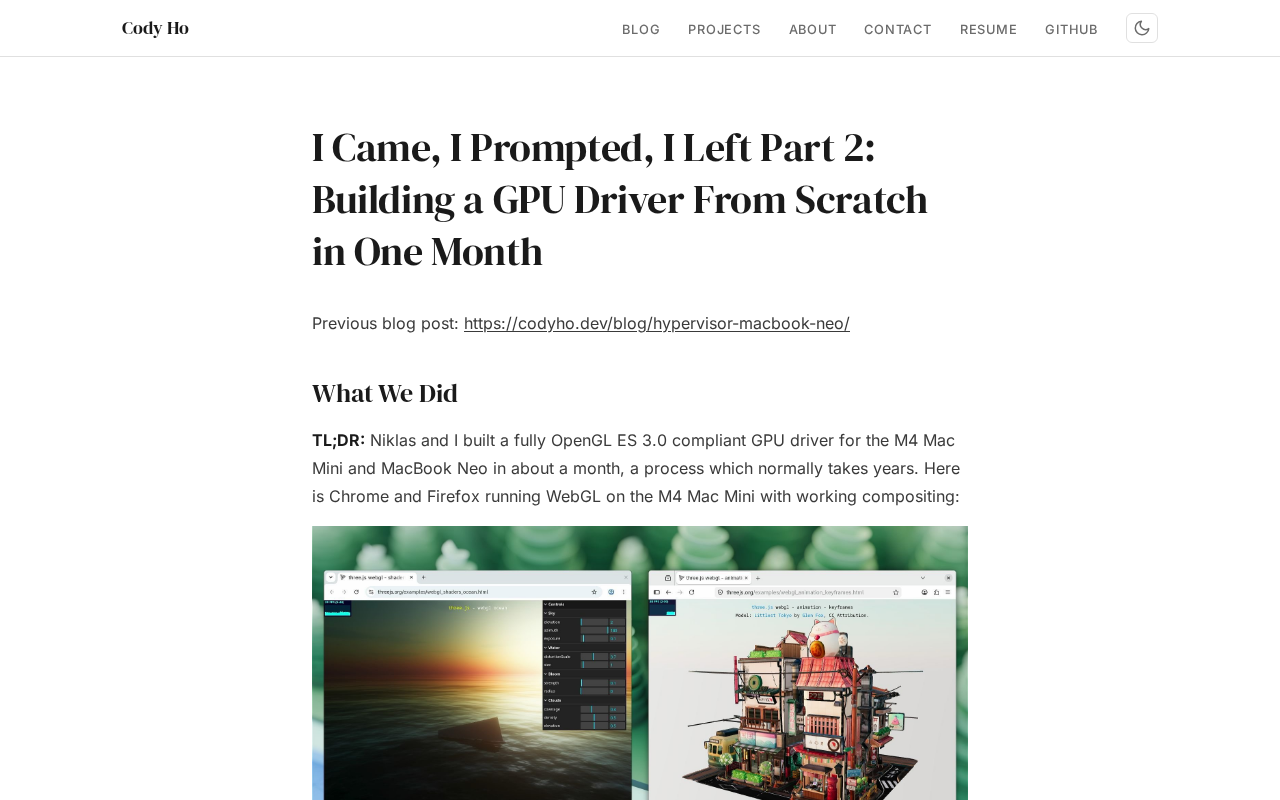
The Technical Challenges of Developing a Linux GPU Driver for the M4 Mac Mini in One Month
Developer Cody Ho built a Linux GPU driver for the M4 Mac Mini in one month. We break down the core challenges of reverse engineering Apple Silicon's closed GPU architecture.
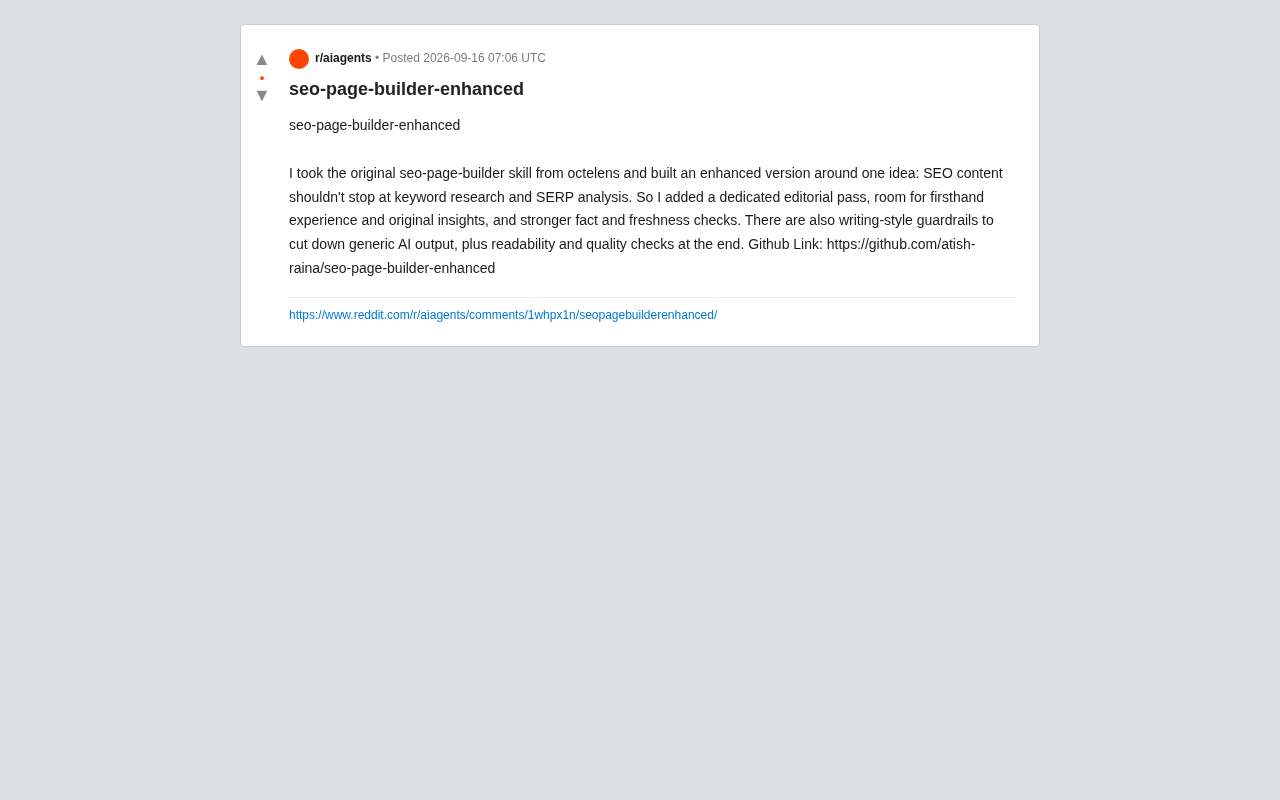
SEO Page Builder Enhanced: Breaking Free from Generic AI-Generated SEO Content
An open-source enhanced SEO content tool that adds editorial review, firsthand experience, fact-checking, and writing-style guardrails to combat generic AI content.
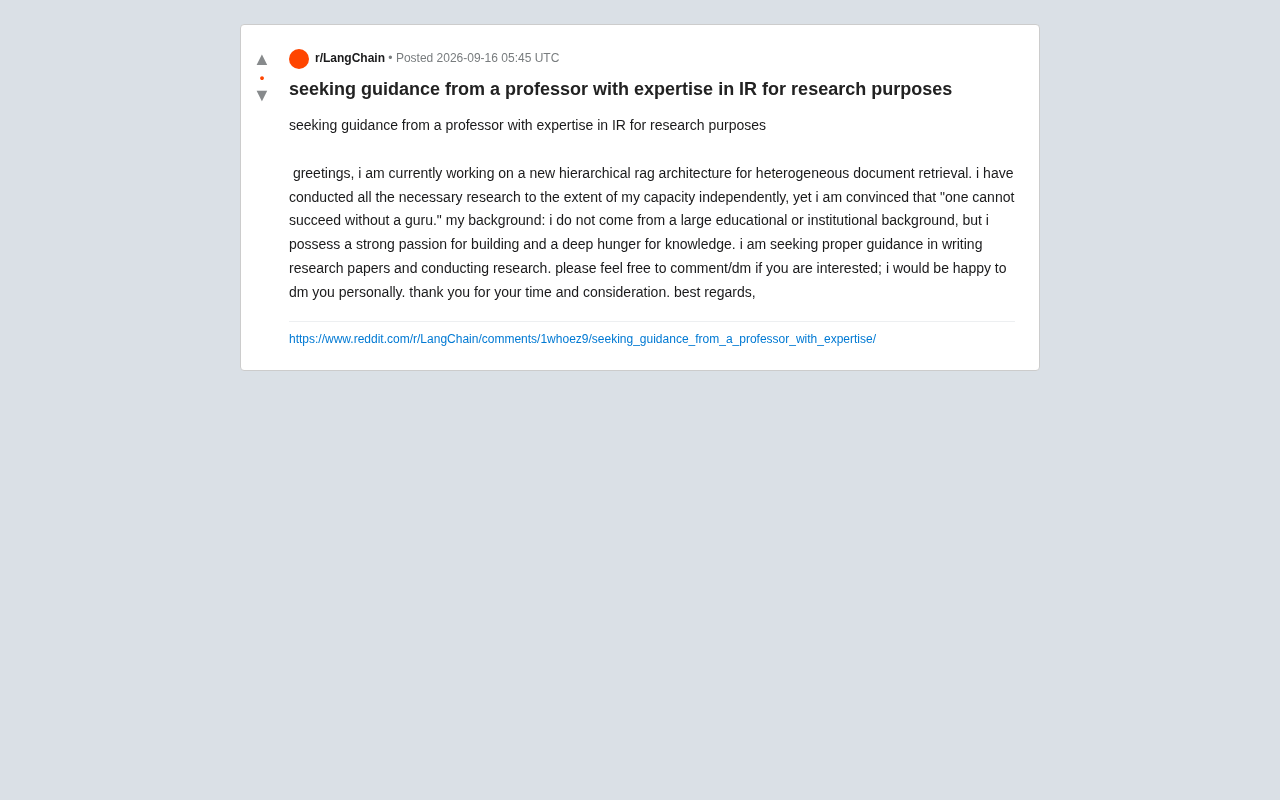
Hierarchical RAG Architecture Research: How Independent Developers Can Break Into Academic Research
An indie developer on Reddit seeks IR professor guidance for hierarchical RAG research. This article explores the technical background and practical advice for independent AI researchers facing academic barriers.