One Command Does It All: Connect Relia to Cursor, VS Code, and Other Mainstream AI Coding Tools

Relia connects five AI coding tools in one command and centrally manages connections and project initialization.
The article introduces Relia's unified connection solution for multiple AI coding tools. Developers often use Cursor, VS Code, Windsurf, Codex, and Gemini CLI simultaneously, and configuring the same service one by one is time-consuming and error-prone. Relia uses one command to scan installed tools and automatically writes itself into each tool's configuration file (mcp.json, mcp.config.json, config.toml, settings.json), skipping uninstalled tools, not writing tokens, preserving existing settings, and backing up each file only once. After restart, each tool triggers a one-time OAuth login in a different way, and users can authorize all or some projects in the browser. After connection, projects can be initialized via natural language commands, and all connections are centrally managed on the profile page and can be disconnected individually.
Why We Need a Unified AI Tool Connection Solution
As AI coding assistants flourish, developers often switch between Cursor, VS Code, Windsurf, Codex, and Gemini CLI at the same time. Each tool has its own independent configuration system, and manually connecting them to the same service (such as Relia) means repeatedly filling in addresses and managing configuration files in different formats—time-consuming and error-prone. According to the official YouTube tutorial demonstration, Relia offers a batch connection method of "one command, one login" that automatically detects AI tools installed on the local machine and completes the configuration.
The value of this approach lies in standardizing the configuration work for MCP (Model Context Protocol) servers. The demonstration emphasizes that the entire process does not require Node.js, and there is an equivalent command on the Python tab, lowering the environment barrier.
MCP (Model Context Protocol) is an open protocol proposed by Anthropic at the end of 2024, aimed at providing a unified connection standard between AI assistants and external data sources and tools. Before this, each AI coding tool needed to implement its own integration logic when connecting to the same service, and service providers also had to maintain separate adaptation code for each tool, forming an N×M fragmented landscape. MCP breaks this relationship down into a "client—server" model: AI tools act as clients, the service provider offers an MCP server, and any MCP-compatible client can discover and invoke its capabilities in the same way. In this article, Relia is essentially an MCP server, while tools like Cursor and VS Code are MCP clients. What the unified connection command does is write the "server address" into each client's configuration file. Understanding this makes it clear why configuration can be automated—although the configuration file formats differ across tools, the required information is highly consistent.
How One Command Covers Five Tools
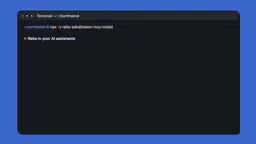
The workflow is quite straightforward: open the Relia profile page, find the "Use Relia in AI assistants" entry, copy the command, and paste it into the terminal to execute. The script scans the local machine and adds Relia to every AI tool it can find—Cursor, VS Code, Windsurf, Codex, and Gemini CLI—while automatically skipping tools that are not installed.
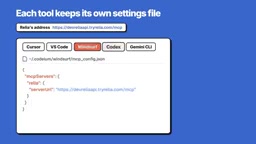
The key is that each tool keeps its own configuration file, and Relia's address is written to the corresponding location: Cursor writes to mcp.json, VS Code writes to mcp.json in the user directory, Windsurf uses mcp.config.json, Codex uses config.toml, and Gemini CLI uses settings.json. The demonstration specifically points out that no token is written into the configuration, the user's existing other settings remain unchanged, and each file is backed up only once.
Differences in Login Methods Across Tools
After restarting the tools, each piece of software requires a one-time login, but the trigger method differs. In Cursor, click "Needs Login"; in VS Code, open the MCP user configuration and start it; Windsurf automatically pops up the browser; Codex executes the codexmcploginrelia command; and Gemini CLI enters the slash command mcpauthrelia. The browser then opens, the user logs in to Relia and confirms which tool is initiating the request, and can choose to authorize all projects or only some projects. Clicking Allow completes the process, with no need to copy a token at any point.
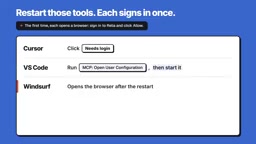
This differentiated design shows that Relia has been adapted to each tool's MCP implementation rather than forcing a single generic script onto all of them. For developers who use multiple tools at once, eliminating the hassle of consulting documentation one by one is a tangible productivity gain.
The OAuth authorization flow is the key to understanding the differences in the login steps. The MCP specification recommends that remote servers use OAuth 2.0 for authorization: the client initiates an authorization request to the server on first connection, the server returns an authorization page, the user completes identity verification in the browser and grants permissions, and the client then obtains an access token and refreshes it automatically. In this article, whether it is Cursor's "Needs Login" button, Windsurf automatically opening the browser, or the command-line triggers in Codex and Gemini CLI, all of them are essentially starting this OAuth flow—the only difference is each client's design for "when to initiate" and "where the interaction entry point is." Because the token is securely stored locally by the client and automatically attached to subsequent requests, there is no need to write a token into the configuration file. This avoids the risk of plaintext credential leakage and also explains why the article emphasizes that it still works normally while "no token is written."
Project-Level Initialization and Connection Management
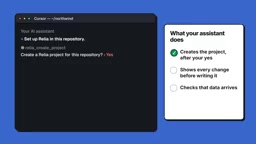
After completing tool connection, open the project folder in that tool and enter "set up Relia in this repository" to trigger project initialization. The demonstration mentions that Relia will create the project after user confirmation, display every change before writing, and verify that data can arrive properly.
All connected tools are listed under "Connected Tools" in the profile, and users can disconnect any one of them at any time. This centralized connection view makes permission management clear and controllable in multi-tool environments.
Project-level context initialization and tool-level connection are two different levels of concepts. Tool-level configuration addresses "whether the AI assistant can connect to Relia," while project-level initialization addresses "whether Relia understands the current repository." The latter is usually implemented by writing a configuration file in the project root directory or registering a project identifier on the server side, so that the AI assistant can obtain codebase-related context when invoking Relia in that project. The practice of "displaying every change before writing" in the article corresponds to the dry-run mode commonly seen in automation tools—first presenting the operations to be performed, then writing to disk after user confirmation, consistent with the idea of git showing a diff before pushing. For team collaboration scenarios, this mechanism reduces the risk of scripts mistakenly modifying project configuration and also makes changes auditable.
Significance for Developer Workflows
Judging from the demonstration flow, Relia turns AI tool connection from "configuring each tool one by one" into "batch deployment + centralized management." For teams accustomed to switching between multiple editors, this means members do not have to repeatedly stumble over configuration pitfalls when adding new members or changing tools. However, the demonstration only covers the connection step; the official team says Relia's actual capabilities in specific projects will be shown in the next video.
It is worth noting that details such as not writing tokens during configuration, preserving existing settings, and making a single backup reflect respect for existing development environments and reduce the risk of "configuration pollution" that automation scripts often bring.
One-line Summary
Relia uses one command to batch-connect five AI coding tools and centrally manage connections and project initialization.
Paragraph Summary
The article introduces Relia's solution for providing unified access to multiple AI coding tools. Developers often use Cursor, VS Code, Windsurf, Codex, and Gemini CLI at the same time, and configuring the same service one by one is both time-consuming and error-prone. Relia uses one command to scan tools installed on the local machine and automatically writes itself into each tool's corresponding configuration file (mcp.json, mcp.config.json, config.toml, settings.json), automatically skipping tools that are not installed, without writing tokens, while preserving existing settings and backing up each file only once. After restarting, each tool triggers a one-time OAuth login in a different way, and users can authorize all or some projects in the browser. After connection is complete, projects can be initialized through natural language commands, and all connections are centrally managed on the profile page and can be disconnected individually.
Related articles

Tencent Open-Sources 770B-Parameter Hy4 Model; Chinese Open-Source Models Account for 41% of Global Downloads
Tencent releases 770B-parameter open-source model Hy4 with vision understanding and computer operation capabilities; Hugging Face report shows Chinese open-source models account for 41% of global downloads; Chengdu multi-agent conference unveils 100 new products as multi-agent systems accelerate into industrial scenarios.

AI Bubble to Peak in 2028? Semiconductor Selloff and Credit Market Alarms
Nasdaq plunges 5.52% as semiconductors lead losses. Barclays warns of chipmaker credit risk, CoreWeave default odds top 60%, and Big Five free cash flow turns negative.

ChatGPT Free Trial Scam? Users Complain It Hasn't Been Honored for a Year
A Reddit user complains that ChatGPT's free trial hasn't been honored for a year—after entering bank card details, only paid subscription works. This article analyzes possible technical and business causes, compares industry norms, and offers user advice.