The Complete Codex Tutorial: From Installation to Real-World Practice — Build an All-Purpose AI Assistant from Zero

Codex has evolved from a coding assistant into an all-purpose AI agent; this article provides a complete zero-experience guide to installation, configuration, and office workflows.
Based on a Bilibili creator's tutorial, this article systematically covers OpenAI Codex from installation to core feature practice. It uses the "consultant vs construction crew" analogy to explain how Codex as an AI Agent differs fundamentally from ChatGPT's Q&A mode, then introduces four usage modes and recommends the desktop client for beginners. Topics include account preparation and relay API options, projects and conversations, three permission modes, model selection (GPT-5.5 etc.), the plugin and skill extension system, and practical workflows for Word/Excel/PPT generation, browser operation, and computer control. It also covers advanced techniques like worktree parallelism, AGENTS.md rules, built-in terminal and dual-AI collaboration, concludes with a complete website build-and-deploy case study, and summarizes six usage principles and common troubleshooting solutions.
Codex is an AI agent tool released by OpenAI. It has evolved from a simple coding assistant into a versatile AI that can write code, create PPTs, process Excel files, write reports, and even operate a browser. Unlike Q&A bots like ChatGPT, Codex's core strength is "doing" — it can directly operate files on your computer, run programs, search the web for information, and even complete deployments. Based on an in-depth tutorial from a Bilibili creator, this article walks you through a complete guide from installation and configuration to core feature practice, designed for beginners with zero experience.
What exactly is Codex? How is it fundamentally different from ChatGPT?
The creator used a vivid analogy: when renovating a kitchen, ChatGPT is like a consultant who looks at a photo and tells you to move the stove 20 cm to the left and switch the upper cabinets to creamy white — all very convincing, but you still have to do the work yourself. Codex, on the other hand, is more like a construction crew. You say "renovate the kitchen," and it measures dimensions, draws blueprints, moves the stove, paints the walls, and takes photos for you to inspect when it's done. More importantly, it can have multiple "workers" working simultaneously on different tasks — one painting the kitchen, one installing the bathroom, one fixing the living room light — all running in the background without interfering with each other.
In practical terms, ChatGPT can only tell you "how it should be done," while Codex can directly open folders on your computer, create files, run programs, search for information, operate a browser, and even commit code to a repository and deploy it online. This is the fundamental difference between an "Agent" and a "Q&A bot."
According to the Bilibili creator, Codex has four usage modes: CLI command line, IDE plugin, desktop client, and web version. All four versions have identical performance and largely overlapping features, but considering ease of use, feature completeness, and beginner-friendliness, the desktop client is the top choice. This article also focuses on the desktop client.
AI Agent is the key concept for understanding Codex's positioning. Traditional chatbots (like ChatGPT) follow a single-turn "input question — output text" pattern, while an Agent has goal-oriented autonomous action capability: it can break down a user's high-level goal into subtasks, invoke tools (file system, command line, browser, API, etc.) to execute operations, and dynamically adjust subsequent steps based on execution results, forming a "perceive—plan—act—observe" loop. Codex is a typical Agent architecture, with core components including a task planner, tool invocation layer, memory (context and AGENTS.md), and permission control mechanisms. This architecture transforms AI from an "advisor" into an "executor," but it also introduces new challenges around permission management and operational risk — which is exactly the rationale behind the permission mode design discussed later.
Pre-Installation Preparation: Account and Network Options
Using Codex requires a ChatGPT account. The creator recommends a Plus or Pro membership. While free accounts can also use it, the quota is very limited and gets restricted after just a few uses. Plus users can send 30 to 150 messages every 5 hours, which is enough for a normal day of use; heavy users or enterprise scenarios may consider Pro, which has a much higher quota.
A significant advantage of Codex over similar tools (like Claude Code) is its more generous quota, frequent quota resets, and fewer account restrictions. In the video, the creator also mentioned a method to use GPT-5.6 in China at low cost without special network conditions or an account, by using AG Switch software to manage a relay station API and connect to Codex with one click. The specific process: download and install AG Switch, register with the relay station to get a 5-yuan trial credit, create a key in the token management section and paste it into AG Switch, then restart Codex to connect. Testing showed normal connectivity, and the relay station backend allows you to view usage records and spending amounts.
Main Interface and Core Concepts: Projects, Conversations, and Permission Modes
After logging in, you enter the Codex main interface. At the top of the left sidebar are four function buttons: New Conversation, Search Conversation History, Plugin & Skill Management, and Automated Scheduled Tasks. The two lists in the middle are the most critical — "Projects" and "Conversations."
Conversations are suitable for miscellaneous work, such as gathering information, writing copy, translating, or answering questions; Projects correspond to a folder on your computer, and all files generated in conversations within a project (code, PPT, Excel) are saved in that folder for easy management. The creator emphasizes: whenever file generation is involved, work in a project; if you're just chatting, use a conversation. A project can have multiple conversations, each handling one task.
The input box area has several key controls. The plus button in the lower-left corner uploads files; the adjacent "Plan Mode" when enabled means Codex only discusses the plan without touching files, and starts work after confirmation. Permission modes come in three levels: Default permission is the safest — Codex can only modify within the current project folder, and anything involving networking, terminal commands, or accessing content outside the folder requires your approval; Auto-review mode has Codex first assess operation risk, automatically approving safe operations and only prompting for risky ones; Full access permission gives complete autonomy — highest efficiency but with risks such as accidentally deleting files. The creator recommends beginners use Default permission for the first week, try Auto-review in the second week, and only consider Full access once familiar and after the project has Git backups.
The lower-right corner of the input box lets you switch AI models and thinking intensity. For models, GPT-5.5 is the current strongest model and recommended as the default first choice, performing best in complex code writing, refactoring, and debugging; GPT-5.4 covers the vast majority of programming scenarios; GPT-5.4-mini is smaller and faster, suitable for simple tasks; GPT-5.3-Codex is a veteran model specifically optimized for programming and remains strong on certain complex engineering tasks. Thinking intensity has four levels — low, medium, high, and ultra-high — with medium being the recommended default, balancing speed and quality.
Plugins and Skills: Codex's Capability Extension System
Plugins and skills are two concepts that many people easily confuse. The creator explains: Skills are a set of pre-written execution steps — for example, the process for generating an image: determine the scene description, choose a style, call the image generation model, output the image — packaging this process into a markdown file makes it a skill, essentially an instruction manual. Codex's most commonly used built-in skill is image, which lets the AI generate images directly.
Plugins are one level above skills — a plugin often contains multiple skills plus the ability to connect to external applications. For example, the computer use plugin can take over your computer and includes multiple skills such as operating apps, screen recording, and keyboard operations. Installing one plugin gives the AI all the capabilities to operate that external application. In terms of triggering, normally Codex decides autonomously whether to invoke a plugin or skill; to manually specify a plugin, type "@" in the input box to bring up the plugin list and select; to manually invoke a skill, type "$".

MCP (Model Context Protocol) is important background for understanding the plugin ecosystem. Proposed by Anthropic and gradually becoming an industry standard, MCP defines a standardized interface that allows AI models to securely and规范ly connect to external tools and data sources (such as databases, browsers, and office software). You can think of MCP as the "USB interface of the AI world": plugin developers package capabilities according to the MCP specification, and Codex can invoke them plug-and-play. Codex's plugin system (such as Documents, Spreadsheets, Browser Use, Vercel) is mostly based on or compatible with the MCP protocol, which gives plugins good interoperability and makes it easy for third-party developers to extend. Understanding MCP helps you judge the capability boundaries of a plugin and find more community-developed MCP services beyond the plugin marketplace to enhance Codex.
Practical Workflows: Using Codex for Daily Office Tasks
With the plugin ecosystem, Codex can handle a large amount of daily work. To generate a Word document, install the Documents plugin. Example instruction: "Help me write an analysis report on AI industry trends, use Add Document to save it as a Word document, with a table of contents, a table comparing major models, and a conclusion." Codex will automatically search the web for information, organize the analysis, and generate a properly formatted document. After previewing, you can continue asking the AI to make changes in the input box.
To generate an Excel spreadsheet, use the Spreadsheets plugin. You can have Codex create a stock comparison table including stock names, today's price change, market cap, and a one-sentence summary, with different colors marking gains and losses. To generate a PPT, use the Presentation plugin — simply include "Add Presentation" in the instruction and Codex will directly produce a PPT. The creator also demonstrated requesting Word, Excel, PPT, and a cover image all in a single message, with all four files saved in the current project folder.
If you need to produce the same report every day, you can use the automation feature. Simply tell Codex in natural language within a conversation to set up a daily scheduled task, and it will automatically create a scheduled automation. Click the automation button in the upper-left corner to view all tasks; entering the details page shows the detailed description, status, next run time, runtime environment, and project folder, and you can also manually run immediately, modify parameters, or pause/delete. The creator reminds: the first time you use the automation feature, be sure to test the instruction in a regular conversation first and confirm the results meet expectations before turning it into a scheduled task — this avoids vague instructions causing repeated useless results and wasting quota.
Annotations, Diff Review, and Git Integration
After Codex generates a webpage, Word document, PPT, or Excel file, you can click the filename to preview it directly in the app. The creator considers the annotation feature in the upper-right corner the most practical: when enabled, select the part you're not satisfied with, enter your thoughts and add them, and the annotations appear in the dialog box — click send and Codex makes precise modifications.

After modifications are complete, click the review button in the upper-right corner to bring up the diff panel, where old and new code are compared side by side, with green for additions and red for deletions. Click the plus sign to the left of a line of code to write a comment for Codex to make precise changes; if unsatisfied, click undo to restore. If the project is managed with Git, you can commit directly within Codex or push to a GitHub remote repository — all via graphical buttons, so you can operate without knowing Git.
Worktrees and Parallel Tasks: Avoiding File Conflicts
In local mode, two conversations modifying the same file simultaneously will inevitably conflict. Worktree mode solves this: Codex creates a parallel copy of the project in the background, working in an independent folder without touching the original project files at all. The creator compares it to photocopying a contract for two lawyers to revise separately, then comparing and merging afterward. When using worktrees, select worktree mode for a new conversation, creating based on the main branch; after Codex finishes, the diff panel clearly shows the changes, and you can choose to merge to local, create a new branch, or simply discard.
For parallel tasks: queuing means that while Codex is executing task A, new messages you send are queued after A and executed in order; jumping the queue means clicking the guidance button next to a message to inject new requirements immediately into the currently executing task; multi-task parallelism requires opening new conversations — different conversations don't share context, but all can see all files in the current project folder.
Git worktree is not a Codex invention but a native Git feature: it allows the same repository to check out multiple working directories simultaneously, each corresponding to a different branch, sharing the same version history. Codex's worktree mode is essentially a wrapper around this mechanism — creating an independent working directory and branch for each parallel conversation, where the AI can freely modify without interference, and merging through the diff panel when done. Compared to simple file copying, the advantage of Git worktrees is that they preserve complete version tracking and merge capabilities, with conflicts precisely identified. This also explains why the creator recommends enabling Git backups for projects: the merge and discard operations in worktree mode rely on Git's underlying support, and without version control, the value of this mode is greatly diminished.
Operating the Browser and Computer: Codex's Standout Capabilities
After installing the Browser Use plugin, Codex can open a browser, visit websites, click buttons, fill out forms, take screenshots and record the screen, and scrape page information. The creator demonstrated having Codex find free templates in Canva, modify the title, and screenshot a report — the only manual step was logging into the account.
For operating the computer, Codex currently only supports Mac systems; Windows is not yet available. In the demo, Codex successfully opened the Chrome browser, searched for keywords on Xiaohongshu, downloaded the latest image-text notes, and saved them to a newly created folder on the desktop — all operated autonomously by the AI, with the downloaded notes being watermark-free and high quality.
AGENTS.md: Writing an Onboarding Manual for Codex
Create an agents.md file in the project root directory. Codex will automatically read it every time it starts, treating the rules written inside as its work guidelines. The creator explains that this solves the problem of new conversations not having memory from other windows — write the rules once and Codex will never forget them, just like writing an onboarding manual for a new colleague. The method is to create agents.md in the outermost layer of the project folder, open it with a text editor, and write the rules clearly in plain language. The creator recommends keeping the file under 150 lines — too long will consume the AI's memory capacity and actually hinder its understanding of specific requirements.

Built-in Terminal and Dual-AI Collaboration
Press Cmd+J (Mac) or Ctrl+J (Windows) to open the terminal window at the bottom, or click the terminal icon in the upper-right corner. This terminal has two special features: the working directory automatically follows the current conversation — if the conversation is in a worktree, the terminal also automatically switches to the worktree directory; and Codex can read terminal output, such as development server logs, to automatically determine whether it's running and whether there are errors.
The creator also shared a trick: if you have Claude Code installed as well, you can directly enter the command in Codex's built-in terminal to launch Claude Code, using two AIs simultaneously — use Codex for tasks it excels at like operating the browser and generating images, and use Claude Code to optimize the visual design of frontend pages.
Complete Practice: Building a Personal Website from Scratch and Deploying It Online
The creator completed a full workflow with Codex: create a new project named "Personal Brand Website," enter the requirements in the conversation, and Codex automatically writes the code and runs a local development server, providing a local URL for preview. If unsatisfied, you can directly request changes in the conversation, taking effect in real time. Once satisfied with the adjustments, install the Vercel plugin and @Vercel in the conversation to have it deploy the website online — soon you get a public URL that anyone in the world can access.
Vercel is a cloud deployment platform for frontend and full-stack applications, known for "zero-configuration deployment." It integrates deeply with the Git ecosystem: pushing code to a linked repository automatically triggers a build and release, and generates a separate preview URL for each commit. Codex calls its API through the Vercel plugin, deploying local projects with one click and returning a public domain, eliminating traditional ops steps like buying a server, configuring Nginx, and applying for an SSL certificate. For personal websites, static sites, and lightweight full-stack applications, Vercel's free tier is usually sufficient. Understanding this helps you judge applicable scenarios: Vercel is better suited for frontend and Serverless architectures; if you need backend services with long-running processes or heavy database loads, you should consider other hosting solutions.
Six Usage Principles and Common Questions
The creator summarized six principles: use projects whenever files are involved; one task per conversation — the purer the conversation, the better the AI performs; for complex tasks, have Codex produce a plan first before acting; clearly define "what counts as done" — with completion criteria, Codex will verify itself; commit frequently — click the graphical button to commit after each small step; have Codex review its own code — open a new conversation to check security and performance, which often catches issues missed the first time.
For common questions: don't panic when quota runs out — ChatGPT quota refreshes on a rolling 5-hour basis; if code gets broken, worktree mode lets you simply discard the copy, and in local mode you can undo everything in the diff panel or roll back with Git; with full access permission, Codex may perform operations you didn't want — beginners must stick with default permission; when Codex changes a bunch of unrelated code, explicitly write in AGENTS.md "Do not make extra optimizations without my request; only do the tasks I specify," and clearly state in specific tasks to only modify certain files.
Codex has evolved from a pure programming tool into an all-purpose assistant for getting all kinds of work done with AI. The creator recommends everyone — whether a programmer or not — learn to use it as early as possible and combine it with their own work for efficiency: operations staff can set up automated tasks to search for information and produce Word, Excel, and PPT files on a daily schedule; designers can quickly produce interactive prototypes to validate ideas; content creators can have it search, organize, and analyze viral topics. You don't need to know HTML, CSS, or JavaScript — just clearly describe your requirements in plain language. Of course, how much power Codex can unleash ultimately depends on you: the better you understand your project and the more clearly you can describe your requirements, the higher quality the results it can deliver.
Related articles

AI Teams Up with Mathematicians to Attack the Riemann Hypothesis: 17 Million Lines of Code Tear Open a 167-Year Gap
In November 2026, Anthropic mathematicians and Claude claimed to have discovered a proof of the Riemann Hypothesis, publishing 17 million lines of Lean formalized code that passed machine verification. This article analyzes the event's impact on mathematics and cryptography, and the deeper questions raised by the separation of discovery and understanding.
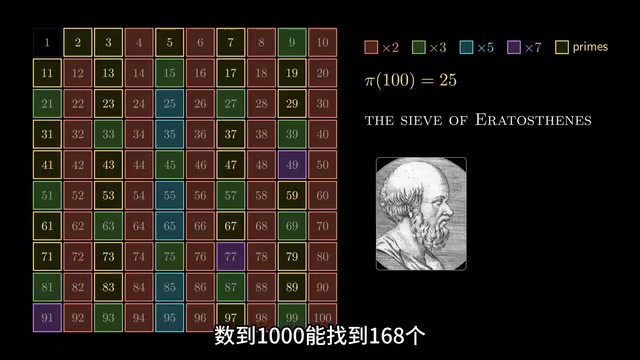
AI Claims Formal Proof of the Riemann Hypothesis — But Machine Verification Isn't a Mathematical Proof
In Nov 2026, Anthropic's Levent Alpöğe released a Riemann Hypothesis proof of 175,000 code files that passed machine formal verification. But machine verification isn't a mathematical proof: the kernel can't confirm the proposition is the Riemann Hypothesis humans understand, and there's no human-readable paper. This article breaks down how ζ function zeros determine prime-count deviation, and the core of the controversy.
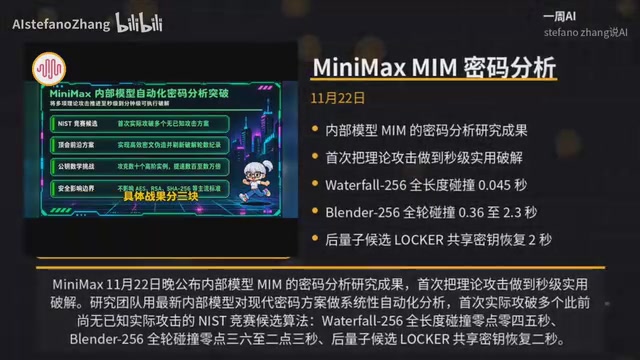
Anthropic Raises Over $80 Billion in IPO, DeepSeek Secures $100 Billion in Funding: AI Weekly Roundup
This week in AI: Anthropic's Nasdaq IPO raises $93.5B in the largest ever, DeepSeek closes ~100B yuan round, AI claims formal Riemann proof, MiniMax breaks crypto candidates in seconds.